Case Study: Automating an OpenCart Demo Store Step by Step
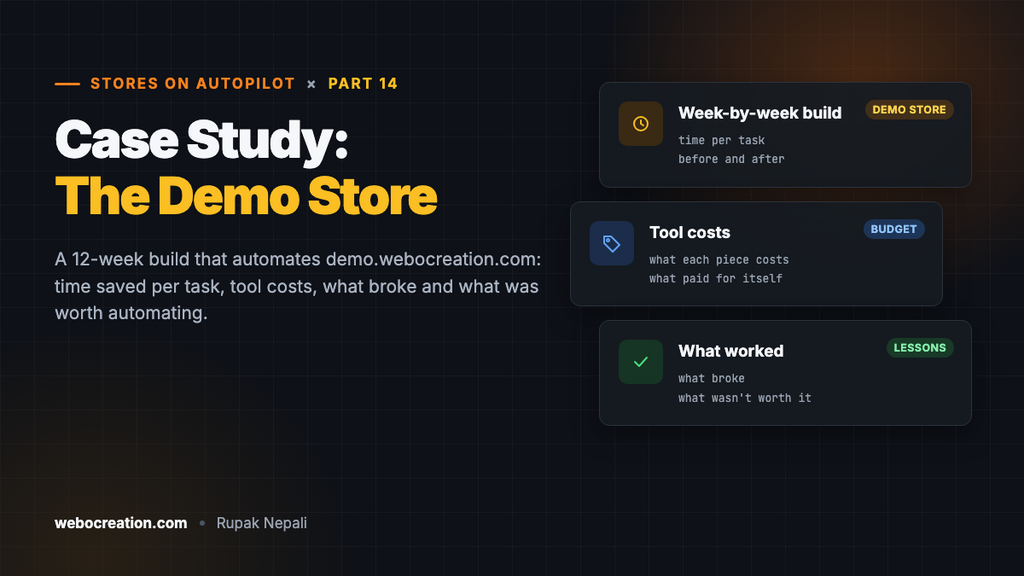
A 12-week build that automates demo.webocreation.com: time saved per task, tool costs, what broke and what was worth automating.
 Rupak NepaliPublished Nov 22, 2026
Theory is easy. This article puts every article of the series to work on a real store: demo.webocreation.com, a demonstration store that always runs the latest OpenCart version. Because it is public, you can visit it and see each automation running.
The demo store is a teaching store, not a business with years of sales history. So this case study focuses on what can be measured honestly: the setup steps, the time each task took before and after automation, the tool costs, and what was worth automating. Where numbers depend on real customer traffic, the article shows how to measure them in your own store rather than inventing results.
Starting point
The demo store began as a standard OpenCart installation with sample products and a default theme. At the start:
- Products had sample descriptions, inconsistent attributes and no weights on some items.
- Guest checkout was on, but there was no newsletter opt-in strategy.
- No webhooks, cron tasks or connector tools were set up.
- No email flows, review requests or support automation existed.
- Analytics were not connected.
In other words, it looked like many real stores in their first months.
Week-by-week build
The build followed the series’s articles in order, roughly one or two articles a week, so a store owner with a few hours a week could follow the same pace.
| Week | Chapters | What was built |
|---|---|---|
| 1 | 1-2 | One-week task log, automation map, stack decisions, automation register |
| 2 | 3 | Staging copy, catalog clean-up, order-status webhook, backups, uptime monitor, GA4, Search Console, Merchant Center |
| 3 | 4 | Supplier-style CSV import with mapping, AI drafting and review queue, WebP image pipeline, product feed |
| 4 | 5 | Order statuses and notifications, payment sandbox, shipping rules, tracking emails, stuck-order alert |
| 5 | 6 | Reorder points, daily low-stock email, back-in-stock signups, returns workflow |
| 6 | 7 | SEO templates, product schema, FAQ blocks, monthly SEO report |
| 7 | 8 | Signup popup, welcome series and cart abandonment flow, deliverability records |
| 8 | 8-9 | Browse abandonment, post-purchase, review request and win-back flows; low-rating alert |
| 9 | 10 | Feed custom labels, ad rules and daily spend summary (in test accounts) |
| 10 | 11 | Help center, order tracking page, AI assistant with handoff |
| 11 | 12 | Weekly reporting agent and price-check agent, both read-only |
| 12 | 13 | Dashboard, full alert set, recurring weekly review |
Time per task: before and after
The table below shows the time each recurring task takes when done by hand in a small store, compared with the time left after automation (mostly review and approvals). The manual times are typical estimates for a store handling around 20 orders a day; your own task log from our guide What "Autopilot" Really Means gives your real numbers.
| Task | Manual (per week) | After automation (per week) | What remains human |
|---|---|---|---|
| Adding and updating products | 4-6 hours | 30-45 minutes | Approving AI drafts |
| Order processing and tracking emails | 5-8 hours | 15 minutes | Exceptions only |
| Stock checks and reorders | 1-2 hours | 10 minutes | Approving reorders |
| Customer emails | 5-10 hours | 1 hour | Complex cases, sample review |
| Follow-up and marketing emails | 2-3 hours | 30 minutes | Weekly campaign |
| Review requests and replies | 1 hour | 10 minutes | Replying to low ratings |
| SEO upkeep | 1-2 hours | 15 minutes | Reading the monthly report |
| Ad monitoring | 2-3 hours | 10 minutes | Responding to alerts |
| Reporting | 1-2 hours | 0 (arrives by email) | Reading it |
| Total | 22-37 hours | About 3-4 hours |
The weekly owner routine (see The 30-Minute Weekly Owner Routine) covers about 30 minutes of this. The rest is spread through the week in short approvals and the occasional exception. The goal of “about 30 minutes a week of review” is reachable once the system is stable and the AI drafts are trusted; in the first months, expect more.
Tool costs
The demo store uses the low end of the budget tiers from our guide The Autopilot Stack, to show that the system works without a large budget.
| Layer | Choice | Approximate monthly cost |
|---|---|---|
| Hosting and platform | Existing hosting + OpenCart | Already paid |
| CDN and firewall | Cloudflare Free | $0 |
| Connector | n8n self-hosted on the same or a small server | $0-10 |
| Email and SMS | Free tier of an ecommerce email tool | $0 at demo volume |
| Reviews | OpenCart reviews + email flow | $0 |
| Support | Chat tool free tier with AI trial | $0-30 |
| AI | Pay-per-use API for drafting and agents | $5-20 |
| Analytics and dashboard | GA4, Search Console, Looker Studio | $0 |
| Total | About $5-60 |
A real store with thousands of contacts and higher order volume will move up to the $50 or $300 tier. The structure stays the same.
What broke, what worked, what was not worth it
What broke:
- Event route format after an update. An order event stopped firing because the trigger format differed between OpenCart 4 releases. Lesson: re-test events after every update (our guide Building an Automation-Ready Store guardrail).
- AI descriptions inventing details. Early drafts added features that were not in the supplier data. Lesson: the “use only these facts” instruction and the human review queue are not optional (see Catalog on Autopilot).
- Duplicate emails. A test customer received two cart reminders because both the store extension and the email tool were sending one. Lesson: one tool per job (see The Autopilot Stack).
What worked best:
- The order-status webhook. One small event unlocked shipping emails, review requests, post-purchase flows and reporting.
- Cart abandonment and welcome flows. The highest-value automations in the email benchmarks, and among the quickest to build.
- The order tracking page. It removes the most common support question before it is asked.
- The weekly dashboard email. It turned “I should check the numbers” into a five-minute habit.
What was not worth automating (yet):
- Social posting of every new product. Low engagement for the effort; a weekly curated post worked better.
- Fully automatic price changes. Recommendations with one-click approval gave almost all the benefit with none of the risk.
- Complex loyalty tiers. For a small store, simple reward points and a referral code did the job.
How to measure results in your own store
Before you turn on each automation, record a four-week baseline of the number it should move. After four weeks running, compare:
| Automation | Number to compare |
|---|---|
| Checkout fixes | Conversion rate, checkout completion rate |
| Cart abandonment flow | Recovered orders and revenue per recipient |
| Welcome series | First-purchase rate of new subscribers |
| Review requests | Review rate per request; products with 5+ reviews |
| Order tracking page and AI assistant | Support contacts per 100 orders |
| SEO templates and schema | Organic clicks and impressions (allow 2-3 months) |
| Ad rules | Cost per acquisition and wasted spend |
| Overall | Owner hours per week from your task log |
Change one major thing at a time where you can, so you know what caused the change.
The final autopilot map
At the end of the build, every task from the original automation map had a home:
- Catalog engine: scheduled imports, AI drafts with approval, image pipeline, daily feeds.
- Order engine: automatic payment confirmation, fulfillment handoff, tracking, delivery completion, reorder drafts, returns rules.
- Traffic engine: SEO templates, schema, monthly content, ads with hard limits.
- Customer engine: six email flows, review requests, referrals, AI-first support with human handoff.
- Owner layer: one dashboard, a short list of alerts, and a 30-minute weekly review.
Visit demo.webocreation.com to see the customer-facing parts running, and the companion page on webocreation.com/ for the checklists, worksheets and tutorials that accompany each build.
Your next step
You do not need to build everything at once. Go back to your automation map, pick the top three tasks, and build them this month. Next month, pick three more. In a few months, you will have a store that sells, ships and follows up without you watching, and the time to work on the decisions only you can make.
That is a store on autopilot.
This article is part of the book Stores That Sell on Autopilot by Rupak Nepali.
Get every chapter, the printable checklists and the worksheets in one place. See the automations running live at demo.webocreation.com. Want it done for you? Ask about the Stores That Sell on Autopilot service.
← Previous: The 30-Minute Weekly Owner Routine | Next: The Complete Ecommerce Automation Checklist →
The Stores That Sell on Autopilot series
- Start here: Series overview
- Part 1: What "Autopilot" Really Means
- Part 2: The Autopilot Stack
- Part 3: Building an Automation-Ready Store
- Part 4: Catalog on Autopilot
- Part 5: Orders, Payments and Fulfillment
- Part 6: Inventory and Suppliers
- Part 7: Search Traffic That Compounds
- Part 8: Email and SMS Flows That Sell While You Sleep
- Part 9: Reviews, Social Proof and Referrals
- Part 10: Ads and Retargeting with Guardrails
- Part 11: Customer Service Without the Inbox
- Part 12: AI Agents and Agentic Commerce
- Part 13: The 30-Minute Weekly Owner Routine
- Part 14: Case Study: Automating the Demo Store (you are here)
- Resource: The Complete Ecommerce Automation Checklist
- Resource: Ecommerce Automation Tools Directory: Free and Paid Options
- Resource: Copy-Ready Email Templates for Ecommerce Flows
- Resource: OpenCart Automation Quick Reference: Menus, Events and Cron

Rupak Nepali is a web developer, manage Webocreation website and the author of six books:
Getting Started with OpenCart Module Development (Packt, 2013),
OpenCart Theme and Module Development (Packt, 2015),
OpenCart 4: Dev Guide for Themes & Extensions (2024),
OpenCart 4: User Manual (2025),
Cloudflare for the Enterprise Website (2026) and
The Technical Web Guide for Marketers (2026).
Rupak has built OpenCart stores and extensions since 2010, has published more than 600 tutorials on Webocreation, and shares free OpenCart extensions on GitHub.
Find Rupak on
GitHub | Amazon | LinkedIn | X | YouTube.