Sign in With Google for OpenCart 4: One-Click Customer Login and Registration With OpenID Connect (Free Extension)
A free OpenCart 4 extension that adds a Continue with Google button to the login, register and checkout pages, using OpenID Connect with PKCE, state and nonce, and keeps the shopper's cart despite OpenCart's SameSite=Strict session cookie.
 Rupak NepaliPublished Nov 21, 2026
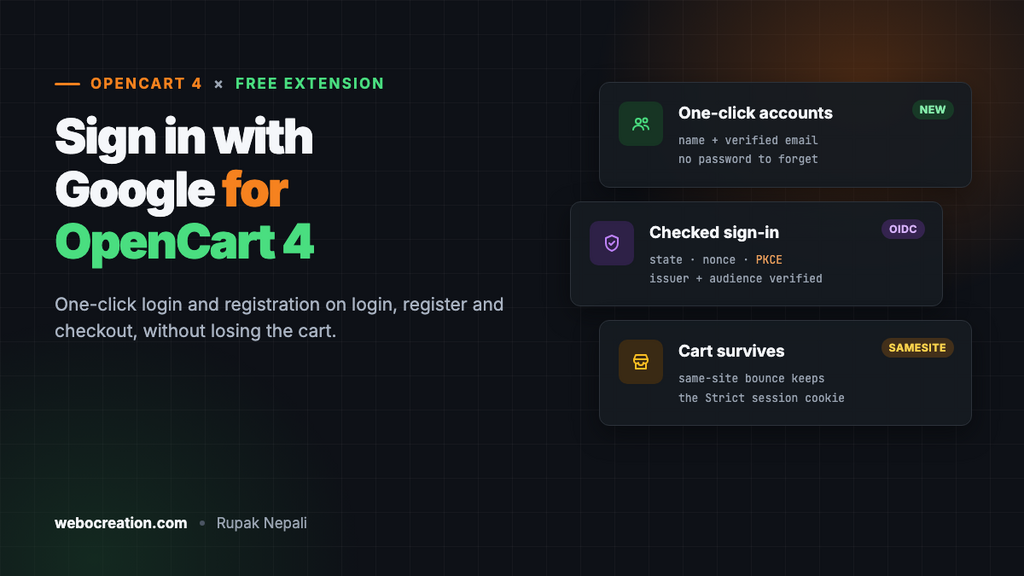
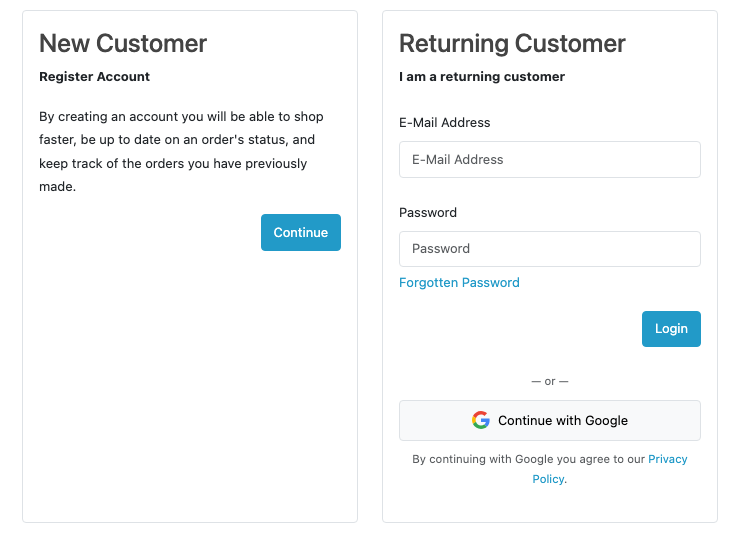
Every field on a registration form loses some shoppers, and a forgotten password loses more. A “Continue with Google” button turns both into one click: no form, no new password, and an email address Google has already verified.
This free extension adds that button to the OpenCart 4 login, register and checkout pages. It uses Google’s standard OpenID Connect sign-in from your server, with no Google JavaScript on your pages and no third-party login service in between. It also deals with an OpenCart 4 cookie setting that, with a naive implementation, empties the shopper’s cart when they come back from Google.
Download Sign in with Google for OpenCart 4 (free, tested on OpenCart 4.1.0.4)
What it does
- New shoppers get an account in one click. Their first name, last name and verified email come from Google. The account goes into your default customer group.
- Existing customers can use it too. If an account already has that email address, and Google says the address is verified, the extension links the Google account to it and signs them in. You can turn this off.
- The cart survives. A guest who fills a cart, then signs in with Google at checkout, comes back to checkout logged in with the same cart.
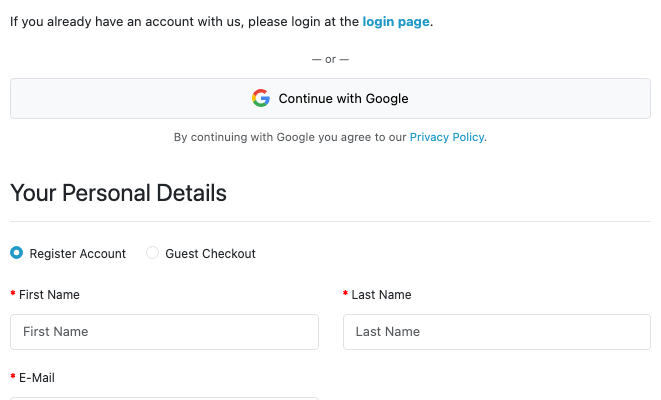
- Three places, each optional: the login page, the register page, and the account section of checkout.
- Linked by Google’s account ID, not the email. If a customer changes their Gmail address later, they still sign in to the same account.
- Standard, checked sign-in: the authorization code flow with PKCE, a state value and a nonce, all verified on the way back.
Step 1: Create a Google OAuth client
You need a free Google Cloud project. In the Google Auth Platform section of Google Cloud Console:
- Branding: enter your store name, a support email and your home page, privacy policy and terms links. This is what shoppers see on Google’s “Sign in to Your Store” screen.
- Audience: choose External. While the app is in Testing, only the Google accounts you add as test users can sign in. When you’re ready, click Publish app. The extension only asks for the basic
openid,emailandprofilescopes, which aren’t sensitive. - Clients → Create client: application type Web application. Under Authorized redirect URIs, add the URI shown on the extension’s settings page (Step 2), for example:
https://www.example.com/index.php?route=extension/sociallogin/module/sociallogin.callback - Click Create and copy the Client ID and Client secret. Google only shows the secret once, so keep it somewhere safe.
The redirect URI must match exactly: same https://, same www. or not, and the same path. If it doesn’t, Google shows Error 400: redirect_uri_mismatch. Google only accepts http:// for localhost, so a live store needs HTTPS. Changes to a client can take a few minutes, occasionally a few hours, to apply.
Step 2: Install and configure the extension
- Download
sociallogin.ocmod.zip. - Go to Extensions → Installer, upload it, and click the green +.
- Go to Extensions → Extensions → Modules and install Sign in with Google.
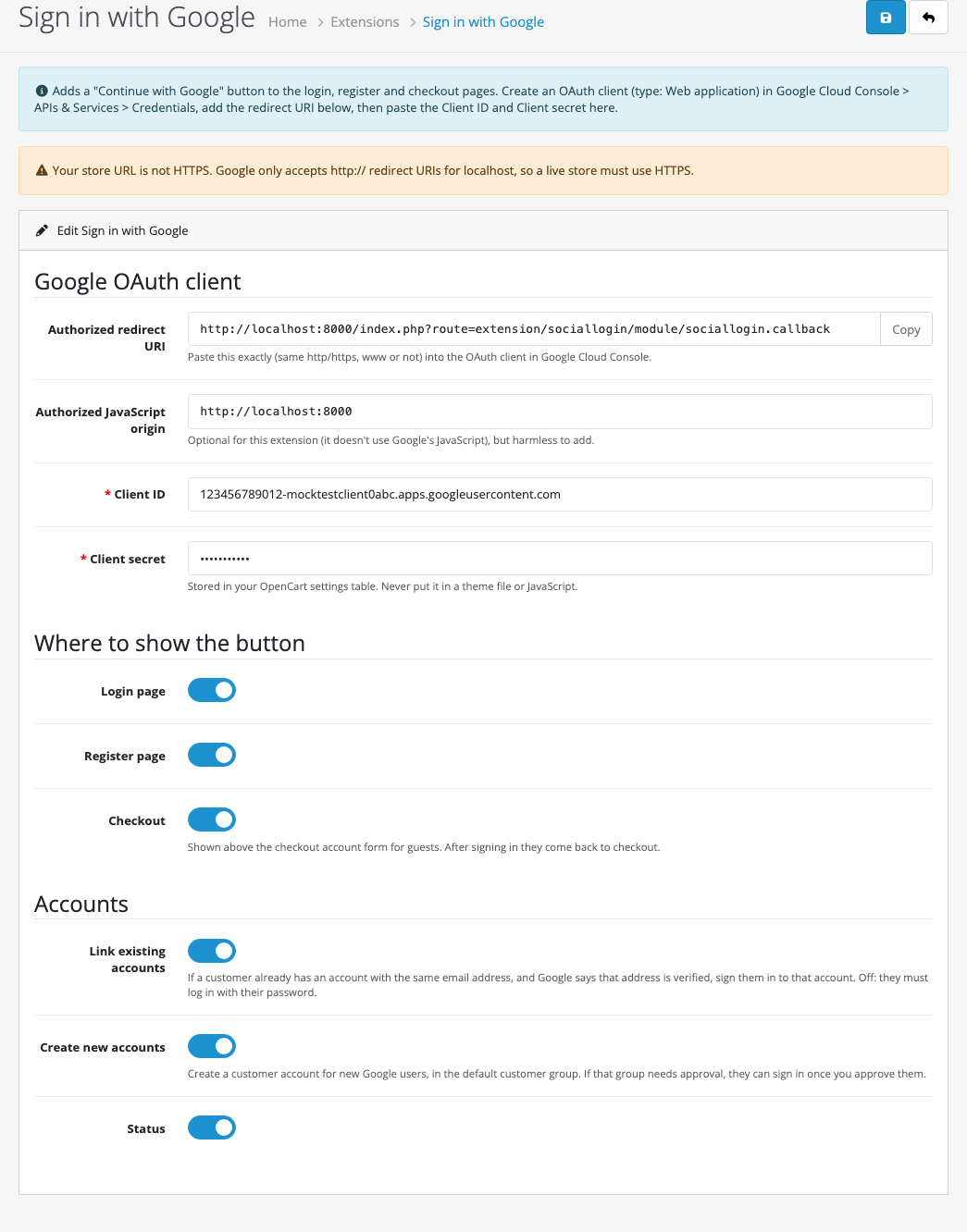
- Click Edit. Copy the Authorized redirect URI into Google (Step 1), paste the Client ID and Client secret, turn Status on and save.
| Setting | What it does |
|---|---|
| Login page, Register page, Checkout | Where the button appears. At checkout it’s shown to guests above the account form, and sends them back to checkout after signing in. |
| Link existing accounts | On (default): a Google user whose verified email matches an existing customer is signed in to that account. Off: they see “An account with this email already exists. Log in with your password”. |
| Create new accounts | On (default): new Google users get an account. Off: only existing customers can use the button, for example on a B2B store where you create accounts yourself. |
If your default customer group needs approval, new Google accounts wait for approval like any other registration, and the shopper sees “Your account is waiting for approval”.
The cookie problem, and how the extension handles it
OpenCart 4 sets its session cookie with SameSite=Strict (System → Settings → Server → Session Samesite Cookie). That’s good against cross-site request forgery, but it means the browser doesn’t send the cookie when the visitor arrives from another site, and coming back from Google counts as arriving from another site.
So when Google redirects the shopper back, OpenCart sees no session, starts a new empty one and sends a new session cookie, which replaces the shopper’s real one. The sign-in can’t be checked (the state value was in the old session), and the cart is gone. We tested exactly that by switching the fix off: the shopper landed back on the login page with an empty cart.
The extension’s callback answers Google’s redirect with a tiny page that removes the new cookie and immediately reopens the same URL from your own site:
if (!isset($this->request->get['bounce'])) {
    header_remove('Set-Cookie');

    // ...copy code, state and error into $url, add bounce=1...

    $this->response->setOutput('<meta http-equiv="refresh" content="0;url=' . $url . '">');

    return;
}
That second request is a same-site navigation, so the browser sends the real session cookie. The extension checks the state against it, completes the sign-in, and the shopper keeps their cart. It takes a fraction of a second and works whether your SameSite setting is Strict, Lax or None, so you don’t need to weaken the setting.
How the sign-in is checked
Clicking the button goes to sociallogin.start, which creates three random values, saves them in the session and redirects to Google:
- state: proves the response belongs to a sign-in this browser started. A response with a missing, wrong or used state, or one older than 10 minutes, is rejected. This stops login CSRF, where an attacker tricks you into signing in as them.
- nonce: Google copies it into the ID token. The extension checks it, so an old token can’t be replayed.
- PKCE code verifier: Google receives only its SHA-256 hash. When exchanging the code, the server sends the verifier itself, so a stolen authorization code is useless.
Back on your site, the server exchanges the code at Google’s token endpoint over TLS, authenticated with your client secret, and receives an ID token. It checks that the issuer is Google, the audience is your Client ID, the token hasn’t expired and the nonce matches:
if (!in_array($claims['iss'] ?? '', ['https://accounts.google.com', 'accounts.google.com'], true)
    || !in_array($client_id, (array)($claims['aud'] ?? []), true)
    || (int)($claims['exp'] ?? 0) < time() - 60
    || !hash_equals($saved['nonce'], (string)($claims['nonce'] ?? ''))
    || empty($claims['sub'])) {
    // rejected
}
The extension doesn’t check the token’s signature against Google’s public keys, and doesn’t need to: the token came directly from Google’s token endpoint over a verified TLS connection, which OpenID Connect Core (section 3.1.3.7) accepts in place of a signature check for this flow. Tokens that arrive any other way are never accepted.
Then it finds the customer:
- A row in
oc_customer_socialfor this Google account ID (thesubclaim) → that customer. - Otherwise, only if Google says
email_verifiedis true: an existing customer with the same email (if linking is on), or a new account (if creating is on). The link is saved for next time. - The customer is logged in the same way OpenCart’s own login does it: guest data, saved shipping and payment methods are cleared, the wishlist is merged, the login is logged and a new customer token is issued.
New accounts get a long random password nobody knows. If a customer later wants to log in with a password, Forgotten Password works as usual.
Testing
We can’t publish real Google credentials, so we tested the flow on OpenCart 4.1.0.4 against a local stand-in for Google’s two endpoints. It enforced the same rules: it checked the PKCE verifier, the client secret and the redirect URI, and returned ID tokens with Google’s issuer and the nonce. The stand-in ran on a different site (127.0.0.1 versus localhost), so the SameSite behaviour was the same as with Google. Before publishing your own store’s button, do one real sign-in with your Google account.
| Test | Result |
|---|---|
| Guest with an iPhone in the cart signs in with a new Google account | Account created (first and last name from Google), logged in to My Account, cart still has the iPhone |
| Same Google account again | Signed straight in through the saved link |
| Google account with the email of an existing customer | Linked to that customer and signed in |
| Google account with an unverified email | Refused: “Your Google account didn’t share a verified email address” |
| Shopper clicks Cancel on Google’s screen | Back on the login page with “Google sign-in was cancelled” |
| Tampered state value | Refused, nothing logged in |
| Guest signs in from checkout | Back on checkout, logged in, the Google button and registration form gone |
| Callback without the same-site bounce (fix switched off) | Sign-in failed and the cart was empty, which is why the bounce exists |
| Saving settings with Status on and no credentials | “Enter the Client ID from Google Cloud Console” and “Enter the Client secret!” |
Privacy and security notes
- What you get from Google: the account ID, email address, whether it’s verified, and the name. The extension doesn’t store Google’s access token, and asks for nothing else (no contacts, no Drive).
- Your privacy policy should mention that customers can sign in with Google and what you receive. Google’s Branding page asks for its link.
- The client secret is stored in your OpenCart settings table, like payment gateway keys. It’s never sent to the browser.
- Linking by email trusts Google’s
email_verifiedflag. Google sets it for Gmail addresses and for other addresses the user has proved they own. If that’s not enough for your store, turn off Link existing accounts. - Pair it with Cloudflare Turnstile on the register and login forms, since Google sign-in doesn’t stop bots that use the normal forms.
What about Apple, Facebook or Microsoft?
This version is Google only. Sign in with Apple needs a paid Apple Developer account ($99 a year), returns the customer’s name only on the very first sign-in, and often gives you a private relay address instead of the real email, which then needs relay setup for your order emails. Facebook and Microsoft each need their own developer app too. Google covers most shoppers with the least setup. The extension stores links in a provider-neutral table, so another provider can be added later without changing customer accounts.
Troubleshooting
| Problem | Cause and fix |
|---|---|
Error 400: redirect_uri_mismatch on Google’s page | The redirect URI in Google doesn’t exactly match the one on the settings page. Check https, www and that you copied the whole line. |
Error 403: access_denied, “has not completed the Google verification process” | The app is still in Testing and this Google account isn’t a test user. Add it under Audience, or publish the app. |
| “We couldn’t complete the sign-in with Google” | The code exchange failed. System → Maintenance → Error Log has a line starting with “Sign in with Google” with Google’s reason, such as invalid_client (wrong secret) or invalid_grant. Check the server can reach oauth2.googleapis.com and its clock is right. |
| “Your Google sign-in expired or was opened in another browser” | The state check failed: more than 10 minutes passed, the sign-in was started in a different browser, or a page cache served a stale page. Exclude the login, register and checkout pages and the sociallogin routes from any full-page cache. |
| No button | Check Status, the page switches, and that the Client ID is saved. The checkout button only shows to guests. |
Related: OpenCart 4 users, permissions and 2FA for staff, customer groups in OpenCart 4 and abandoned cart recovery.

Rupak Nepali is a web developer, manage Webocreation website and the author of six books:
Getting Started with OpenCart Module Development (Packt, 2013),
OpenCart Theme and Module Development (Packt, 2015),
OpenCart 4: Dev Guide for Themes & Extensions (2024),
OpenCart 4: User Manual (2025),
Cloudflare for the Enterprise Website (2026) and
The Technical Web Guide for Marketers (2026).
Rupak has built OpenCart stores and extensions since 2010, has published more than 600 tutorials on Webocreation, and shares free OpenCart extensions on GitHub.
Find Rupak on
GitHub | Amazon | LinkedIn | X | YouTube.