OpenCart 4 Users, User Groups and Permissions: Give Staff Only the Access They Need (Plus 2FA)
How to give OpenCart 4.1 staff their own logins with only the permissions they need: user groups, the difference between access and modify, a tested Order Manager group, extension permissions, password rules, two-factor login and login history.
 Rupak NepaliPublished Nov 15, 2026
In many small stores, everyone logs in as “admin”: the owner, the person packing orders, the freelancer fixing the theme. It works until someone deletes a category by accident, a freelancer’s laptop is stolen, or you need to know who refunded an order. OpenCart 4 has a proper user and permission system to avoid all of that, and it takes about ten minutes to set up.
This guide creates a restricted “Order Manager” role on OpenCart 4.1.0.4, logs in as that user to confirm what they can and can’t do, and then covers password rules, two-factor login and login history.
Users, user groups and permissions
- A user is one person’s admin login. Create one per person; never share.
- Each user belongs to one user group.
- A user group has a list of permissions: admin pages (routes such as
sale/order), each with two switches, Access and Modify.
| Permission | Allows |
|---|---|
| Access | Opening the page and seeing its data. The menu item appears |
| Modify | Saving, adding and deleting on that page |
Access without modify is a read-only view: useful for an accountant who should see orders but not change them. Modify without access is meaningless, because the user can’t open the page.
OpenCart ships with groups such as Administrator, Order Processing, Customer Service and Product Data Entry. Check what each allows before using it; it’s often clearer to build your own.
Step 1: Create a user group
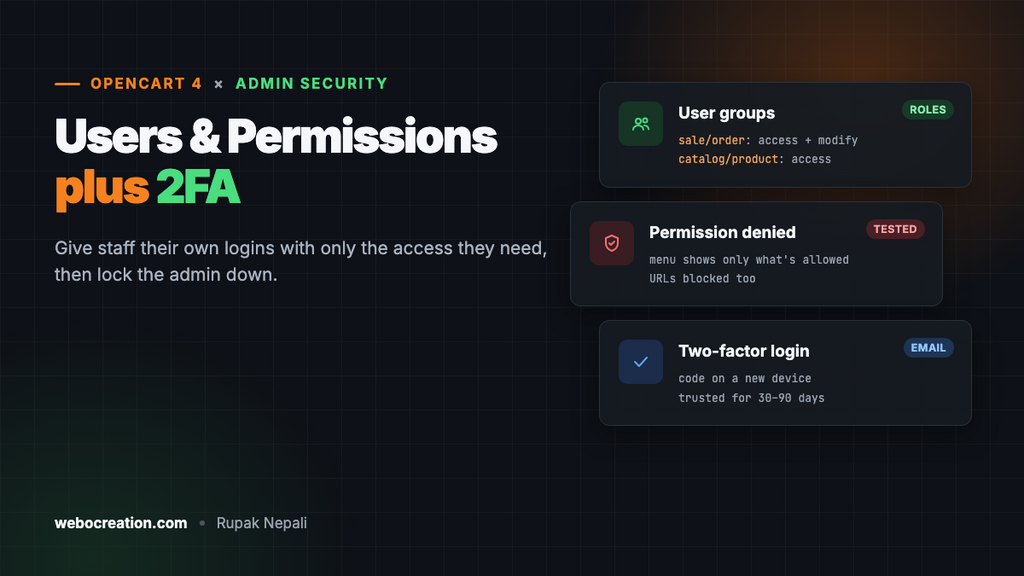
Go to System → Users → User Groups and click +. Name the group, then tick what it needs. For our Order Manager:
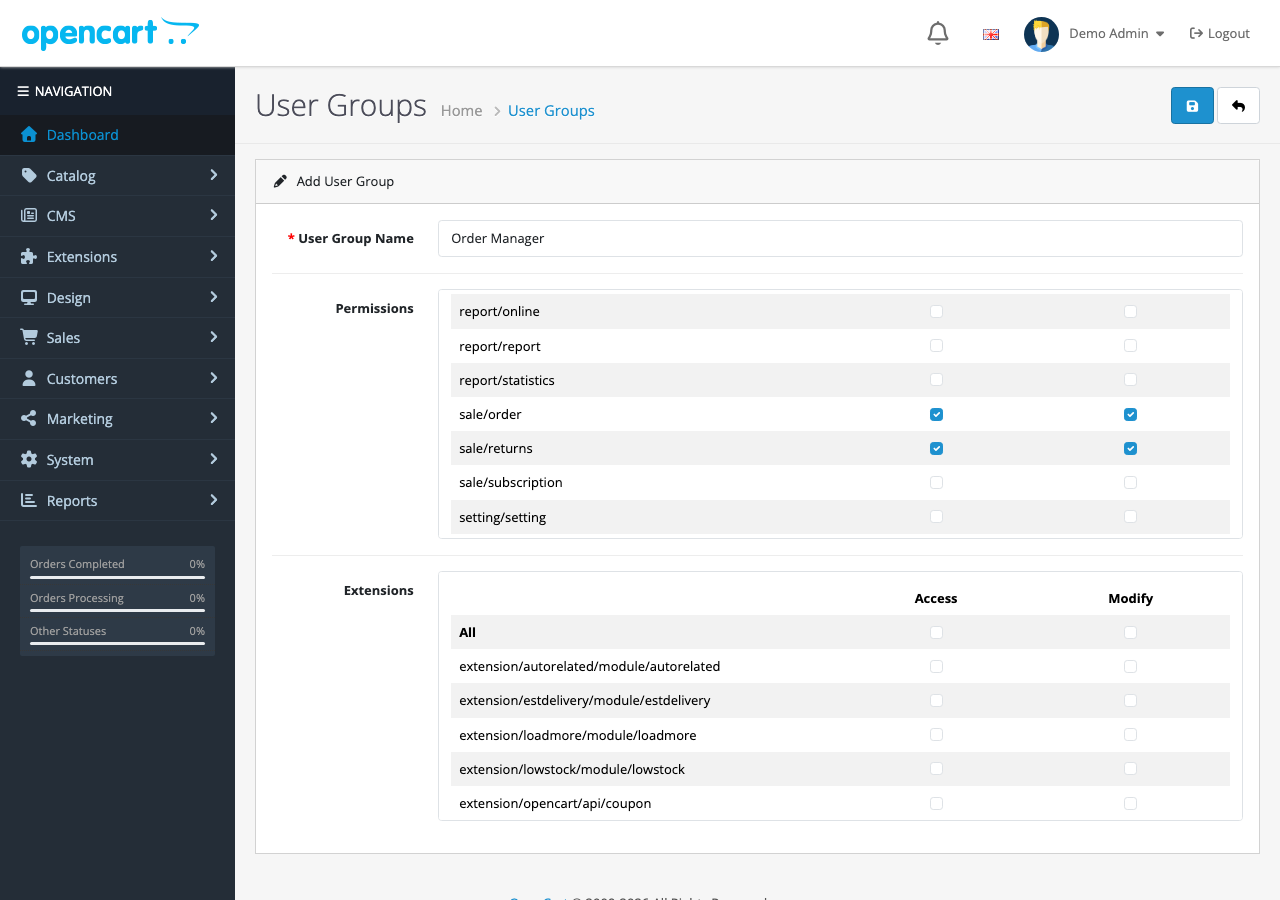
| Route | Access | Modify | Why |
|---|---|---|---|
sale/order | Yes | Yes | View and update orders, add history, print invoices |
sale/returns | Yes | Yes | Handle returns |
customer/customer | Yes | No | Look up a customer’s details, without editing them |
catalog/product | Yes | No | Check a product’s details and stock, without changing prices |
The list is long because every admin page is a route. Routes are named after the menu: catalog/... is the Catalog menu, sale/... Sales, customer/... Customers, setting/... and user/... System. Pages everyone needs, such as the dashboard, login and the error pages, aren’t listed; every user can reach them.
Extension permissions
Below the main list is Extensions: one row per installed extension’s admin page (for example extension/productqa/module/productqa). Users need access here to open an extension’s settings. When you install an extension yourself, OpenCart adds it to your group automatically; other groups get nothing until you tick it. That’s why staff often report “Permission Denied” on a new extension that works fine for you.
Step 2: Create the user
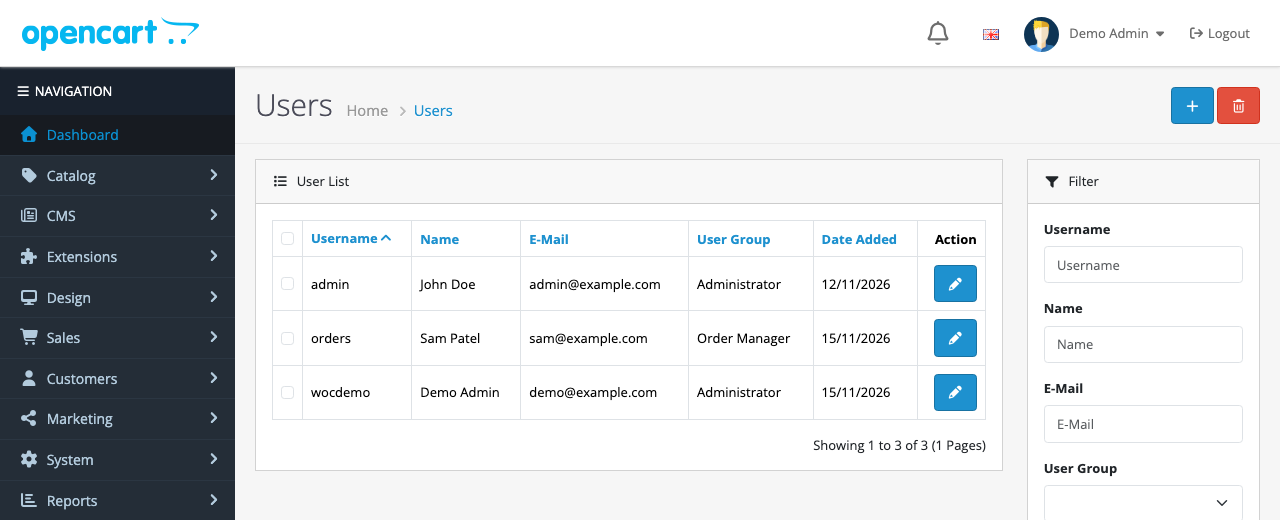
Go to System → Users → Users, click +, and fill in username, user group, name, email and password. The email matters: it’s where password resets and two-factor codes go.
Step 3: Test it as that user
Log out and log in as the new user. We did, as “Sam Patel” in the Order Manager group:
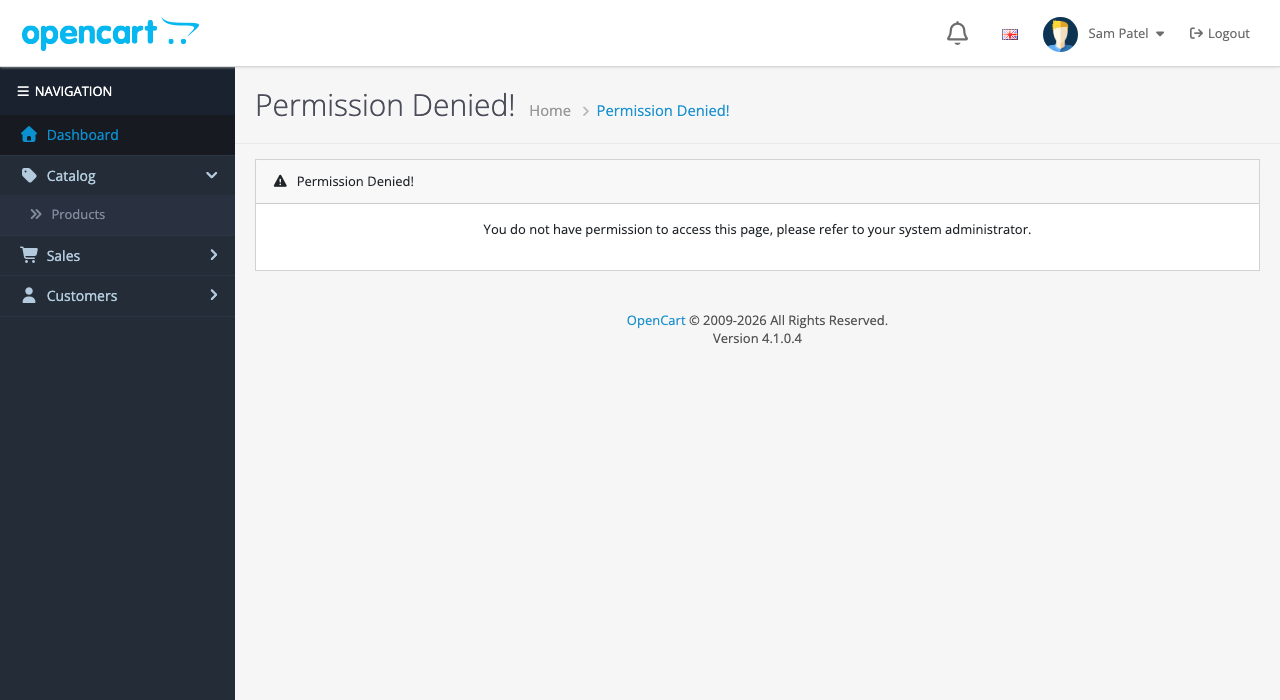
- The menu only shows pages the user can access, so most of the admin simply isn’t there.
- Typing the URL of a page they don’t have, such as
catalog/category, shows “Permission Denied!”. - Saving on a page with access but not modify (a product, here) fails with a “You do not have permission to modify…” warning.
Always test a new group this way before handing over the login. It takes two minutes and catches missing permissions before your staff do.
Suggested groups
| Role | Access and modify | Access only |
|---|---|---|
| Order manager | sale/order, sale/returns | customer/customer, catalog/product |
| Product editor | catalog/product, catalog/category, catalog/attribute, catalog/option, catalog/manufacturer, common/filemanager | |
| Customer service | customer/customer, sale/returns | sale/order |
| Marketing | marketing/coupon, marketing/marketing | report/report |
| Accountant | sale/order, report/report |
Keep these to the Administrator group only: setting/setting, user/user, user/user_permission, user/api, design/theme, marketplace/installer, marketplace/extension and tool/upgrade. Each can change the whole store: a user who can edit user groups can give themselves every permission, and the theme editor and installer can add code to every page.
Password rules for admin users
In System → Settings → Server, the Security section has the admin password rules alongside two-factor login:
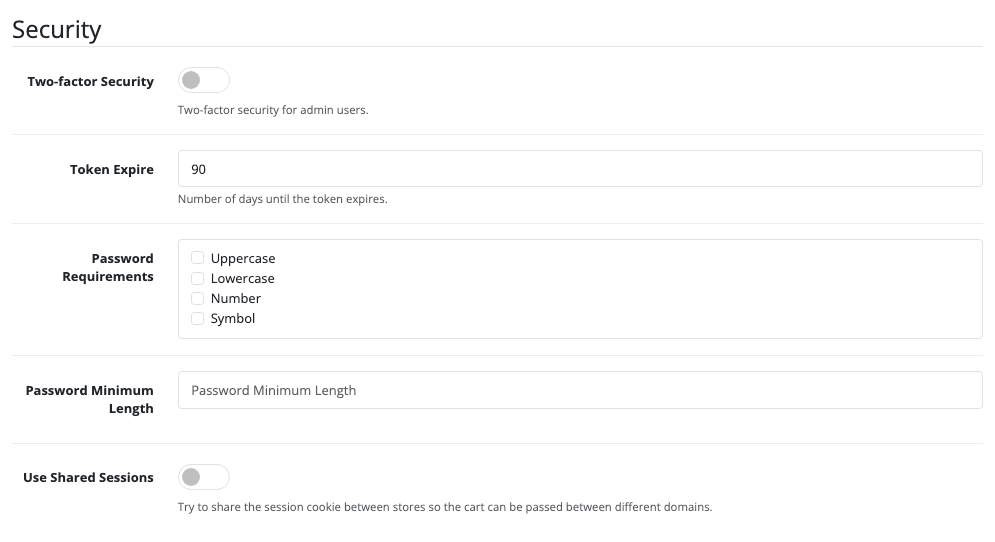
Set Password Minimum Length. On our store it was empty, and the user form’s check then accepts a password of any length. A long minimum (12 or more) does more than character rules; tick Uppercase, Number and the rest if your policy requires them. The rules apply when a password is set or changed, so ask existing users to change theirs.
Two-factor login
With Two-factor Security on, a user logging in from a device OpenCart doesn’t recognise is asked for a code sent to their email. After a correct code, that device is trusted for the number of days in Token Expire (90 by default; 30 is a reasonable choice). Three wrong codes lock the login and email an unlock link.
OpenCart refuses to turn it on until store email works (“Two-factor Security cannot be used if you do not have your email setup yet!”), so set up SMTP first and send yourself a test. Then make sure every user’s email address is real and theirs. Our OpenCart security guide covers 2FA alongside the rest of a store’s defences.
Login history and trusted devices
Edit a user to see two extra tabs:
- Login: every login with IP address, browser and time.
- Authorize: the devices trusted through two-factor login, with their expiry dates.
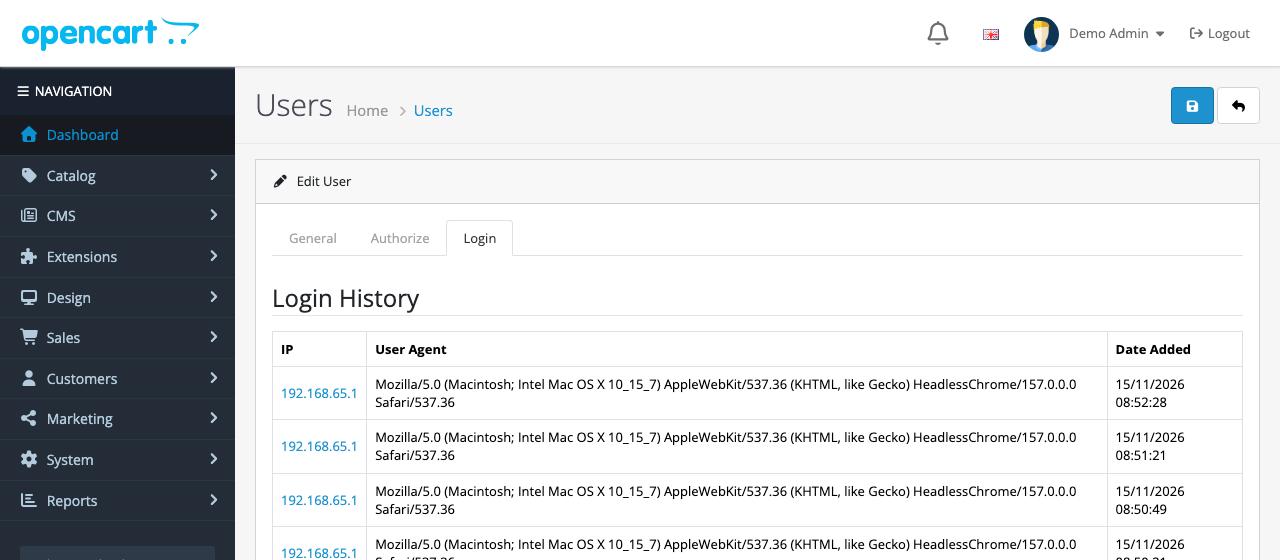
Check these when someone leaves, or if something changed that nobody admits to. When a staff member leaves, set their user to Disabled straight away (keeping the user preserves their history), and change any shared passwords they knew, such as hosting, FTP and email.
Troubleshooting
| Problem | Cause and fix |
|---|---|
| Staff see “Permission Denied” on a new extension | Extensions are only added to the installer’s group. Tick it under Extensions in their user group |
| A user can open a page but not save | Access without Modify. Tick Modify for that route |
| A menu item is missing for a user | No access to that route. The menu hides what a user can’t open |
| Can’t enable Two-factor Security | Store email isn’t configured. Set up mail first |
| Locked out after wrong 2FA codes | Use the unlock link emailed to the user. If email is broken, an administrator can remove the device under the user’s Authorize tab |
The older OpenCart users, permissions and API users article also covers API users for connecting outside apps.

Rupak Nepali is a web developer, manage Webocreation website and the author of six books:
Getting Started with OpenCart Module Development (Packt, 2013),
OpenCart Theme and Module Development (Packt, 2015),
OpenCart 4: Dev Guide for Themes & Extensions (2024),
OpenCart 4: User Manual (2025),
Cloudflare for the Enterprise Website (2026) and
The Technical Web Guide for Marketers (2026).
Rupak has built OpenCart stores and extensions since 2010, has published more than 600 tutorials on Webocreation, and shares free OpenCart extensions on GitHub.
Find Rupak on
GitHub | Amazon | LinkedIn | X | YouTube.