OpenCart 4 Theme Editor: Edit Templates From the Admin Safely (How Overrides Work, Per Store)
How OpenCart 4.1's theme editor really works: edits are saved as database overrides per store and template rather than changing files, a worked footer example, how to undo changes, and why upgrades and security make events or a child theme the better choice for bigger changes.
 Rupak NepaliPublished Nov 15, 2026
OpenCart 4 lets you edit storefront templates straight from the admin, in Design → Theme Editor. It’s the quickest way to add a line to the footer, change the order of things on the product page, or drop in a tracking snippet, with no FTP and no code editor.
It also behaves differently from what most people expect: it never changes the template files. This guide shows how the editor works in OpenCart 4.1.0.4, walks through a real edit, and explains when to reach for something else.
Edits are database overrides, not file changes
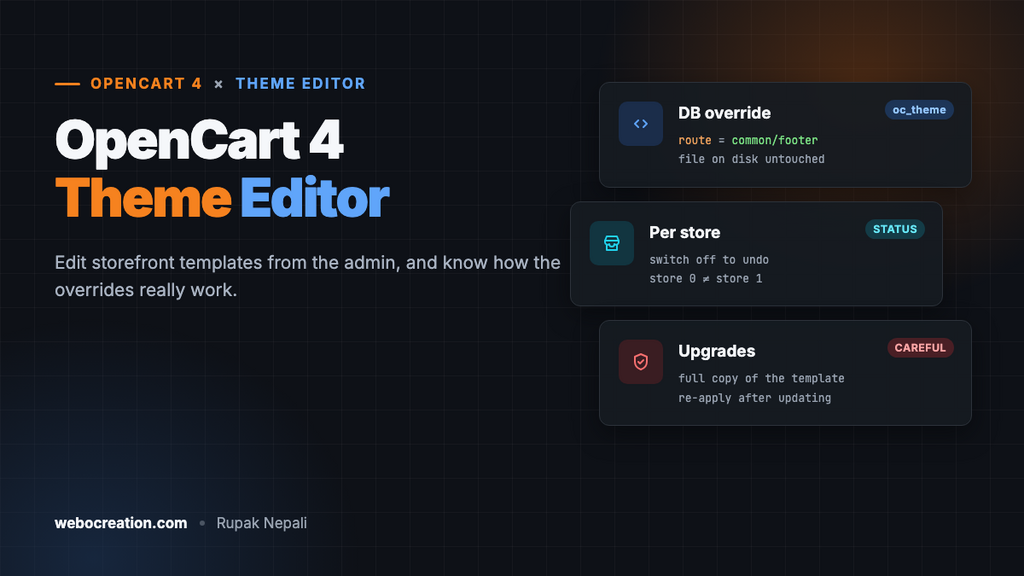
When you save in the theme editor, OpenCart stores your version of the template in the oc_theme table, with the store it applies to and its status:
SELECT theme_id, store_id, route, status FROM oc_theme;

-- theme_id | store_id | route         | status
--        1 |        0 | common/footer | 1
The template file on disk (catalog/view/template/common/footer.twig) is untouched. Instead, every time the storefront renders a template, a core event checks for an override and swaps in your code:
// catalog/controller/event/theme.php (OpenCart 4.1)
public function index(string &$route, array &$args, string &$code): void {
	// If there is a theme override, we should get it
	$this->load->model('design/theme');

	$theme_info = $this->model_design_theme->getTheme($route);

	if ($theme_info) {
		$code = html_entity_decode($theme_info['code'], ENT_QUOTES, 'UTF-8');
	}
}
The lookup only returns overrides for the current store with status on. That gives the editor three useful properties:
- Per store. On a multi-store install, each store can have its own version of the same template. In our test, the footer change on the default store didn’t appear on the second store.
- Easy to undo. Switch the override’s status off, or delete it, and the original file is used again.
- Whole-template replacement. The override is the complete template, not a patch. More on why that matters below.
Example: a delivery message in the footer
1. Choose the store and template
Go to Design → Theme Editor and click +. Choose the store, then the template from Choose Template. The list covers every storefront template, including extension templates (listed as extension/...). Choosing one loads the current file into the code editor.
Common templates to know:
| Template | What it renders |
|---|---|
common/header | Everything from <html> to the menu, including <head> |
common/footer | The footer and closing </body> |
product/product | The product page |
product/category | Category pages |
product/thumb | The product card used in categories, search and modules |
common/home | The home page’s module positions |
2. Edit the Twig code
We added one line above the footer’s divider:
<p class="text-center"><strong>Free UK delivery on orders over £50</strong></p>
<hr>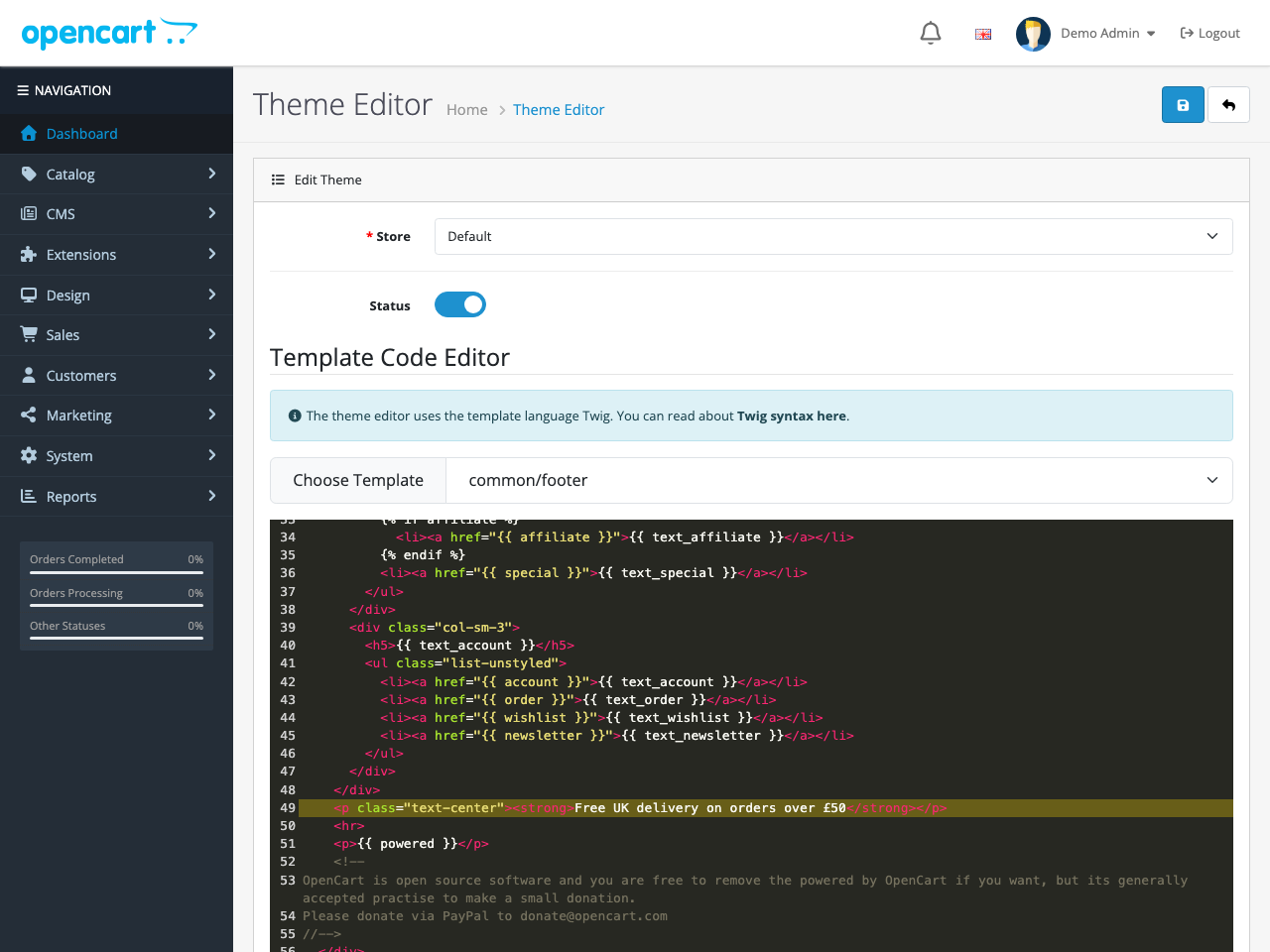
common/footer loaded. The new line is highlighted.Templates use Twig. Variables such as {{ text_account }} come from the template’s controller; you can move and reuse the ones that template already receives, but a variable the controller doesn’t pass will be empty.
3. Save and check
Make sure Status is on and click Save. The storefront uses the override on the next page load:
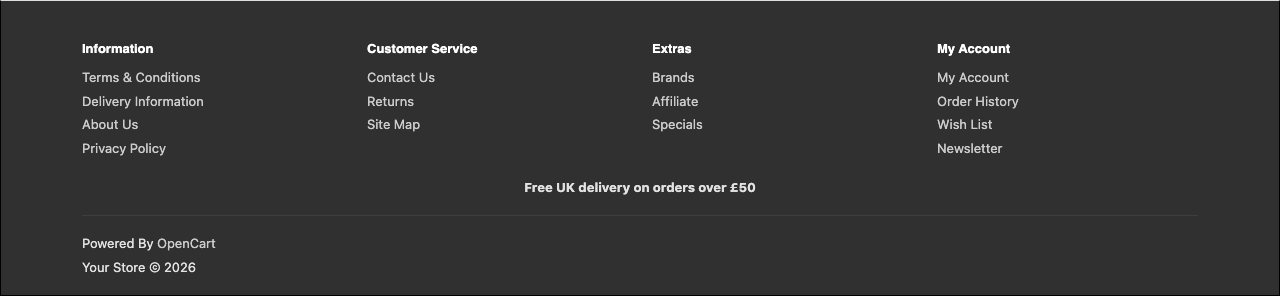
Your saved overrides are listed on the Theme Editor page with their store, template and status:
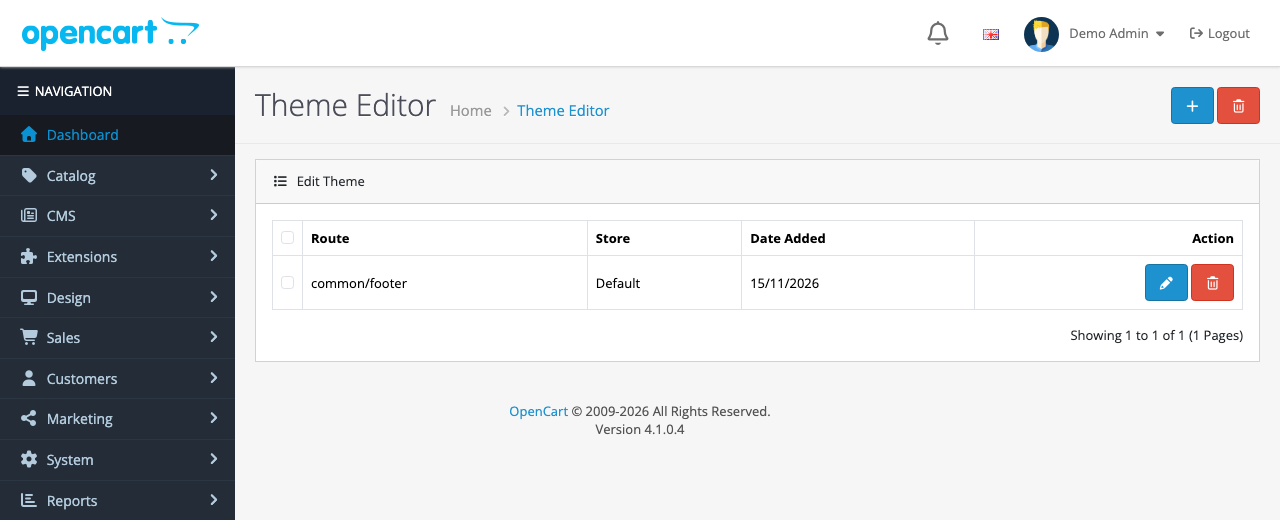
Things to know before relying on it
Upgrades don’t reach overridden templates
Because the override is a full copy of the template from the day you saved it, later fixes to that file in an OpenCart update never reach your store: the override keeps serving the old version. A small footer edit is harmless. An override of product/product could keep an old bug, or miss markup a new feature needs.
After each upgrade, open your overrides, compare them with the new files, and re-apply your change to a fresh copy. Keep overrides few and small, and note what you changed in each.
Re-opening the template reloads the file, not your version
In the editor, choosing a template from the list loads the file from disk. To change an existing override, open it from the list with the edit button instead; otherwise you start again from the original and lose your earlier edits when you save.
It’s a powerful permission
Twig templates can output anything, including scripts. Anyone who can save in the theme editor can add code to every page of the store, so treat design/theme as an administrator-only permission. Flaws involving the template editor have appeared in OpenCart security reports, which become dangerous once an admin login is stolen; see OpenCart security in 2026, and check overrides as part of any hack cleanup, since injected code here survives replacing every file.
Errors break the page
A Twig syntax error in an override breaks every page that uses the template. Make a small change, save, and check the storefront straight away. If a page breaks, switch the override’s status off in the admin to restore the file version.
When to use something else
| Change | Best tool |
|---|---|
| A line of text, a link, a small reorder | Theme editor |
| Adding a block to many templates, or something an extension should own | A view event that edits the output (OpenCart 4 events by examples) |
| Tracking scripts and pixels | An analytics extension or a header event, not a header override |
| A redesign | A custom theme extension (how to create an OpenCart 4 theme) |
| Product-page features (delivery dates, size guides) | Extensions that insert their own markup, such as our free estimated delivery date and size chart extensions |
Events change only the part they target, so OpenCart updates to the rest of the template still arrive. That’s why every free extension on this site uses them rather than template overrides.
Troubleshooting
| Problem | Cause and fix |
|---|---|
| The change doesn’t show | The override’s status is off, it’s for a different store, or a full-page cache is serving an old page |
| The page is blank or shows a Twig error | A syntax error in the override. Switch it off, fix it, and switch it on again |
| “Warning: Template file does not exist!” when saving | The template route doesn’t match a file. Choose it from the list rather than typing |
| My earlier edits disappeared | The template was chosen again from the list, which reloads the file. Edit overrides from the list’s edit button |
The OpenCart 3 version of the editor is covered in theme editor in OpenCart 3.0.2.0.

Rupak Nepali is a web developer, manage Webocreation website and the author of six books:
Getting Started with OpenCart Module Development (Packt, 2013),
OpenCart Theme and Module Development (Packt, 2015),
OpenCart 4: Dev Guide for Themes & Extensions (2024),
OpenCart 4: User Manual (2025),
Cloudflare for the Enterprise Website (2026) and
The Technical Web Guide for Marketers (2026).
Rupak has built OpenCart stores and extensions since 2010, has published more than 600 tutorials on Webocreation, and shares free OpenCart extensions on GitHub.
Find Rupak on
GitHub | Amazon | LinkedIn | X | YouTube.