How to Sell Downloadable Products in OpenCart 4: PDFs, Software and Digital Files Step by Step
How OpenCart 4.1 sells digital files: uploading a download, linking it to a product, the Complete order status that unlocks it, what customers see in their account, and the limits worth knowing before you launch.
 Rupak NepaliPublished Nov 15, 2026
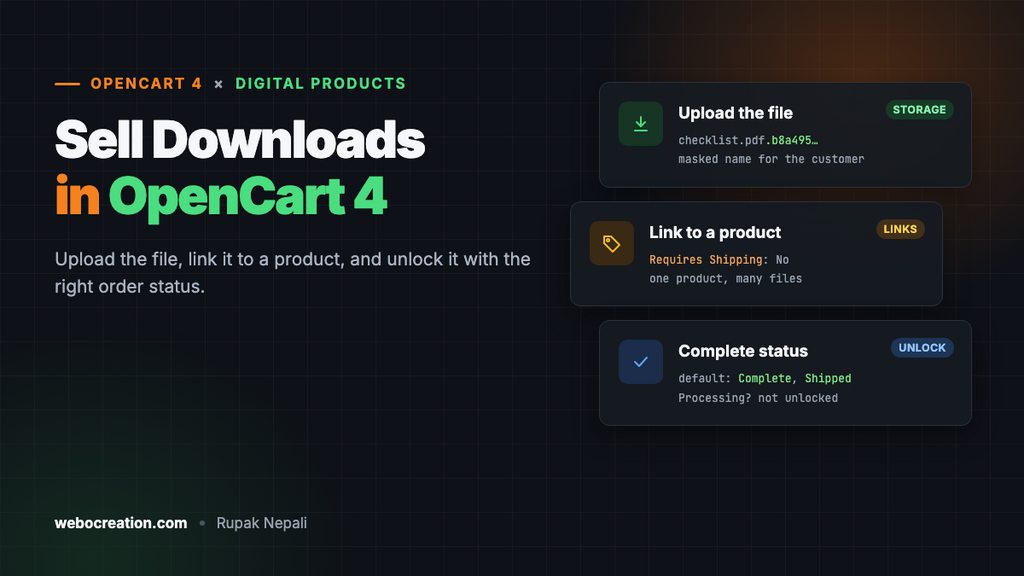
OpenCart can sell digital files out of the box: ebooks, PDF guides, software, music, design templates. No extension needed. But the feature is spread across three admin screens and one setting, and if that setting is wrong, customers pay and never get their file.
This guide sets up a downloadable product from start to finish on OpenCart 4.1.0.4, places a real order, and shows what the customer sees. It also covers what OpenCart’s downloads don’t do, so you can decide whether they’re enough for your store.
How downloads work in OpenCart
Four things have to line up:
- A download: the file itself, uploaded in Catalog → Downloads.
- A product with that download linked to it. One product can have several files; one file can belong to several products.
- A customer account. Downloads appear under the customer’s account, so guests can’t buy products with downloads.
- An order status in your “Complete Order Status” list. Until the order reaches one of those statuses, the file stays locked.
Step 1: Upload the file
Go to Catalog → Downloads and click +.
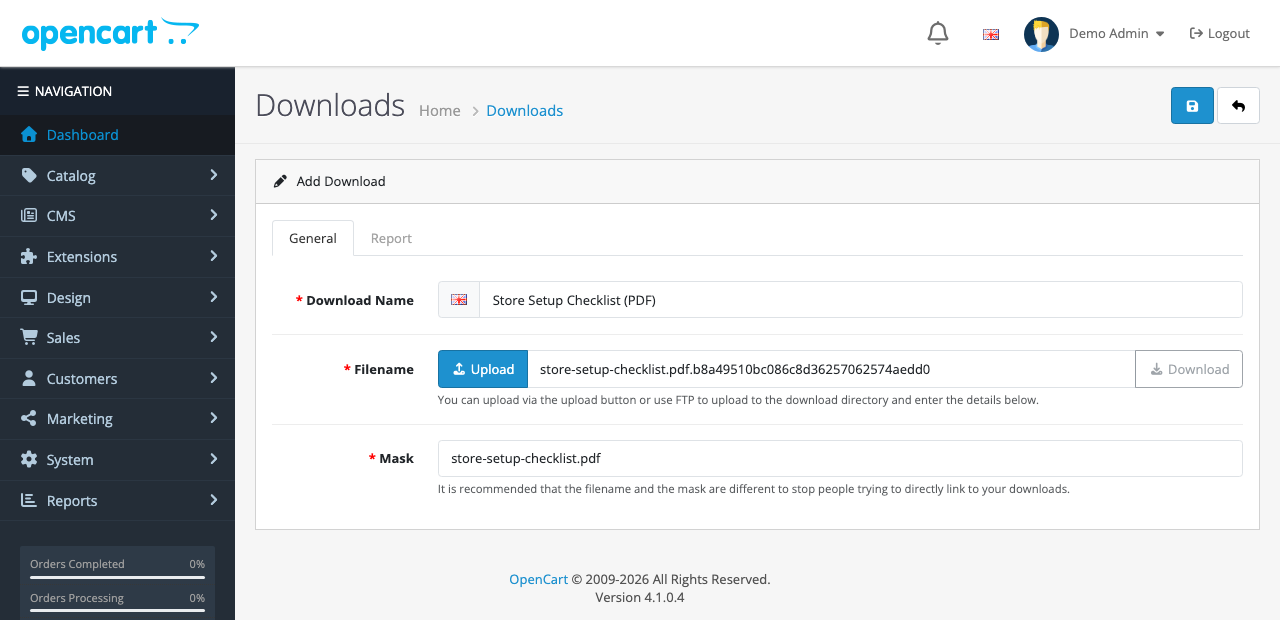
| Field | What it means |
|---|---|
| Download Name | What the customer sees in their account, per language |
| Filename | The stored file. OpenCart adds a random 32-character suffix, such as store-setup-checklist.pdf.b8a49510bc086c8d36257062574aedd0, so the file can’t be guessed |
| Mask | The name the customer’s browser saves it as: store-setup-checklist.pdf |
Click Upload, choose the file, and save. The file goes to storage/download/, which is not a public folder, especially once you’ve moved storage outside the web root. Customers never get a direct link; OpenCart streams the file to them after checking their order.
File types and size
OpenCart only accepts files whose extension and MIME type are on its allow lists: “Allowed File Extensions” and “Allowed File Mime Types” in System → Settings → Server, under the section labelled Customer Uploads (the same lists apply to files you upload as downloads). PDF, ZIP, MP3 and MP4 are allowed by default. For EPUB, add epub to the extensions and application/epub+zip to the MIME types.
The size limit comes from PHP’s upload_max_filesize and post_max_size. For large files (video courses, installers), raise those in your hosting panel, or upload the file to storage/download/ over FTP, then type its name into Filename yourself and set Mask by hand.
Step 2: Create the product
Create the product as usual in Catalog → Products. On the Data tab, settings that matter for a digital product:
- Requires Shipping: No. An order with only downloads then skips shipping methods at checkout.
- Subtract Stock: No, unless you sell a limited number of licenses.
- Quantity: anything above 0, so the product isn’t shown as out of stock.
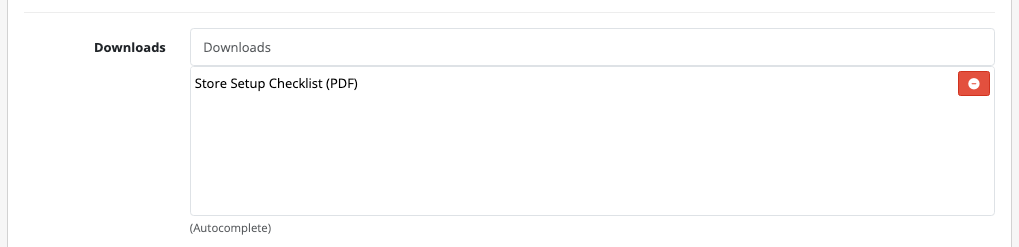
Then, on the Links tab, type the download’s name into Downloads and pick it from the list:
Step 3: Check the Complete Order Status
This is the setting that decides when a customer can download. Go to System → Settings, edit your store, and open the Option tab:

OpenCart’s download query only returns files from orders whose status is in this list. A fresh OpenCart 4.1 install ticks Complete and Shipped. That has a consequence for digital stores: many payment extensions set a successfully paid order to Processing, which is not on the list, so the customer pays and finds nothing in their account until you move the order to Complete.
You have two ways to give instant access after payment:
- Set the payment extension’s order status to Complete. Most payment extensions have an “Order Status” setting for successful payments. This is the cleanest choice for a store that only sells downloads.
- Tick Processing here, if Processing on your store always means “paid”. Check your payment extensions first.
Don’t tick Pending: bank transfer and cash on delivery orders start there, so a customer could choose bank transfer, never pay, and still download. For those payment methods, the file should unlock when you change the status after the money arrives, which is exactly what the default does.
What the customer sees
Because downloads are tied to an account, OpenCart hides guest checkout whenever the cart contains a product with a download, even if guest checkout is on. The customer registers or logs in, pays, and then finds the file under My Account → Downloads:
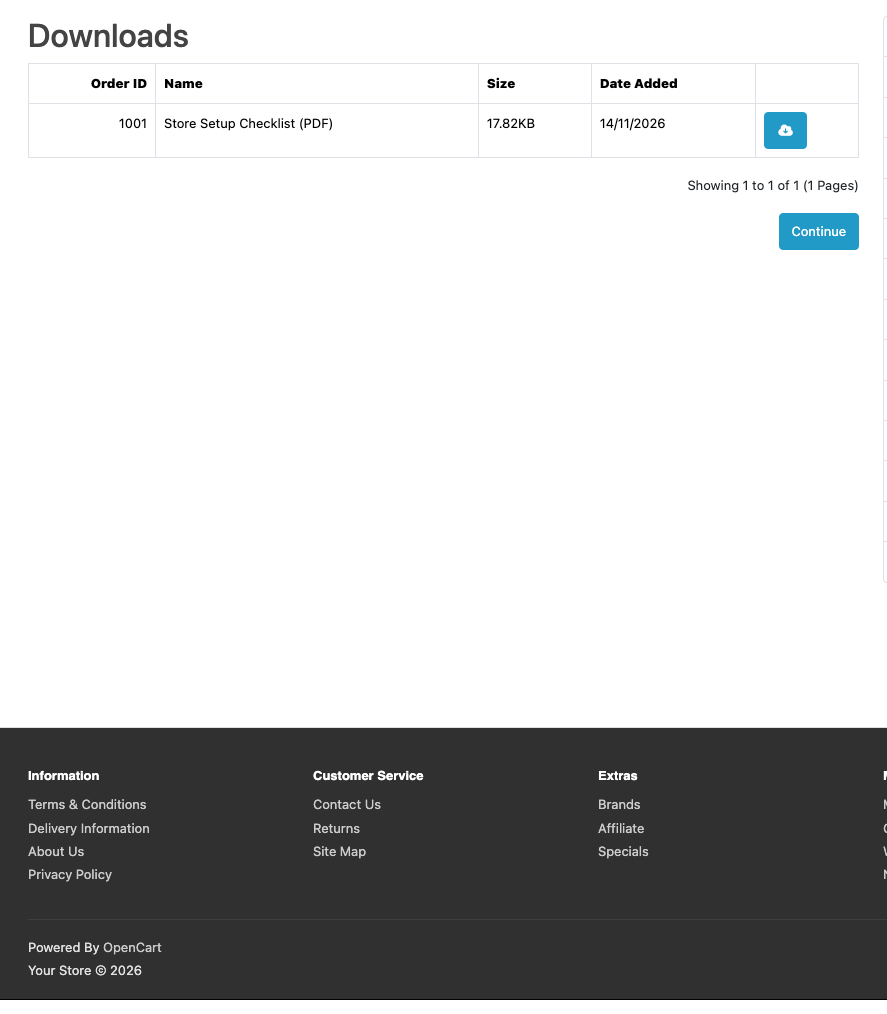
Clicking the button sends the file with the masked name (store-setup-checklist.pdf in our test), after checking that the logged-in customer has an order containing it in a complete status.
Seeing who downloaded
Every download is logged. Open the download in Catalog → Downloads and choose the Report tab:
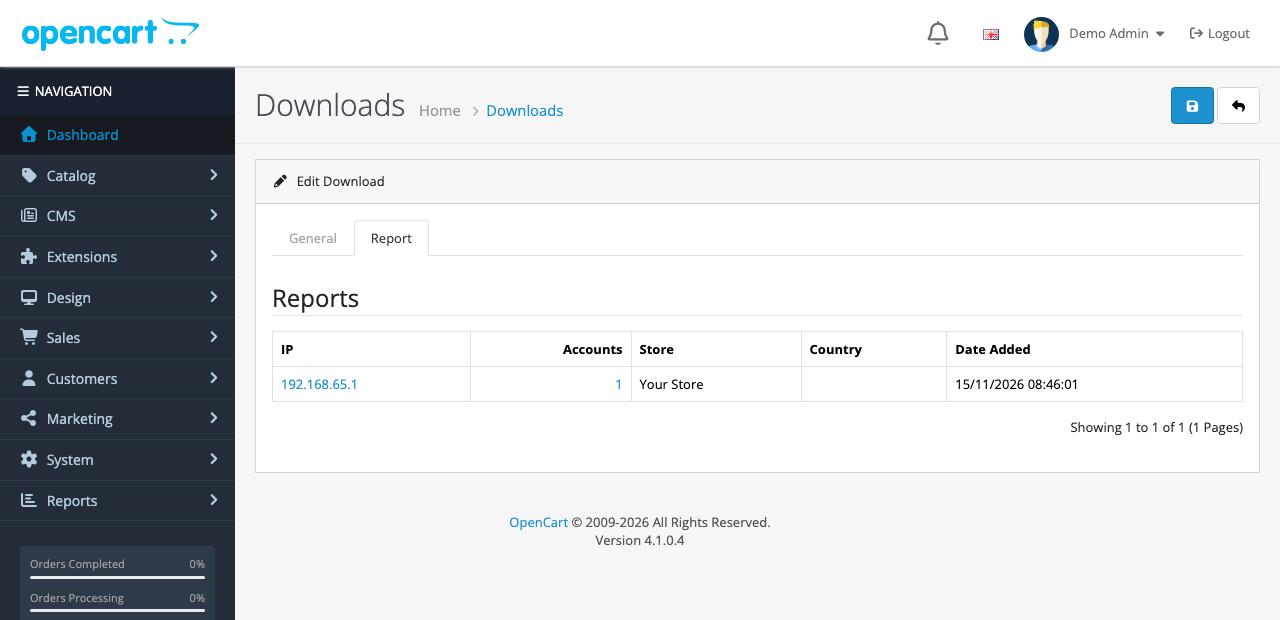
“Accounts” is the number of customer accounts that have used that IP address. A download from an IP shared by many accounts is worth a second look if you suspect a file is being passed around.
What OpenCart downloads don’t do
The built-in system is deliberately simple. Before you rely on it, know its limits:
| Need | Built in? | Options |
|---|---|---|
| Limit downloads to 3 per order, or expire links after 30 days | No. A customer can download as often as they like, for as long as the order stays complete. | A download-limit extension, or change the order status to revoke access |
| Guest purchase of digital products | No. An account is required. | Email the file manually, or use an extension that emails a link |
| License keys for software | No | A license-key extension, or add keys in the order history comment |
| Very large files (several GB) | Possible, but PHP streams the whole file | Host the file on S3, Bunny or Cloudflare R2 with signed links, via an extension |
One quirk worth knowing: the printed dispatch note in OpenCart 4.1.0.4 lists every product in the order, including downloads that don’t ship. See our guide to invoices and packing slips.
Removing access
To revoke a download (a refund, say), change the order’s status to something outside your Complete list, such as Refunded or Canceled. The file disappears from the customer’s account immediately. Deleting the download in Catalog → Downloads isn’t allowed while products still use it; OpenCart tells you how many products to unlink first.
Troubleshooting
| Problem | Cause and fix |
|---|---|
| Customer paid but sees no downloads | The order’s status isn’t in Complete Order Status (often it’s at Processing). Change the order to Complete, or see step 3 for instant access |
| “Invalid file type!” when uploading | Add the extension and MIME type in System → Settings → Server (Customer Uploads) |
| Upload fails for large files | Raise PHP’s upload_max_filesize and post_max_size, or upload over FTP |
| “Could not find file” when downloading | The file was deleted from storage/download/, or storage moved and the file didn’t. Re-upload it |
| Customers are asked to register | Expected: products with downloads need an account |
Related: reward points in OpenCart 4 and the complete OpenCart 4 user manual.

Rupak Nepali is a web developer, manage Webocreation website and the author of six books:
Getting Started with OpenCart Module Development (Packt, 2013),
OpenCart Theme and Module Development (Packt, 2015),
OpenCart 4: Dev Guide for Themes & Extensions (2024),
OpenCart 4: User Manual (2025),
Cloudflare for the Enterprise Website (2026) and
The Technical Web Guide for Marketers (2026).
Rupak has built OpenCart stores and extensions since 2010, has published more than 600 tutorials on Webocreation, and shares free OpenCart extensions on GitHub.
Find Rupak on
GitHub | Amazon | LinkedIn | X | YouTube.