Featured Categories for OpenCart 4: A “Shop by Category” Block With Images on Any Layout (Free Extension)
A free OpenCart 4 extension that shows the categories you choose as image cards on any layout, multi-instance like the core Featured module, responsive and store-aware. The OpenCart 4 version of our OpenCart 3 Featured Categories module.
 Rupak NepaliPublished Nov 19, 2026
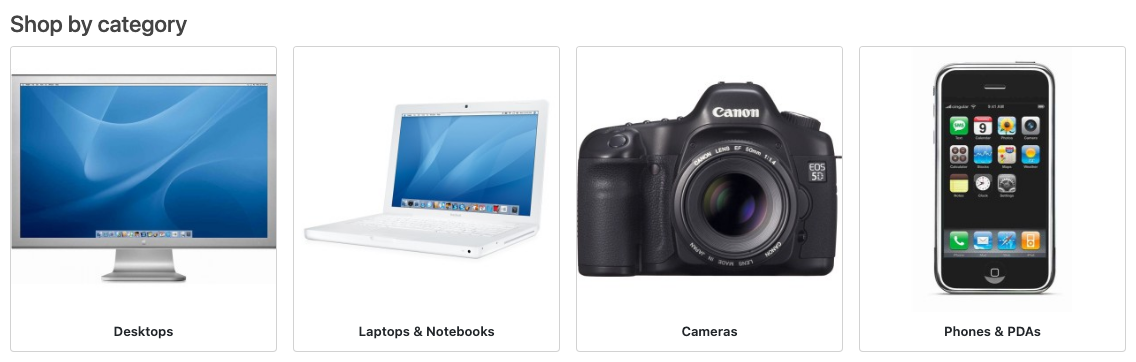
OpenCart 4 has a Featured module for products, but nothing similar for categories. Yet a “Shop by category” row of images is one of the most useful blocks on a home page: it gets shoppers into the right part of the catalog in one tap, especially on phones, where the menu is hidden behind a button.
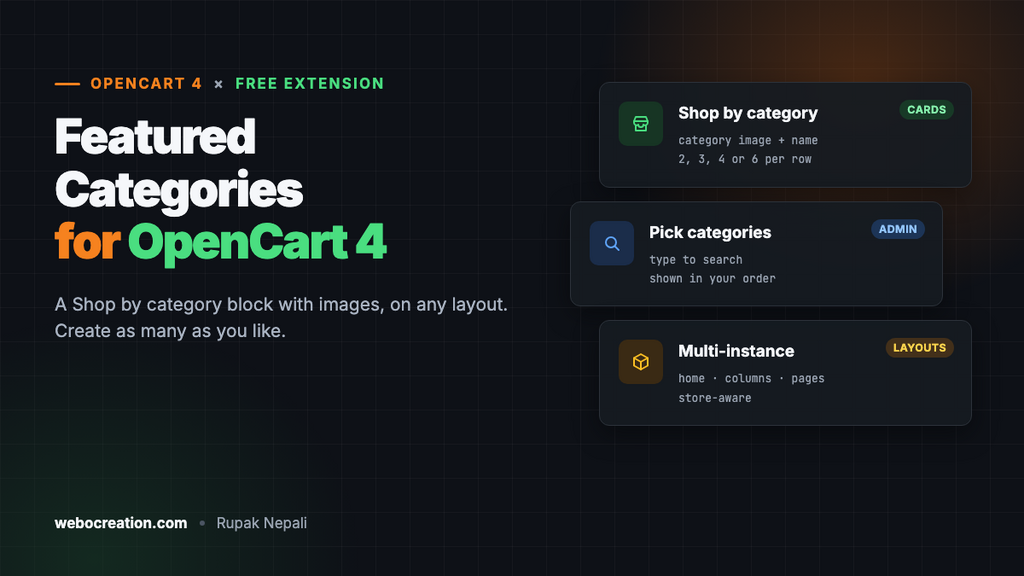
This free extension adds that block. Pick the categories, and they show as cards with the category image and name on any layout. It’s the OpenCart 4 version of our OpenCart 3 Featured Categories module, rebuilt for OpenCart 4.1.
Download Featured Categories for OpenCart 4 (free, tested on OpenCart 4.1.0.4)
What it does
- Cards for the categories you choose, in the order you add them, with the category image and name linking to the category page.
- As many blocks as you like. Like OpenCart’s Featured module, it’s multi-instance: “Shop by category” on the home page, “Popular” in a column, a different set on information pages.
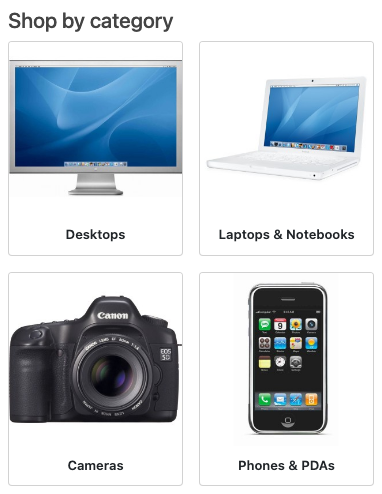
- Responsive. Two cards per row on phones, three on tablets, and 2, 3, 4 or 6 per row on desktops, your choice.
- Store-aware. Disabled categories and categories not assigned to the current store are skipped, so you can’t link shoppers to a page that doesn’t exist.
- Images at the size you set, resized and cached by OpenCart like product images, with explicit width and height so the page doesn’t jump while loading.
Install it
- Download
featuredcategory.ocmod.zip. - Go to Extensions → Installer, upload it, and click the green +.
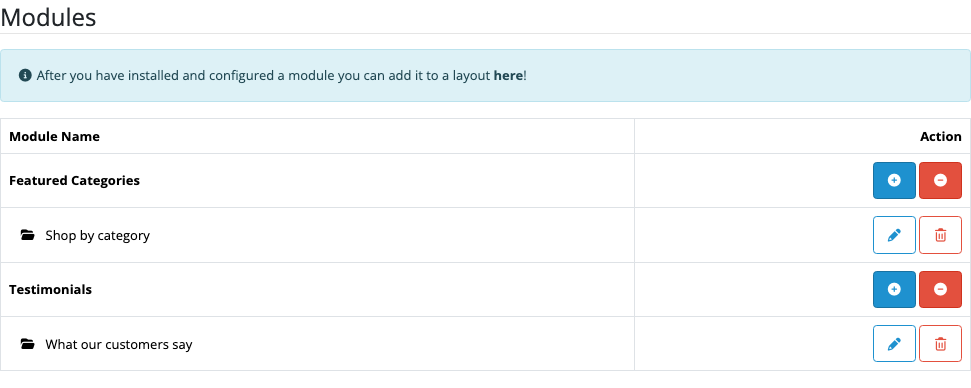
- Go to Extensions → Extensions → Modules and install Featured Categories with the green +.
- Click the blue + next to it to create your first block (see below).
- Add the block to a layout in Design → Layouts, for example Content Top of the Home layout.
Create a block
| Setting | What it does |
|---|---|
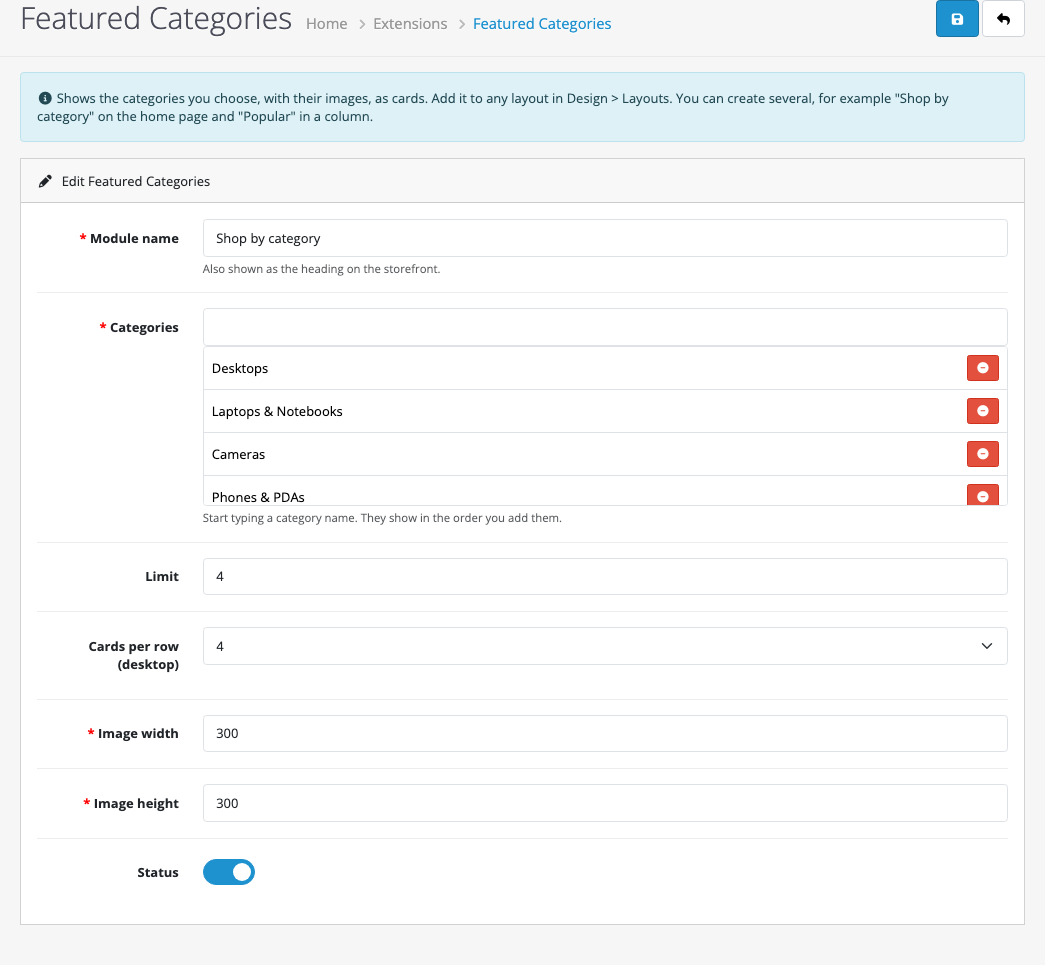
| Module name | The heading above the cards (“Shop by category”). Also the name you see in Design → Layouts. |
| Categories | Start typing a name and pick it from the list, as in the Featured module. Remove one with the red button. They show in the order you add them. |
| Limit | The most cards to show, even if you chose more categories. |
| Cards per row (desktop) | 2, 3, 4 or 6. Phones always get two per row and tablets three. |
| Image width and height | The size OpenCart resizes each category image to. Square images (300 × 300) suit most themes. |
Give every featured category an image in Catalog → Categories → (category) → Image. Categories without one get OpenCart’s placeholder, which looks unfinished next to real photos. A product photo that represents the category works well.
How it’s built
The extension follows the same pattern as OpenCart 4’s own Featured module. The admin saves each block’s settings with model_setting_module->addModule('featuredcategory.featuredcategory', $data), and OpenCart passes those settings to the storefront controller when the layout includes the block:
foreach ((array)$setting['category'] as $category_id) {
    if (count($data['categories']) >= $limit) {
        break;
    }

    // getCategory() only returns enabled categories assigned to this store.
    $category_info = $this->model_catalog_category->getCategory((int)$category_id);

    if (!$category_info) {
        continue;
    }

    // ... resize the image and build the link
}
The cards use Bootstrap 5’s row-cols grid and card component, which OpenCart 4’s default theme already loads. If your theme restyles cards, the block picks that up too.
Changes from the OpenCart 3 version
- Rebuilt for OpenCart 4’s extension folders, namespaces and AJAX save.
- Category search uses OpenCart 4’s autocomplete, and the list shows the full path (Components > Monitors), so similar names aren’t confused.
- New “cards per row” setting, and a responsive grid in place of the fixed Bootstrap 3 columns.
- Disabled and other-store categories are skipped instead of showing a broken card.
Testing
| Test | Result |
|---|---|
| Save without a name or categories | “Module name must be between 3 and 64 characters!” and “Choose at least one category!” |
| Category search for “Desk”, “Lapt”, “Cam”, “Phon” | Each found and added in order |
| Block in Content Top of the Home layout | Four cards with images and names, linking to the category pages |
| Phone (390 px) | Two cards per row |
Troubleshooting
| Problem | Cause and fix |
|---|---|
| The block doesn’t show | Check the block’s Status, that it’s in the layout for that page (Design → Layouts), and that at least one of its categories is enabled in this store. |
| Grey placeholder images | Those categories have no image. Add one in Catalog → Categories. |
| A category is missing | It’s disabled, not assigned to the current store, or beyond the Limit. |

Rupak Nepali is a web developer, manage Webocreation website and the author of six books:
Getting Started with OpenCart Module Development (Packt, 2013),
OpenCart Theme and Module Development (Packt, 2015),
OpenCart 4: Dev Guide for Themes & Extensions (2024),
OpenCart 4: User Manual (2025),
Cloudflare for the Enterprise Website (2026) and
The Technical Web Guide for Marketers (2026).
Rupak has built OpenCart stores and extensions since 2010, has published more than 600 tutorials on Webocreation, and shares free OpenCart extensions on GitHub.
Find Rupak on
GitHub | Amazon | LinkedIn | X | YouTube.