Order Tracking for OpenCart 4: Add Carrier Tracking Numbers and “Track Package” Links to Order Emails and the Customer Account (Free Extension)
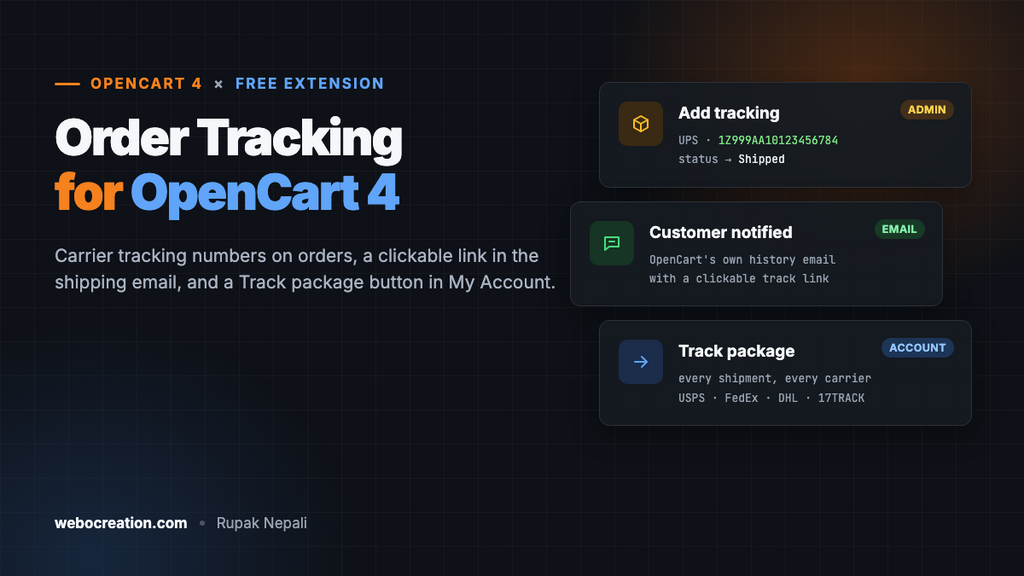
A free OpenCart 4 extension that adds carrier tracking numbers to orders: one click saves the number, sets the order to Shipped, emails the customer a clickable tracking link through OpenCart's own order history, and adds a Track package button in My Account.
 Rupak NepaliPublished Nov 18, 2026
“Where is my order?” is the most common question a store gets, and OpenCart 4 has nowhere to put the answer. There’s no tracking number field on an order. The usual workaround is to paste the number into an order history comment, so the customer gets a long link inside a block of text, and nothing shows up in their account.
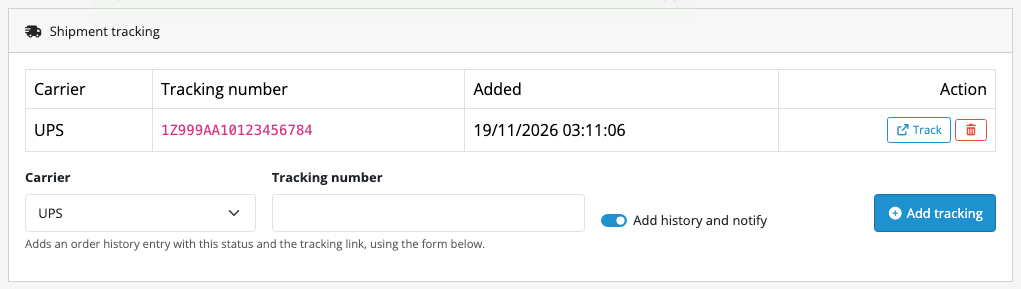
This free extension adds a Shipment tracking card to the admin order page. Pick the carrier, paste the number and click Add tracking. The extension saves the number, changes the order to Shipped and emails the customer a clickable tracking link, using OpenCart’s own order history. Customers also get a Track package button in their account.
Download Order Tracking for OpenCart 4 (free, tested on OpenCart 4.1.0.4)
What it does
- One step per shipment. Choose the carrier, paste the number and click Add tracking. The extension saves it, adds an order history entry with the tracking link, sets the status (Shipped by default) and notifies the customer.
- It uses OpenCart’s own order history. The extension fills in the normal history form and submits it, so the email, any other extension that listens for status changes, and the order’s history all work as usual.
- The tracking link in the email is clickable. OpenCart’s history email prints comments on one line as plain text. For tracking comments, the extension keeps the line breaks and turns the link into a real link.
- A Track package button in My Account. Customers see every tracking number for the order on its page in Order History.
- Several shipments per order. Split shipments each get their own row, carrier and link.
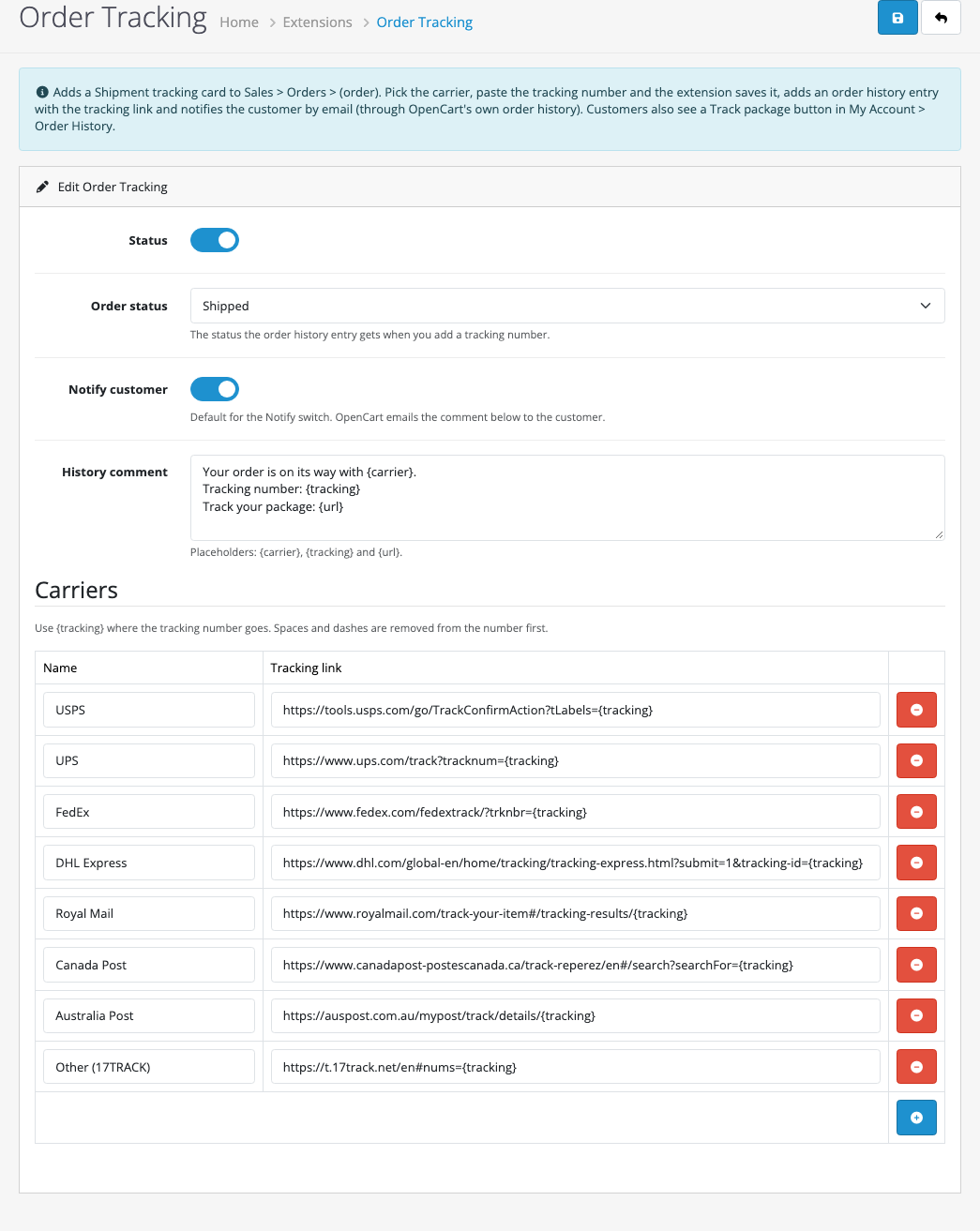
- Eight carriers included, all editable: USPS, UPS, FedEx, DHL Express, Royal Mail, Canada Post, Australia Post, and 17TRACK for any other carrier. Add your local courier with its tracking URL.
Install it
- Download
ordertracking.ocmod.zip. - Go to Extensions → Installer, upload it, and click the green +.
- Go to Extensions → Extensions → Modules and install Order Tracking.
- Click Edit, turn Status on and save.
{tracking} where the number goes.The settings
| Setting | What it does |
|---|---|
| Order status | The status the history entry gets. Defaults to Shipped if your store has a status with that name. Choose “Don’t change the status” to only add the comment. |
| Notify customer | The default for the “Add history and notify” switch on the order page. You can turn it off for one shipment, for example when you’re adding a number you already sent. |
| History comment | The text of the history entry and the email. Use {carrier}, {tracking} and {url}. |
| Carriers | A name and a tracking link for each carrier. Spaces and dashes are removed from the number before it goes into the link, so 1Z 999 AA1 01 2345 6784 becomes 1Z999AA10123456784. |
Carriers change their tracking pages now and then. If a link stops working, open the carrier’s tracking page, search for a number, and copy the URL it ends up on, replacing the number with {tracking}. If your courier has no link that takes the number, use the 17TRACK row, which recognises most carriers worldwide from the number alone.
Adding a tracking number
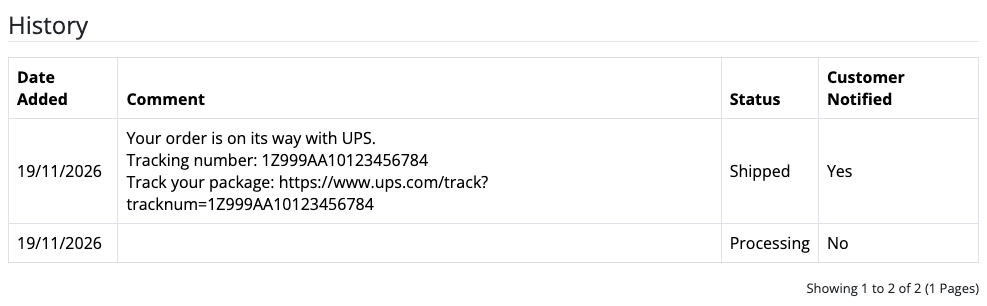
Open the order in Sales → Orders. The Shipment tracking card is just above Order History. Choose the carrier, paste the number, leave Add history and notify on, and click Add tracking. A few seconds later the history table shows the new entry:
Click Track to check the link yourself. The bin button removes a number you entered by mistake. The history entry and any email already sent stay as they are, so add a corrected number with a short note.
What the customer sees
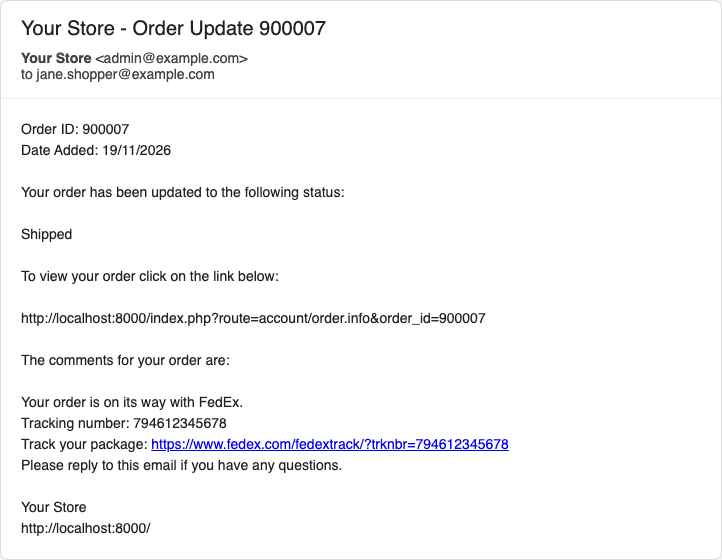
The email is OpenCart’s normal “Order Update” email, with your comment in it. We sent it through a local mail catcher to check it:
In My Account → Order History → View, the order page gets a Shipment tracking table above the history:
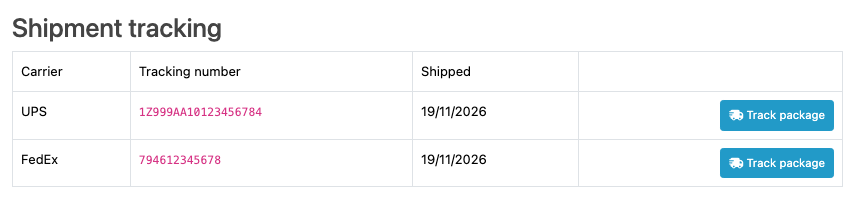
Guests who checked out without an account don’t have this page, but they get the same email.
For a good-looking order email, set up sending properly first: transactional email for OpenCart 4 with SES, Mailgun, Brevo or Resend, and SPF, DKIM and DMARC so shipping emails don’t land in spam.
How it’s built
The extension adds one table, oc_order_tracking, with the order ID, carrier, number, link and date, and three events. There are no core file changes and no OCMOD modifications.
Reusing the order history form
In OpenCart 4, adding order history from the admin goes through the store’s API, which is what sends the email and fires the events other extensions depend on. Rather than copy that, the card saves the tracking number with its own AJAX call, gets back the comment, then fills in the standard history form and submits it:
if (addHistory) {
    // Hand over to OpenCart's own history form: it saves the entry and emails the customer.
    $('#input-order-status').val('3'); // the status from the settings
    $('#input-notify').prop('checked', true);
    $('#input-history').val(json['comment']);
    $('#form-history').trigger('submit');
}
So the order history works exactly as if you had typed the comment yourself, including the status change and the email.
Making the link clickable in the email
OpenCart’s mail/order_history template prints the comment without line breaks. An event on catalog/view/mail/order_history/after looks for this order’s tracking links in the comment and, only if it finds one, adds the line breaks and the link:
$comment = (string)$args['comment'];

$html = nl2br($comment, false);

foreach ($urls as $row) {
    $escaped = htmlspecialchars($row['url'], ENT_QUOTES | ENT_SUBSTITUTE, 'UTF-8');

    // Comments from the admin arrive HTML-encoded, so look for both forms.
    foreach ([$escaped, $row['url']] as $candidate) {
        if (str_contains($html, $candidate)) {
            $html = str_replace($candidate, '<a href="' . $escaped . '">' . $escaped . '</a>', $html);
            break;
        }
    }
}
We found the “both forms” case while testing: a DHL link with & in it arrived as &, because OpenCart HTML-encodes request data. Other history emails aren’t touched.
The customer’s order page
An event on catalog/view/account/order_info/after inserts the table above the History heading. The query joins on the order’s customer_id, so a customer only ever sees tracking numbers for their own orders, even if they change the order_id in the URL.
New to events? OpenCart 4 events by example explains how they work.
Testing
| Test | Result |
|---|---|
| UPS number with spaces, Add history and notify on | Saved as 1Z999AA10123456784; order changed from Processing to Shipped; history entry with “Customer Notified: Yes” |
| FedEx number with dashes, SMTP to a mail catcher | Order Update email received with the comment on three lines and a clickable link |
DHL Express link containing & | Link clickable and correct in the email |
| Remove button | Row removed; history and email untouched |
| Customer’s order page | Both shipments listed with Track package buttons, on desktop and phone |
Invalid input (empty number, <script>, 2 characters) | Rejected with “Tracking numbers are 4 to 40 letters, digits, spaces or dashes” |
| An order ID that doesn’t exist, sent straight to the save route | “Order not found!”, nothing saved |
Troubleshooting
| Problem | Cause and fix |
|---|---|
| No Shipment tracking card on the order page | Check Status is on. Staff whose user group can’t modify Sales > Orders see the tracking list but not the form. A heavily customised admin theme may have changed the order page markup; the card looks for the Order History card. |
| The history entry is added, but no email arrives | Check System → Settings → Mail (OpenCart sends nothing when the mail engine is empty) and that the customer’s address is right. See transactional email for OpenCart 4. |
| The tracking number is saved, but no history entry is added | OpenCart’s history form, which the card hands over to, needs a working API user. Try adding a history entry by hand: if that fails too, check System → Users → API (the user is enabled) and the API User setting on the Option tab of System → Settings. |
| The carrier link opens a “not found” page | The carrier changed its tracking URL. Update the link in the settings; numbers added afterwards use the new link. |
| The status didn’t change | The Order status setting is “Don’t change the status”, or you chose a status that doesn’t exist any more. |
Related: estimated delivery dates on product pages, SMS and WhatsApp order notifications and managing order statuses in OpenCart 4.

Rupak Nepali is a web developer, manage Webocreation website and the author of six books:
Getting Started with OpenCart Module Development (Packt, 2013),
OpenCart Theme and Module Development (Packt, 2015),
OpenCart 4: Dev Guide for Themes & Extensions (2024),
OpenCart 4: User Manual (2025),
Cloudflare for the Enterprise Website (2026) and
The Technical Web Guide for Marketers (2026).
Rupak has built OpenCart stores and extensions since 2010, has published more than 600 tutorials on Webocreation, and shares free OpenCart extensions on GitHub.
Find Rupak on
GitHub | Amazon | LinkedIn | X | YouTube.