Product Badges for OpenCart 4: Sale -20%, New, Bestseller and Sold Out Labels on Every Product Card (Free Extension)
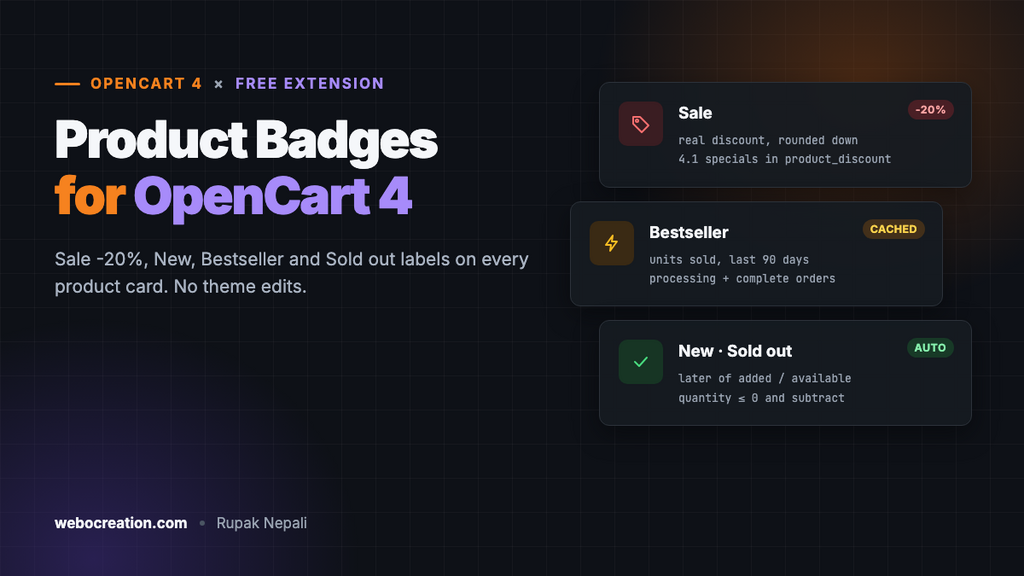
A free OpenCart 4 extension that labels products automatically: Sale with the real discount, New for recent products, Bestseller from your own orders, and Sold out, on category pages, search, modules and the product page.
 Rupak NepaliPublished Nov 15, 2026
A shopper scanning a category page decides in a second which products to look at. A small “-20%” or “New” in the corner of the image is often what makes them stop. Big shops label products automatically; in OpenCart, a discount is only visible as a crossed-out price, and there’s no way at all to mark new arrivals or best sellers.
This free extension adds four automatic badges to every product card and, optionally, the product page: Sale with the real discount, New, Bestseller and Sold out.
Download Product Badges for OpenCart 4 (free, tested on OpenCart 4.1.0.4)
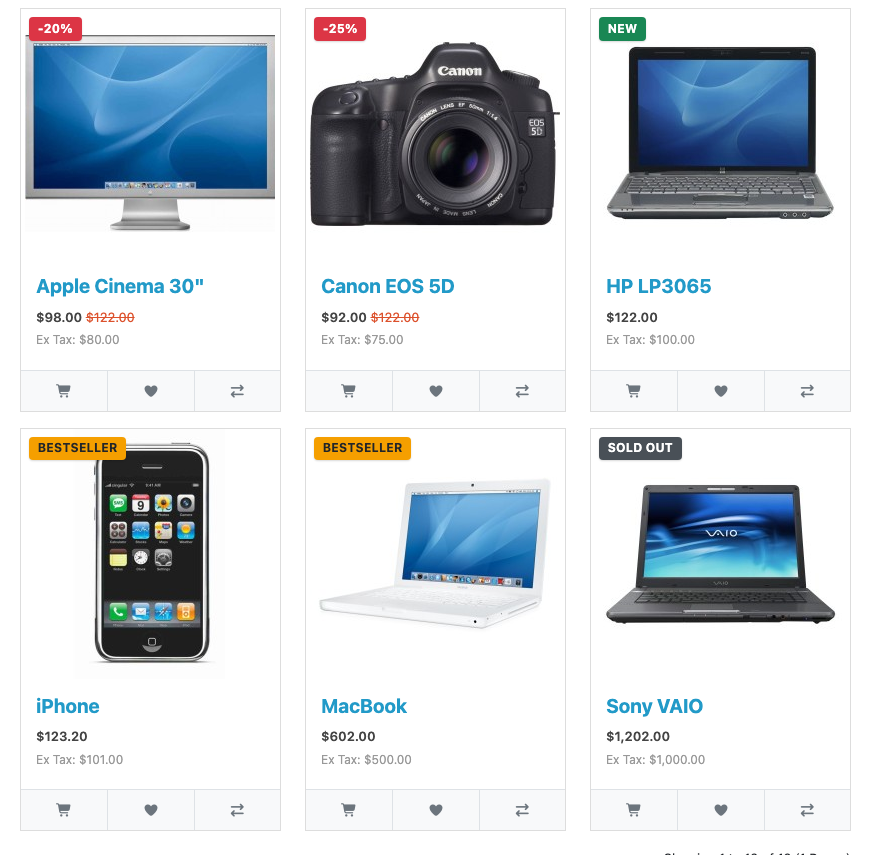
The four badges
| Badge | Shown when | Example |
|---|---|---|
| Sale | The product has an active special price for the shopper’s customer group | -20%, or the word “Sale” |
| New | Added or made available within the last N days (30 by default) | NEW |
| Bestseller | Among your top N products by units sold in the last N days | BESTSELLER |
| Sold out | Quantity is 0 or less and Subtract Stock is Yes | SOLD OUT |
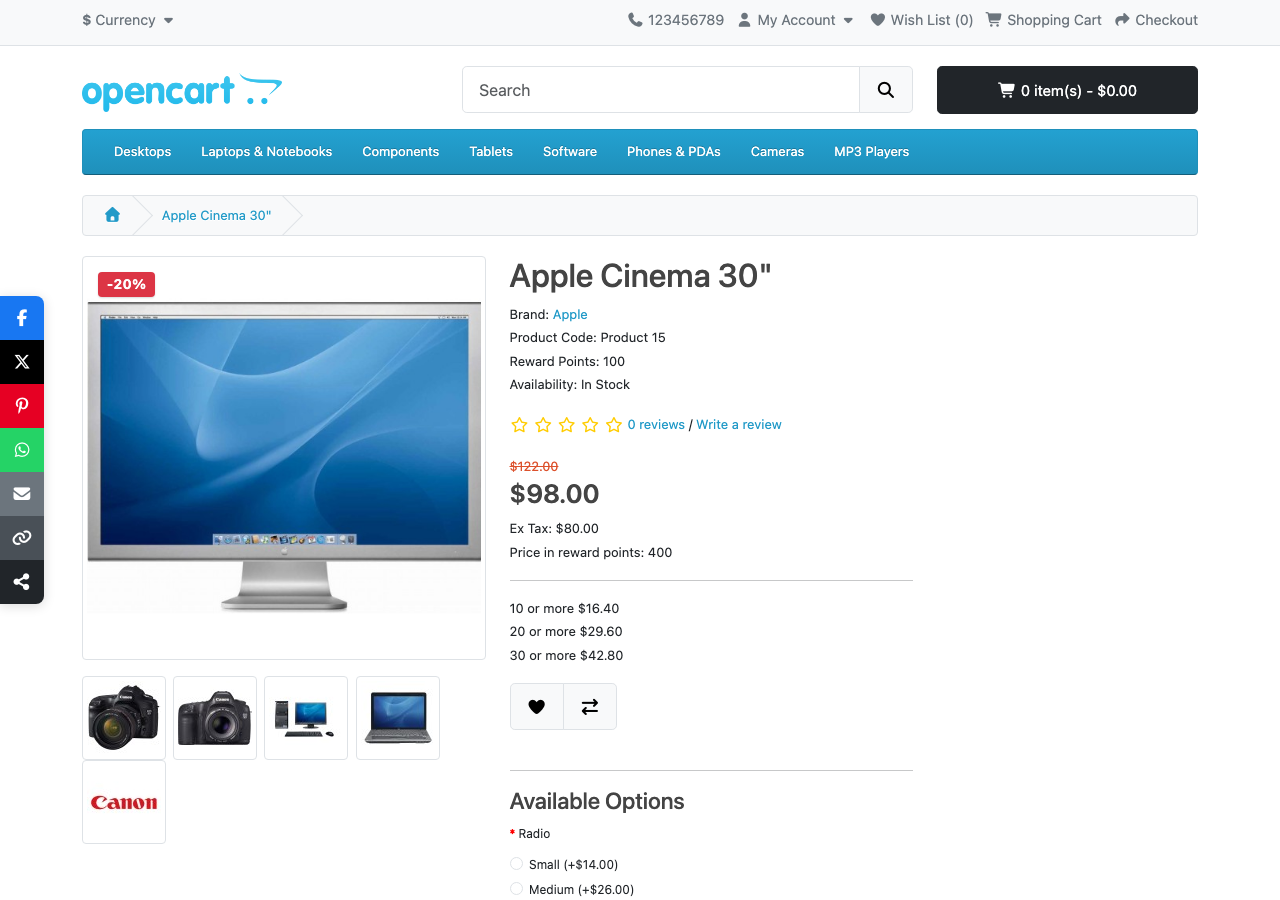
A product can have several badges at once; they stack in the corner of the image. They appear everywhere OpenCart shows a product card (categories, search results, specials, brand pages, and modules like Featured and Bestsellers) and, if you choose, over the main image on the product page:
Install it
- Download
productbadges.ocmod.zip. - Go to Extensions → Installer, upload it, and click the green +.
- Go to Extensions → Extensions → Modules and install Product Badges.
- Click Edit, choose your badges, turn Status on and save.
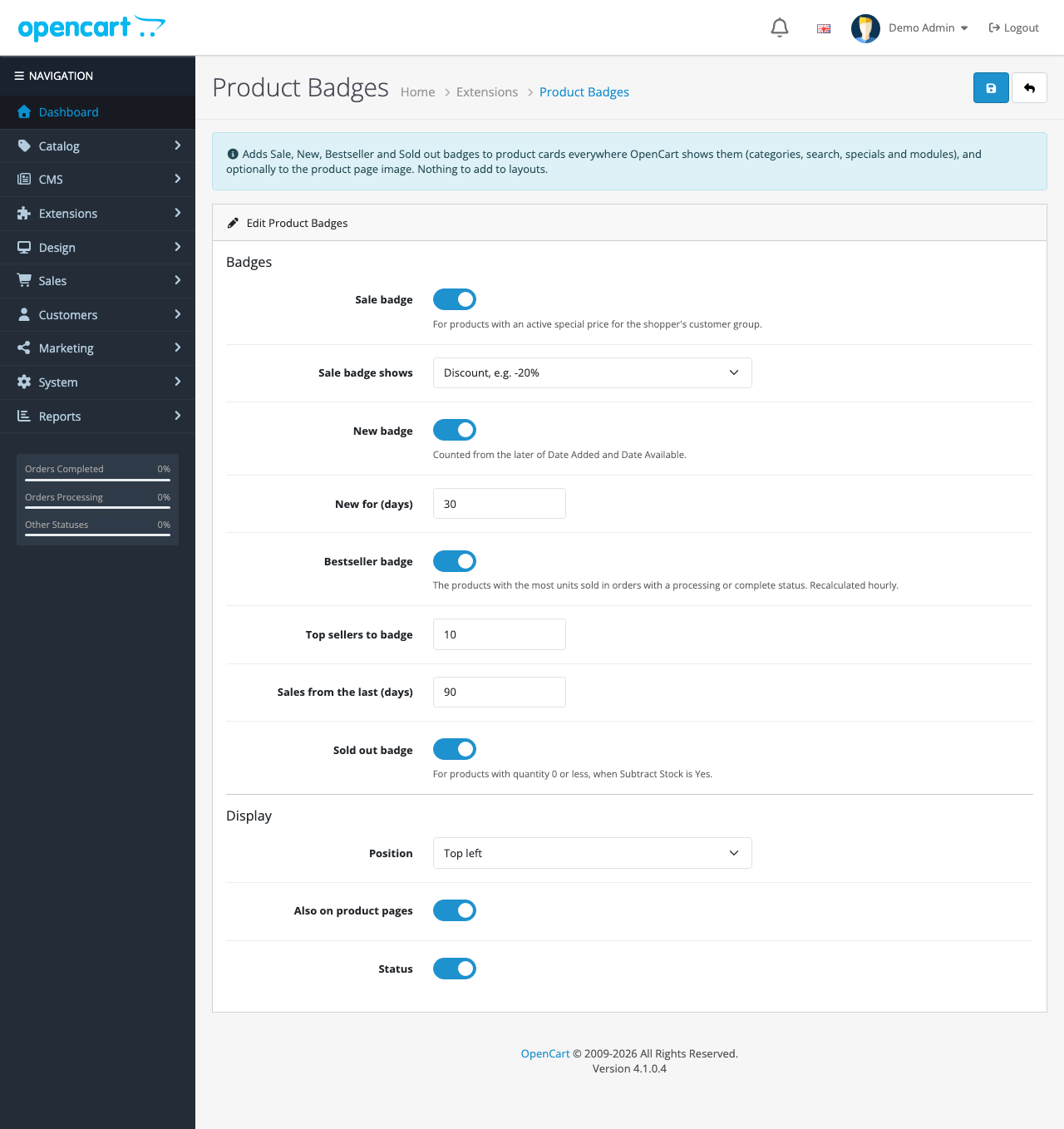
Nothing to add to layouts. Open a category with a product on special to see it.
How it works
The extension uses three events and no theme edits:
| Event | Trigger | What it does |
|---|---|---|
productbadges_thumb | catalog/view/product/thumb/after | Adds badges inside each product card’s image box |
productbadges_product | catalog/view/product/product/after | Adds badges over the product page’s main image |
productbadges_header | catalog/view/common/header/after | Adds the badge styles once, before </head> |
Specials in OpenCart 4.1
OpenCart 4.1 changed how specials are stored: there’s no product_special table any more. Specials are rows in oc_product_discount with special = 1, and they can be a fixed price, a percentage off or an amount off. The extension doesn’t need to care which: getProduct() returns the final special price for the shopper’s customer group, so the badge compares that with the normal price.
A rounding bug we caught
Our first test showed a 20%-off special as -19%. The cause is floating-point arithmetic: 1 − 80/100 is stored as 0.19999…, and rounding down (so a badge never promises more than the real discount) turned it into 19. The fix rounds to two decimals first:
// Rounded down, so the badge never promises more than the real discount. The inner round()
// stops float noise turning 20% (1 - 80/100 = 0.19999...) into 19%.
$text = '-' . (int)floor(round((1 - (float)$product['special'] / (float)$product['price']) * 100, 2)) . '%';
A $25-off special on a $100 product shows -25%; a 20% special now shows -20%.
Bestsellers from your own orders
The Bestseller badge counts units sold per product in orders with a processing or complete status, over the period you choose, and caches the list for an hour:
SELECT `op`.`product_id`, SUM(`op`.`quantity`) AS `units`
FROM `oc_order_product` `op`
INNER JOIN `oc_order` `o` ON (`o`.`order_id` = `op`.`order_id`)
WHERE `o`.`store_id` = '0'
AND `o`.`order_status_id` IN (5, 2, 3, 12)
AND `o`.`date_added` >= DATE_SUB(NOW(), INTERVAL 90 DAY)
GROUP BY `op`.`product_id`
ORDER BY `units` DESC
LIMIT 10
Like our frequently bought together extension, it leaves out orders still at the starting status (usually Pending), which are often unpaid, and it stores the result in a wrapper so an empty list isn’t mistaken for a cache miss. Saving the settings clears the cache, so changes apply at once.
“New” respects launch dates
The New badge uses the later of a product’s Date Added and Date Available. A product you added in January but set to launch in March is new from March, which is usually what you mean.
Performance
Each badge needs the product’s details, so the extension loads each product on the page once more (one query per card). On a category page with 20 products that’s 20 small, indexed queries; the bestseller list is one cached query. We timed our test store’s Desktops category (15 products, median of 8 requests, local Docker): 25 ms with the extension off, 33 to 34 ms with it on. About 8 ms is a real cost but a small one next to network time; on a very large catalog, keep the products-per-page setting reasonable, as you would anyway.
Styling
The badges are plain HTML with classes you can restyle in your theme’s CSS:
.oc-badge-sale { background: #dc3545; }       /* red */
.oc-badge-new { background: #198754; }        /* green */
.oc-badge-bestseller { background: #f59f00; } /* amber */
.oc-badge-soldout { background: #495057; }    /* grey */
The texts are in the extension’s catalog language file, with prefixed keys (pb_sale, pb_new…) so they never clash with your theme’s own strings. Copy it to another language folder to translate them.
On phones
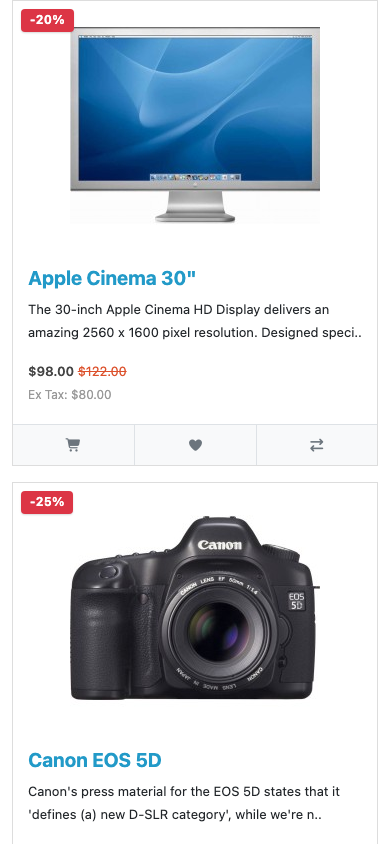
Troubleshooting
| Problem | Cause and fix |
|---|---|
| No badges at all | Status is off, or the three events are disabled (Extensions → Events, codes starting productbadges_) |
| No Sale badge on a discounted product | The special is for another customer group, has expired, or isn’t a “special” but a quantity discount (only specials count) |
| Bestseller badges missing | No orders in a processing or complete status in the period. Raise the days, or lower the threshold |
| Badges sit outside the image on a custom theme | The theme renamed the card’s image class; the extension then wraps the card instead. Adjust the CSS position |
More free OpenCart 4 extensions: low-stock message, product quick view, estimated delivery date and load more products.

Rupak Nepali is a web developer, manage Webocreation website and the author of six books:
Getting Started with OpenCart Module Development (Packt, 2013),
OpenCart Theme and Module Development (Packt, 2015),
OpenCart 4: Dev Guide for Themes & Extensions (2024),
OpenCart 4: User Manual (2025),
Cloudflare for the Enterprise Website (2026) and
The Technical Web Guide for Marketers (2026).
Rupak has built OpenCart stores and extensions since 2010, has published more than 600 tutorials on Webocreation, and shares free OpenCart extensions on GitHub.
Find Rupak on
GitHub | Amazon | LinkedIn | X | YouTube.