2 Free Klaviyo Email Templates: Order Thank-You and Back in Stock (Coded, With Event Variables)
Two free, responsive, coded Klaviyo email templates for flows: an order thank-you that lists the items from a Placed Order event, and a back-in-stock alert, with Klaviyo's template tags explained and tested by rendering with sample data.
 Rupak NepaliPublished Nov 16, 2026
Klaviyo’s strength is flows: emails triggered by what customers do, with the order or product data right inside the message. A good flow email pulls in the items someone bought or the product they waited for, and falls back gracefully when data is missing. That takes a little template code.
Here are two free coded templates for the two flows most stores set up first: an order thank-you and a back-in-stock alert. The order template is built for the Placed Order event from our OpenCart and Klaviyo integration, but works with any source once you match the property names.
Download the 2 Klaviyo templates (zip): two .html files and a README.
Template 1: Order thank-you
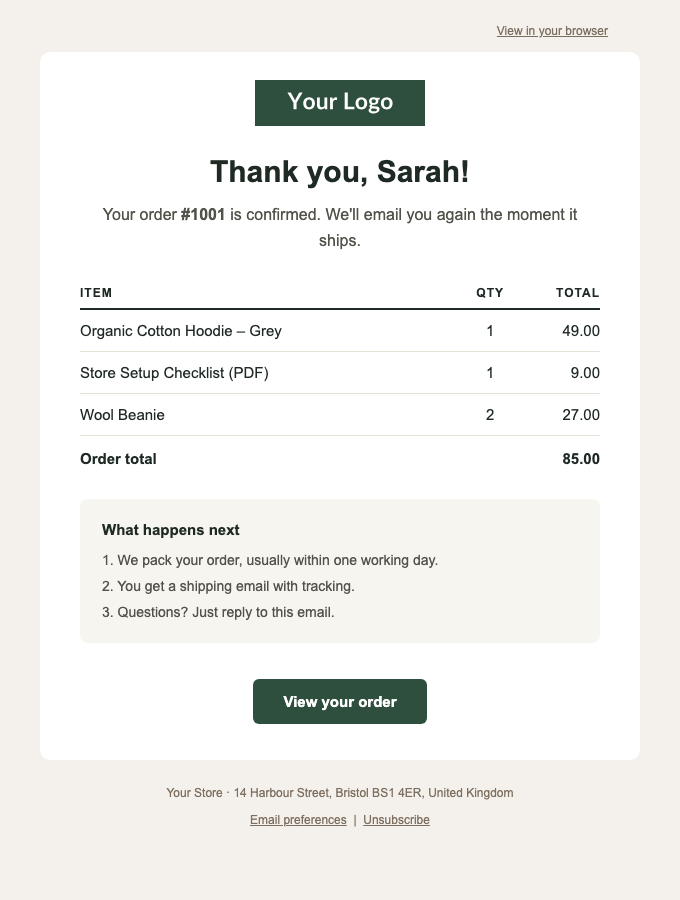
Variables it uses:
| Variable | From |
|---|---|
{{ first_name|default:'friend' }} | The profile |
{{ event.OrderId }} | The Placed Order event |
{% for item in event.Items %} with item.ProductName, item.Quantity, item.RowTotal | The event’s list of items |
{{ event.OrderTotal|floatformat:2 }} | Optional: shown only if the event includes it |
{{ organization.name }}, {{ organization.full_address }} | Your Klaviyo account settings |
The line-item loop is the heart of it:
{% for item in event.Items %}
<tr>
  <td>{{ item.ProductName }}</td>
  <td style="text-align:center;">{{ item.Quantity }}</td>
  <td style="text-align:right;">{{ item.RowTotal|floatformat:2 }}</td>
</tr>
{% endfor %}
Adding the order total from OpenCart
The Placed Order event in our integration post sends OrderId, ItemNames and Items as properties, and the order value as the event’s value. The template shows a total only when a property called OrderTotal exists, so either leave the row out or add one line to the event’s properties in the OpenCart code:
'properties' => [
	'OrderId'    => (string)$order_id,
	'ItemNames'  => array_column($items, 'ProductName'),
	'Items'      => $items,
	'OrderTotal' => round((float)$order['total'] * (float)$order['currency_value'], 2)   // for the email template
],
Template 2: Back in stock
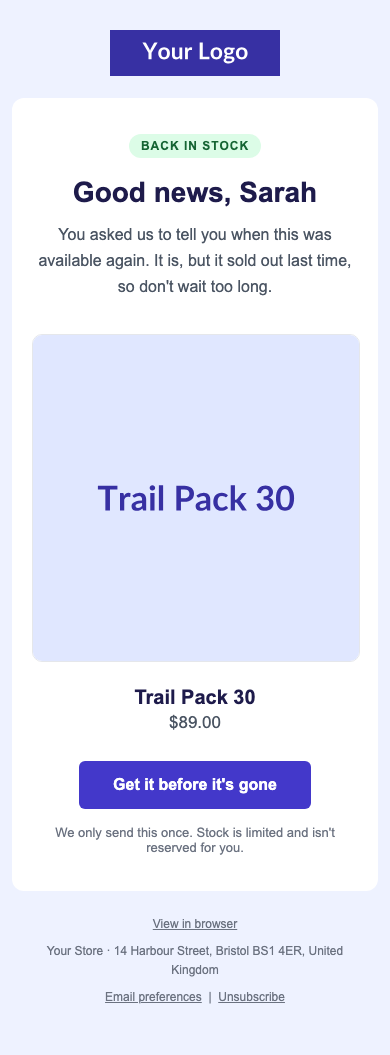
| Variable | Notes |
|---|---|
{{ event.ProductName }} | Product name |
{{ event.ProductURL }} | Link for the image and button |
{{ event.ImageURL|default:'…' }} | Product image, with a placeholder if missing |
{{ event.Price }} | Optional; the price line is hidden if it’s missing |
These are the property names Klaviyo’s “Subscribed to Back in Stock” event uses, according to Klaviyo’s community documentation. Other back-in-stock apps send their own names, so open the flow email’s preview, check the event properties it shows, and rename the variables if yours differ. For OpenCart, our back-in-stock notifications guide collects the requests; send them to Klaviyo as events with these property names and the template works as is.
Import into Klaviyo
- In Klaviyo, open Content → Templates and create a new template using the HTML (code) editor.
- Paste the contents of one
.htmlfile, name it, and save. - In your flow (for example a Placed Order flow), add an email, choose Use template, and pick it.
- Use Preview and test with a recent real event to check every variable fills in.
- Replace the placeholder logo with your own image URL.
Klaviyo’s template tags in 60 seconds
Klaviyo templates use Django-style tags. From Klaviyo’s developer documentation:
| Need | Syntax |
|---|---|
| A value with a fallback | {{ first_name|default:'friend' }} |
| An event property | {{ event.OrderId }}, or {{ event|lookup:'Items Purchased' }} when the name has spaces |
| Loop over a list | {% for item in event.Items %} … {% endfor %} |
| Show something only if it exists | {% if event.Price %} … {% endif %} |
| Format a number | {{ item.RowTotal|floatformat:2 }} |
| Your company details | {{ organization.name }}, {{ organization.full_address }} |
| Unsubscribe, preferences, web version | {% unsubscribe 'Unsubscribe' %}, {% manage_preferences 'Email preferences' %}, {% web_view 'View in browser' %} |
Property names are case sensitive: event.orderid is empty if the event sends OrderId.
How we tested them
Klaviyo’s tags are Django template syntax with a few Klaviyo additions, so we rendered both templates with Django’s template engine, using sample order and product data, with the three Klaviyo-only tags (unsubscribe, manage_preferences, web_view) swapped for links. Both rendered with no unresolved tags left over; the screenshots above are that output at desktop and phone widths. Final testing belongs in Klaviyo’s own Preview and test, with your real events.
Marketing or transactional?
Flow emails in Klaviyo are marketing emails by default, so they need the unsubscribe link and address in the footer, which both templates include. Klaviyo can treat some flow messages, such as order confirmations, as transactional (sent even to people who’ve unsubscribed from marketing), but that requires Klaviyo’s approval and strictly transactional content: no promotions or product recommendations. If you plan to use the order template that way, remove anything promotional first.
Most OpenCart stores send the actual order confirmation from OpenCart itself, and use Klaviyo for the follow-up “thank you” and post-purchase flows; make sure OpenCart’s own emails are delivered well too (see transactional email for OpenCart).
Customising
- Colours: the order template uses a green (
#2f4f3e) on warm grey; the back-in-stock template an indigo (#4338ca). Search and replace. - Product images in the order email: add an
ImageURLto each item in the event, then add<img src="{{ item.ImageURL }}">in the loop. - Currency: the totals are numbers; add your symbol before them (
${{ item.RowTotal|floatformat:2 }}), or send a formatted price string from your store.
More free templates: Mailchimp, HubSpot, Marketo and Pardot.

Rupak Nepali is a web developer, manage Webocreation website and the author of six books:
Getting Started with OpenCart Module Development (Packt, 2013),
OpenCart Theme and Module Development (Packt, 2015),
OpenCart 4: Dev Guide for Themes & Extensions (2024),
OpenCart 4: User Manual (2025),
Cloudflare for the Enterprise Website (2026) and
The Technical Web Guide for Marketers (2026).
Rupak has built OpenCart stores and extensions since 2010, has published more than 600 tutorials on Webocreation, and shares free OpenCart extensions on GitHub.
Find Rupak on
GitHub | Amazon | LinkedIn | X | YouTube.