2 Free HubSpot Email Templates: Responsive Newsletter and Event Invitation (Coded, With Custom Modules)
Two free, responsive coded HubSpot email templates, a newsletter and an event invitation, with four custom modules: image, button, repeatable articles and repeatable speakers.
 Rupak NepaliPublished Nov 13, 2026
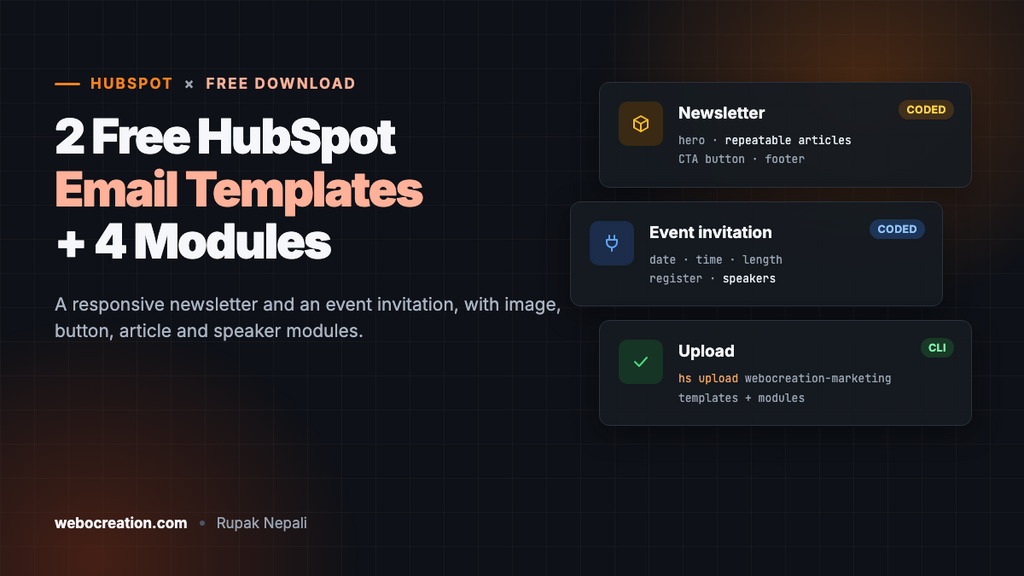
Here are two free coded email templates for HubSpot: a newsletter and an event invitation. They’re responsive, work in Outlook, support dark mode, and come with four custom modules that give editors simple, safe settings: an image, a button, repeatable articles and repeatable speakers.
Download both templates and the modules (ZIP, 13 KB). Free to use and change, with no attribution needed.
Template 1: Newsletter
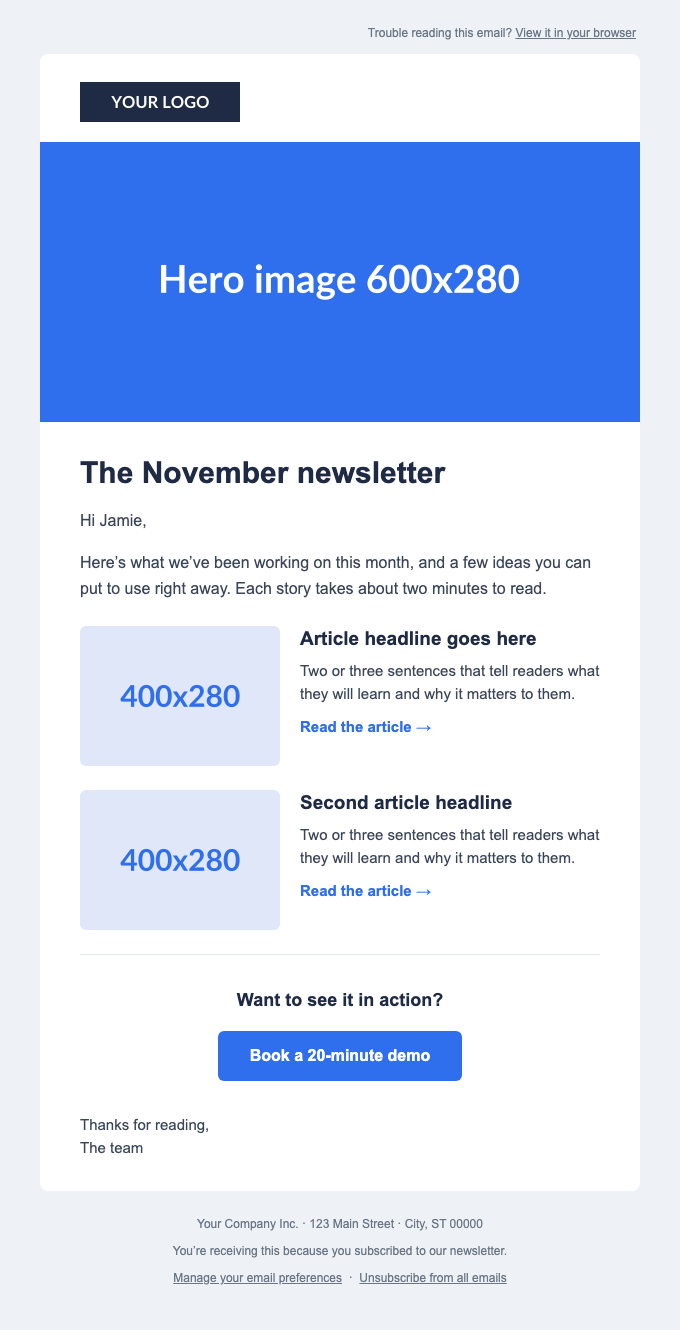
- Logo and hero image, each with an optional link.
- Headline and intro, with a greeting that falls back to “Hi there” when the first name is missing.
- Repeatable articles: image, headline, summary and link. Add up to twelve, reorder them, or leave out an image for a text-only story. On phones, images stack above the text.
- Call to action with a heading and a button whose text, link, color and alignment are settings.
- Sign-off and a footer with your company address and both unsubscribe links.
Template 2: Event invitation
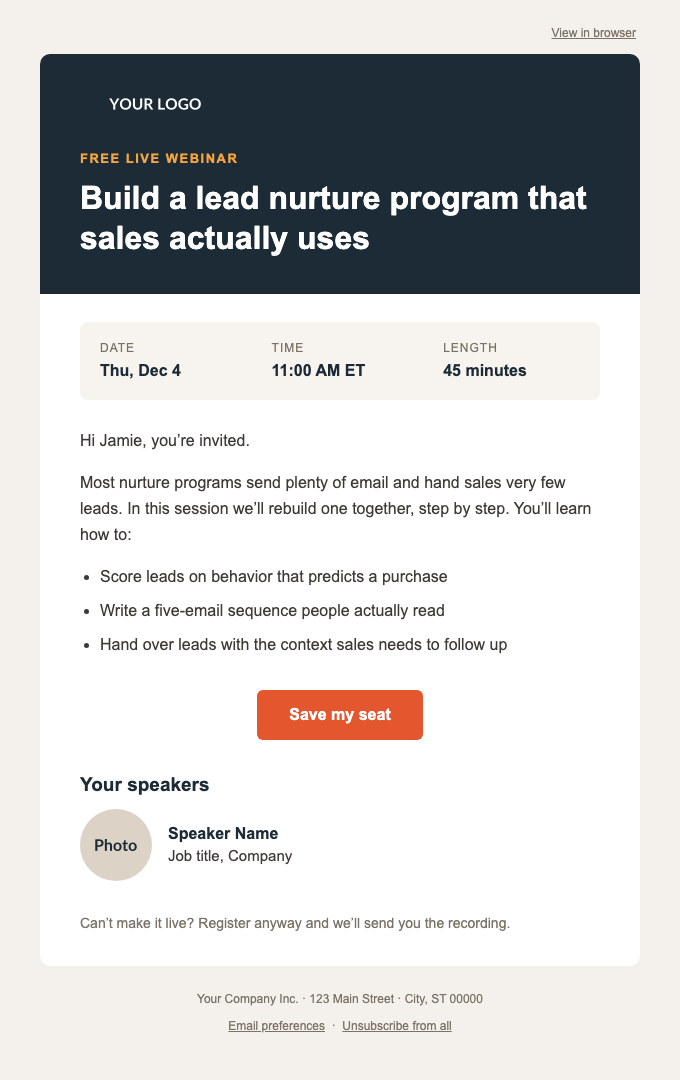
- Dark header with logo, a label and the title.
- Date, time and length, each a plain-text module so the layout can’t break.
- Intro and agenda in rich text, after a personal greeting.
- Register button in the event’s accent color.
- Repeatable speakers with round photos, names and titles.
- Recording note (“Can’t make it live?”).
The four custom modules
| Module | Editors can change | Used in |
|---|---|---|
| WC Image | Image, alt text, optional link, corner radius | Emails and pages |
| WC Button | Text, link, color, alignment | Emails and pages |
| WC Article list | Repeatable articles: image, headline, summary, link and link text, plus headline and link colors | Emails |
| WC Speaker list | Repeatable speakers: photo, name, title | Emails and pages |
Because they’re your modules, you can also use them in your own templates or drag-and-drop emails. For how they’re built, see How to Build a Coded HubSpot Email Template.
How to install the templates
Option 1: The HubSpot CLI (recommended)
The CLI uploads the templates and modules together and reports errors. You need Node.js installed.
npm install -g @hubspot/cli
hs init                      # connect your HubSpot account (opens a browser to create a key)
unzip hubspot-email-templates.zip
hs upload webocreation-marketing webocreation-marketing
This creates a webocreation-marketing folder in your Design Manager with templates and modules inside. Keep that structure: the templates load the modules with relative paths such as ../modules/wc-button.
Option 2: The Design Manager, by hand
- In Content → Design Manager, create a folder
webocreation-marketingwith two subfolders,templatesandmodules. - For each module, create a new module in
moduleswith the same name (for examplewc-button), add the fields listed in itsfields.json, and pastemodule.htmlinto the HTML + HubL pane. - For each template, create a new HTML + HubL file in
templates, choose Email, and paste the template file.
Then, for both options
- Check your company information in HubSpot’s settings (company name and address). The footer reads it, and HubSpot requires it.
- Create an email and choose the “Webocreation – Newsletter” or “Webocreation – Event invitation” template.
- Replace the placeholder images in each image module with your own, uploaded at twice the shown size (for example, a 1200 × 560 hero for the 600 × 280 slot).
- Fill in the preview text in the email’s settings, so inboxes don’t show “View in browser” as the preview.
- Send tests to Gmail, Outlook on Windows and an iPhone, previewing as a contact with and without a first name.
Change the colors
Button and article colors are module settings, so editors change them per email. The fixed colors live in the templates. Use find-and-replace on these values:
| Color | Newsletter | Invitation |
|---|---|---|
| Accent (button, links) | #2f6fed (button module default) | #e4572e (set on the register button) |
| Headings | #1f2a44 | #1d2b36 |
| Body text | #3a4558 | #3d3a35 |
| Page background | #eef1f6 | #f4f1ec |
| Header band and label | none | #1d2b36 and #f2a541 |
Frequently asked questions
Can I use these in the drag-and-drop email editor? The templates themselves are coded templates. The custom modules, though, appear in the drag-and-drop editor’s module list once uploaded, so you can use the button, image and article modules in drag-and-drop emails too.
Why isn’t the greeting a module? It sits in the template so it’s always there and always has a fallback. Editors can still add personalization tokens anywhere in the rich text modules.
Do these work in Pardot or Marketo? The design does; the code doesn’t. We have versions for both: Pardot email templates and Marketo email templates.
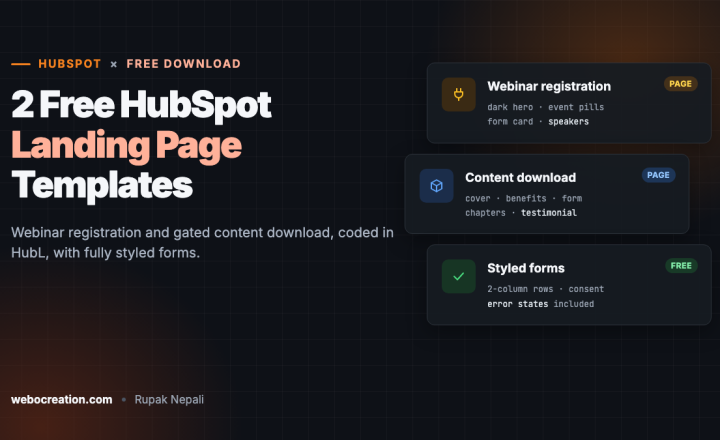
Need matching landing pages? Get two free HubSpot landing page templates: a webinar registration page that pairs with the invitation, and a content download page.

Author of four Opencart book.
The recent are Opencart 4 developer book and Opencart 4 user manual