2 Free Marketo Landing Page Templates: Webinar Registration and Content Download (Guided)
Two free Marketo guided landing page templates, a webinar registration page and a gated content download page, with fully styled Forms 2.0 forms, color variables and sections you can switch off.
 Rupak NepaliPublished Nov 12, 2026
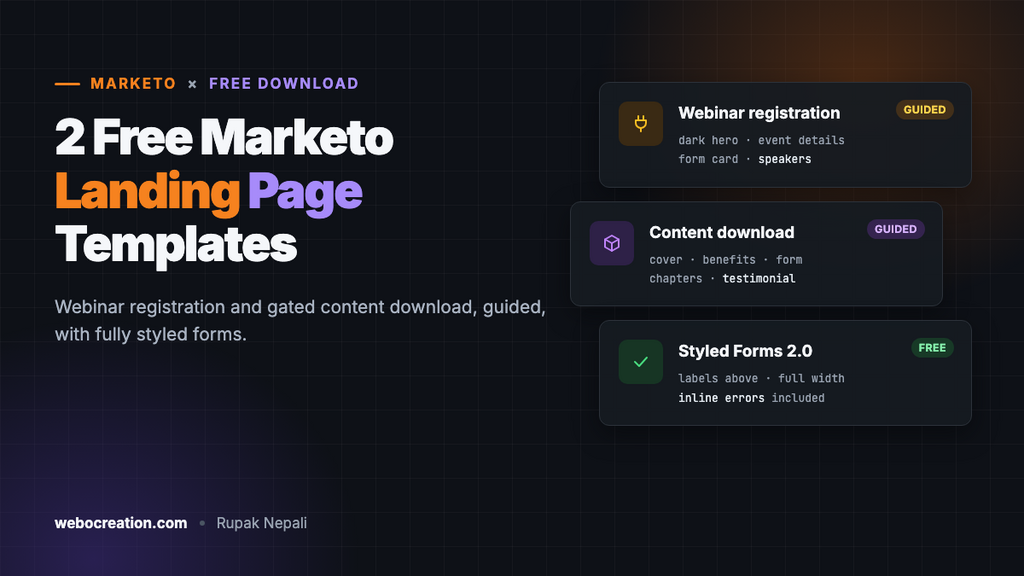
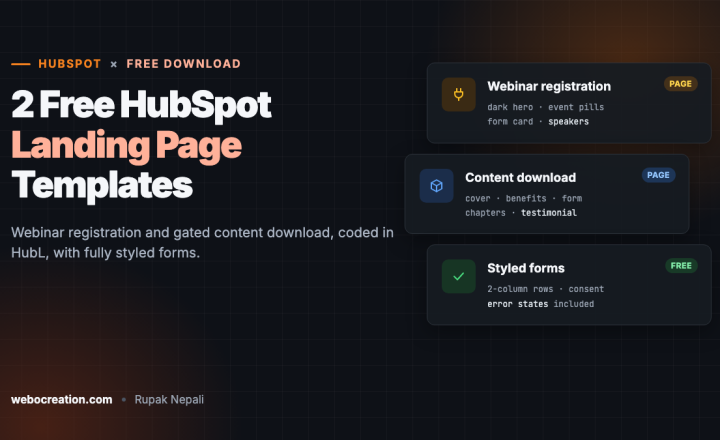
Here are two free guided landing page templates for Adobe Marketo Engage: a webinar registration page and a gated content download page for ebooks, reports and guides. Both are responsive, use variables for colors, let you switch sections off per page, and include CSS that makes Marketo’s Forms 2.0 match the design, error messages included.
Download both templates (ZIP, 8 KB). Free to use and change, with no attribution needed.
Template 1: Webinar registration
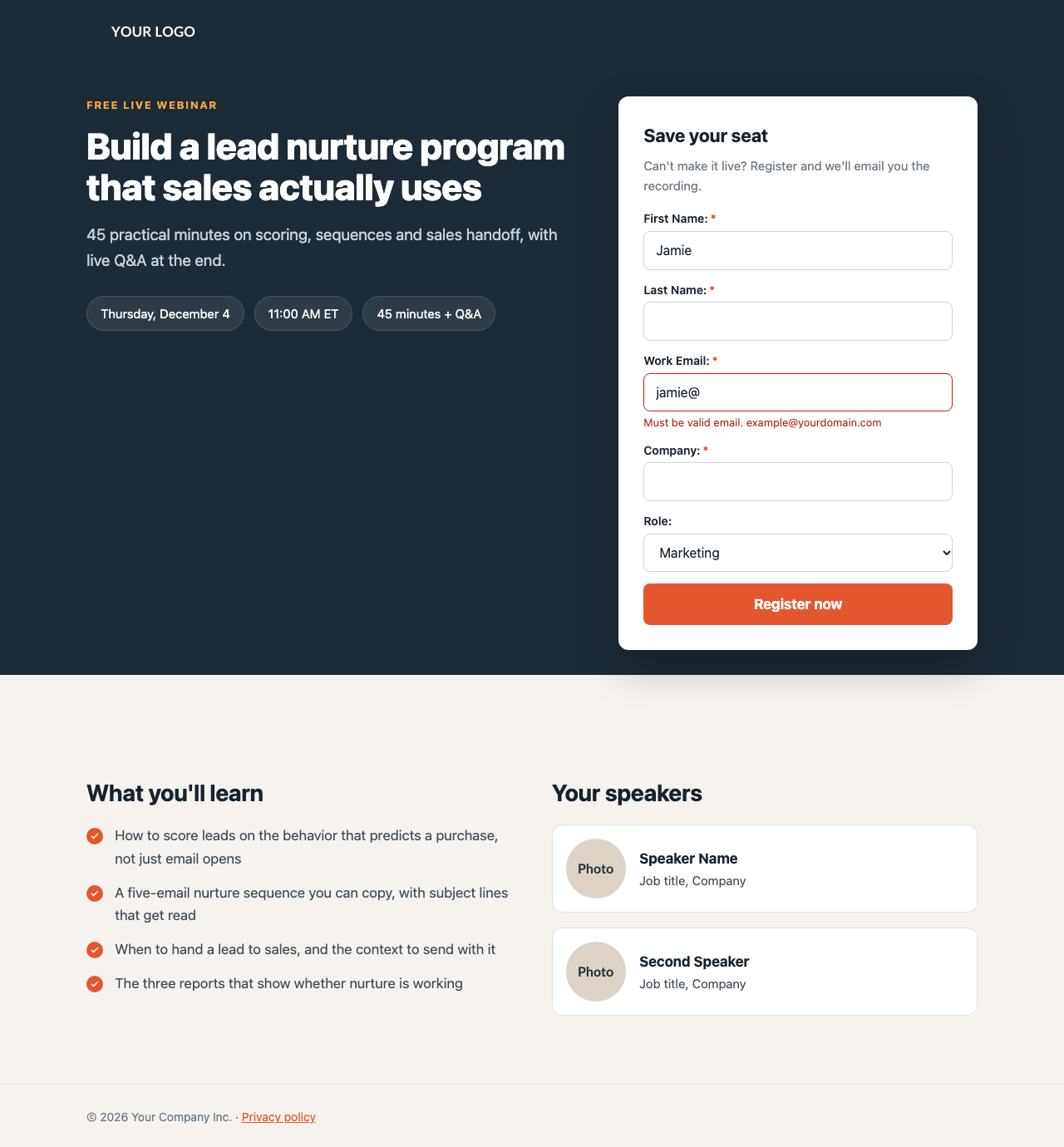
- Dark hero with a label, headline, description and event details.
- Form card overlapping the hero, with its own heading and note.
- “What you’ll learn” with check-mark bullets.
- Two speaker cards, and a switch to hide the speakers section.
- Variables for the accent color, its hover shade and the hero background.
It pairs with the free Marketo event invitation email template, which uses the same colors.
Template 2: Content download
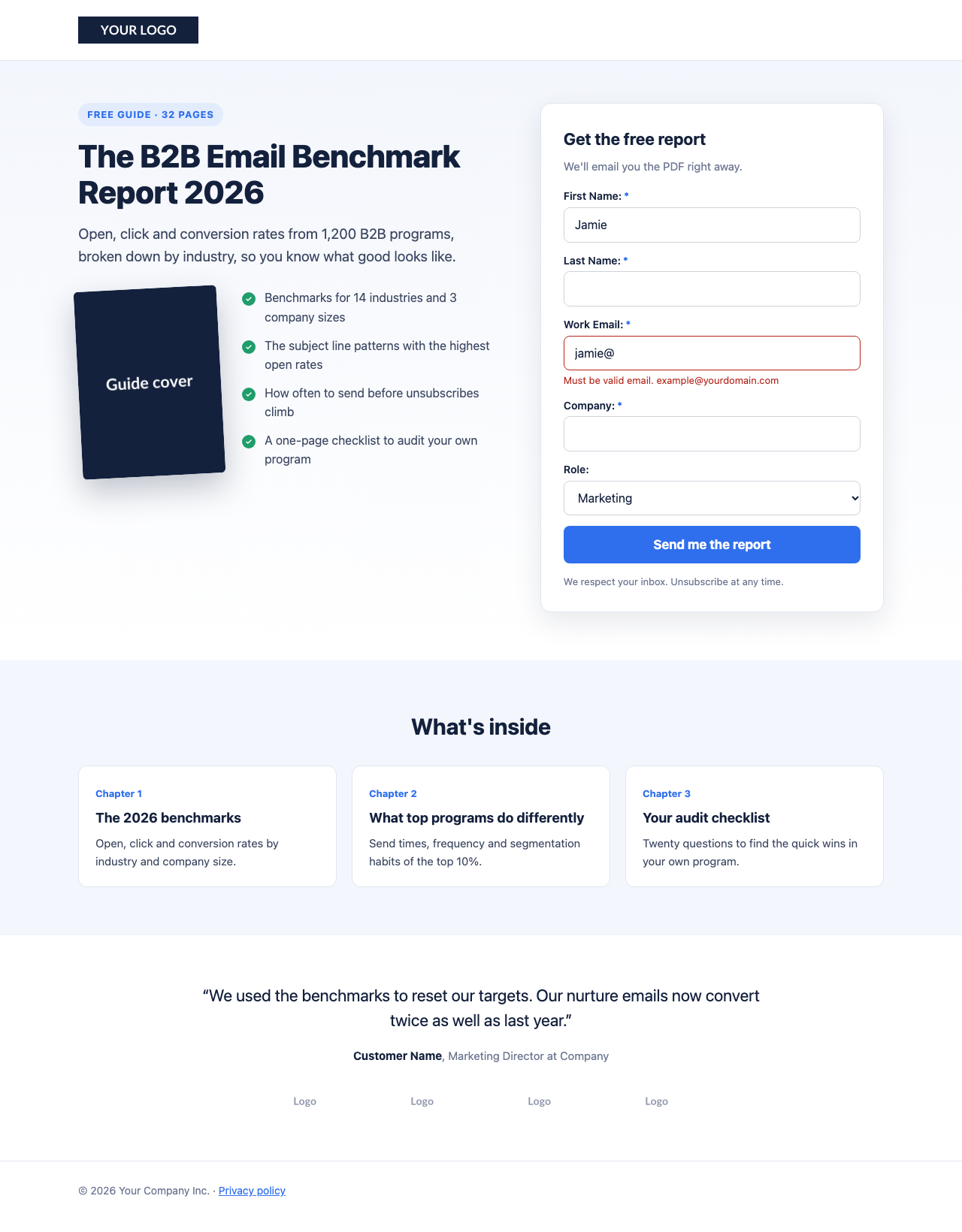
- Badge (“Free guide · 32 pages”) set from a variable, plus headline and description.
- Tilted cover image next to a benefits list.
- Form card with a privacy note under the button.
- “What’s inside”: three chapter cards.
- Testimonial and customer logos, with a switch to hide them until you have quotes to show.
What’s built in
| Feature | Details |
|---|---|
| Guided editing | Every editable part is an mktoText, mktoImg or mktoForm element with a clear name, so editors know what they’re changing |
| Variables | Colors (mktoColor), the badge text (mktoString) and section switches (mktoBoolean) in the right-hand panel |
| Form styling | Full-width fields, labels above, asterisks only on required fields, a full-width button, and inline error messages instead of floating tooltips |
| Accessibility | Visible focus styles, readable contrast, 16-pixel inputs so iPhones don’t zoom |
| Responsive | Two columns on desktop, one column below 900 pixels with the form right under the headline |
| Performance | One file with inline CSS, system fonts and no extra JavaScript |
For how each part works, or to build your own, see How to Build a Marketo Guided Landing Page Template.
How to import a template
- Upload your images in Design Studio → Images and Files: logo, cover, speaker photos, customer logos.
- Create the template. In Design Studio → Landing Page Templates, create a new template and choose Guided. Paste the whole HTML file into the editor and save.
- Preview and approve the template.
- Create a landing page from it, inside your program. Pick the form for the form element. Edit the text and images, and set the colors and switches in the variables panel.
- Set the form’s theme to Simple or Plain in the form editor. The template’s CSS does the rest.
- Fill in the page title and description in the page settings.
- Test it: submit the form empty to see the error styling, then for real to check the follow-up page and your smart campaigns. Check the page on a phone.
Change the colors
Use the variables panel on each page, or change the defaults in the template’s meta tags so every new page starts with your brand colors:
<meta class="mktoColor" id="accentColor" mktoName="Accent color" default="#e4572e">
<meta class="mktoColor" id="accentDark" mktoName="Accent color (hover)" default="#c9461f">
Pick a darker shade of your accent for the hover color. The buttons, links, check marks, asterisks and focus rings all follow these two values.
Deliver the content after a download
For the content download page, the usual Marketo setup is:
- Set the form’s follow-up page to a thank-you page with a download button (or straight to the file in Design Studio).
- Build a trigger smart campaign in the program: “Fills out form” (this form, on this landing page) → send an email with the download link, and change the program status to “Downloaded” or similar.
The email gives people the link again later, and confirms the address works. The program status shows you who downloaded in program reports.
Frequently asked questions
Can I use these as free-form templates? They’re built as guided templates. Free-form templates use a different editor and don’t use these element classes.
Can I add a section? Yes. Copy an existing section, give every element in it a new unique id and mktoName, and save the template.
The form looks right on the page but not when embedded on our website. Embedded forms don’t use the landing page’s CSS. Add the form CSS from the template to your website’s stylesheet, scoped to the element that holds the form.
More in this series: how to build a Marketo email template and the Marketo tokens and Velocity cheat sheet. Using Pardot? See 2 Free Pardot Landing Page Templates.

Author of four Opencart book.
The recent are Opencart 4 developer book and Opencart 4 user manual