Marketo Tokens Cheat Sheet: Lead, My and System Tokens, Defaults and Velocity Email Scripts
A practical cheat sheet for Marketo tokens: lead, company, program (My) and system tokens, default values that prevent "Hi ,", token inheritance, and when and how to use Velocity email scripts.
 Rupak NepaliPublished Nov 12, 2026
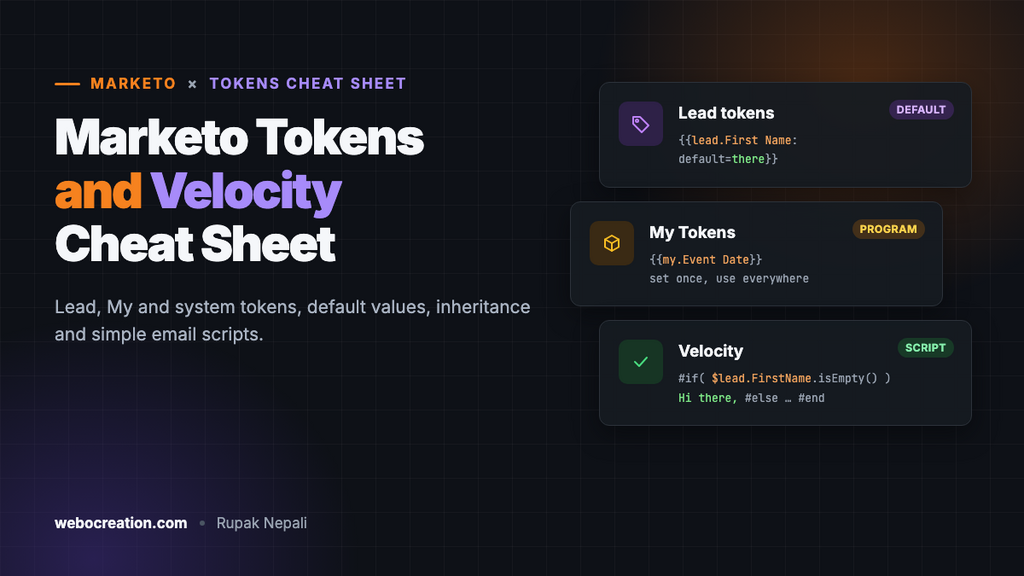
Tokens are what make Marketo Engage scale. One email template, a handful of tokens, and you can run fifty webinars without editing fifty emails. They’re also behind the classic personalization failure, “Hi ,”, when a token has no value and no fallback.
This cheat sheet covers the token types you’ll use every day, default values, how program tokens inherit, and when to step up to Velocity email scripts. The examples come from our free Marketo email templates, where they’re already in place.
The token types
| Type | Format | Example | Where the value comes from |
|---|---|---|---|
| Lead | {{lead.Field Name}} | {{lead.First Name}} | The person’s record |
| Company | {{company.Field Name}} | {{company.Company Name}} | The person’s company fields |
| My (program) | {{my.Token Name}} | {{my.Event Date}} | Tokens you define on a program or folder |
| System | {{system.name}} | {{system.unsubscribeLink}} | Marketo itself |
| Trigger | {{trigger.name}} | {{trigger.Trigger Name}} | The activity that triggered a smart campaign |
Lead and company tokens use the field’s display name, with spaces, exactly as it appears in Marketo. Don’t type them by hand: in the email editor, use the token button to insert them, which also lets you set the default value.
Always set a default
Add :default= to any lead token that appears in visible text:
Hi {{lead.First Name:default=there}},A lead with a first name sees “Hi Jamie,”. A lead without one sees “Hi there,”. Choose defaults that read naturally in the sentence:
| Token | Sensible default | Reads as |
|---|---|---|
{{lead.First Name:default=there}} | there | “Hi there,” |
{{company.Company Name:default=your team}} | your team | “Built for your team” |
{{lead.City:default=your area}} | your area | “Events near your area” |
You can also set a default once for every use of a field, in Admin → Field Management, but setting it in the token keeps each email in control of its own wording.
My Tokens: set once, use everywhere
My Tokens are defined on a program (or a folder) and can be used in every email, landing page and smart campaign in it. The common types are:
| Type | Use it for |
|---|---|
| Text | Short values: event date, speaker name, registration URL, offer code |
| Rich Text | Formatted blocks: an agenda, a legal note, a signature |
| Date | A date you can also use in smart campaigns |
| Calendar File | An “Add to calendar” (.ics) link for events |
| Score | A score change you can reuse in campaigns, such as +10 |
| Email Script | Velocity code for logic tokens can’t do (see below) |
The event invitation template uses four Text tokens: {{my.Event Date}}, {{my.Event Time}}, {{my.Event Length}} and {{my.Registration URL}}. The invitation, reminders and follow-up all read them, so a date change is one edit.
Inheritance
Tokens defined on a folder are inherited by every program inside it. A program can override an inherited token with its own value. Use this to set company-wide values once, at the top folder (company name, address, support email, brand colors for Rich Text), and event-specific values on each program. To run the next event, clone the program and change only its own tokens.
System tokens worth knowing
| Token | What it does |
|---|---|
{{system.unsubscribeLink}} | Link to your unsubscribe page. Including it replaces Marketo’s default unsubscribe footer. |
{{system.viewAsWebpageLink}} | Link to the web version of the email |
{{system.forwardToFriendLink}} | Link to Marketo’s forward-to-a-friend page |
{{system.date}} | Today’s date, when the email is sent |
If a marketing email has no unsubscribe link, Marketo adds its default unsubscribe text at the bottom. Put {{system.unsubscribeLink}} in your own footer, styled like the rest of the email, and point your unsubscribe page at a preference center so people can leave one list without leaving all of them.
When tokens aren’t enough: Velocity email scripts
Tokens insert values. They can’t make decisions. For “show this if the person is a customer, that if they’re a prospect”, or for formatting a value (capitalizing a name, formatting a date), Marketo has Email Script tokens written in Velocity, a simple template language.
Create one as a My Token of type Email Script, then use it in emails like any other token, for example {{my.Greeting}}. A greeting that fixes capitalization and falls back when the name is empty:
#if( $lead.FirstName.isEmpty() )
Hi there,
#else
Hi ${display.capitalize($lead.FirstName.toLowerCase())},
#end
“jAMIE” becomes “Jamie”, and an empty name becomes “Hi there,”. Content that changes by a field’s value:
#if( $lead.Lead_Status__c == "Customer" )
Log in to see what's new in your account.
#else
See what customers are doing with our platform.
#end
Rules that trip up almost everyone the first time:
- Velocity uses API names, such as
$lead.FirstName, not display names likeFirst Name. - Tick the fields you use in the tree on the right of the script editor. Marketo only loads the fields you tick, and an unticked field is always empty.
- Velocity runs in emails only, not on landing pages.
- Test with real leads. The editor’s preview doesn’t run scripts the way a send does. Send samples as specific test leads, or preview the email “as” a lead from a list.
- Links need care. If a script outputs a link, output the whole
<a href="https://...">tag with the protocol, or Marketo may not track clicks on it.
Velocity can do much more (loops over custom objects, date math), but most teams only ever need the two patterns above.
Mistakes that end up in sent emails
| Mistake | Fix |
|---|---|
| “Hi ,” when the first name is missing | Add :default=there to the token |
The literal text {{my.Event Date}} or an empty space appears | The token isn’t defined on this program or a folder above it, or its name doesn’t match exactly (spaces and capitals count) |
| Last month’s date in this month’s email | The program was cloned but its tokens weren’t updated. Check My Tokens before approving. |
| A Velocity token outputs nothing | The field isn’t ticked in the script editor’s tree, or the script uses a display name instead of the API name |
| Two unsubscribe footers | The footer’s link isn’t {{system.unsubscribeLink}}, so Marketo adds its default footer too |
Test personalization properly
- Create two test leads: one with every field filled in, one with only an email address.
- Send samples of the email as each of them.
- Check every token, default and script output, in the HTML and text versions, and in the subject line and preheader.
- After cloning a program, check its My Tokens before you approve anything.
See it all in a working template: download the free Marketo newsletter and event invitation, or read how to build a Marketo email template. Using Pardot too? Here’s the Pardot HML cheat sheet.

Author of four Opencart book.
The recent are Opencart 4 developer book and Opencart 4 user manual