WhatsApp Chat Button for OpenCart 4: Click-to-Chat With the Product Pre-filled and Opening Hours (Free Extension)
A free WhatsApp chat button for OpenCart 4 with a floating button, an Ask on WhatsApp product button that pre-fills the product name and link, and opening hours in the store time zone.
 Rupak NepaliPublished Nov 24, 2026
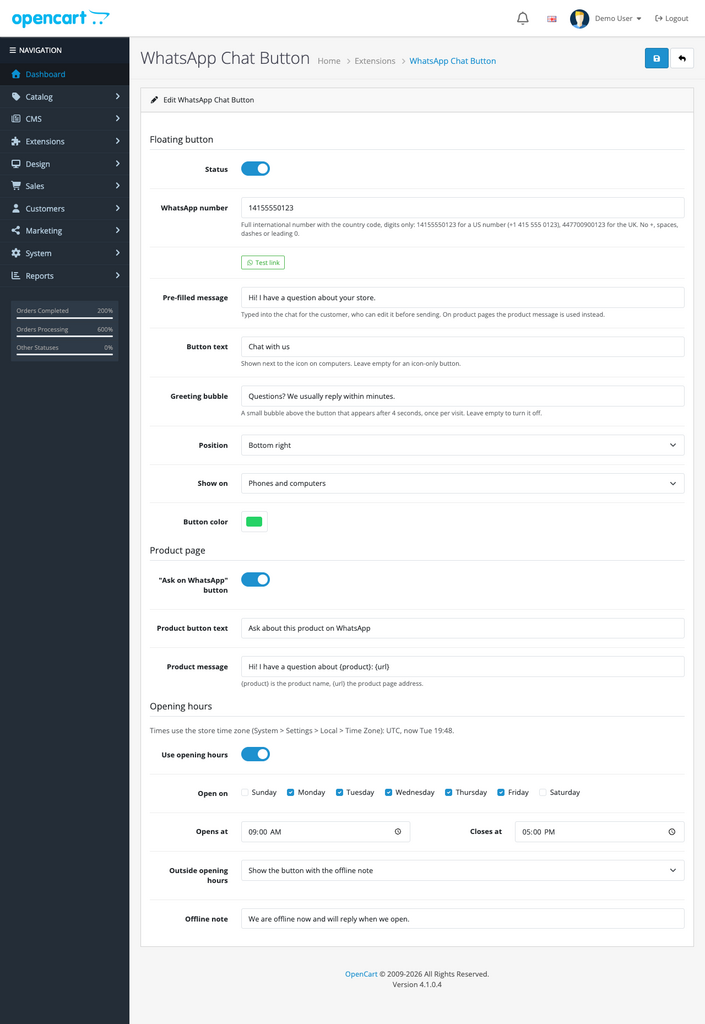
Some shoppers won’t fill in a contact form or wait for an email. They have one quick question about size, stock or delivery, and they want an answer in the app they already use. If they can’t ask, they leave. A WhatsApp chat button fixes that.
This free extension adds a WhatsApp chat button to OpenCart 4: a floating button on every page and an “Ask about this product on WhatsApp” button on product pages. Tapping it opens WhatsApp with your number and a message already typed, including the product name and link. It works with plain wa.me links, so no WhatsApp script loads on your pages and nothing is sent until the shopper taps. Tested on OpenCart 4.1.0.4.
Download: whatsappchat.ocmod.zip (OpenCart 4.0.2.x to 4.1.x, free, no core file changes)
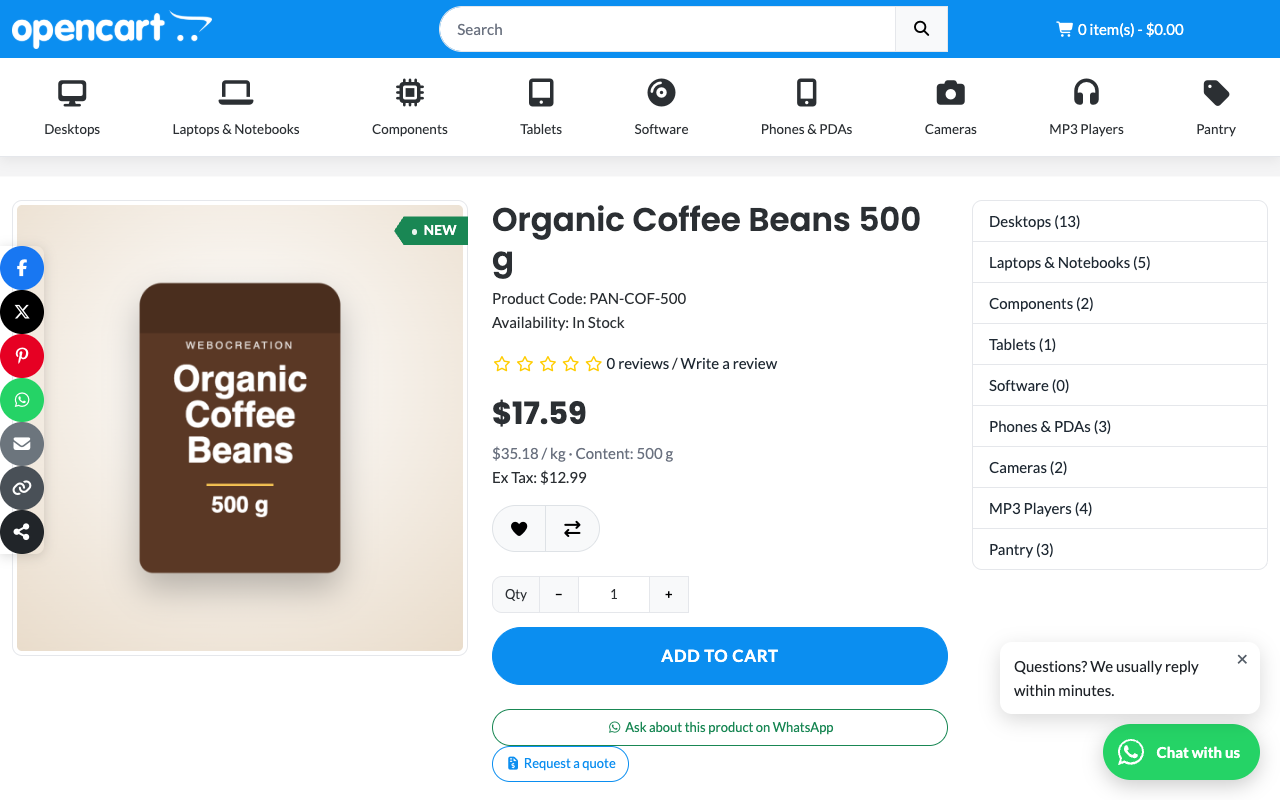
What the WhatsApp chat button does
- A floating WhatsApp button in the bottom right or left corner, with optional text (“Chat with us”) on computers and an icon-only button on phones.
- A pre-filled message. On product pages it becomes “Hi! I have a question about Organic Coffee Beans 500 g: https://…”, so you know what they’re asking about.
- An “Ask on WhatsApp” button under the add to cart form on product pages.
- A greeting bubble that appears after 4 seconds, once per visit, and can be closed.
- Opening hours: days and times in your store’s time zone. Outside them the button turns grey with an offline note, or hides.
- Show it on phones and computers, phones only or computers only, in any color.
- A
whatsapp_clickevent in GA4 when gtag is on the page, with the placement (float or product).
Install the extension
- Download
whatsappchat.ocmod.zip. - Go to Extensions > Installer, click Upload and choose the zip.
- Go to Extensions > Extensions, choose Modules, find WhatsApp Chat Button and click Install.
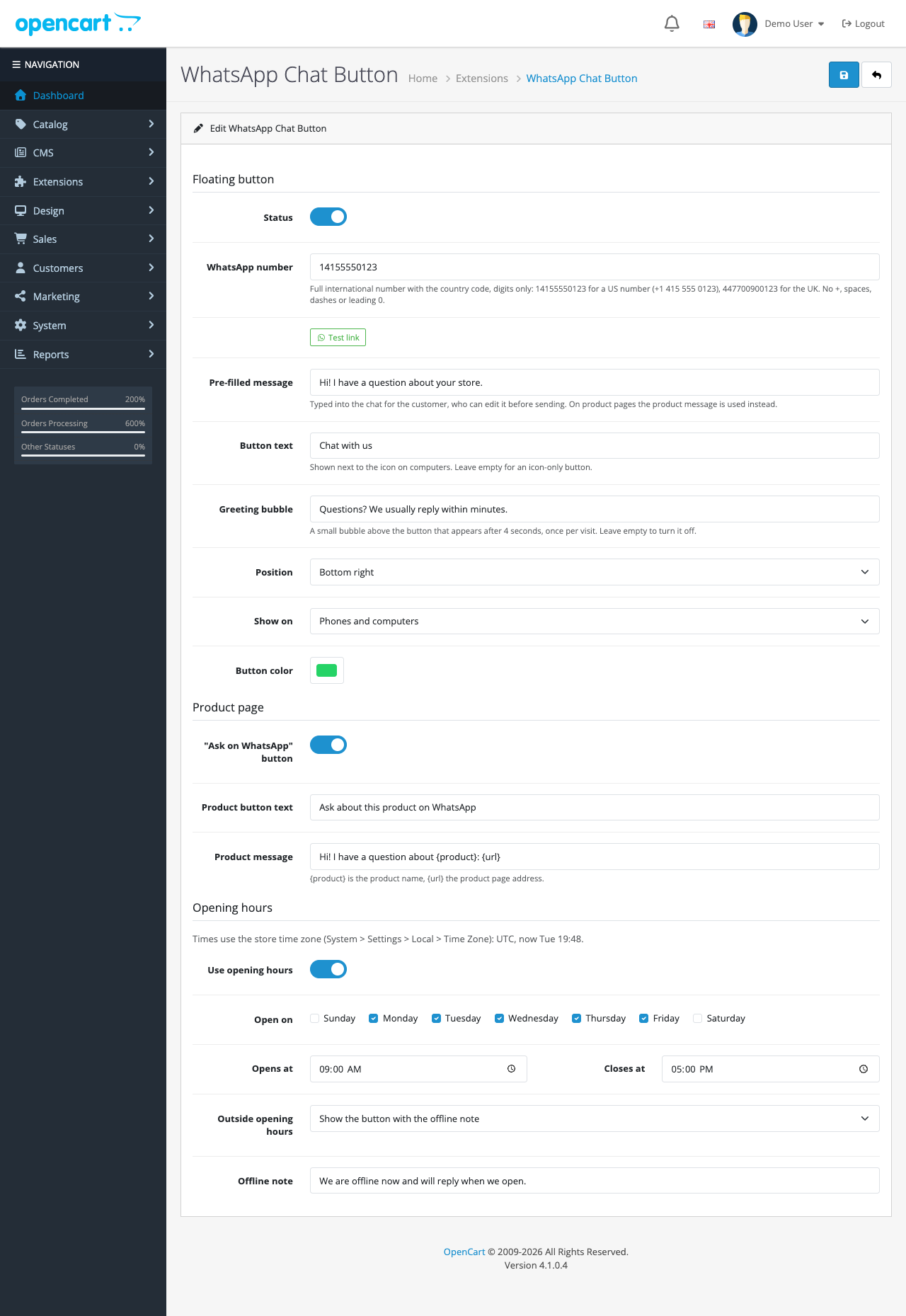
- Click Edit, switch Status on and enter your WhatsApp number with the country code.
- Click Save, then Test link to check the number opens the right chat.
Enter the number the way wa.me wants it
WhatsApp’s click-to-chat links need the full international number with digits only: no plus sign, spaces, brackets, dashes or leading zero. A US number +1 (415) 555-0123 becomes 14155550123, and a UK mobile 07700 900123 becomes 447700900123.
The extension cleans what people usually type before it saves, and refuses numbers that still don’t look international:
// wa.me wants the full international number as digits only. Strip what people usually type.
$phone = preg_replace('/[\s\-\.\(\)\+]/', '', (string)($post['module_whatsappchat_phone'] ?? ''));

if (str_starts_with($phone, '00')) {
    $phone = substr($phone, 2);
}
In our test, “+1 (415) 555-0123” was saved as 14155550123, and the local number “0415 555 0123” was rejected with “Enter the number with the country code, 8 to 15 digits, without + or a leading 0.”
How the link is built
Both buttons are ordinary links. The message is URL-encoded and added as ?text=. On product pages the product message is used, with {product} and {url} replaced:
private function link(array $product = []): string {
    if ($product) {
        $message = str_replace(['{product}', '{url}'], [$product['name'], $product['url']], $this->setting('product_message'));
    } else {
        $message = $this->setting('message');
    }

    return 'https://wa.me/' . $this->config->get('module_whatsappchat_phone') . ($message !== '' ? '?text=' . rawurlencode($message) : '');
}
On the coffee product page the floating button pointed to:
https://wa.me/14155550123?text=Hi%21%20I%20have%20a%20question%20about%20Organic%20Coffee%20Beans%20500%20g%3A%20http%3A%2F%2Flocalhost%3A8000%2Findex.php%3Froute%3Dproduct%2Fproduct%26language%3Den-gb%26product_id%3D50The button is added with the catalog/view/common/footer/after event and the product button with catalog/view/product/product/after. The CSS and the small script are inline, about 4 KB, with no external requests.
Opening hours that work with page caching
If the server decided “open” or “closed”, a cached page would keep showing whatever was true when it was cached. So the server only sends the schedule and the store’s time zone, and the browser checks the current time in that time zone:
  if (hours) {
    var parts = {};
    try {
      new Intl.DateTimeFormat('en-US', {timeZone: hours.tz, weekday: 'short', hour: '2-digit', minute: '2-digit', hourCycle: 'h23'}).formatToParts(new Date()).forEach(function (p) { parts[p.type] = p.value; });
    } catch (e) {}
    var day = ['Sun', 'Mon', 'Tue', 'Wed', 'Thu', 'Fri', 'Sat'].indexOf(parts.weekday);
    var now = (parts.hour || '00') + ':' + (parts.minute || '00');
    var open = hours.days.indexOf(day) > -1 && now >= hours.open && now < hours.close;
    if (!open) {
      if (hours.offline == 'hide') return;
      box.classList.add('wac-offline');
      if (bubble && hours.note) bubble.querySelector('.wac-text').textContent = hours.note;
    }
    box.hidden = false;
  }
The time zone is your store’s (System > Settings > Local > Time Zone), not the shopper’s. A shopper in Tokyo sees your store as closed when your team in New York is asleep, which is what you want.
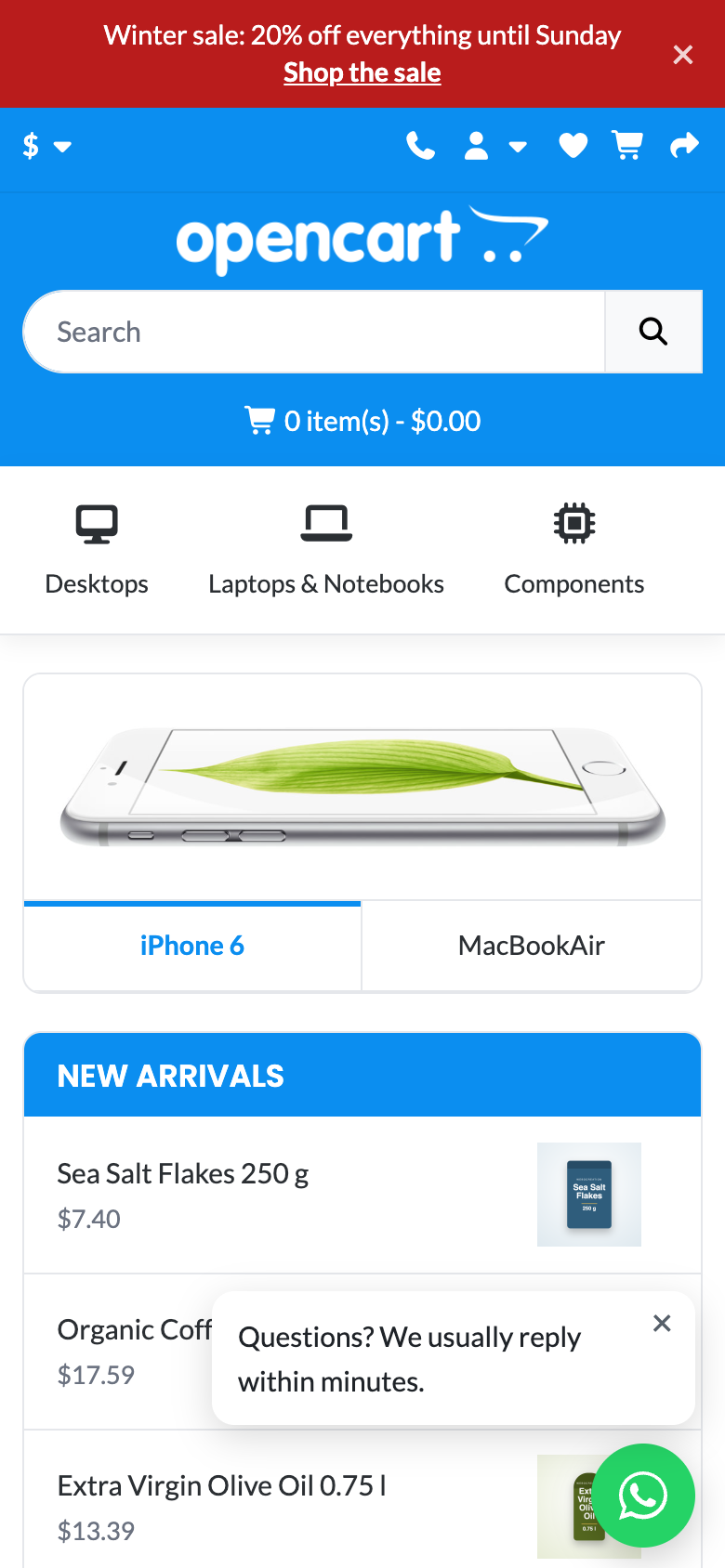
What we found when testing
- Offline note and hide both work. With hours set to a window that had already closed, the button turned grey and the bubble showed “We are offline now and will reply when we open.” With “Hide the button” it didn’t appear at all.
- A Twig trap. Our first build failed with “Could not load template”. The inline CSS had
{#wacinside a media query, and{#starts a comment in Twig. A space ({ #wac) fixed it. Watch for this in any OpenCart template with inline CSS. - Language arrays. In OpenCart 4.1,
$this->language->get()must return a string. An array of day names caused a fatal error on the settings page, so each day name is its own language key. - The greeting bubble appeared after 4 seconds and stayed closed for the rest of the visit after a click on ×.
WhatsApp Business tips
- Use a WhatsApp Business number, not a personal one. The Business app has away messages and quick replies, which pair well with the offline note.
- Keep the pre-filled message short and editable. Shoppers can change it before sending.
- This button is for chats started by shoppers. Sending order updates on WhatsApp is a different thing, covered in SMS and WhatsApp order notifications for OpenCart 4.
Related posts
- Request a quote for OpenCart 4
- Product quick view for OpenCart 4
- Core Web Vitals for OpenCart themes

Rupak Nepali is a web developer, manage Webocreation website and the author of six books:
Getting Started with OpenCart Module Development (Packt, 2013),
OpenCart Theme and Module Development (Packt, 2015),
OpenCart 4: Dev Guide for Themes & Extensions (2024),
OpenCart 4: User Manual (2025),
Cloudflare for the Enterprise Website (2026) and
The Technical Web Guide for Marketers (2026).
Rupak has built OpenCart stores and extensions since 2010, has published more than 600 tutorials on Webocreation, and shares free OpenCart extensions on GitHub.
Find Rupak on
GitHub | Amazon | LinkedIn | X | YouTube.