Core Web Vitals for OpenCart Themes: Fix LCP, INP and CLS Step by Step
Why OpenCart stores fail Core Web Vitals and how to fix each metric in the theme: missing image dimensions (CLS), slow hero and product images (LCP), heavy JavaScript and third-party scripts (INP), with Twig edits and a GA4 field-data snippet.
 Rupak NepaliPublished Oct 26, 2026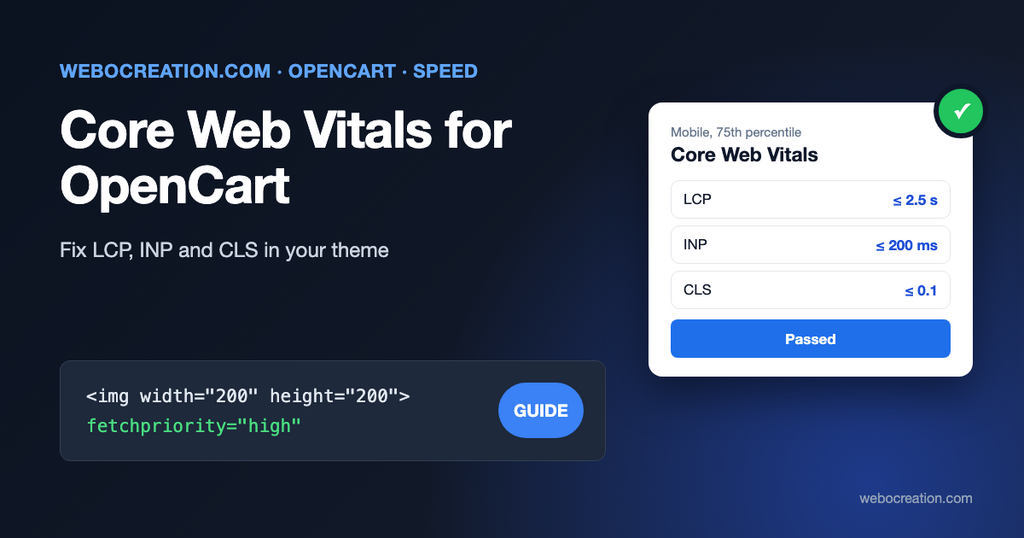
Core Web Vitals are three numbers Google collects from real Chrome visitors to your store: how fast the main content appears, how quickly the page reacts to clicks, and how much the layout jumps around. Google uses them as a ranking signal, and more importantly, shoppers feel every one of them.
Core Web Vitals are the subset of Web Vitals that apply to all web pages, should be measured by all site owners, and will be surfaced across all Google tools.
web.dev, Web Vitals
This guide goes through the typical problems in OpenCart themes, starting with the default theme in OpenCart 4.1, and shows the fix for each.
The three metrics and their thresholds
| Metric | Measures | Good | Poor |
|---|---|---|---|
| LCP, Largest Contentful Paint | When the biggest element (usually the hero banner or product image) is shown | 2.5 s or less | over 4 s |
| INP, Interaction to Next Paint | How long the page takes to respond to clicks, taps and typing | 200 ms or less | over 500 ms |
| CLS, Cumulative Layout Shift | How much visible content moves while loading | 0.1 or less | over 0.25 |
A page passes when the 75th percentile of visits, measured separately on mobile and desktop, is in the “good” range. INP replaced First Input Delay (FID) in March 2024, and it’s the metric old OpenCart themes fail most often, because it measures every interaction, not only the first.
Measure first: field data beats lab data
There are two kinds of measurements, and they often disagree:
- Field data comes from real visitors (the Chrome UX Report). It’s what Google uses. You see it at the top of PageSpeed Insights (“Discover what your real users are experiencing”) and in Google Search Console under Experience > Core Web Vitals, grouped by URL pattern.
- Lab data is a single simulated load (Lighthouse). It’s useful for finding causes, but a Lighthouse score of 95 doesn’t mean you pass, and a score of 60 doesn’t mean you fail.
Small stores often have no field data in PageSpeed Insights because they don’t get enough Chrome traffic. Collect your own by sending the metrics to Google Analytics 4 with Google’s web-vitals library. Add this before </body> in catalog/view/template/common/footer.twig (it assumes GA4’s gtag is already on the page, for example from our GA4 ecommerce extension):
<script type="module">
import {onCLS, onINP, onLCP} from 'https://unpkg.com/web-vitals@4?module';

function send(metric) {
  if (typeof gtag !== 'function') return;
  gtag('event', metric.name, {
    value: Math.round(metric.name === 'CLS' ? metric.delta * 1000 : metric.delta),
    metric_id: metric.id,
    metric_value: metric.value,
    metric_rating: metric.rating,
    page_route: new URLSearchParams(location.search).get('route') || location.pathname
  });
}

onCLS(send);
onINP(send);
onLCP(send);
</script>
After a few days, an Exploration in GA4 grouped by page path and metric_rating shows which page types fail. In OpenCart it’s almost always one of three: the home page (banner slideshow), category pages (many images) or product pages (large image and many options).
CLS: give every image its size
The most common CLS problem in OpenCart is simple. The default theme’s product thumbnails have no width or height attributes. This is catalog/view/template/product/thumb.twig in OpenCart 4.1:
<img src="{{ thumb }}" alt="{{ name }}" title="{{ name }}" class="img-fluid"/>Without dimensions, the browser can’t reserve space for the image. The text below it is laid out first and then pushed down when the image arrives. On a category page with 20 products, that adds up to a CLS well over 0.1.
OpenCart resizes these images to exact sizes you set in System > Settings > Image (for example 200 × 200 for product lists), so you know the dimensions. Add them to the template:
<img src="{{ thumb }}" alt="{{ name }}" title="{{ name }}" width="200" height="200" loading="lazy" class="img-fluid"/>The img-fluid class still scales the image to its column; the attributes only give the browser the aspect ratio. Do the same for:
| Template | Image | Size setting |
|---|---|---|
product/thumb.twig | Product lists, modules | Product image list size |
product/product.twig | Main product image (thumb) and extra images | Product image thumb and additional sizes |
extension/opencart/catalog/view/template/module/banner.twig | Slideshow and banners | Width and height in the banner module |
common/header.twig | Store logo | Your logo’s real size |
Edit a copy in your own theme rather than the default theme, so an OpenCart update doesn’t overwrite it. See how to develop an OpenCart 4 custom theme.
Other CLS causes in OpenCart stores:
- Web fonts swapping in late. Preload the one or two fonts used above the fold, and use
font-display: swapwith a fallback font of similar width. - Cookie bars and promo banners inserted at the top after load. Position them
fixedat the bottom so they overlay content instead of pushing it. - Ajax-loaded modules (recently viewed, reviews widgets) that appear above existing content. Reserve their height with
min-height.
LCP: get the main image on screen first
On product pages, the LCP element is the main product image. On the home page, it’s usually the first slide of the banner. Four fixes, in order of impact.
1. Never lazy-load the LCP image
Lazy loading is right for product thumbnails below the fold, and wrong for the image that defines LCP. If you or an extension added loading="lazy" to every image, remove it from the main product image and the first slide, and tell the browser that image matters most:
<img src="{{ thumb }}" title="{{ heading_title }}" alt="{{ heading_title }}" width="500" height="500" fetchpriority="high" class="img-thumbnail mb-3"/>2. Serve smaller files
A 500 × 500 product image should be well under 100 KB. Convert to WebP or AVIF; our free WebP/AVIF extension for OpenCart 4 does it without re-uploading the catalog. Check that the banner module isn’t serving a 3000-pixel-wide photo into a 1200-pixel slot.
3. Reduce render-blocking CSS and JavaScript
The default OpenCart 4.1 header loads, in order and before any content can render: jQuery 3.7.1, the full Bootstrap stylesheet, the full Font Awesome stylesheet (fonts/fontawesome/css/all.min.css), the theme stylesheet and common.js. Every extension that calls $this->document->addScript() adds more to that list.
What you can safely do:
- Font Awesome: the default theme uses a few dozen icons. Subset it (Font Awesome’s own subsetter, or an SVG sprite) and load the CSS for those icons only.
- Extension scripts: many don’t need to block rendering. Open each one added through
{% for script in scripts %}and, if it doesn’t define something used by inline scripts in the page, load it withdefer. - jQuery: leave it in the head. OpenCart’s templates contain inline scripts that call
$()as soon as they’re parsed, so deferring jQuery breaks add-to-cart, the cart dropdown and checkout. Removing jQuery is a theme rewrite, not a speed tweak.
4. Cut server time
LCP includes the time to first byte. If PageSpeed Insights shows a TTFB over about 0.8 s, fix the server before the front end: OPcache, a data cache and enough PHP workers, covered in OPcache and Redis for OpenCart 4, plus a CDN such as Cloudflare in front of the store.
INP: keep the main thread free
INP measures the delay between a click and the next frame the browser paints. Poor INP means the main thread was busy running JavaScript when the visitor tapped. In OpenCart stores, the usual suspects are:
- Third-party scripts: chat widgets, review widgets, heatmaps, several tracking pixels, a tag manager loading a dozen tags. Each one does work on the main thread. List them in the Chrome DevTools Performance panel (record, tap something, look for long yellow “Task” bars with a red corner) and remove what nobody uses. Load chat widgets only after the first interaction or after a few seconds.
- Mega menus and sliders initialized with heavy jQuery plugins on every page.
- Product option scripts that recalculate price and stock on every change by looping over the whole DOM.
- Add to cart handlers that re-render the whole cart dropdown synchronously.
When you write your own scripts, give the browser a chance to paint before doing heavy work after a click:
document.getElementById('button-cart').addEventListener('click', async () => {
  showSpinner();                                         // visible feedback first
  await new Promise(resolve => setTimeout(resolve, 0));  // let the browser paint
  updateCartTotals();                                    // then the heavy part
});
Newer Chrome versions support scheduler.yield() for the same purpose; the setTimeout version works everywhere.
A realistic order of work
- Look at Search Console’s Core Web Vitals report to see which URL groups fail, on mobile first.
- Fix CLS (image dimensions): an hour of template work, and it often moves a whole page group from “poor” to “good”.
- Fix LCP on product and home pages:
fetchpriority, image sizes and formats, TTFB. - Audit third-party scripts for INP. Removing two unused widgets often does more than any code change.
- Validate with real users. Search Console uses a 28-day window, so a fix takes up to four weeks to show fully. Click Start tracking on the report’s validation to follow it.
Core Web Vitals are part of a good product page, not a separate project. Our product page optimization guide and accessibility for ecommerce cover the rest.

Author of four Opencart book.
The recent are Opencart 4 developer book and Opencart 4 user manual