PayPal in OpenCart 4: Install PayPal Checkout, Test in the Sandbox, and Fix Orders Stuck at Pending
OpenCart 4.1 ships without PayPal. How to add the free PayPal Checkout extension, test it with sandbox accounts, map PayPal's payment statuses to OpenCart order statuses, and work out why an order is stuck at Pending, using the reasons in PayPal's own API.
 Rupak NepaliPublished Nov 15, 2026
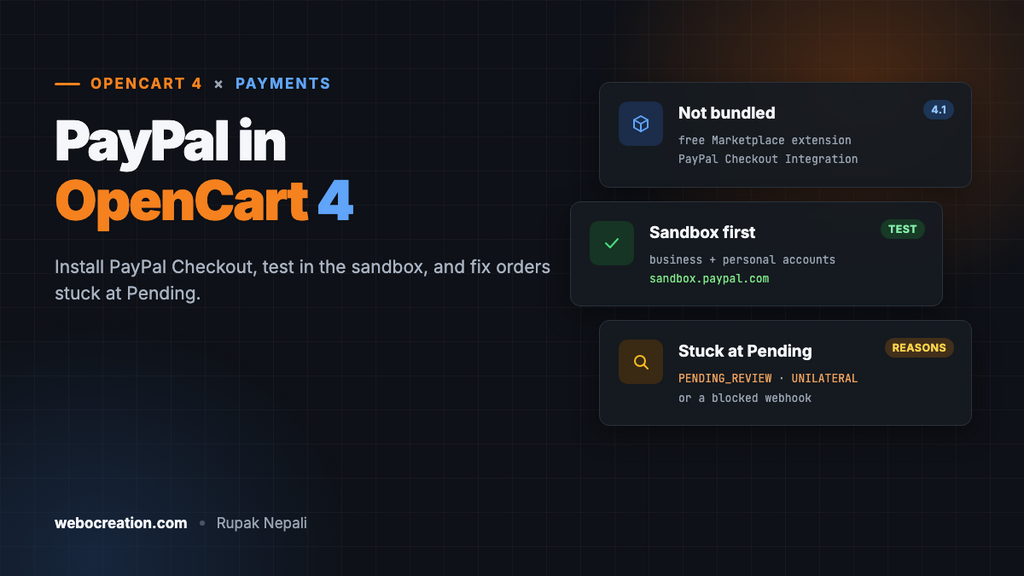
PayPal is still the payment method many shoppers look for at checkout, and for some it’s the only one they’ll trust with a store they don’t know. But a fresh OpenCart 4.1 has no PayPal at all, and the most common PayPal support question, “the customer paid, so why is the order still Pending?”, has an answer that lives in PayPal’s API, not in OpenCart.
This guide adds PayPal to OpenCart 4.1, tests it safely in PayPal’s sandbox, and explains how PayPal’s payment statuses map to OpenCart’s order statuses.
OpenCart 4.1 ships without PayPal
OpenCart 3 included several PayPal options. OpenCart 4.1 includes four payment methods, none of them online:
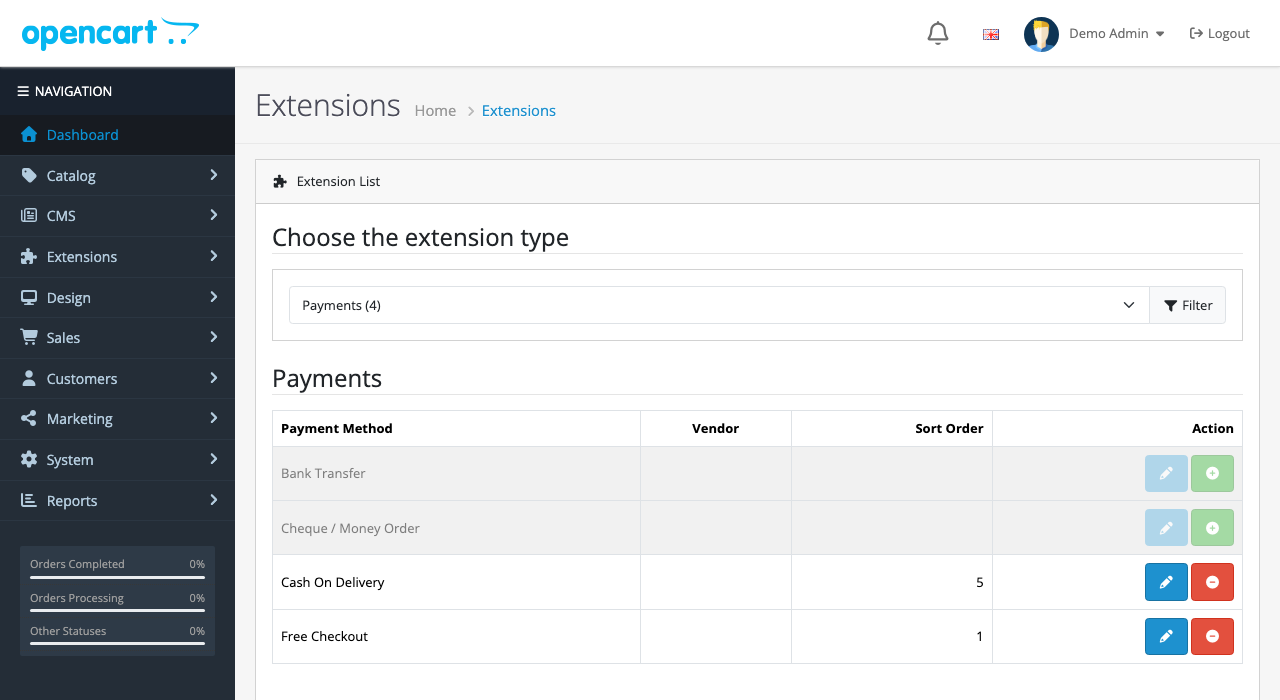
PayPal comes from the OpenCart Marketplace instead. The extension to start with is PayPal Checkout Integration (it calls itself PayPal Commerce Platform in its install steps), which is free and listed as compatible with OpenCart 4.1. Third-party PayPal extensions also exist, some paid; check that any you consider lists your exact 4.x version.
Step 1: Install the extension
- Log in at opencart.com, open the PayPal Checkout Integration listing in the Marketplace, and download the version for your OpenCart release (a
.ocmod.zip). - In your admin, go to Extensions → Installer, upload the zip, and click the green + to install it.
- Go to Extensions → Extensions, choose Payments, find PayPal, and click Install, then Edit.
Before going further, check two things in System → Settings: the store’s default currency is one PayPal supports, and your store runs on HTTPS. PayPal’s buttons and return pages need it.
Step 2: Connect a sandbox account first
PayPal’s sandbox is a complete test copy of PayPal, with fake accounts and fake money. Always connect it first:
- Log in at
developer.paypal.comwith your PayPal business login. - Open Testing Tools → Sandbox Accounts. You’ll have (or can create) a sandbox business account, which acts as your store, and a personal account, which acts as a shopper.
- Open Apps & Credentials with the toggle on Sandbox, create an app, and copy its Client ID and Secret.
- In the extension’s settings, choose the sandbox environment and connect, either with the extension’s “Connect to PayPal” button or by entering the client ID and secret, depending on the version.
Then place real test orders in your store, paying with the sandbox personal account. Log in to sandbox.paypal.com with the business account to see the payments arrive. Test at least:
- A normal PayPal payment
- A card payment, if the extension offers card fields
- A cancelled payment (close the PayPal window): the order shouldn’t be marked paid
- A refund from the PayPal side: the order status should change, if the extension handles refund notifications
Only when all of that works, switch the extension to live, with live credentials from the same Apps & Credentials page with the toggle on Live.
Step 3: Map PayPal statuses to order statuses
When PayPal captures a payment, it reports one of six statuses. These come from PayPal’s Orders v2 API schema:
| PayPal capture status | Meaning (PayPal’s wording, shortened) | Suggested OpenCart status |
|---|---|---|
COMPLETED | The funds were credited to your PayPal account | Processing (or Complete for downloads) |
PENDING | The funds were not yet credited; see the reason | Pending |
DECLINED | The funds could not be captured | Denied or Failed |
FAILED | There was an error while capturing payment | Failed |
REFUNDED | Refunded in full | Refunded |
PARTIALLY_REFUNDED | Part of the amount was refunded | Leave as is, add a note |
Payment extensions, including PayPal’s, have settings for which OpenCart status each outcome sets. Two OpenCart settings depend on that choice:
- Processing and Complete Order Status (System → Settings → Option) decide which orders reduce stock and count in reports. Make sure the status a completed PayPal payment sets is in one of them.
- Downloads only unlock at a Complete status (by default Complete and Shipped). If you sell digital products, a PayPal order at Processing won’t give access; see our downloadable products guide.
Why an order is stuck at Pending
There are two quite different causes: PayPal is holding the money, or PayPal has finished but your store never heard about it.
Cause 1: PayPal is holding the payment
When a capture is PENDING, PayPal includes a reason. These are all the reasons PayPal’s API defines:
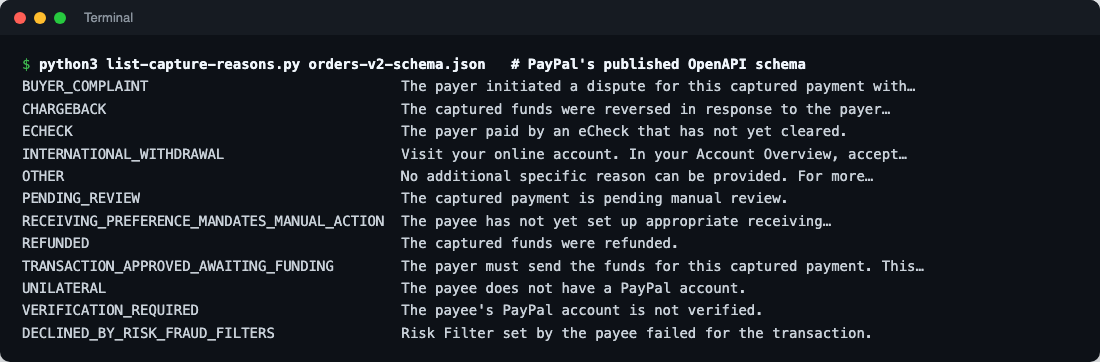
The ones store owners actually meet, and what to do:
| Reason | What it means | Fix |
|---|---|---|
RECEIVING_PREFERENCE_MANDATES_MANUAL_ACTION | Usually: the payment is in a currency your PayPal account doesn’t hold | Accept the payment in your PayPal account; then change your receiving preferences to accept and convert other currencies automatically |
PENDING_REVIEW | PayPal’s risk team is reviewing the payment | Wait. Don’t ship until it completes; PayPal decides either way |
VERIFICATION_REQUIRED | Your PayPal account isn’t verified | Complete verification (bank account, business details) in PayPal |
UNILATERAL | The receiving email has no PayPal account | The extension is set up with the wrong merchant account or email |
ECHECK | The buyer paid by eCheck, which hasn’t cleared | Wait for it to clear (several business days) |
TRANSACTION_APPROVED_AWAITING_FUNDING | The buyer still has to send the money (manual bank transfer) | Wait |
Check the payment in your PayPal account’s activity: it shows the same status and a plain-language explanation.
Cause 2: PayPal finished, but the store wasn’t told
If PayPal shows the payment as Completed but the order stays Pending, the notification from PayPal never reached OpenCart, or reached it and failed. PayPal sends these as webhooks, server-to-server requests to a URL on your store, with events such as PAYMENT.CAPTURE.COMPLETED, PAYMENT.CAPTURE.PENDING, PAYMENT.CAPTURE.DENIED and PAYMENT.CAPTURE.REFUNDED.
Work through these:
- Is the webhook registered? In developer.paypal.com → Apps & Credentials → your app, check the Webhooks section lists your store’s URL, for the right environment (sandbox and live have separate webhooks).
- Did PayPal get an error back? The same page has a webhook events log showing each delivery and your server’s response. A 403 or 503 points at your firewall or maintenance mode.
- Is a firewall blocking it? Cloudflare’s Bot Fight Mode, a challenge rule on the whole site, or a security module can stop PayPal’s servers. Exclude the extension’s callback URL from challenges; see our Cloudflare security guide for OpenCart.
- Maintenance mode on? OpenCart’s maintenance mode answers every visitor, PayPal included, with the maintenance page.
- Check OpenCart’s error log (System → Maintenance → Error Logs) for PHP errors at the time of the order.
Once fixed, update stuck orders by hand: open the order, add a history entry with the right status, and tick Notify if the customer should get an email.
Before going live: a checklist
- Live credentials entered, sandbox switched off.
- One real, small live payment made and refunded.
- Order status mapping checked against your Processing and Complete lists.
- Webhook registered for the live app, and its log shows successful deliveries.
- Your PayPal account accepts all currencies your store offers, or converts them automatically.
- Order emails sent through SMTP, so customers actually get their confirmation (transactional email for OpenCart).
PayPal or Stripe?
Many stores offer both. PayPal brings shoppers who have a PayPal account and don’t want to type card details; a card processor like Stripe gives a smoother card checkout and its own fraud tools. Our Stripe in OpenCart 4 guide covers that side, including webhooks, which work the same way and fail for the same reasons.
Related: invoices and packing slips in OpenCart 4, and cron jobs, which subscription payments rely on.

Rupak Nepali is a web developer, manage Webocreation website and the author of six books:
Getting Started with OpenCart Module Development (Packt, 2013),
OpenCart Theme and Module Development (Packt, 2015),
OpenCart 4: Dev Guide for Themes & Extensions (2024),
OpenCart 4: User Manual (2025),
Cloudflare for the Enterprise Website (2026) and
The Technical Web Guide for Marketers (2026).
Rupak has built OpenCart stores and extensions since 2010, has published more than 600 tutorials on Webocreation, and shares free OpenCart extensions on GitHub.
Find Rupak on
GitHub | Amazon | LinkedIn | X | YouTube.