Stripe in OpenCart 4: Checkout vs Payment Element, Webhooks and PCI Scope (with a Developer Walkthrough)
How to accept Stripe payments in OpenCart 4.1: hosted Checkout or embedded Payment Element, keeping card data off your server, verifying webhooks, zero-decimal currencies, and how a payment extension works, with code.
 Rupak NepaliPublished Oct 26, 2026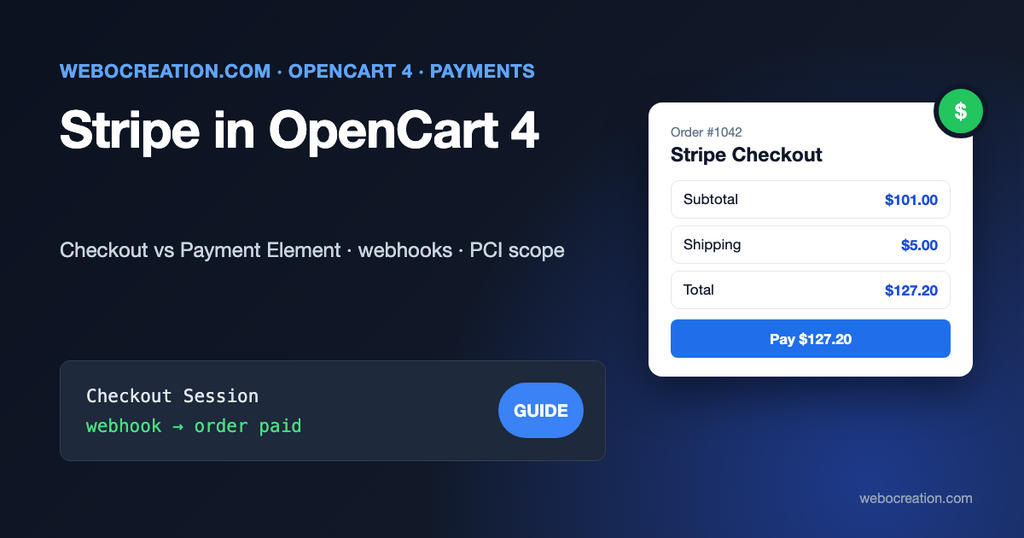
OpenCart 4.1.0.4 ships with four payment methods: Bank Transfer, Cheque, Cash On Delivery and Free Checkout. That’s enough for a test store, but not for a real one. Most stores outside the US add PayPal, and almost everyone adds a card processor. Stripe is the most common choice because it takes cards, Apple Pay, Google Pay, Link and dozens of local methods through one account.
This guide explains the two ways to connect Stripe to OpenCart 4, what each one means for your PCI obligations, and how a Stripe payment extension works under the hood. Use it to choose an extension, or as the starting point for building your own.
The two Stripe integrations
Stripe offers many products, but for an OpenCart checkout only two matter:
| Stripe Checkout (hosted) | Payment Element (embedded) | |
|---|---|---|
| Where the customer pays | On a Stripe-hosted page (checkout.stripe.com), then returns to your store | In a Stripe iframe inside your OpenCart checkout page |
| Card data touches your server | No | No |
| Setup effort | Low: create a session, redirect | Medium: PaymentIntent, Stripe.js, 3-D Secure handling in the page |
| Look and feel | Stripe’s design with your logo and colors | Matches your theme |
| Apple Pay / Google Pay | Built in | Built in, needs domain verification |
| Best for | Most stores, and anyone building their own extension | Stores that want the customer to stay on the page |
Both keep card numbers away from your server, and that matters more than any other detail. Stripe’s own security guide is direct about it:
Many business models don’t need to handle sensitive card data. You can instead use one of our low risk payment integrations to securely collect and transmit payment information directly to Stripe without it passing through your servers, reducing your PCI obligations.
Stripe, Integration security guide
The same page notes that a business handling card data directly “might be required to meet more than 300 security controls in PCI DSS.” An OpenCart extension that posts the card number to your server and then to Stripe puts you in that bucket. Don’t install one, however cheap. Our post on PCI-conscious architecture for OpenCart explains where payment data should and shouldn’t flow.
Option 1: install a ready-made extension
If you only want to take payments, install an extension rather than building one. Look in the OpenCart Marketplace under Payments, and check these things before you buy:
- It lists your exact version. OpenCart 4.0 and 4.1 handle checkout differently, and even 4.1 patch releases change internals (4.1.0.4, for example, removed the old SKU/UPC/EAN columns from the product table). “OpenCart 4.x” isn’t specific enough; ask the developer if your version isn’t listed.
- It uses Checkout Sessions or PaymentIntents. Avoid anything that mentions the old Charges API or “tokens” only. Those don’t handle 3-D Secure (SCA) properly, and European cards will fail.
- It uses webhooks. An extension that only trusts the browser redirect back to your store will miss payments when the customer closes the tab.
- It’s an
.ocmod.zipthat installs through Extensions > Installer, with no core file edits.
HuntBee, for example, sells a Stripe Pro extension built on the Payment Element and offers a free Stripe Checkout extension. We have no affiliation with them, and you should test any extension on a staging copy first.
Installation is the same for all of them:
- Extensions > Installer, upload the
.ocmod.zip, then click the green Install button in the list below. - Extensions > Extensions, choose Payments in the filter, find Stripe and click + (install), then the pencil (edit).
- Paste your publishable key (
pk_test_...) and secret key (sk_test_...) from the Stripe Dashboard under Developers > API keys. Start with the test keys. - Copy the webhook URL the extension shows you into Stripe (Workbench > Webhooks > Create an event destination) and paste the signing secret (
whsec_...) back into the extension. - Set the order statuses, Status on, save.
- Place a test order with card
4242 4242 4242 4242, any future date and any CVC. Then try4000 0025 0000 3155, which asks for 3-D Secure.
Option 2: build it yourself (how a payment extension works)
If you’re a developer, a Stripe Checkout extension is one of the smallest useful payment extensions you can write. Our OpenCart 4 extension tutorial covers the folder structure; a payment extension adds three specific pieces.
1. The model offers the payment method
At checkout, OpenCart calls getMethods() on every enabled payment extension’s catalog model. In OpenCart 4.1 it returns a method with one or more options:
<?php
namespace Opencart\Catalog\Model\Extension\StripeCheckout\Payment;
class StripeCheckout extends \Opencart\System\Engine\Model {
	public function getMethods(array $address = []): array {
		$this->load->language('extension/stripe_checkout/payment/stripe_checkout');

		// Stripe Checkout in payment mode can't charge OpenCart subscriptions.
		if ($this->cart->hasSubscription() || !$this->config->get('payment_stripe_checkout_secret_key')) {
			return [];
		}

		return [
			'code'       => 'stripe_checkout',
			'name'       => $this->language->get('heading_title'),
			'option'     => [
				'stripe_checkout' => [
					'code' => 'stripe_checkout.stripe_checkout',
					'name' => $this->language->get('text_title')
				]
			],
			'sort_order' => $this->config->get('payment_stripe_checkout_sort_order')
		];
	}
}
This mirrors the bundled Bank Transfer extension in extension/opencart/catalog/model/payment/bank_transfer.php, which is the best reference for the current API.
2. The controller creates a Checkout Session
When the customer clicks Confirm Order, the extension’s confirm() method runs. By then OpenCart has already created the order (with order status 0, “missing”). We create a Checkout Session for its total and send the customer to Stripe:
public function confirm(): void {
	$this->load->language('extension/stripe_checkout/payment/stripe_checkout');

	$json = [];

	$this->load->model('checkout/order');

	$order_info = $this->model_checkout_order->getOrder((int)($this->session->data['order_id'] ?? 0));

	if (!$order_info || ($this->session->data['payment_method']['code'] ?? '') != 'stripe_checkout.stripe_checkout') {
		$json['error'] = $this->language->get('error_order');
	}

	if (!$json) {
		$currency = strtolower($order_info['currency_code']);
		$total = $this->currency->format($order_info['total'], $order_info['currency_code'], $order_info['currency_value'], false);

		// Stripe wants the smallest currency unit: cents for USD, but whole yen for JPY.
		$zero_decimal = ['bif', 'clp', 'djf', 'gnf', 'jpy', 'kmf', 'krw', 'mga', 'pyg', 'rwf', 'ugx', 'vnd', 'vuv', 'xaf', 'xof', 'xpf'];
		$amount = in_array($currency, $zero_decimal) ? (int)round($total) : (int)round($total * 100);

		$session = $this->stripe('checkout/sessions', [
			'mode'                 => 'payment',
			'client_reference_id'  => $order_info['order_id'],
			'customer_email'       => $order_info['email'],
			'line_items'           => [[
				'quantity'   => 1,
				'price_data' => [
					'currency'     => $currency,
					'unit_amount'  => $amount,
					'product_data' => ['name' => sprintf($this->language->get('text_order'), $order_info['order_id'])]
				]
			]],
			'metadata'             => ['order_id' => $order_info['order_id']],
			'success_url'          => $this->url->link('checkout/success', 'language=' . $this->config->get('config_language'), true),
			'cancel_url'           => $this->url->link('checkout/checkout', 'language=' . $this->config->get('config_language'), true)
		]);

		if (!empty($session['url'])) {
			// Mark the order as pending so it shows in the admin even if the customer never returns.
			$this->model_checkout_order->addHistory($order_info['order_id'], (int)$this->config->get('payment_stripe_checkout_pending_status_id'));

			$json['redirect'] = $session['url'];
		} else {
			$json['error'] = $session['error']['message'] ?? $this->language->get('error_stripe');
		}
	}

	$this->response->addHeader('Content-Type: application/json');
	$this->response->setOutput(json_encode($json));
}

private function stripe(string $path, array $params): array {
	$curl = curl_init('https://api.stripe.com/v1/' . $path);

	curl_setopt_array($curl, [
		CURLOPT_POST           => true,
		CURLOPT_POSTFIELDS     => http_build_query($params),
		CURLOPT_USERPWD        => $this->config->get('payment_stripe_checkout_secret_key') . ':',
		CURLOPT_RETURNTRANSFER => true,
		CURLOPT_TIMEOUT        => 30
	]);

	$response = json_decode((string)curl_exec($curl), true);

	return is_array($response) ? $response : [];
}
Two choices in this code save a lot of support tickets:
- One line item for the whole order. If you send each product separately, Stripe adds them up itself, and its total won’t match OpenCart’s once coupons, tax, shipping, reward points or rounding are involved. Sending the order total as one line keeps both systems in agreement. The customer still sees their items on your order confirmation.
- Zero-decimal currencies.
unit_amountis in the smallest unit of the currency. 49.99 USD is4999, but 5000 JPY is5000, not500000. Getting this wrong charges Japanese customers 100 times too much.
Stripe’s official PHP library (stripe/stripe-php) does the same as the small stripe() helper above. You can ship it inside your extension’s system/library folder; we used plain cURL here so the example has no dependencies.
3. The webhook marks the order as paid
The redirect to checkout/success is not proof of payment. The customer may close the tab, lose their connection, or be redirected before an asynchronous method such as SEPA Direct Debit has cleared. Stripe tells your store what happened by calling a webhook, and that’s where the order status should change.
Without verification, an attacker could send fake webhook events to your endpoint to trigger actions like fulfilling orders, granting account access, or modifying records. Always verify that webhook events originate from Stripe before acting on them.
Stripe, Receive Stripe events in your webhook endpoint
Stripe signs each request with HMAC-SHA256. The Stripe-Signature header contains a timestamp t and a signature v1, computed over timestamp.body with your endpoint’s signing secret. Here is the verification and the order update, as a public webhook() method on the same catalog controller:
public function webhook(): void {
	$body = (string)file_get_contents('php://input');
	$header = (string)($this->request->server['HTTP_STRIPE_SIGNATURE'] ?? '');
	$secret = (string)$this->config->get('payment_stripe_checkout_webhook_secret');

	$timestamp = 0;
	$signatures = [];

	foreach (explode(',', $header) as $part) {
		[$key, $value] = array_pad(explode('=', trim($part), 2), 2, '');

		if ($key == 't') {
			$timestamp = (int)$value;
		} elseif ($key == 'v1') {
			$signatures[] = $value;
		}
	}

	$expected = hash_hmac('sha256', $timestamp . '.' . $body, $secret);

	$valid = false;

	foreach ($signatures as $signature) {
		// Constant-time comparison, as Stripe recommends.
		if (hash_equals($expected, $signature)) {
			$valid = true;
		}
	}

	// Reject old messages (replay attacks). Stripe's libraries use 5 minutes.
	if (!$valid || abs(time() - $timestamp) > 300) {
		$this->response->addHeader('HTTP/1.1 400 Bad Request');

		return;
	}

	$event = json_decode($body, true);
	$session = $event['data']['object'] ?? [];

	if (in_array($event['type'] ?? '', ['checkout.session.completed', 'checkout.session.async_payment_succeeded']) && ($session['payment_status'] ?? '') == 'paid') {
		$this->load->model('checkout/order');

		$order_info = $this->model_checkout_order->getOrder((int)($session['metadata']['order_id'] ?? 0));
		$paid_status_id = (int)$this->config->get('payment_stripe_checkout_paid_status_id');

		// Webhooks can arrive twice. Only add history once.
		if ($order_info && (int)$order_info['order_status_id'] != $paid_status_id) {
			$this->model_checkout_order->addHistory($order_info['order_id'], $paid_status_id, 'Stripe payment ' . $session['payment_intent'], true);
		}
	}

	$this->response->setOutput('ok');
}
The webhook URL is https://yourstore.com/index.php?route=extension/stripe_checkout/payment/stripe_checkout.webhook. Three behaviors of Stripe’s webhooks are worth designing for:
- Duplicates. Stripe says endpoints “might occasionally receive the same event more than once.” The status check above makes a second delivery harmless.
- Retries. Stripe “attempts to deliver events to your destination for up to three days with an exponential back off in live mode.” If your store is down for an hour, the payment still gets recorded.
- Speed. Return 2xx quickly. Order confirmation emails are sent inside
addHistory(); on a slow SMTP server, move them out of the request, or Stripe will time out and retry.
To test locally, the Stripe CLI forwards events to your machine: stripe listen --forward-to localhost/opencart/index.php?route=extension/stripe_checkout/payment/stripe_checkout.webhook, then stripe trigger checkout.session.completed.
Don’t forget the Content Security Policy
If you followed our guide to securing OpenCart with a Content Security Policy, Stripe needs to be allowed. For the hosted Checkout redirect you only need the redirect itself; for the Payment Element, Stripe documents these directives for Stripe.js:
script-src  https://js.stripe.com https://*.js.stripe.com
frame-src   https://js.stripe.com https://*.js.stripe.com https://hooks.stripe.com
connect-src https://api.stripe.com
hooks.stripe.com in frame-src is required for cards that use 3-D Secure.
What about PayPal?
PayPal is maintained separately from OpenCart core. PayPal’s own developer documentation for OpenCart describes the extension as PayPal Checkout Integration, found under Extensions > Extensions > Payments once installed, and uses it for Pay Later messaging as well. Check the marketplace listing for the 4.1 build that matches your store, uninstall any older “PayPal Commerce Platform” extension first, and test in sandbox mode before switching to production.
Many stores run both: Stripe for cards and wallets, PayPal for customers who won’t type a card number. Our comparison of payment gateways for ecommerce covers fees and alternatives.
Go-live checklist
- Switch both API keys to live keys (
pk_live_,sk_live_) and create a live webhook destination; test and live mode have different signing secrets. - Make sure the store runs on HTTPS. Stripe requires TLS 1.2 or later for webhooks.
- Turn on Radar rules for card testing. Our guide to carding attacks explains why small stores get hit first, and hardening your checkout covers AVS, CVV and 3-D Secure.
- Place one real order with your own card, check that the order moves to the paid status by itself, and refund it from the Stripe Dashboard.
- Watch System > Maintenance > Error Logs for a day.
Summary
Use a hosted or embedded Stripe integration so card data never reaches your server. Install a maintained extension that uses Checkout Sessions or PaymentIntents and webhooks, or build one from the walkthrough above. In both cases, let the webhook, not the browser redirect, decide that an order is paid.

Author of four Opencart book.
The recent are Opencart 4 developer book and Opencart 4 user manual