Free Shipping Progress Bar for OpenCart 4: “Spend $12 More for Free Shipping” in the Cart, With Products That Close the Gap (Free Extension)
Raise average order value in OpenCart 4.1 with a free shipping progress bar in the cart page and mini-cart. It reads the Free Shipping method's total, respects geo zones, updates on every cart change, and suggests in-stock products that unlock free shipping. Free extension.
 Rupak NepaliPublished Oct 28, 2026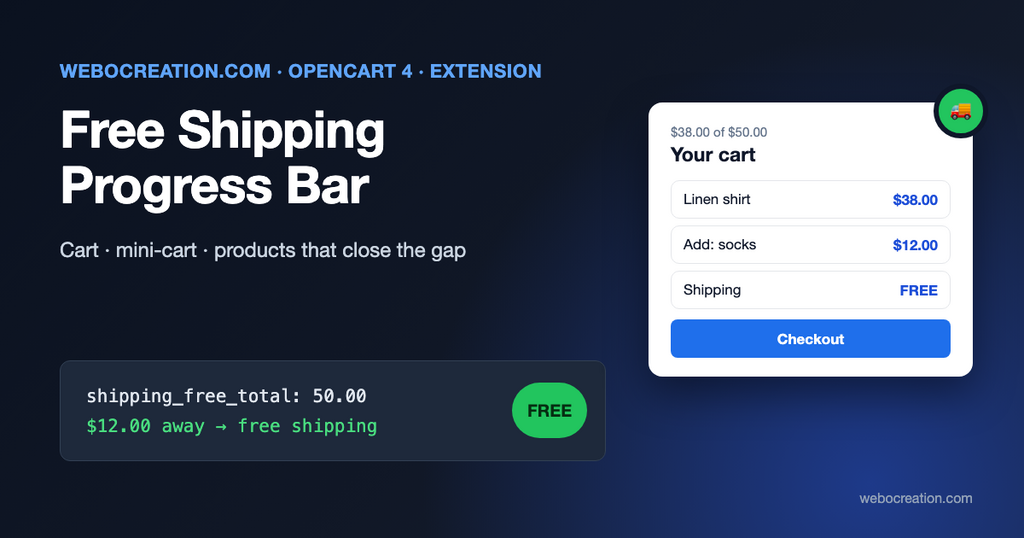
Most OpenCart stores that offer free shipping over an amount tell customers about it in one place: the shipping options at checkout. By then the customer has already decided what to buy. If their cart is $38 and free shipping starts at $50, the moment to say “add $12 and shipping is free” is in the cart, not after they’ve typed their address.
Our free extension does that. It shows a progress bar on the cart page and in the header mini-cart, and suggests in-stock products that would close the gap. It reads the amount from OpenCart’s own Free Shipping method, so the bar and checkout always agree.
Why a threshold works
Unexpected costs are the most common reason shoppers give for abandoning a cart, and shipping is the usual unexpected cost. A free shipping threshold turns that cost into a goal: instead of paying $7 for shipping, the customer can spend $12 on something they’ll use. Both are good outcomes for the store; the bar just makes the choice visible.
Set the threshold from your data rather than a round number. A common starting point is a little above your current average order value: high enough that many orders need one more item, low enough that it feels reachable. Reports > Sales in OpenCart gives you the average.
What the extension shows
| Where | What |
|---|---|
| Cart page, above the products | “You are $12.00 away from free shipping”, a progress bar, and up to 6 suggested products |
| Header mini-cart, at the top | A compact version of the message and bar |
| Once the cart qualifies | “You have unlocked free shipping!” with a full green bar |
The bar updates by itself. OpenCart re-renders the cart list after every quantity change or removal, and the mini-cart after every add to cart; the extension hooks into those views, so each update recalculates the remaining amount from the current cart.
How the amount is calculated
The bar does the same calculation as the Free Shipping method in extension/opencart/catalog/model/shipping/free.php:
if ($this->cart->getSubTotal() < $this->config->get('shipping_free_total')) {
	$status = false;
}
So:
- It compares the sub-total before tax, not the total with tax and discounts. If your prices are shown with tax, a customer may see a cart total above $50 and still be told they’re a few dollars short. That’s how OpenCart’s Free Shipping method works; the bar is just being honest about it.
- The threshold is in your default currency. The bar converts the remaining amount to the currency the customer is viewing, so a store in USD shows a customer browsing in euros the remaining amount in euros, using the rates in System > Localisation > Currencies.
- Coupons don’t change it, because the Free Shipping method doesn’t look at coupons either.
Geo zones
If you limited Free Shipping to a geo zone (for example, “UK mainland”), the extension checks the customer’s shipping address once it’s known (from the shipping estimate on the cart page or from checkout). Customers outside the zone don’t see the bar; customers whose address isn’t known yet do. That’s deliberate: hiding it from everyone until they enter an address would hide it from most of the people it’s for.
If another method gives free shipping
Some stores use Flat Rate with a total rule, a weight-based method, or a third-party shipping extension instead. Choose Custom amount in the settings and enter the threshold there. It’s then up to you to keep it in step with the shipping method.
Suggested products
On the cart page, when the customer is short, the extension suggests products that would close the gap:
- In stock, enabled, available in the current store, and not already in the cart.
- Price at or above the remaining amount, cheapest first, so the suggestions are the smallest step to free shipping. The price used is the one the customer would pay: specials and customer-group discounts are applied.
- From the same categories as the products already in the cart, if that setting is on. If no product in those categories qualifies, any category is used.
Suggestions use your theme’s own product card (OpenCart’s product/thumb), so they look like your category pages. Add to Cart on a suggested product adds it and reloads the cart, which also updates the bar. If the product has required options, OpenCart sends the customer to the product page to choose them, as it does everywhere else.
Suggestions are a simple rule, not a recommendation engine. For hand-picked cross-sells, OpenCart’s Related Products (on the product form’s Links tab) are still the better tool; our older post on showing related products on the cart page covers that approach.
Installation
- Set up free shipping first: Extensions > Extensions, choose Shipping, install and edit Free Shipping, enter the Total (for example
50), choose a geo zone if needed, and enable it. Our guide on free, flat rate and per-item shipping in OpenCart walks through the settings. - Download free_shipping_bar.ocmod.zip with the button above.
- Extensions > Installer, upload the zip, and click the green Install button in the list.
- Extensions > Extensions, choose Modules, find Free Shipping Progress Bar, click +, then the pencil.
- Check the settings, switch on Status, and save.
There’s nothing to place in a layout: the bar appears in the cart and mini-cart once the extension is enabled. It doesn’t change any core or theme files; everything is done with OpenCart events, so it survives theme changes and OpenCart updates.
Settings
| Setting | What it does | Suggested |
|---|---|---|
| Free shipping amount | Free Shipping method total reads the amount from the Free Shipping method. Custom amount uses your own figure | Free Shipping method total |
| Custom amount | Sub-total before tax, in the default currency | Only with Custom amount |
| Show on cart page | The full bar with suggestions | On |
| Show in mini-cart | The compact bar in the header cart dropdown | On |
| Suggested products | 0 to 6 products on the cart page | 3 |
| Suggest from cart categories | Prefer products from the categories in the cart | On |
| Status | Turns the extension on or off | On |
The settings page also shows what the Free Shipping method is currently set to, and warns you if it’s disabled or limited to a geo zone.
Changing the wording and style
The messages are in extension/free_shipping_bar/catalog/language/en-gb/module/free_shipping_bar.php:
$_['text_remaining'] = 'You are <strong>%s</strong> away from free shipping.';
$_['text_reached']   = 'You have unlocked <strong>free shipping</strong>!';
$_['text_suggest']   = 'Add one of these to get free shipping:';
For another language, copy the file into a folder named after the language code, for example fr-fr. The bar uses Bootstrap 5’s progress component, which OpenCart 4’s default theme already includes, so it takes your theme’s colors. The markup is in catalog/view/template/module/free_shipping_bar.twig inside the extension; the outer element has the class free-shipping-bar for your own CSS.
Custom themes: the extension inserts the bar before <div id="output-cart"> in the cart list and as the first item of the mini-cart’s dropdown-menu list. If your theme changed that markup, the bar won’t appear in that spot; adjust the two strpos/preg_match lines in the catalog controller to match your theme.
Measuring the effect
Before you switch it on, note your average order value and the share of orders that qualify for free shipping, for the last 30 days. Compare the same figures 30 days later. You can see both in Reports, or in GA4 if you use our free GA4 ecommerce events extension: average purchase revenue in the Monetization reports shows the change, and the add_to_cart events from the cart page show whether customers use the suggestions.
If average order value goes up but conversion rate drops, the threshold may be too high. Lower it in the Free Shipping method; the bar follows automatically.
For customers who leave anyway, an abandoned cart reminder that mentions how close they were to free shipping works well. And free shipping is one of the details Google shows in free listings, so add it to your Merchant Center shipping settings too.
What’s not included
- A bar on product or category pages. The cart and mini-cart are where customers decide to add one more item; a bar on every page tends to be ignored.
- Per-customer-group thresholds. OpenCart’s Free Shipping method doesn’t have them; B2B stores usually handle wholesale shipping with a separate method.
- A bar on the checkout page. By checkout, the shipping options themselves show whether shipping is free. One-page checkout extensions that replace OpenCart’s cart page may also replace the cart views the bar hooks into.
Built for OpenCart 4.1.0.x. The code is on GitHub with our other free OpenCart extensions.

Author of four Opencart book.
The recent are Opencart 4 developer book and Opencart 4 user manual