Google Merchant Center and Free Listings for OpenCart: Product Feed, GTINs, Shipping and the 2026 Merchant API Change
Get OpenCart products into Google Shopping's free listings: Merchant Center setup, the required feed attributes, GTIN and MPN in OpenCart 4.1's new product identifiers, shipping and returns, common disapprovals, and what the Content API shutdown means for your feed extension.
 Rupak NepaliPublished Oct 26, 2026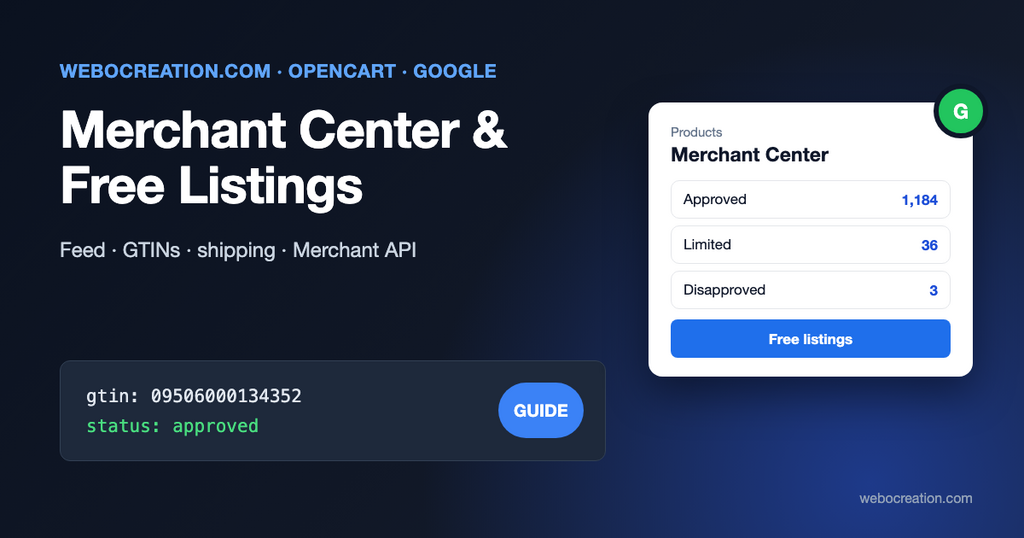
Google shows products from online stores for free: in the Shopping tab, in Google Images, on Google Search’s product panels, and in AI Mode’s shopping answers. To be there, your products must be in Google Merchant Center, and for an OpenCart store that means a product feed.
This guide covers the complete path from an OpenCart 4 catalog to approved free listings: setting up Merchant Center, what the feed must contain, how to store GTINs in OpenCart 4.1 (which changed in 4.1.0.4), the settings that cause most disapprovals, and the Merchant API change in 2026 that affects some feed extensions.
Step 1: set up Merchant Center
- Go to merchants.google.com and sign in with the Google account that should own the store’s data. Use a company account, not a personal one that leaves with an employee.
- Enter your business name, country and website, and verify and claim your website. The simplest way if you already use Google Analytics or Search Console with the same account is to verify through them; otherwise add the HTML meta tag to your theme’s header.
- Under Settings, add your shipping (rates and delivery times per country) and return policy. Missing shipping is the most common reason for a disapproved account.
- Check the business information: address, customer service email or phone. Google’s checks look for these on your site too, so they should match your OpenCart System > Settings > Store tab and contact page.
- Make sure the online store meets the basics Google checks: working checkout, visible prices in the right currency, a returns page, a privacy policy, and real contact details.
Free listings are included for eligible products once products are approved; you don’t need to run ads.
Step 2: what the feed must contain
Google lists these as required for every product:
| Attribute | From OpenCart |
|---|---|
id | Product ID (or model / SKU; keep it stable forever) |
title | Product name, plus variant details |
description | Product description, as plain text |
link | The product URL (SEO URL if enabled) |
image_link | The main product image, full size |
availability | in_stock, out_of_stock, preorder or backorder, from quantity and stock status |
price | Price with currency, for example 79.99 USD |
And these are required depending on the product:
brand: required for new products (except movies, books and music). Take it from the manufacturer.gtin: the barcode number (EAN, UPC, JAN, ISBN) assigned by the manufacturer.mpn: the manufacturer part number, required only when the product has no GTIN.condition: required for used or refurbished items.item_group_id,color,size,gender,age_group: for variants and for apparel in many countries.
The GTIN deserves a special mention. Google’s product data specification marks it “strongly recommended if available”, and warns:
Products with a GTIN but submitted without one may have limited visibility.
Google Merchant Center Help, Product data specification
Reselling branded products without their barcodes is the most common reason OpenCart stores get impressions but few clicks. Don’t make up GTINs: Google checks them against the manufacturer’s registry.
Step 3: store GTINs in OpenCart 4.1
How OpenCart stores product codes changed in the 4.1 series, and it matters for every feed extension:
- Up to 4.0: the product form had fixed fields for SKU, UPC, EAN, JAN, ISBN and MPN, stored as columns on the product table.
- 4.1 releases before 4.1.0.4 (we checked 4.1.0.3): a new identifiers system arrived (Catalog > Identifiers), where you define the codes your store uses and enter them on the product form. The old columns were still in the database.
- 4.1.0.4: the old SKU, UPC, EAN, JAN, ISBN and MPN columns are gone from the product table. Codes live only in the identifiers (
product_codetable).
So, on 4.1:
- Go to Catalog > Identifiers and make sure you have the codes you need, for example GTIN (or EAN / UPC), MPN and SKU. Each has a code, an optional validation regex, and a status that controls whether it’s shown on the product page.
- Open each product and add the identifier values on its form.
- Check that your feed extension reads identifiers from the new table. An extension written for 4.0 reads
p.eanorp.upc, which return nothing (4.1.0.3) or an SQL error (4.1.0.4). Ask the developer before you upgrade to 4.1.0.4.
For a large catalog, enter the codes in bulk with an import tool rather than product by product. Our bulk CSV tool reads SKUs for matching but doesn’t write identifiers; full import/export extensions do.
Step 4: get the feed into Merchant Center
There are three ways, and they’re not equally affected by Google’s 2026 API change.
| Method | How | Affected by the Content API shutdown? |
|---|---|---|
| Scheduled fetch | Your feed extension publishes an XML or CSV feed at a URL; Merchant Center downloads it daily | No |
| Google Sheets / file upload | Export, then upload or sync | No |
| API | An extension pushes products to Google through the API | Yes, if it uses the old Content API |
For most OpenCart stores, a scheduled fetch is the simplest and most robust choice. OpenCart doesn’t include a Google feed in 4.1, so you need an extension: we published a Google base feed module for OpenCart 4, and the Marketplace has several more under Feeds. In Merchant Center: Products > Add products > Add products from a file, choose Enter a link to your file, paste the feed URL, and set a daily fetch time after your nightly stock updates.
The Content API shutdown
If your feed extension uses Google’s API, check which one. Google’s notice is direct:
The Google Content API for Shopping officially reached its sunset on August 18, 2026.
Google for Developers, Deprecation and sunset
Google says it is “introducing a progressive service degradation process starting September 1, 2026”, in which requests without an active extension “begin intermittently failing with HTTP 410 Gone”, and that “All developers must migrate existing integrations to the Merchant API as soon as feasible.” If your API-based feed has had unexplained gaps since September, this is the likely reason. Update the extension to a Merchant API version, or switch to a scheduled fetch, which isn’t affected.
Step 5: fix the common disapprovals
| Issue in Merchant Center | Usual OpenCart cause | Fix |
|---|---|---|
| Price mismatch | Feed sends the price without tax while the product page shows it with tax (EU/UK), or a special price is missing from the feed | Make the feed match what the page shows; send specials as sale_price |
| Availability mismatch | Feed generated once a day, stock changes during the day | Fetch more often, or keep stock steady; add structured data (below) |
| Missing GTIN / limited performance | Codes not entered | Add identifiers (step 3) |
| Image too small or has promotional text | Thumbnail sent instead of the original image; “SALE” banners on images | Send the original image; keep overlays off product photos |
| Landing page not working | Disabled products still in the feed, or SEO URL changed | Generate the feed from enabled products only; redirect old URLs |
| Missing shipping information | No shipping set in Merchant Center for that country | Add shipping settings, or shipping in the feed |
Step 6: add structured data to product pages
Merchant Center can read product data from your product pages and use it to keep price and availability up to date between feed fetches (“automatic item updates”). That only works if the pages have accurate Product structured data. OpenCart 4’s default theme doesn’t output any; our free Product structured data (JSON-LD) extension adds it, including price, currency, availability, GTIN and reviews. The same markup makes products eligible for rich results in regular search.
Measure the results
- Merchant Center > Performance shows clicks from free listings.
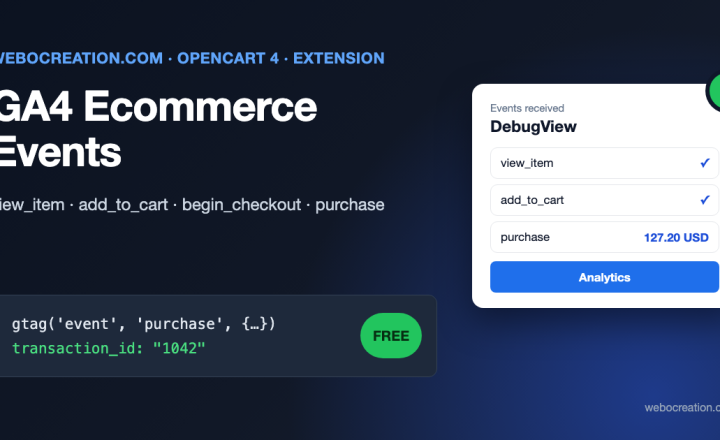
- In Google Analytics 4, free listing visits arrive as organic traffic from Google; with our GA4 ecommerce extension and matching item IDs, you can see which products sell.
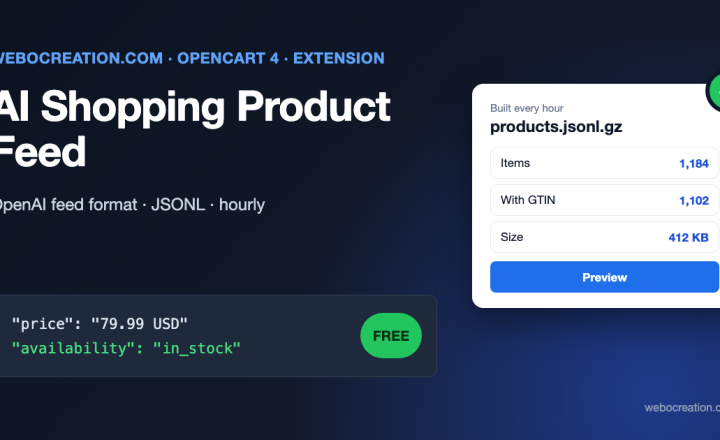
- AI shopping assistants use similar product data. Once your Google feed is clean, the same work pays off for ChatGPT and other agents: see our AI shopping product feed for OpenCart.
Checklist
- Merchant Center account, website verified and claimed.
- Shipping, returns, business information and contact details complete.
- GTIN, MPN and brand entered for every branded product, in OpenCart 4.1’s identifiers.
- A feed extension that reads 4.1 identifiers, delivered by scheduled fetch (or the Merchant API, not the Content API).
- Feed prices and availability match the product pages exactly.
- Product structured data on product pages.
- Diagnostics checked weekly for the first month.

Author of four Opencart book.
The recent are Opencart 4 developer book and Opencart 4 user manual