Product Structured Data (JSON-LD) in OpenCart 4: Get Rich Results for Price, Stock and Reviews (Free Extension)
Add schema.org Product, Offer, Review, BreadcrumbList and Organization JSON-LD to OpenCart 4.1 for Google rich results and AI shopping agents. Field mapping, testing steps and a free extension.
 Rupak NepaliPublished Oct 22, 2026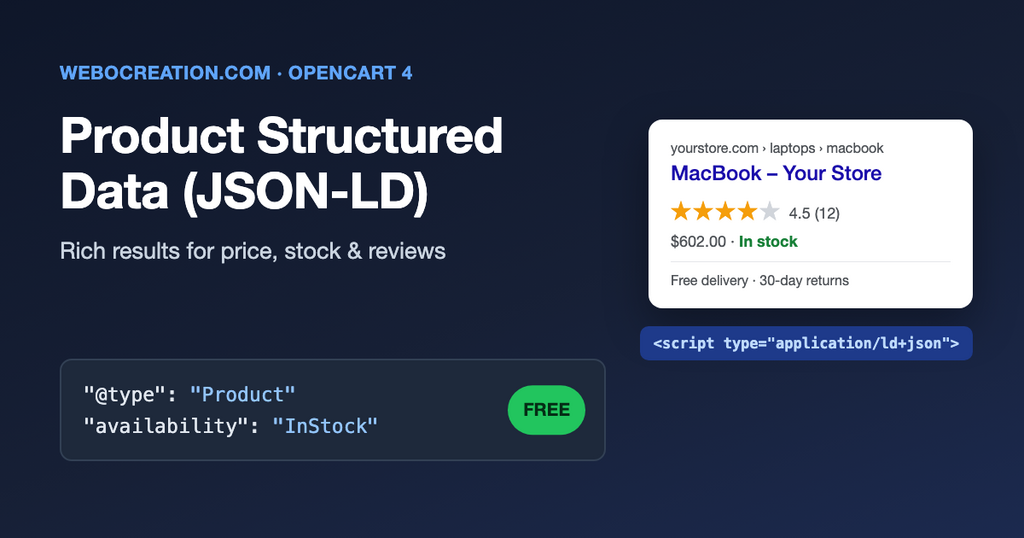
Search results that show the price, “In stock” and a star rating under a product get more clicks than plain blue links. Those extras come from structured data: a small block of JSON-LD in the page that tells search engines exactly what the product is, what it costs and whether it is available.
The same data is now read by AI shopping assistants. As we explained in Making an OpenCart Store Agent-Ready, an agent comparing products trusts structured facts far more than a pretty description.
The default OpenCart 4 theme outputs no structured data at all. This post shows which schema types a store needs, how OpenCart 4.1’s fields map to them, and gives you a free extension that adds it all without editing theme files.
Which schema types an online store needs
| Page | Schema type | What it can give you |
|---|---|---|
| Product page | Product + Offer | Price, availability and shipping in Google results and in the Shopping tab |
| Product page | AggregateRating + Review | Star rating and review count |
| Product page | MerchantReturnPolicy, OfferShippingDetails | “Free returns”, delivery time and shipping cost in results |
| Product and category pages | BreadcrumbList | A readable path (Home › Laptops › MacBook) instead of the URL |
| Home page | Organization + WebSite | Your logo and social profiles in the knowledge panel |
Google decides when to show rich results; correct markup makes you eligible, it doesn’t guarantee them. But wrong or missing markup guarantees you won’t get them.
What the output looks like
This is what the extension adds to a product page on the OpenCart demo data (shortened):
<script type="application/ld+json">
{
  "@context": "https://schema.org",
  "@type": "Product",
  "@id": "https://yourstore.com/en-gb/product/macbook#product",
  "name": "MacBook",
  "description": "Intel Core 2 Duo processor. Powered by an Intel Core 2 Duo processor at speeds up to 2.16GHz...",
  "url": "https://yourstore.com/en-gb/product/macbook",
  "image": [
    "https://yourstore.com/image/cache/catalog/demo/macbook_1-500x500.jpg",
    "https://yourstore.com/image/cache/catalog/demo/macbook_2-500x500.jpg"
  ],
  "sku": "MB-2024",
  "mpn": "MC207LL/A",
  "gtin": "0885909302387",
  "brand": { "@type": "Brand", "name": "Apple" },
  "category": "Laptops & Notebooks",
  "offers": {
    "@type": "Offer",
    "url": "https://yourstore.com/en-gb/product/macbook",
    "priceCurrency": "USD",
    "price": "602.00",
    "priceValidUntil": "2026-12-31",
    "availability": "https://schema.org/InStock",
    "itemCondition": "https://schema.org/NewCondition",
    "seller": { "@type": "Organization", "name": "Your Store" },
    "hasMerchantReturnPolicy": {
      "@type": "MerchantReturnPolicy",
      "applicableCountry": "US",
      "returnPolicyCategory": "https://schema.org/MerchantReturnFiniteReturnWindow",
      "merchantReturnDays": 30,
      "returnMethod": "https://schema.org/ReturnByMail",
      "returnFees": "https://schema.org/FreeReturn"
    },
    "shippingDetails": { "@type": "OfferShippingDetails", "...": "..." }
  },
  "aggregateRating": {
    "@type": "AggregateRating",
    "ratingValue": "4.5",
    "reviewCount": 12,
    "bestRating": 5,
    "worstRating": 1
  },
  "review": [
    {
      "@type": "Review",
      "author": { "@type": "Person", "name": "Sam" },
      "datePublished": "2026-09-14",
      "reviewBody": "Fast and quiet, battery lasts all day.",
      "reviewRating": { "@type": "Rating", "ratingValue": 5, "bestRating": 5 }
    }
  ]
}
</script>
How OpenCart 4.1 fields map to schema.org
This is the part most tutorials get wrong for OpenCart 4.1, because two things changed from OpenCart 3:
- Product codes moved. The product form no longer has separate SKU, UPC, EAN, JAN, ISBN and MPN fields. Codes are saved as rows in
oc_product_code, and the code types are defined inoc_identifier(Catalog > Identifiers in the admin), where you can add your own, like GTIN-14. The old columns still exist onoc_product, and stores upgraded from OpenCart 3 may still have data there, so the extension readsoc_product_codefirst and falls back to the old columns. - Specials moved. Special prices are stored in
oc_product_discountwithspecial = 1instead of a separateoc_product_specialtable.
| schema.org property | OpenCart 4.1 source | Notes |
|---|---|---|
name, description | Product name and description (current language) | HTML tags stripped, description cut to 5,000 characters |
image | Main image + additional images | Full URLs, up to 5 images |
sku | Identifier SKU, falls back to model | |
mpn | Identifier MPN | |
gtin | Identifier EAN, UPC, JAN or ISBN (you choose the order) | Only numeric values of 8, 12, 13 or 14 digits are used |
brand | Manufacturer | Omitted if no manufacturer is set |
offers.price | Special, then discount, then price, with tax if your store shows prices with tax | Same price the customer sees on the page, in the session currency |
offers.priceValidUntil | End date of the active special | Omitted if there is no end date |
offers.availability | Quantity > 0 = InStock, otherwise the product’s Out Of Stock Status | You map each stock status (2-3 Days, Pre-Order…) to a schema value |
aggregateRating | Average and count of approved reviews | Calculated with one decimal; OpenCart’s own rating is rounded to a whole number |
review | Latest approved reviews | Number is configurable, default 5 |
If your products have no GTIN, MPN or brand, that is allowed. Google only asks for them when they exist. But for branded products, adding them under Catalog > Products > Edit > Data tab > Product Codes is the single best improvement you can make for Google Shopping.
How the extension adds the markup
The extension uses OpenCart 4 events, so it works with any theme and survives OpenCart updates:
| Event trigger | Adds |
|---|---|
catalog/view/product/product/after | Product (+ Offer, rating, reviews, return and shipping policy) and BreadcrumbList |
catalog/view/product/category/after | BreadcrumbList |
catalog/view/common/home/after | Organization and WebSite (with site search) |
Each handler builds a PHP array, encodes it with json_encode(), and inserts the <script type="application/ld+json"> block just before </head>. Using json_encode() rather than writing JSON in a Twig template matters: product names with quotes, ampersands or line breaks can’t break the JSON, and </script> inside a description can’t escape the block.
A simplified version of the product handler:
// catalog/view/product/product/after
public function product(string &$route, array &$data, string &$output): void {
    if (!$this->config->get('module_product_schema_status') || empty($data['product_id'])) {
        return;
    }

    $this->load->model('extension/product_schema/module/product_schema');

    // $data is what the product page sends to its template, so breadcrumbs and
    // manufacturer are already there.
    $schema = $this->model_extension_product_schema_module_product_schema->getProductSchema(
        (int)$data['product_id'],
        $data['breadcrumbs'],
        $data['manufacturer']
    );

    if ($schema) {
        $json = json_encode($schema, JSON_UNESCAPED_SLASHES | JSON_UNESCAPED_UNICODE | JSON_HEX_TAG);

        $script = '<script type="application/ld+json">' . $json . '</script>' . "\n";

        $position = stripos($output, '</head>');

        if ($position !== false) {
            $output = substr_replace($output, $script, $position, 0);
        }
    }
}
JSON_HEX_TAG turns < and > into < and >, which is what keeps a stray </script> harmless. If you are new to events, our OpenCart 4 OCMOD tutorial compares them with OCMOD.
Installation
- Download product_schema.ocmod.zip.
- Go to Extensions > Installer, upload the zip and click Install.
- Go to Extensions > Extensions > Modules, find Product Structured Data (JSON-LD), click + to install, then the pencil to edit.
- Configure the settings below, set Status to Enabled and click Save.
Settings
General
- Status – on or off.
- Markup to output – switch each of Product, BreadcrumbList, Organization and WebSite on or off. Turn off any type your theme already outputs (see "Duplicate markup" below).
- Reviews to include – 0 to 10. 0 keeps the star rating but leaves out individual reviews.
- Item condition – New, Used or Refurbished, for the whole store.
- GTIN identifiers – which identifier codes to use as GTIN, in order of preference (default EAN, UPC, JAN, ISBN).
Availability mapping
Each stock status from Localisation > Stock Statuses is listed with a dropdown of schema.org values: InStock, OutOfStock, PreOrder, BackOrder, LimitedAvailability, SoldOut, Discontinued. The defaults match OpenCart's demo statuses: "In Stock" → InStock, "2-3 Days" → BackOrder, "Pre-Order" → PreOrder, "Out Of Stock" → OutOfStock.
Returns and shipping
Google shows returns and delivery information from MerchantReturnPolicy and OfferShippingDetails. Fill these in only if they are true for most of your products:
- Return policy: country (two-letter code), return window in days (0 = no returns), free or customer-paid returns.
- Shipping: destination country, flat shipping rate (0 for free shipping), handling time and transit time in days (minimum and maximum).
If you also use Google Merchant Center, the return and shipping settings there take priority, and they should match what you put here.
Organization
The organization name, logo, email and phone come from System > Settings. Add your social profile URLs (one per line) to fill sameAs, which helps Google connect your site to your Facebook, Instagram, X or YouTube pages.
Test your markup
- Open Google's Rich Results Test and enter a product URL. You should see Product snippets and Merchant listings as valid items, plus Breadcrumbs.
- Fix any red errors. Yellow warnings such as "Missing field gtin" are optional, but fill them in where you can.
- Use the Schema Markup Validator for a full view of everything on the page, including markup your theme adds.
- After a few days, check Google Search Console > Enhancements (Product snippets, Merchant listings, Breadcrumbs) for errors across the whole site.
For a quick check without a browser:
curl -s https://yourstore.com/en-gb/product/macbook | grep -o '<script type="application/ld+json">.*</script>'Common mistakes
- Duplicate markup. Some premium themes add their own Product schema or microdata. Two Product blocks with different prices confuse Google. Check with the Schema Markup Validator and either turn off the theme's markup or turn off that type in the extension.
- Price doesn't match the page. Google compares the markup price with the visible price and with your Merchant Center feed. The extension uses the same price calculation as the product page, including specials and tax, so keep your theme's price display standard.
- Fake or imported reviews. Only real customer reviews may be marked up. Reviews written by the store, or copied from other sites, break Google's guidelines and can lead to a manual action. The extension only uses reviews you approved under Catalog > Reviews.
- Markup on a page Google can't index. Structured data does nothing on a page blocked by
robots.txtor set to noindex. See 25 SEO best practices for OpenCart and make sure product URLs are in your sitemap. - Products with options. If size or colour options change the price, the markup shows the base price, which is the price shown on the page before an option is chosen. Full
ProductGroupvariant markup needs separate URLs per variant, which OpenCart doesn't have by default.
Structured data and AI search
Google AI Overviews, ChatGPT shopping, Perplexity and other AI assistants read the same JSON-LD. A product with a clear price, availability, brand, GTIN and return policy is easier for them to recommend correctly than one they have to guess from HTML. Structured data works alongside the other pieces we have covered: how AI crawlers read your website, llms.txt for ecommerce and content for generative search.
Summary
- The default OpenCart 4 theme has no structured data. Install the extension, or add JSON-LD with events as shown above.
- Fill in brand (manufacturer) and GTIN/MPN under the product's identifiers wherever you have them.
- Map your stock statuses to schema availability values and add your return and shipping policy.
- Test with the Rich Results Test, remove duplicate theme markup, and monitor Search Console.
Find more free OpenCart extensions, or contact us if you need help with structured data on a custom theme.

Author of four Opencart book.
The recent are Opencart 4 developer book and Opencart 4 user manual