Abandoned Cart Recovery in OpenCart 4: Capture, Email and Win Back Lost Orders (Free Extension)
OpenCart 4 has no abandoned cart feature. Learn how cart abandonment works in OpenCart 4.1, how to build a 3-email recovery sequence, and download a free Abandoned Cart Recovery extension.
 Rupak NepaliPublished Oct 22, 2026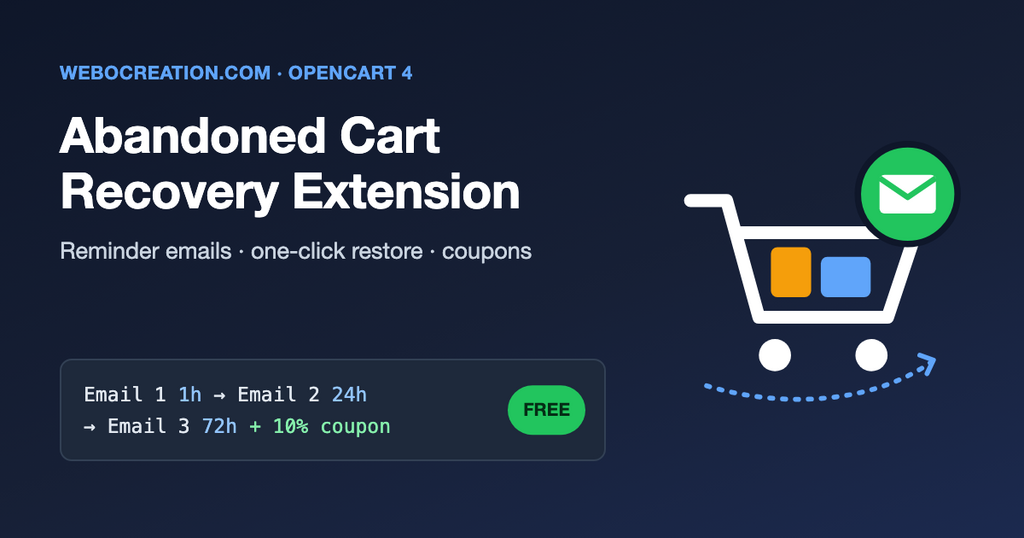
About 7 out of 10 online shopping carts are abandoned before checkout is finished. Some of those shoppers were only browsing, but many were interrupted, distracted, or unsure about shipping costs. A short, well-timed reminder email brings a share of them back. That is why every major ecommerce platform has abandoned cart recovery built in.
OpenCart 4 does not. So we built a free extension for OpenCart 4.1.0.x. This post explains how carts work in OpenCart 4, what a good recovery sequence looks like, and how to install and configure the extension.
What the extension does
- Captures abandoned carts for logged-in customers and for guests as soon as they enter their email at checkout.
- Sends up to 3 reminder emails at times you choose (default: 1 hour, 24 hours and 72 hours).
- One-click restore link that puts the products back in the cart, on any device.
- Optional unique coupon in the last email only, single use, with an expiry date.
- Stops automatically when the customer places an order, and marks the cart as recovered.
- Report of captured, emailed and recovered carts with recovered revenue.
- UTM tags on every link, so recovered sales show up in Google Analytics.
- Unsubscribe link, optional newsletter-consent requirement, and automatic deletion of old cart data.
How carts work in OpenCart 4
If you are a developer, this section explains why OpenCart can’t do abandoned cart emails on its own, and why the extension stores its own copy of each cart.
OpenCart 4 keeps cart items in the oc_cart table:
| Column | What it holds |
|---|---|
cart_id | Row ID, one row per product line |
store_id | Store, for multi-store setups |
customer_id | The customer ID, or 0 for guests |
session_id | The visitor’s session |
product_id, option, quantity, subscription_plan_id | What was added |
date_added | When it was added |
Two things make this unusable for recovery emails:
- There is no email address. For a guest, OpenCart only knows the email after they fill in the checkout form, and it keeps that in the session (
$this->session->data['customer']['email']), not in the cart table. - Guest carts are deleted. Every time the cart library loads,
system/library/cart/cart.phpruns:
DELETE FROM `oc_cart`
WHERE `store_id` = '0'
  AND `customer_id` = '0'
  AND `date_added` < DATE_SUB(NOW(), INTERVAL {config_session_expire} SECOND)
config_session_expire is 86400 seconds (24 hours) by default. So a guest cart is gone after a day, and your 72-hour reminder would have nothing to show.
The extension solves both problems with events (no core file changes, no OCMOD):
| Event trigger | What the extension does |
|---|---|
catalog/controller/checkout/register.save/after | The guest or new customer has entered an email at checkout. Save a snapshot of the cart with that email. |
catalog/controller/checkout/cart.add/aftercatalog/controller/checkout/cart.edit/aftercatalog/controller/checkout/cart.remove/after | The cart changed. If we know the email (logged in, or entered earlier), update the snapshot. |
catalog/model/checkout/order.addHistory/after | An order was placed. Find the open cart for that email and mark it recovered, with the order ID and total. |
Snapshots go into a new table, oc_abandoned_cart, with the email, the products (name, options, quantity, price and image at the time), cart total, currency, language, a secret restore token and the reminder stage. OpenCart’s own cleanup never touches it.
Emails are sent by a job registered in OpenCart 4’s built-in cron system (Extensions > Cron Jobs), so there is nothing extra to install on the server apart from the normal OpenCart cron. If you are new to events, see code flow and the MVCL pattern in OpenCart.
Installation
- Download abandoned_cart.ocmod.zip with the button above.
- In the OpenCart admin go to Extensions > Installer and upload the zip.
- Click the green Install button next to “Abandoned Cart Recovery” in the installed packages list.
- Go to Extensions > Extensions, choose Modules from the filter, find Abandoned Cart Recovery and click the green + (install).
- Click the blue Edit (pencil) button to configure it.
Installing the module creates the oc_abandoned_cart table, registers the events and adds an hourly cron job called abandoned_cart. Uninstalling removes all three.
Set up the server cron (once)
OpenCart 4’s cron jobs only run if your server calls cron.php regularly. If you haven’t set this up yet, add a cron job in cPanel (Advanced > Cron Jobs) that runs every hour:
0 * * * * cd /home/USER/public_html && /usr/local/bin/php cron.php >/dev/null 2>&1Change the path to your OpenCart folder (the one containing cron.php and config.php). The same cron also runs OpenCart’s currency, subscription and GDPR jobs, so it is worth having anyway. You can check it is working under Extensions > Cron Jobs: the “Date Modified” of each job updates every time it runs. That page also has a button to run a job by hand, which is useful for testing.
Because the cron runs hourly, a “1 hour” reminder actually goes out between 1 and 2 hours after the cart was abandoned. That is fine; nobody needs a reminder after 5 minutes.
Delays are counted from the customer’s last cart activity, so if they come back and change the cart, the clock restarts. If your cron was down for a few days, the extension sends only the latest email that is due, not all three at once. Carts with no activity for 14 days are marked Expired and get no more emails.
Configure the module
General tab
| Setting | What it does | Suggested |
|---|---|---|
| Status | Turns capturing and sending on or off | Enabled |
| Minimum cart total | Ignore carts below this amount (default currency) | 0, or your free-shipping threshold |
| Require newsletter consent | Only email customers who ticked the newsletter box | See the GDPR section below |
| Delete data after (days) | Old cart snapshots are deleted after this many days | 30 |
| BCC email | Get a copy of every reminder, useful while testing | Empty in production |
Emails tab
There are three reminder stages. For each one you set whether it is enabled, how many hours after the last cart activity to send it, the subject and the message. The message can use these placeholders:
| Placeholder | Replaced with |
|---|---|
{firstname} | Customer’s first name, or “there” if unknown |
{store_name} | Your store name |
{cart} | A table of the products with images, options, quantities and prices |
{cart_total} | Cart total in the customer’s currency |
{restore_link} | The one-click link back to the filled cart |
{coupon} | A ready-made coupon box (“Use code AC3F9B2E1D for 10% off until…”), or nothing if this email has no coupon |
{coupon_code}, {coupon_discount}, {coupon_expiry} | Coupon details, if you prefer to write the coupon text yourself |
{unsubscribe_link} | Stops all future reminders for that email |
Coupon tab
Choose which email includes a coupon (or none), the discount percentage and how many days it is valid. The extension creates a unique, single-use coupon per cart in OpenCart’s normal coupon system, so you can see it under Marketing > Coupons. The restore link applies it to the cart automatically. The default third email already contains the {coupon} placeholder, which stays empty until you turn the coupon on. See Coupons Management in OpenCart 4 for how coupons work.
A recovery sequence that works
The default templates follow this pattern. Edit the words to match your brand, but keep the structure.
| When | Purpose | Example subject | |
|---|---|---|---|
| 1. Reminder | 1 hour | Helpful, no pressure. Show the products and the link. | You left something in your cart |
| 2. Reassurance | 24 hours | Answer the usual doubts: shipping cost, delivery time, returns, secure payment, a review or two. | Still thinking it over? Here’s what to know |
| 3. Incentive | 72 hours | Last email. Optional coupon with a clear expiry. | Your cart expires soon – here’s 10% off |
Tips:
- Don’t put a discount in the first email. Customers learn to abandon carts on purpose to get one. Most recoveries happen from the first email anyway.
- Show the product images. The
{cart}placeholder does this. The email should make sense even if the customer doesn’t remember your store. - One clear button. Everything in the email should point to the restore link.
- Three emails is the maximum. After that you are only collecting spam complaints.
- Fix the reason, not just the symptom. If many carts are abandoned at the shipping step, the problem is shipping cost, not a missing email. Our Checkout Forensics post lists 20 common causes.
How the restore link works
Each snapshot gets a random 32-character token. The link in the email looks like this:
https://yourstore.com/index.php?route=extension/abandoned_cart/module/abandoned_cart.restore
  &token=9f2c...e81a
  &utm_source=abandoned_cart&utm_medium=email&utm_campaign=abandoned_cart&utm_content=email_2
When the customer clicks it, the extension:
- finds the snapshot by token (an unknown or recovered token goes to the normal cart page),
- adds each product back to the cart with the same options and quantity, skipping products that are now disabled (if the cart on that device already has products, it is left as it is, so clicking twice doesn’t double the quantities),
- applies the coupon if there is one,
- records the click, and redirects to the cart page.
Because the link works without logging in, it works on a phone even if the cart was created on a laptop. Prices are recalculated by OpenCart as usual, so a price change since the cart was abandoned is applied correctly.
The UTM tags tell Google Analytics the visit came from the reminder email, and utm_content tells you which of the three emails worked. If you track first and last touch, see First-Touch vs Last-Touch UTMs with Cookies.
The report
The Report tab of the module shows:
- totals: carts captured, reminder emails sent, carts recovered, recovery rate and recovered revenue,
- a list of carts with email, products, cart total, emails sent, link clicks, status (Open, Recovered, Ordered without email, Unsubscribed, Expired) and the order link, with a filter by email and status.
“Recovered” means an email was sent and the customer then ordered. “Ordered without email” means they came back on their own before any reminder went out. Keep these separate, otherwise you will overestimate what the emails are worth. Add the recovery rate to your ecommerce KPIs.
Deliverability, privacy and GDPR
Deliverability. The reminders are sent with your store’s normal mail settings (System > Settings > Mail). If your order emails go to spam, your reminders will too. Set up SPF, DKIM and DMARC first: see Email Deliverability for Ecommerce.
Consent. Whether you may send cart reminders without explicit marketing consent depends on your country. In the EU and UK, many businesses rely on “legitimate interest” for a single service-style reminder, while others treat cart emails as marketing that needs opt-in. This is not legal advice; check what applies to you. The extension gives you the tools either way:
- Require newsletter consent – only customers who ticked the newsletter box get reminders.
- Unsubscribe link in every email – stops all future reminders for that address.
- Automatic deletion of snapshots after the number of days you choose.
Mention cart reminder emails in your privacy policy. Our OpenCart cookie and GDPR guide covers the legal pages.
Testing it
- In the module settings, set stage 1 to 0 hours and put your own address in BCC email.
- In a private browser window, add a product to the cart, go to checkout, choose Guest Checkout, fill in the form with an email you can read, and click Continue. Close the window.
- Go to Extensions > Cron Jobs and click the run button next to
abandoned_cart. - Check the email, click the button, and confirm the cart is restored. The report should show the cart with 1 email sent.
- Place the order. The cart status should change to Recovered with the order total.
- Set stage 1 back to 1 hour and clear the BCC field.
If no email arrives, check System > Maintenance > Error Logs and test your mail settings with a contact form message first. Developers can use the Docker setup for OpenCart with Mailpit or MailHog to catch emails locally.
Limitations
- Guests who leave before entering an email at checkout can’t be emailed. Nobody can do that legally, so it is not a bug.
- Email templates are set once, not per language. The product names in
{cart}are in the language the customer was browsing in. - Built and tested for OpenCart 4.1.0.x. It will not work on OpenCart 3.
The code is on GitHub with our other free OpenCart extensions. If you find a bug or want a feature, open an issue there or contact us.

Author of four Opencart book.
The recent are Opencart 4 developer book and Opencart 4 user manual