Loyalty in OpenCart 4: Reward Points That Add Themselves, and Wishlist Price-Drop and Back-in-Stock Emails (Free Extension)
Build a simple loyalty program with OpenCart 4's reward points, fix the manual step that stops points being credited, and turn wishlists into sales with automatic price-drop and back-in-stock emails. Free extension with setup steps.
 Rupak NepaliPublished Oct 26, 2026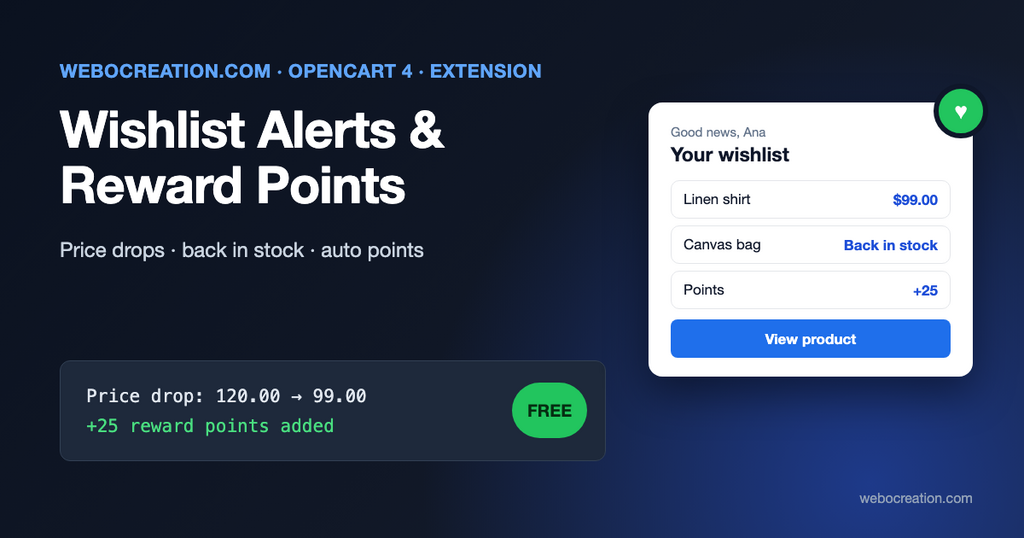
OpenCart 4 has two loyalty features most stores never use well. Reward points let customers earn points on purchases and spend them on later orders. Wishlists let customers save products for later. Both tell you something valuable: who comes back, and what they want but haven’t bought yet.
Both also stop short. Reward points aren’t credited until someone in your team clicks a button on each order, and a wishlist is a list nobody ever looks at again. This post shows how to set up reward points properly, and introduces a free extension that credits points automatically and emails customers when products on their wishlist get cheaper or come back in stock.
Part 1: reward points, the built-in loyalty program
Reward points in OpenCart 4 have two sides, and they’re set in different places. Our earlier post on how reward points work in OpenCart 4 covers the customer’s view; here’s the setup.
Earning points
Set per product, per customer group, on the product’s Reward Points tab. A product worth 100.00 with 10 points for the Default group gives a customer who buys two of them 20 points. Use a consistent rule so customers understand it, for example 1 point per 1.00 spent, rounded down. For a large catalog, ask your developer to set the rule with one SQL update rather than editing products one by one.
Spending points
Also on the product, but on the Data tab: the Points field is how many points it costs to buy this product with points. A product with Points 0 can’t be bought with points. Customers spend points in the cart (the “Use Reward Points” box), and only if the Reward Points order total is installed and enabled under Extensions > Extensions > Order Totals.
Work out the value before you pick numbers. If customers earn 1 point per 1.00 and a 20.00 product costs 400 points, every point is worth 0.05, which is a 5% reward rate. Typical retail loyalty programs give 1% to 5%. Above that, check your margins.
The manual step most stores miss
Here’s what surprises store owners: OpenCart 4 doesn’t credit earned points automatically. When an order is complete, the points stay on the order until an admin opens it (Sales > Orders > order info) and clicks the button to add reward points. Customers see “you’ll earn 20 points” at checkout, finish their order, and their points balance stays at zero. Most stores have the button. Few remember to click it.
(OpenCart does handle the other direction automatically: points a customer spent are taken when the order reaches a processing status, and given back if the order is cancelled.)
The extension below fixes this. With Add earned points automatically on, points are credited when the order reaches one of your Complete Order Statuses (System > Settings > Option), and removed again if the order later moves to a status that is neither processing nor complete, such as Canceled or Refunded. If an admin already clicked the button, nothing is added twice.
Which status counts as “complete” is your decision. Crediting at Complete rather than Processing means customers can’t earn points on orders they later return within your return window. Tell them so on your rewards page.
Part 2: wishlists that sell
A wishlist item is a customer saying “I want this, but not right now.” Usually the reason is price or stock. When the price drops or the product is back, that customer is the most likely buyer you have, and OpenCart doesn’t tell them.
The extension checks every wishlist once a day and sends one email per customer listing:
- Price drops: products now at least X% cheaper than when we last checked (10% by default), including specials for the customer’s group. The email shows the old price crossed out and the new price.
- Back in stock: products that were out of stock and now aren’t.
Small drops don’t reset the baseline. If a price falls 3% a week, the customer gets one email once the total drop passes 10%, not never. Price increases do reset it, so a temporary increase followed by a return to normal doesn’t trigger a “price drop”.
Consent: these are marketing emails
A back-in-stock email that a customer explicitly asked for (like our separate back-in-stock notifications form) is a service message. A price-drop email about a product someone saved weeks ago is marketing in most countries. The UK regulator’s guidance on the “soft opt-in”, for example, only covers existing customers who “bought something from you recently” and only for “similar products or services”, and you must give them “a clear chance to opt out” in every message.
That’s why the extension has Only newsletter subscribers switched on by default: it emails only customers who ticked the newsletter box, and every email says how to stop. Switch it off only if your privacy policy and account sign-up cover wishlist emails. This isn’t legal advice; our GDPR and cookie guide for OpenCart has more.
Installation
- Download wishlist_alerts.ocmod.zip with the button above.
- Extensions > Installer, upload, then click the green Install button in the list.
- Extensions > Extensions > Modules, find Wishlist Alerts & Reward Points, click + and then the pencil.
- Configure (below), switch Status on and save.
Installing adds two tables (the last price and stock seen per wishlist item, and a log of emails sent), one event for reward points and a daily cron job. Uninstalling removes them.
The server cron
Wishlist emails are sent by OpenCart’s cron, which only runs if your server calls cron.php. If you set this up for our abandoned cart extension, you’re done. Otherwise add an hourly job in cPanel (Cron Jobs):
0 * * * * cd /home/USER/public_html && /usr/local/bin/php cron.php > /dev/null 2>&1The wishlist_alerts job itself runs once a day. Reward points don’t need cron: they’re credited the moment the order status changes.
Settings
General tab
| Setting | What it does | Suggested |
|---|---|---|
| Status | Turns wishlist emails on | On |
| Price drop alerts | Email when a price falls | On |
| Minimum drop (%) | How much cheaper before we email | 10 |
| Back in stock alerts | Email when stock returns | On |
| Only newsletter subscribers | Skip customers who didn’t opt in | On |
| Days between emails | At most one alert email per customer in this many days | 7 |
| Max emails per run | The rest are sent the next day | 100, lower on Gmail SMTP |
Email tab
A subject and a short message, with {firstname} and {store_name} placeholders. The product list is added below automatically: image, name, a “Price drop” or “Back in stock” label, the price and a View product button. Links carry utm_source=wishlist_alert and utm_campaign=wishlist_price or wishlist_restock, so you can see the sales in Google Analytics.
Keep the subject specific and honest, for example “Good news about your wishlist at {store_name}”. Nothing kills an alert program faster than subjects that read like generic promotions.
Reward Points tab
One switch: Add earned points automatically, explained above.
Most Wished tab
Products saved to the most wishlists, with price and stock. Use it to plan promotions: a 10% sale on the five most wished products sends alerts to exactly the people most likely to buy. It’s also a buying signal: a product on 30 wishlists and out of stock should be reordered.
Testing
- Set Minimum drop to 5 and, while testing, switch off Only newsletter subscribers (or subscribe your test account).
- Log in as a test customer and add two products to the wishlist.
- In Extensions > Cron Jobs, run
wishlist_alerts. The first run only records prices and stock; no email. - Lower one product’s price by 10% and set the other’s quantity from 0 to 5 (set it to 0 before step 3).
- Run the job again. The test customer gets one email with both products.
- For reward points: give a product 10 reward points, order it as the test customer, and change the order to Complete in the admin. The customer’s Reward Points page shows 10 points. Change the order to Canceled: they’re removed.
Ideas that work with this
- Promote the wishlist. Many themes hide the heart icon. Make it visible on product cards and product pages, and say “Save it, and we’ll tell you if the price drops.”
- Show points on the product page (“Earn 25 points”) and in the cart. OpenCart already shows reward information on the product page when the product has points.
- Double points weeks on slow-moving categories: change the Reward Points tab values, and change them back afterwards.
- Combine with review requests. Our review request emails extension asks for a review after delivery; a few bonus points for a review (added by hand under the customer’s Reward Points tab) is a common incentive. Disclose it in the review if your country requires it.
Limitations
- Prices are compared in your default currency. The email shows prices in the default currency too.
- Product option price changes (an option getting cheaper) aren’t detected; only the product price and specials.
- Guests can’t save a wishlist in OpenCart 4: the product is kept in their session and they’re asked to log in or register. Only logged-in customers’ wishlists are saved, so only they get alerts. That’s one more reason to make account creation easy.
- Built for OpenCart 4.1.0.x. It won’t work on OpenCart 3.
The code is on GitHub with our other free OpenCart extensions. Open an issue there or contact us with bugs or ideas.

Author of four Opencart book.
The recent are Opencart 4 developer book and Opencart 4 user manual