Automated Review Request Emails in OpenCart 4: Ask for a Review X Days After an Order Is Complete (Free Extension)
Most OpenCart stores have almost no product reviews because nobody asks. Send an automatic review request a few days after each order, with one-click star ratings and a verified-buyer review page. Free OpenCart 4 extension.
 Rupak NepaliPublished Oct 23, 2026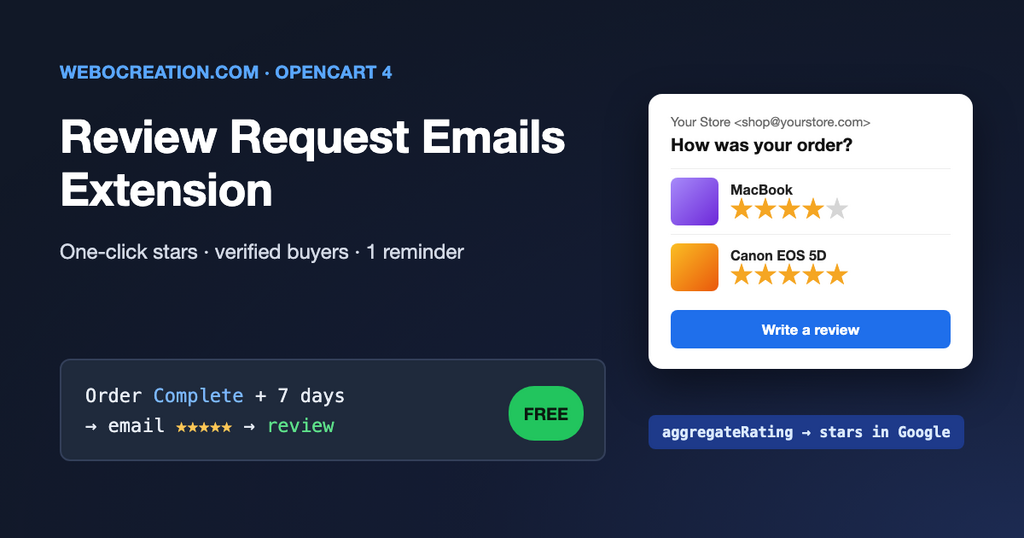
Open any OpenCart store and look at the Reviews tab on a few products. Most of them say “There are no reviews for this product.” That’s not because customers are unhappy. Nobody asked them. To leave a review in OpenCart, a customer has to come back to your site, find the product, open the Reviews tab, and often log in first. Very few people do that by themselves.
Every large marketplace solves this the same way: a few days after delivery, they email you and ask. This post explains how to do that in OpenCart 4, how to time it, which rules to follow, and how to install our free Review Request Emails extension.
What the extension does
- Sends one email per order a set number of days after the order reaches a status you choose, such as Complete or Shipped.
- Clickable stars for each product in the email. One click opens the review page with that rating already selected.
- Verified-buyer review page that works without logging in, even when guest reviews are switched off, because the link itself proves the purchase.
- Saves into OpenCart’s normal reviews (Catalog > Reviews), linked to the customer account, so your theme, moderation and structured data all work as before.
- One optional reminder to customers who haven’t reviewed anything, never more.
- Skips products the customer already reviewed, disabled products, and customers who unsubscribed.
- Report: orders emailed, click rate, reviews collected, response rate and average rating.
Why reviews are worth the effort
- Shoppers read them. A product with a few honest reviews looks safer than an identical product with none, especially on a store the shopper hasn’t bought from before.
- Stars in Google. Our product structured data extension outputs
aggregateRatingandreviewonly for products with approved reviews. No reviews means no stars in the search result. - AI shopping assistants summarise reviews when they compare products. A product with no reviews gives them nothing to say. See making an OpenCart store agent-ready.
- Feedback for you. A 2-star review that says “the size runs small” tells you to fix the size chart. You can’t learn that from an empty tab.
OpenCart 4’s review settings
Reviews are controlled in System > Settings > Edit > Option > Reviews:
| Setting | Effect on the extension |
|---|---|
| Allow Reviews | Must be on. If it is off, the extension sends nothing and the review page says reviews are not available. |
| Allow Guest Reviews | Doesn’t matter. The review link proves the purchase, so guests who checked out without an account can still review. |
| Allow Reviews Of products purchased | Doesn’t matter either. Only products from that order can be reviewed through the link. |
New reviews in OpenCart start as Disabled and appear on the product page only after you enable them in Catalog > Reviews. Our reviews management guide covers that screen. If you want an email for every new review, tick Reviews under Settings > Mail > Alert Mail. The extension saves reviews through OpenCart’s own review model, so that alert still works.
How it decides who to email
An hourly cron job looks for orders that match all of these:
- The order’s current status is one of the statuses you selected (by default, your store’s Complete Order Status list).
- The order first reached one of those statuses at least X days ago, but not more than X + 14 days ago. The date comes from the order history, so it doesn’t matter whether the status was changed by you, a payment extension or an API.
- That date is on or after the extension’s start date.
- The order hasn’t been handled before.
The start date and the 14-day window are safety features. When you install the extension, the start date is set to today, so customers from three years ago don’t suddenly get “How was your order?” emails. If your cron stops for a week, orders that became due during that week are still picked up when it comes back.
For each order, the extension lists the products in it, without duplicates, and leaves out products that are disabled or that a logged-in customer has already reviewed. If nothing is left, the order is marked Skipped and no email is sent.
Installation
- Download review_request.ocmod.zip with the button above.
- In the OpenCart admin go to Extensions > Installer and upload the zip.
- Click the green Install button next to “Review Request Emails” in the installed packages list.
- Go to Extensions > Extensions, choose Modules, find Review Request Emails and click the green + (install).
- Click the blue Edit (pencil) button to configure it.
Installing creates the oc_review_request and oc_review_request_unsubscribe tables and adds an hourly cron job called review_request. Uninstalling removes them. Reviews that were already collected stay in Catalog > Reviews.
Like our other email extensions, this one needs your server to run OpenCart’s cron.php every hour:
0 * * * * cd /home/USER/public_html && /usr/local/bin/php cron.php >/dev/null 2>&1The abandoned cart recovery post explains this line in more detail.
Configure the module
General tab
| Setting | What it does | Suggested |
|---|---|---|
| Status | Turns the emails on | On |
| Send when order status is | Order statuses that mean the customer has the product | Complete (or Shipped/Delivered if you use them) |
| Send after | Days after the order first reached one of those statuses. 1 to 60. | 7 |
| Publish without approval | Off: new reviews wait for you in Catalog > Reviews. On: they go live immediately and the product’s star rating is updated. | Off at first |
| Only orders completed on or after | Start date, set to the install date | Leave it |
| Delete data after (days) | Request data older than this is deleted. Reviews are kept. | 365 |
| BCC email | Copy of every email to you | Only while testing |
Email and Reminder tabs
Each tab has a subject and a message. The reminder tab also has an on/off switch and its own delay (default: 7 days after the first email). These placeholders work in both:
| Placeholder | Replaced with |
|---|---|
{firstname} | First name from the order |
{store_name} | Store name |
{order_id} | Order number. Also works in the subject. |
{products} | Each product with its image, name and five clickable stars |
{review_link} | Link to the review page for the whole order |
{unsubscribe_link} | Stops all future review requests to that address. A “Stop review requests” link is always added to the footer as well. |
When to send
Too early and the customer hasn’t used the product yet. Too late and they have forgotten about you. The delay should be roughly “delivery time + a few days of use”:
| What you sell | Status to use | Send after |
|---|---|---|
| Digital products, software, downloads | Complete | 2–3 days |
| Most physical products, domestic shipping | Shipped or Complete | 7 days |
| Products people need to try for a while (skincare, supplements, shoes) | Complete | 14–21 days |
| International shipping | Shipped | Shipping time + 5 days |
If you mark orders Complete only after delivery, use Complete. If your orders sit at “Shipped” forever because nobody updates them, select Shipped instead. You can select more than one status: the clock starts at whichever comes first.
What the customer sees
The default email says “Thanks again for your order #1234. We hope everything arrived safely”, lists each product with five stars under it, and has a Write a review button. It ends with “If something went wrong with your order, just reply to this email and we’ll fix it.” Keep that line. An unhappy customer who replies to you is a support ticket you can fix, not a 1-star review.
Clicking the fourth star under a product opens the Review your order page on your store with four stars already selected for that product and the cursor in the review box. The name field is filled in as first name + last initial (“Jane D.”), which most people are happy to show publicly, and they can change it. Every product in the order has its own form, so the customer can review one, some or all of them. After submitting, that form is replaced with a thank-you message, and coming back to the page later shows which products they already reviewed.
The review page uses the same limits as OpenCart’s own review form (name 3–25 characters, review 25–1000 characters, rating 1–5). It sends an X-Robots-Tag: noindex header so search engines never index it, and a review link only works for the products in that order, once per product.
Play by the rules
Asking for reviews is fine. How you ask is regulated in many countries, and reviews that look manipulated hurt you more than having none. This is not legal advice, but these are the main points:
- Ask everyone, not just happy customers. Sending requests only to people you expect to be positive (“review gating”) is against Google’s review policies and misleads shoppers. The extension emails every eligible order.
- Don’t pay for positive reviews. In the US, the FTC’s rule on consumer reviews (in force since October 2024) bans incentives that depend on the review being positive, and fake or suppressed reviews. That’s why the extension has no “coupon for a review” option. If you do offer an incentive for any honest review, disclose it.
- Publish the bad ones too. If you moderate, approve every genuine review, not only the 4- and 5-star ones. Hide reviews only for spam, abuse or personal data. “Publish without approval” applies to every rating for exactly this reason.
- Say how you check reviews. EU consumer law requires stores that show reviews to say whether and how they check that reviews come from real buyers. Something like “Reviews submitted through our post-purchase email come from verified customers” on your reviews or FAQ page covers it.
- Let people opt out. Every email has a “Stop review requests” link, and the extension never emails an address twice for the same order.
A review request is about an order the customer placed, so many stores treat it as a service email, but the rules differ between countries, so check what applies to you. Mention review requests in your privacy policy. Our OpenCart GDPR guide covers the legal pages.
Reviews, star ratings and structured data
OpenCart keeps an average rating for each product in the rating column of oc_product, and the stars on the product page and the “Rating” sort on category pages come from that column. Normally it is only updated when you save a review in the admin. When “Publish without approval” is on, the extension recalculates it right away using the same formula, so the stars appear without a trip to the admin. When it is off, the rating updates when you enable the review in Catalog > Reviews, as usual.
With the Product Structured Data extension installed, approved reviews are added to the product’s JSON-LD automatically. Check a product in Google’s Rich Results Test after the first few reviews are live.
The report
The Report tab shows five numbers: orders emailed, click rate (orders where the customer opened the review page), reviews collected, response rate (orders with at least one review) and the average rating of the reviews collected. Below them is a list of every request with the order, products (with the stars given), emails sent, clicks, reviews and status:
- Sent – emailed, no review yet.
- Reviewed – at least one product reviewed. No reminder is sent.
- Unsubscribed – the customer clicked “Stop review requests” (or had before this order).
- Skipped – nothing in the order could be reviewed.
If the click rate is fine but the response rate is low, look at the review page on a phone. If the click rate is low, try a different subject line or a different delay. The links carry UTM tags (utm_content=email_1 or reminder), so you can also see the visits in Google Analytics.
Testing it
- In the module settings set Send after to 1, set the start date to a few days ago, and put your address in BCC email.
- Place a test order with an email you can read, and set its status to Complete in Sales > Orders.
- Wait a day (or, on a test site, change the
date_addedof that order’soc_order_historyrow to two days ago). - Go to Extensions > Cron Jobs and click the run button next to
review_request. The email should arrive. - Click a star, write a review and submit. It should appear in Catalog > Reviews, and the request should show Reviewed in the report.
- Put the settings back to 7 days and clear the BCC field.
We tested the full flow on a clean OpenCart 4.1.0.3 install: orders inside and outside the time window, duplicate products, guest orders, the reminder (sent once only), unsubscribing, and both moderation modes.
Limitations
- Text reviews with a star rating only. OpenCart 4 has no photo reviews.
- The email templates are the same for all languages. Product names are shown as they were on the order.
- “Already reviewed” can only be checked for customers with an account. A guest who reviews the same product from two orders gets asked twice.
- Built and tested for OpenCart 4.1.0.x. It will not work on OpenCart 3.
Before you turn it on, make sure your store email reaches the inbox: Email Deliverability for Ecommerce: SPF, DKIM and DMARC. The code is on GitHub with our other free OpenCart extensions. If you find a bug or want a feature, open an issue there or contact us.

Author of four Opencart book.
The recent are Opencart 4 developer book and Opencart 4 user manual