Back-in-Stock Notifications in OpenCart 4: Let Customers Ask to Be Emailed When a Product Returns (Free Extension)
OpenCart 4 shows "Out Of Stock" and stops there. Add a "Notify me when it's back" form, email waiting customers automatically when stock returns, and see which products people want most. Free extension.
 Rupak NepaliPublished Oct 23, 2026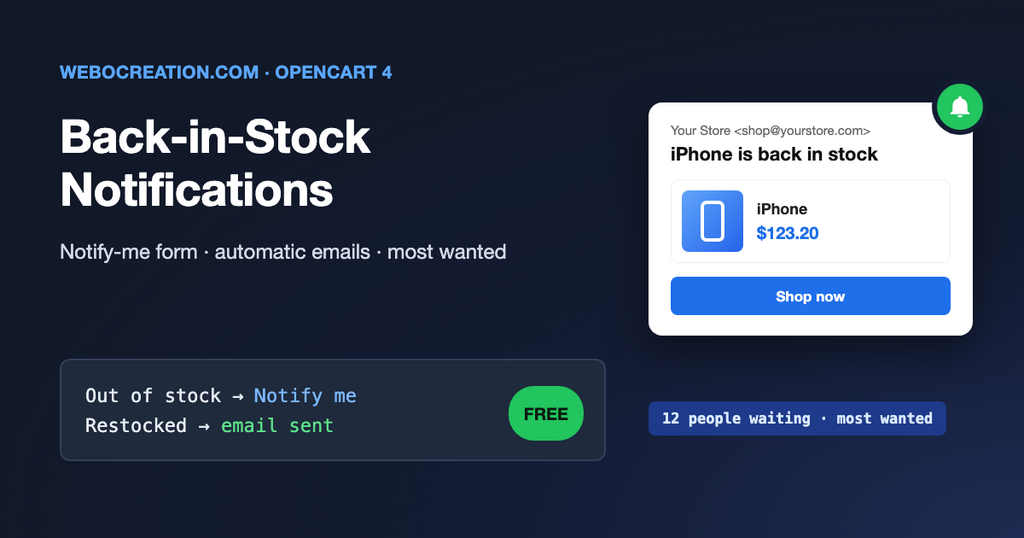
When a product sells out in OpenCart 4, the product page says Availability: Out Of Stock and that is the end of it. The visitor leaves, and you never find out that they wanted it. When the stock arrives a week later, there is no way to tell them.
A “Notify me when it’s back” form fixes both problems. The customer leaves their email, you send one message when the product is available again, and you get a list of which out-of-stock products people are actually waiting for. This post explains how stock works in OpenCart 4.1, what a good back-in-stock flow looks like, and how to install our free extension.
What the extension does
- “Notify me” form on every out-of-stock product page, added with an event (no theme or core file changes).
- Optional: hides Add to Cart on out-of-stock products, so customers don’t add something they can’t check out.
- Automatic email when the product’s quantity goes above zero, however that happens: you edit the product, an order is cancelled and restocked, or an import tool updates quantities.
- Price in the customer’s currency, product image and a one-click link to the product page, with UTM tags.
- Sending limit per hour, so 500 people waiting for the same product don’t get you blocked by Gmail or your SMTP provider.
- Most Wanted report: out-of-stock products ranked by the number of people waiting.
- Sales tracking: notifications that led to an order within 30 days, with revenue.
- Spam protection (hidden honeypot field and a limit of 10 sign-ups per IP address per hour) and automatic deletion of old data.
How stock works in OpenCart 4
Each product has a Quantity, a Subtract Stock switch and an Out Of Stock Status on the Data tab of the product form. When the quantity is 0 or less, the product page shows the out-of-stock status (“Out Of Stock”, “2-3 Days”, “Pre-Order” and so on) instead of the number. Our guide to stock statuses in OpenCart 4 covers these in detail.
Whether the customer can still buy it depends on System > Settings > Option > Stock Checkout. With Stock Checkout off (the default), OpenCart lets the customer add the product to the cart but blocks checkout with “Products marked with *** are not available in the desired quantity or not in stock!” That is a frustrating way to find out, which is why the extension can hide the button instead.
The tricky part for notifications is that the quantity changes in many places:
| What changes stock | Where in OpenCart |
|---|---|
| You edit the product | admin/model/catalog/product.editProduct |
| An order is placed | catalog/model/checkout/order.addHistory subtracts stock when the order reaches a processing status |
| An order is cancelled or refunded | The same method adds the stock back |
| Variants are synced from the master product | Variant code in the admin product model |
| A CSV import, ERP sync or API | Usually direct SQL, with no events at all |
Hooking an event into each of these would miss the last one. So the extension doesn’t try to catch the moment stock changes. Instead, an hourly cron job asks the database one simple question: “which products with people waiting now have a quantity above zero?” It works no matter how the stock got there.
The extension uses two events and one cron job:
| Trigger | What the extension does |
|---|---|
catalog/view/product/product/after | If the product’s quantity is 0 or less, adds the notify form right after the add to cart form |
catalog/model/checkout/order.addHistory/after | If someone who was notified orders that product within 30 days, marks the notification as Purchased |
Cron job back_in_stock (hourly) | Emails everyone waiting for a product that is back, and deletes old data |
Installation
- Download back_in_stock.ocmod.zip with the button above.
- In the OpenCart admin go to Extensions > Installer and upload the zip.
- Click the green Install button next to “Back-in-Stock Notifications” in the installed packages list.
- Go to Extensions > Extensions, choose Modules from the filter, find Back-in-Stock Notifications and click the green + (install).
- Click the blue Edit (pencil) button, switch Status on and save.
Installing creates the oc_back_in_stock table, registers the two events and adds the hourly back_in_stock cron job. Uninstalling removes all of them. You don’t need to add a module to a layout: the form appears on every out-of-stock product page by itself.
Set up the server cron (once)
The emails are sent by OpenCart’s cron, which only runs if your server calls cron.php. If you already did this for our abandoned cart extension, there is nothing to do. Otherwise add an hourly cron job in cPanel (Advanced > Cron Jobs):
0 * * * * cd /home/USER/public_html && /usr/local/bin/php cron.php >/dev/null 2>&1Change the path to your OpenCart folder. Under Extensions > Cron Jobs you can see when each job last ran, and run back_in_stock by hand while testing. Because the job runs hourly, customers hear about restocked products within an hour.
Configure the module
General tab
| Setting | What it does | Suggested |
|---|---|---|
| Status | Shows the form and sends emails | On |
| Hide Add to Cart when out of stock | Hides the quantity box and Add to Cart button on out-of-stock products, so only the notify form is shown. Has no effect if Stock Checkout is allowed in your settings. | On, unless you take backorders |
| Max emails per hour | How many notifications one cron run may send. The rest go out the next hour, oldest sign-ups first. | 100 (lower on Gmail SMTP) |
| Delete data after (days) | Subscriptions older than this are deleted, notified or not | 180 |
| BCC email | Sends you a copy of every notification | Only while testing |
The limit matters more than it looks. If 400 people are waiting for a popular product and you restock it, sending 400 emails in one minute through a Gmail SMTP account can get the account temporarily blocked, and then your order confirmations stop too. With the limit, the first 100 people get the email in the first hour, the next 100 in the second hour, and so on. People who signed up first hear first, which is also the fair order.
Email tab
One subject and one message, edited with the normal OpenCart editor. These placeholders are replaced for each customer:
| Placeholder | Replaced with |
|---|---|
{firstname} | Customer’s first name if they were logged in, otherwise “there” |
{store_name} | Your store name |
{product_name} | Product name, in the language the customer was browsing in. Also works in the subject. |
{product} | A block with the product image, name and current price (with tax, in the customer’s currency) |
{product_image}, {product_price} | The image URL and price on their own, if you want to build your own layout |
{product_link} | Link to the product page that also records the click |
The default email is short: “Good news: {product_name} is back in stock”, the product block and a Shop now button. Keep it that way. The customer asked for exactly one piece of information, so give them that and a button.
What the customer sees
On an out-of-stock product page, a box titled Notify me when it’s back appears under the price, with an email field and a Notify me button. Logged-in customers find their email already filled in. After clicking the button, the box is replaced by “Thanks! We’ll email you@example.com when this product is back in stock.” The page doesn’t reload.
A few details are handled for you:
- Signing up twice for the same product doesn’t create two subscriptions. The message is the same either way, so the form can’t be used to check whether an email address is on your list.
- If the product came back in stock while the page was open, the customer is told to refresh instead of being subscribed.
- The form is placed after OpenCart’s add to cart form (
id="form-product"), or before the Description/Reviews tabs if your theme doesn’t have that form. If neither is found, a line is written to System > Maintenance > Error Logs instead of breaking the page.
The Most Wanted report
This is the most useful part of the extension, and it costs nothing. The Most Wanted tab lists out-of-stock products by the number of customers waiting, with the product’s model, current quantity and how long the oldest person has been waiting.
Use it when you place orders with suppliers. A product with 40 people waiting is a better bet than one with none, even if they sold the same amount last month. It also tells you about products you thought were dead: if people keep asking for something you discontinued, maybe bring it back. If you track stock in a spreadsheet, see inventory management mistakes that sink small ecommerce businesses; running out of your best sellers is the first one.
The Subscriptions tab shows totals at the top (waiting, notified, purchased, conversion rate and revenue) and a list of every subscription you can filter by email, product name and status:
- Waiting – the product is still out of stock.
- Notified – the email was sent. The Clicks column shows whether they opened the link.
- Purchased – they ordered that product (or a variant of it) within 30 days of the email. The order number and total are linked.
Revenue is the whole order total in your default currency, because the customer often buys more than the product they waited for. Add the conversion rate to your ecommerce KPIs. In Google Analytics, the visits show up with utm_source=back_in_stock.
Pre-orders and products that will never return
Back-in-stock forms work best when stock really will come back. Two cases need a decision from you:
- Discontinued products. Disable the product (Status off) instead of leaving it at quantity 0. A disabled product page is not shown, so nobody signs up for something that won’t return. Subscriptions for it are never sent and are deleted after the retention period.
- Pre-orders. If you sell before stock arrives, turn on Stock Checkout and set the out-of-stock status to “Pre-Order”. Customers can then buy right away. The notify form still shows for people who would rather wait, and “Hide Add to Cart” is ignored.
Deliverability and privacy
Notifications use your store’s mail settings (System > Settings > Mail). If order confirmations land in spam, these will too, so set up SPF, DKIM and DMARC first: see Email Deliverability for Ecommerce. If emails don’t arrive at all, start with email is not working in OpenCart.
A back-in-stock email is something the customer explicitly asked for, for one product, and it is sent once. That makes it a service message rather than marketing, so the extension doesn’t add the customer to your newsletter and doesn’t need a separate consent box. The form says “We only use your email for this notification”, and the footer of the email says it is the only email about that product. Keep that promise: don’t export these addresses into your marketing list. This is not legal advice; mention the notifications in your privacy policy, as our OpenCart GDPR guide explains.
Testing it
- Put your own address in BCC email and save.
- Set a test product’s quantity to 0 in Catalog > Products.
- Open the product in a private browser window. The notify form should be there. Sign up with an email you can read.
- Check the Most Wanted tab: the product should be listed with 1 waiting.
- Set the quantity back to 5, go to Extensions > Cron Jobs and click the run button next to
back_in_stock. - The email should arrive, and the subscription should show Notified. Click the button in the email: the Clicks column goes to 1.
- Order the product with the same email. The subscription changes to Purchased.
- Clear the BCC field.
We tested this flow on a clean OpenCart 4.1.0.3 install, both with the admin run button and with php cron.php from the command line.
Limitations
- It watches the product quantity, not option quantities. If you sell sizes as options with their own stock, the form only appears when the whole product is at 0. Products set up as OpenCart 4 variants work, because each variant is its own product.
- The email template is the same for all languages. The product name is in the language the customer was browsing in.
- Built and tested for OpenCart 4.1.0.x. It will not work on OpenCart 3.
The back-in-stock form is one part of a good product page. For the rest, see ecommerce product page optimization. The code is on GitHub with our other free OpenCart extensions. If you find a bug or want a feature, open an issue there or contact us.

Author of four Opencart book.
The recent are Opencart 4 developer book and Opencart 4 user manual