GA4 Ecommerce Tracking in OpenCart 4: view_item, add_to_cart, begin_checkout and purchase Without Editing Your Theme (Free Extension)
Send Google Analytics 4 ecommerce events from OpenCart 4.1: view_item_list, view_item, add_to_cart, view_cart, begin_checkout and purchase with items, value, tax and shipping. Free extension using OpenCart events, respects the cookie policy, with DebugView testing steps.
 Rupak NepaliPublished Oct 26, 2026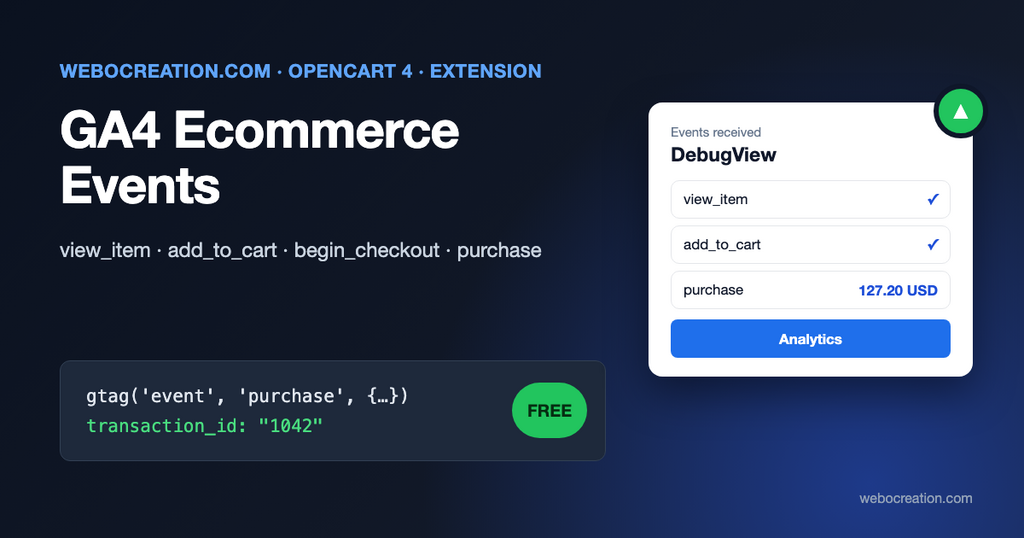
Pasting the Google Analytics tag into OpenCart’s header gives you page views. It doesn’t give you revenue, conversion rate, products viewed versus bought, or where shoppers drop out of checkout. For that, GA4 needs ecommerce events with product data, and OpenCart 4 doesn’t send any.
Our free extension sends them, using OpenCart’s event system so no theme file is edited. This post explains which events GA4 expects, what the extension sends and when, and how to check that the numbers are right.
The events GA4 expects
Google’s ecommerce guide defines a set of recommended events. These are the ones that build GA4’s purchase journey and ecommerce reports:
| GA4 event | When the extension sends it | Key parameters |
|---|---|---|
view_item_list | A category, search, specials, brand or home page shows products (including featured, latest and bestseller modules) | item_list_name, items |
view_item | A product page loads | currency, value, items |
add_to_cart | A product is added to the cart, from the product page or a listing button | currency, value, items |
view_cart | The shopping cart page loads | currency, value, items |
begin_checkout | The checkout page loads | currency, value, coupon, items |
purchase | The order success page loads after a completed order | transaction_id, currency, value, tax, shipping, coupon, items |
Two rules from Google’s documentation drive most tracking bugs:
Set currency at the event level when sending value (revenue) data.
Google Analytics, Measure ecommerce
Without currency, GA4 can’t convert the value and the revenue doesn’t appear. The extension always sends the currency the customer is viewing. The second rule is in Google’s purchase example: the transaction ID is “Required for purchases and refunds.” The extension uses the OpenCart order ID.
How the extension works
OpenCart 4 has an analytics extension type: enabled analytics extensions are printed in the page <head>, but only after the visitor accepts your cookie policy (if you have one under System > Settings > Option > Cookie Policy). The extension uses that for the Google tag, so consent is handled the OpenCart way. The event scripts are added through events and only run if the Google tag is present, so nothing is sent for visitors who declined.
| OpenCart event | What it does |
|---|---|
catalog/model/catalog/product.getProducts/after | Remembers the products shown in lists on the page |
catalog/view/product/product/after | Adds view_item to the product page |
catalog/controller/checkout/cart.add/after | Adds the add_to_cart data to OpenCart’s AJAX response |
catalog/view/checkout/cart/after | Adds view_cart |
catalog/view/checkout/checkout/after | Adds begin_checkout |
catalog/controller/checkout/success/before | Reads the order before OpenCart clears it from the session |
catalog/view/common/footer/after | Sends view_item_list and purchase, and listens for add-to-cart responses |
Add to cart in OpenCart is an AJAX request that doesn’t reload the page. Instead of guessing from button clicks, the extension adds a ga4 key to the JSON that checkout/cart.add returns, and a small listener sends it to GA4 when the request succeeds. So add_to_cart is only sent when OpenCart actually added the product, not when a required option was missing.
The purchase event is built from the saved order, not from the cart: the item prices, the order total, the tax and shipping totals and the coupon code come from what OpenCart recorded.
Installation
- Remove any other Google Analytics code first: the Google Analytics extension, a tag pasted in the theme header, or GA4 inside Google Tag Manager. Otherwise every page view and purchase is counted twice.
- Download ga4_ecommerce.ocmod.zip with the button above.
- Extensions > Installer, upload the zip, and click the green Install button in the list.
- Extensions > Extensions, choose Analytics in the filter, find GA4 Ecommerce Events, click +, then the pencil.
- Enter your Measurement ID (GA4 Admin > Data streams > your web stream, starts with
G-). - Switch on Debug mode for now, switch on Status, and save.
Settings
| Setting | What it does | Suggested |
|---|---|---|
| Measurement ID | Your GA4 web stream | G-... |
| Item ID | What GA4 receives as item_id: product ID, model, or the SKU from the product identifiers | The same ID your Google Merchant Center feed uses |
| Prices include tax | Item prices with or without tax. The purchase value is always the order total. | Off |
| Send view_item_list | Product list impressions | On, unless you’re close to GA4 limits |
| Debug mode | Shows events in GA4 DebugView | On while testing only |
Item ID matters if you use Google Ads or Merchant Center. When item_id matches the id in your product feed, GA4, Ads and Merchant Center can join their data. Our Google Merchant Center guide explains the feed side.
Testing with DebugView
- Open your store in a private window and accept the cookie notice.
- In GA4, go to Admin > Data display > DebugView. Your visit appears within a minute.
- Click through: a category page (
view_item_list), a product (view_item), Add to Cart (add_to_cart), the cart (view_cart), checkout (begin_checkout), and place a test order with Cash On Delivery or Bank Transfer (purchase). - Click each event in DebugView and check its parameters:
itemswith names and prices,currency,value, and forpurchase,transaction_idwith your order number. - Turn Debug mode off.
Ecommerce reports (Reports > Monetization) take up to a day to show new data. DebugView is immediate.
You can also check in the browser: open the developer tools, Network tab, filter for collect?, and look for en=add_to_cart and the item parameters.
When the numbers don’t match OpenCart
GA4 revenue will never exactly match Reports > Sales in OpenCart, and that’s normal:
- Visitors who decline cookies (or block trackers) aren’t counted. Read Google Consent Mode v2 explained if you need modeled data for them.
- Off-site payments:
purchaseis sent on the success page. If a customer pays on PayPal or a bank’s page and doesn’t come back to your store, the order exists in OpenCart but GA4 never sees it. A server-side purchase event (GA4’s Measurement Protocol) fixes this; that’s a bigger project. - Orders created or edited in the admin aren’t tracked.
- Refunds aren’t sent; GA4 shows gross revenue.
Our post why your analytics and ad platform numbers don’t match covers the general reasons.
What’s not included
select_item,remove_from_cart,add_shipping_info,add_payment_infoand promotion events. The six events above are the ones GA4’s purchase journey and ecommerce reports need.- Item categories (
item_category). OpenCart products can be in many categories, and picking one reliably needs per-store rules. - Server-side (Measurement Protocol) events.
- Google Tag Manager. If you use GTM, push the same data to
dataLayerinstead; our older guide on OpenCart conversion tracking with GA4 and GTM shows that approach.
Ad platforms need their own events: see Meta Pixel tracking in OpenCart 4. To see how much revenue comes from ChatGPT, Perplexity and other AI assistants, read measuring AI search traffic in GA4.
Built for OpenCart 4.1.0.x. The code is on GitHub with our other free OpenCart extensions.

Author of four Opencart book.
The recent are Opencart 4 developer book and Opencart 4 user manual