Google Consent Mode v2 Explained for Marketers: Basic vs Advanced, and What It Does to Your Data
Consent Mode v2 tells Google tags what each visitor agreed to on your cookie banner. What the four consent signals mean, basic vs advanced mode, why it matters for EEA and UK ads, and how to check it works.
 Rupak NepaliPublished Oct 23, 2026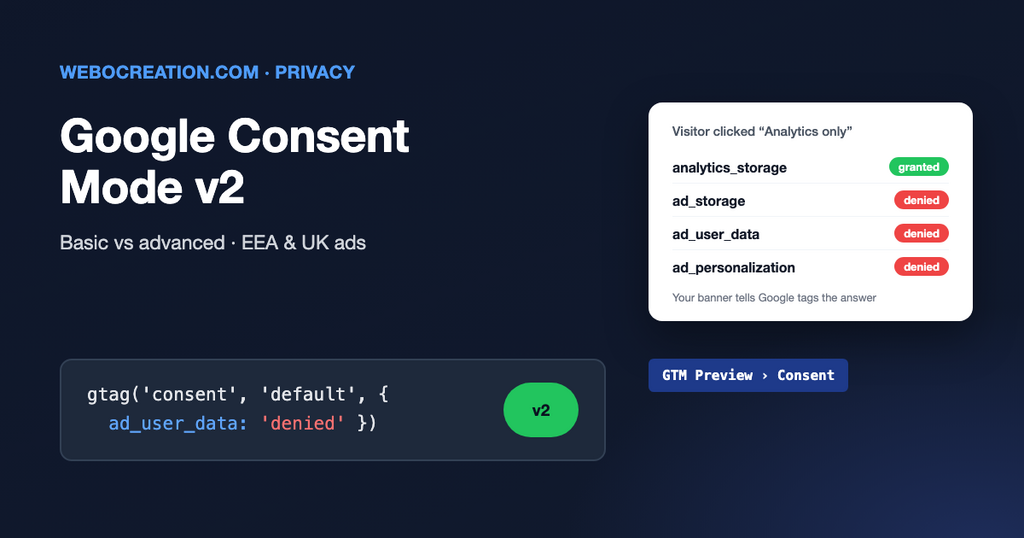
If you advertise to people in the European Economic Area or the UK, you have probably been told you “need Consent Mode v2”. Many marketers switched it on through their cookie banner without knowing what it changed. This post explains it in plain language: what it does, the two ways to run it, and how it affects the numbers you report.
This is a practical explanation, not legal advice. What your banner must ask for depends on the laws where your visitors are. Check with whoever handles privacy for your company.
What Consent Mode is
Your cookie banner (often called a CMP, consent management platform) asks visitors what they agree to. Consent Mode is how the banner tells Google’s tags the answer: Google Analytics, Google Ads, Floodlight and anything in Google Tag Manager. The tags then change how they behave for that visitor.
Consent Mode doesn’t create a banner and doesn’t make you compliant by itself. It’s the connection between the banner and the tags.
The four signals
| Signal | Controls |
|---|---|
analytics_storage | Whether analytics cookies can be stored (GA4 visitor and session IDs). |
ad_storage | Whether advertising cookies can be stored (for example, the Google Ads click cookie). |
ad_user_data | Whether data about this visitor can be sent to Google for advertising. Added in v2. |
ad_personalization | Whether the visitor can be added to remarketing audiences and shown personalised ads. Added in v2. |
The “v2” part is the last two signals. Since March 2024, Google requires them for traffic from the EEA (and the UK) if you want to keep using features like remarketing audiences, conversion measurement and Customer Match for those users.
Basic vs advanced mode
| Basic | Advanced | |
|---|---|---|
| Before the visitor answers | Google tags don’t load at all. | Tags load with consent set to “denied” by default. |
| If the visitor rejects | Nothing is sent to Google. | Tags send cookieless “pings”: no cookies, but basic signals such as a page view or conversion happened. |
| Conversion modelling | Limited, based on general patterns. | Google uses the pings to estimate the conversions it couldn’t see. |
| Effect on reports | Lower numbers; more gaps. | Fuller numbers, partly estimated. |
Advanced mode gives you more complete data. Basic mode sends less data to Google. Which one your company is comfortable with is a privacy decision, not just a marketing one, so agree it with your legal or privacy owner.
What it does to your numbers
- Traffic drops in GA4 when you add a proper consent banner, because visitors who reject are no longer tracked with cookies. This is expected. It doesn’t mean fewer people are visiting.
- Modelled data may appear in GA4 and Google Ads if you use advanced mode and have enough traffic. Google fills part of the gap with estimates. GA4’s reporting identity setting (“Blended”) controls whether you see them.
- Remarketing audiences shrink because only people who granted
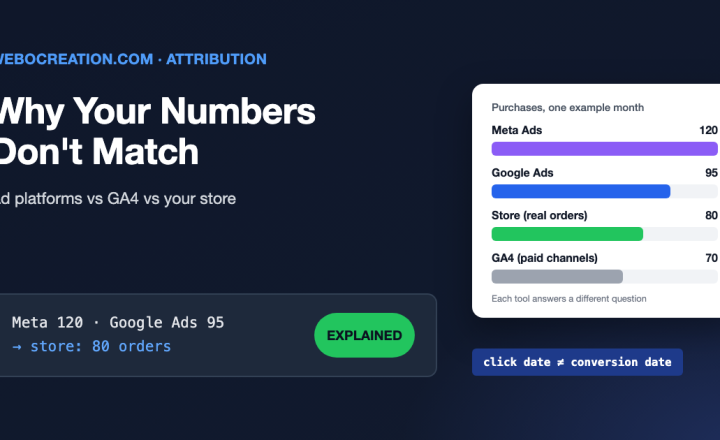
ad_personalizationcan be added. - Your store’s own records don’t change. Comparing GA4 with real orders is the easiest way to see how much consent is hiding. See why analytics and ad platform numbers don’t match.
Setting it up
- Choose a CMP that supports Consent Mode v2. Cookiebot, OneTrust, Usercentrics, CookieYes, Complianz and many others do. Google lists certified partners in its help pages.
- Connect it to Google Tag Manager using the CMP’s template from the GTM community gallery, or follow the CMP’s instructions for gtag.js.
- Set the defaults by region. Usually “denied” for visitors in the EEA and UK, and based on local law elsewhere.
- Handle non-Google tags too. Consent Mode only controls Google tags. Meta, LinkedIn, TikTok and other pixels need their own consent rules in GTM or the CMP.
How to check it works
- Open your site in GTM Preview mode, click the “Consent” tab and check the default and updated state before and after you click accept or reject.
- In Google Ads, go to Goals > Conversions and look at the diagnostics. It reports whether consent signals are being received.
- In GA4, Admin > Data collection shows a consent settings status for your property.
- Reject all cookies in a private browser window, then check the browser’s developer tools: no
_gaor_gclcookies should be set.
If you run an OpenCart store, our guide to cookie and GDPR management in OpenCart covers the store side.
Learn the rest of the technical side
Consent is now part of every tracking setup, and it changes what your reports can tell you. My book, The Technical Web Guide for Marketers, explains cookies, consent, pixels and attribution for marketers, along with domains, email, search and AI. (I’m the author; the Amazon link is an affiliate link.)

Author of four Opencart book.
The recent are Opencart 4 developer book and Opencart 4 user manual