12 Technical SEO Checks Every Marketer Should Run Before Blaming the Content
Great content can't rank if Google can't crawl or index it. Twelve technical SEO checks a marketer can run in an afternoon with free tools: robots.txt, noindex, canonicals, sitemaps, redirects, Core Web Vitals and more.
 Rupak NepaliPublished Oct 23, 2026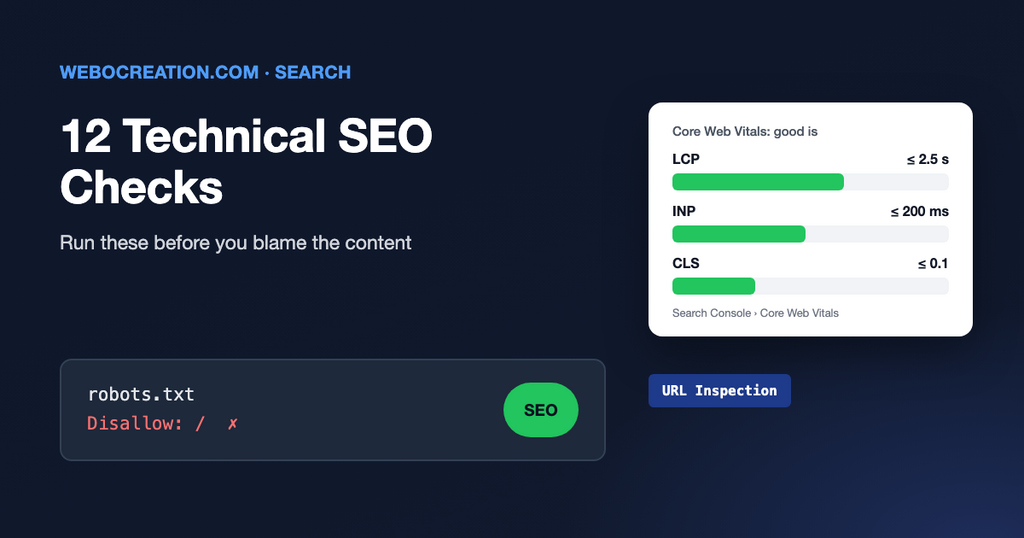
When a page doesn’t rank, the first reaction is usually to rewrite it, add keywords, or build more links. Sometimes that’s right. But very often the problem is technical: Google can’t reach the page, has been told not to index it, or is indexing a different version of it.
These twelve checks catch the most common technical problems. You don’t need to code, and the main tool, Google Search Console, is free.
Can Google find and read the page?
1. Inspect the URL in Search Console
Paste the page address into the search box at the top of Search Console. URL Inspection tells you whether the page is indexed, when Google last crawled it, which canonical Google chose, and any problems. Start every investigation here.
2. Check robots.txt isn’t blocking it
Open yourcompany.com/robots.txt. A line such as Disallow: / blocks the whole website. Disallow: /blog/ blocks everything in the blog. This is surprisingly common after a new website launch, when the setting from the test site is copied to the live one.
3. Look for a forgotten noindex
A noindex tag tells Google to keep a page out of search results. In WordPress, check Settings > Reading for “Discourage search engines from indexing this site”, and your SEO plugin’s settings on the page itself. URL Inspection reports “Excluded by ‘noindex’ tag” if this is the problem.
4. Check the page returns a 200 status
Every page answers with a status code: 200 (OK), 301 (moved permanently), 404 (not found), 500 (server error). Use a free checker such as httpstatus.io. A page that looks fine to you can still return an error to Google, for example when a security plugin blocks crawlers.
Is Google indexing the right version?
5. One version of the website
Type http://yourcompany.com, http://www.yourcompany.com, https://yourcompany.com and https://www.yourcompany.com. All four should end up on the same address with one redirect. If two of them load separately, Google sees two copies of your website.
6. Correct canonical tags
A canonical tag tells Google which address is the main one when similar pages exist (filters, tracking parameters, print versions). Each page should normally point to itself. A template error that points every page’s canonical to the home page can quietly remove hundreds of pages from search. URL Inspection shows the “User-declared canonical” and the “Google-selected canonical”; they should match.
7. Duplicate and thin pages
Tag pages, empty category pages, location pages with the same text and only the city changed: lots of near-identical pages make it harder for Google to decide what to show. Search Console’s Pages report lists URLs as “Duplicate without user-selected canonical” or “Crawled – currently not indexed”. Merge, improve, or noindex them.
Can Google understand the site?
8. Submit an XML sitemap
Most website platforms create a sitemap automatically (often at /sitemap.xml or /sitemap_index.xml). Submit it in Search Console under Sitemaps and check it only lists pages you actually want indexed: no redirects, no 404s, no noindex pages.
9. Internal links to important pages
A page with no links from the rest of your website (an “orphan page”) is hard for Google to find and looks unimportant. Link to your key pages from the navigation, related articles, and other relevant pages, with descriptive link text instead of “click here”.
10. Content visible without JavaScript
Some websites load their text with JavaScript after the page opens. Google can usually handle this, but not always, and many AI crawlers don’t run JavaScript at all. In URL Inspection, click “View crawled page” and check that your main text is in the HTML. Our post on AI crawlers explains why this matters more than before.
Is the experience good enough?
11. Core Web Vitals
Google measures three things from real Chrome users. Search Console’s Core Web Vitals report shows which pages pass:
| Metric | Measures | Good |
|---|---|---|
| LCP (Largest Contentful Paint) | How fast the main content appears | 2.5 seconds or less |
| INP (Interaction to Next Paint) | How fast the page responds to taps and clicks | 200 milliseconds or less |
| CLS (Cumulative Layout Shift) | How much the page jumps around while loading | 0.1 or less |
Large images, chat widgets, heavy sliders, and too many tracking tags are the usual culprits. Speed is rarely the reason a page doesn’t rank at all, but it affects conversions on every page.
12. Mobile layout
Google indexes the mobile version of your website. If content, links, or structured data exist only on the desktop version, Google may not see them. Open important pages on a phone and check that the content is all there, not hidden behind tabs that never load.
When to call a developer
You can find all of these problems yourself. Fixing them may need a developer, particularly redirects, canonicals in templates, and speed. When you ask for help, send the URL, a screenshot from Search Console, and what you expected to see. That turns a vague “SEO isn’t working” into a ticket someone can fix in an hour.
Learn the rest of the technical side
Technical SEO is where marketing and development overlap most. My book, The Technical Web Guide for Marketers, explains search alongside domains, email, tracking, and AI, so you can find problems and describe them clearly. (I’m the author; the Amazon link is an affiliate link.)

Author of four Opencart book.
The recent are Opencart 4 developer book and Opencart 4 user manual