Product Quick View for OpenCart 4: A Popup With Images, Price and Add to Cart on Every Product Card (Free Extension)
A free OpenCart 4 extension that adds a Quick view button to every product card, opening a popup with the gallery, price, stock, description and add to cart, using events instead of theme edits.
 Rupak NepaliPublished Nov 14, 2026
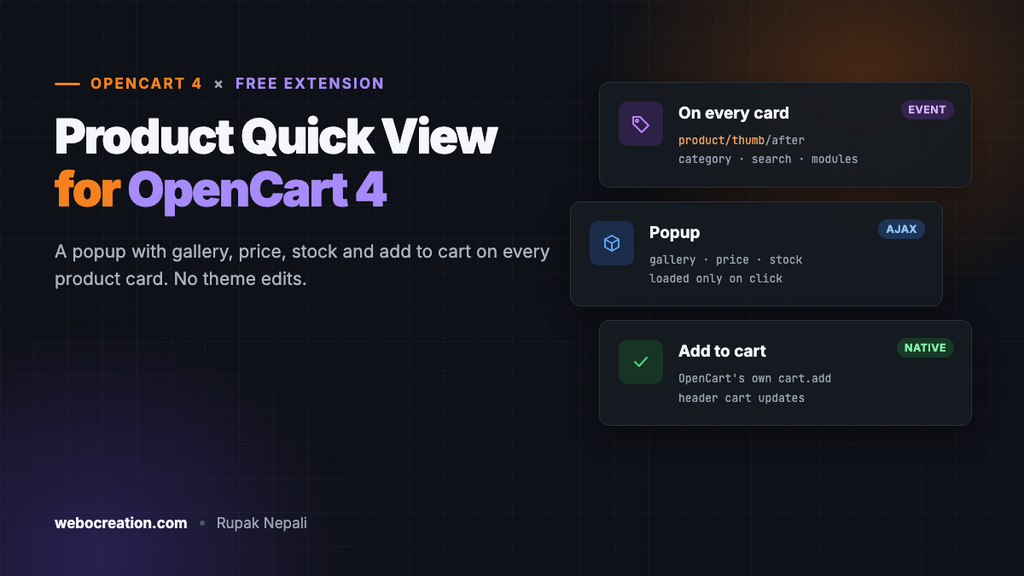
On a category page, shoppers often want one more detail before deciding: a second photo, the stock status, a line of description. Without quick view, that means opening the product page and hitting Back, again and again. A quick view popup shows those details on the spot, and lets them add the product to the cart without leaving the list.
Many paid OpenCart themes include quick view; the default theme doesn’t. This free extension adds it to any OpenCart 4 store, using events, so it doesn’t touch your theme files.
Download Product Quick View for OpenCart 4 (free, tested on OpenCart 4.1.0.4)
What it does
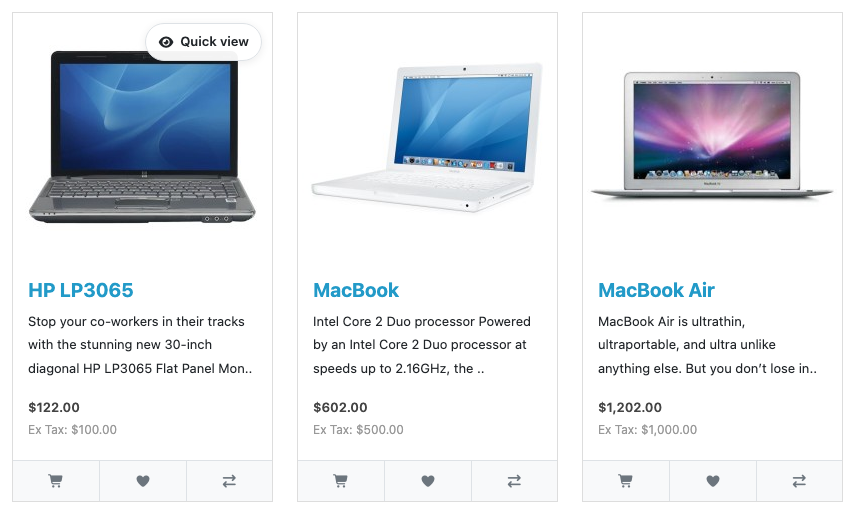
- A button on every product card: category pages, search results, specials, manufacturer pages, related products and modules such as Featured and Bestsellers. Anything that uses OpenCart’s standard product card gets it.
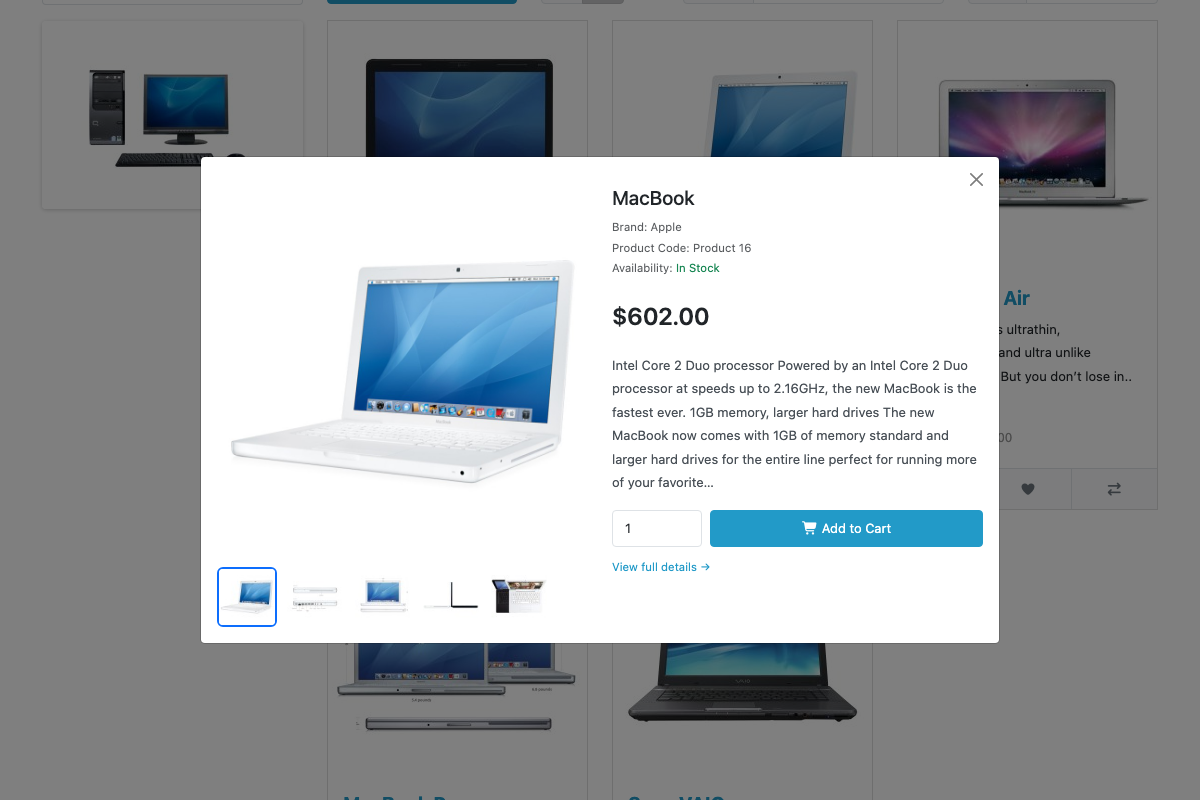
- A popup with the details shoppers look for: the main image and up to four more as a clickable gallery, brand, product code, availability, price (with the special price if there is one) and the first 300 characters of the description.
- Add to cart from the popup, with a quantity box that starts at the product’s minimum. It uses OpenCart’s own add-to-cart, so the header cart updates and the usual success message appears.
- Handles products that need choices. Products with required options or subscription plans show a “Choose options” button that opens the full product page.
- Follows your store’s settings: prices hidden from guests stay hidden, stock shows as status or quantity according to your stock settings, and disabled products can’t be opened.
Install it
- Download
quickview.ocmod.zip. - Go to Extensions → Installer, upload it, and click the green + next to it.
- Go to Extensions → Extensions, choose Modules, and install Product Quick View. Installing registers the two events it needs.
- Click Edit, change the button text if you like, turn Status on, and save.
That’s all. There’s nothing to add to a layout: open any category page and hover over a product.
How it works
The extension has three parts, none of which edits your theme:
| Part | Trigger or route | What it does |
|---|---|---|
| Card event | catalog/view/product/thumb/after | Adds the Quick view button to each product card’s HTML |
| Footer event | catalog/view/common/footer/after | Adds the popup, its styles and its script, once per page |
| Popup content | extension/quickview/module/quickview.info | Returns the product’s details, loaded only when a shopper clicks |
Adding the button with a view event
In OpenCart 4, every product card is rendered by one controller, product/thumb, and its template. A view after event receives the finished HTML, so the extension can insert the button without knowing anything else about the theme:
public function thumb(string &$route, array &$args, string &$output): void {
	if (!$this->config->get('module_quickview_status') || empty($args['product_id'])) {
		return;
	}

	$button = '<button type="button" class="oc-quickview" data-product-id="' . (int)$args['product_id'] . '">...</button>';

	// Default theme: put the button inside the card, so it sits over the image.
	if (preg_match('/<div class="product-thumb[^"]*">/', $output, $match, PREG_OFFSET_CAPTURE)) {
		$position = $match[0][1] + strlen($match[0][0]);
		$output = substr_replace($output, $button, $position, 0);
	} else {
		// Other themes: wrap the card so the button still has something to sit on.
		$output = '<div class="oc-quickview-wrap">' . $button . $output . '</div>';
	}
}
The fallback matters for third-party themes that rename the card’s class: the button still appears, in a wrapper.
Loading details only when needed
A category page can show dozens of products. Loading every product’s gallery and description up front would slow the page for everyone. Instead, the popup is empty until a shopper clicks, and then fetches that one product’s details:
fetch(url + '&product_id=' + encodeURIComponent(button.getAttribute('data-product-id')), {credentials: 'same-origin'})
  .then(function (response) { return response.text(); })
  .then(function (html) { body.innerHTML = html; });
The popup itself is a standard Bootstrap 5 modal, which OpenCart 4’s default theme already loads, so there’s no extra library.
Reusing OpenCart’s add-to-cart
The popup’s form uses the same attributes as OpenCart’s own product cards, so OpenCart’s JavaScript submits it, shows the success or error message and refreshes the header cart. No custom cart code:
<form method="post" action="{{ cart_add }}" data-oc-toggle="ajax" data-oc-load="{{ cart }}" data-oc-target="#cart">
  <input type="hidden" name="product_id" value="{{ product_id }}"/>
  <input type="number" name="quantity" value="{{ minimum }}" min="{{ minimum }}" class="form-control"/>
  <button type="submit" class="btn btn-primary">Add to Cart</button>
</form>
Two OpenCart 4.1 details
Building this surfaced two things worth knowing if you write extensions for OpenCart 4.1:
getProduct()doesn’t return the brand name or the stock status text, only their IDs. The 4.1 product page looks them up separately, with the manufacturer and stock status models, and the extension does the same. Code written for older versions that reads$product['manufacturer']or$product['stock_status']gets nothing.- Language strings are shared across templates. The card event runs on every page, so the extension prefixes all of its language keys (
qv_button_cart, notbutton_cart). Otherwise its wording could replace the page’s own wherever the keys match.
On phones
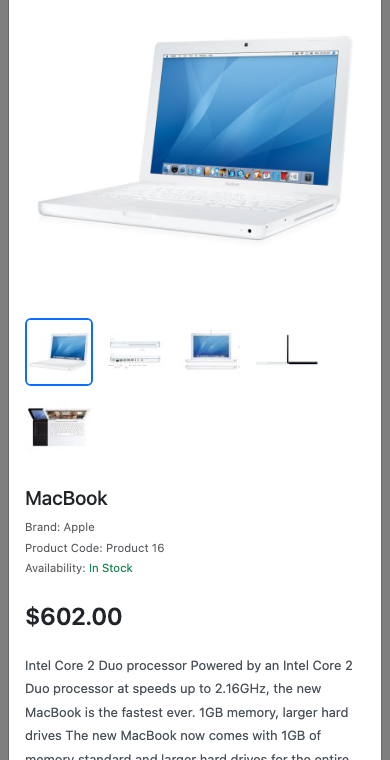
Touch screens can’t hover, so on those devices the button is always visible, as an icon only, to keep the card tidy.
Troubleshooting
| Problem | Cause and fix |
|---|---|
| No button on product cards | Check Status is on, and that both events (quickview_thumb and quickview_footer) are listed and enabled in Extensions → Events. If you installed the files but not the module, install it in Extensions → Extensions → Modules. |
| The button shows, but nothing opens | Your theme doesn’t load Bootstrap 5’s JavaScript, which the popup uses. The default theme does; some third-party themes use other libraries. |
| The button sits in the wrong place | Your theme’s card markup is different. Adjust the .oc-quickview position in the popup template’s CSS. |
| “Choose options” instead of Add to Cart | The product has a required option or a subscription plan. That’s intended: those choices belong on the product page. |
More free OpenCart 4 extensions: frequently bought together, automatic related products, the low-stock message and social share buttons. To learn the event pattern they all use, see OpenCart 4 Events by Examples.

Rupak Nepali is a web developer, manage Webocreation website and the author of six books:
Getting Started with OpenCart Module Development (Packt, 2013),
OpenCart Theme and Module Development (Packt, 2015),
OpenCart 4: Dev Guide for Themes & Extensions (2024),
OpenCart 4: User Manual (2025),
Cloudflare for the Enterprise Website (2026) and
The Technical Web Guide for Marketers (2026).
Rupak has built OpenCart stores and extensions since 2010, has published more than 600 tutorials on Webocreation, and shares free OpenCart extensions on GitHub.
Find Rupak on
GitHub | Amazon | LinkedIn | X | YouTube.