Serve WebP (and AVIF) Images in OpenCart 4 Automatically: Faster Pages Without Re-uploading Your Catalog (Free Extension)
OpenCart 4 resizes your product images but keeps them as JPEG and PNG. Serve WebP or AVIF versions automatically, cut image weight by more than half, and keep emails working. Free extension with test results.
 Rupak NepaliPublished Oct 23, 2026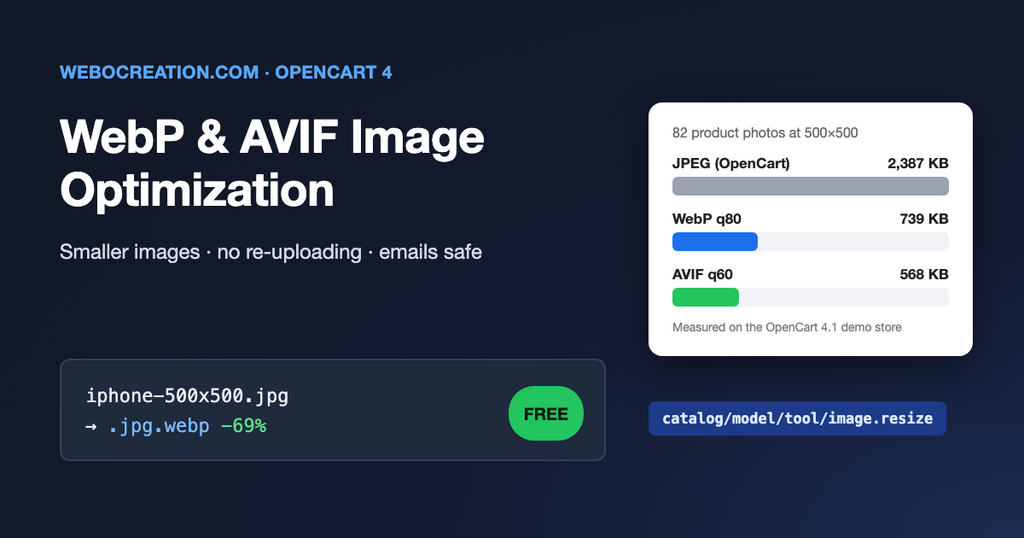
On most OpenCart stores, images are the heaviest part of every page. A category page with 20 product thumbnails, a home page with banners and a featured products row, a product page with a large main image and a gallery: together that is often more data than all the HTML, CSS and JavaScript on the page.
OpenCart 4 already resizes your images to the sizes the theme needs. What it doesn’t do is change the format: a JPEG upload becomes a JPEG thumbnail, a PNG becomes a PNG. Every current browser understands WebP and AVIF, which are much smaller at the same visual quality. This post shows how OpenCart handles images, what you can expect to save, and how our free extension serves WebP or AVIF automatically without touching your original uploads.
What the extension does
- Converts every resized image (product, category, manufacturer, banner and cart thumbnails) to WebP or AVIF the first time a page shows it.
- Never changes your uploads. The WebP file is saved next to OpenCart’s own cached image, and deleting it is always safe.
- Keeps the original when the WebP file would be bigger, which happens with some small PNG icons.
- Keeps transparency in PNG logos and cut-out product photos.
- Leaves emails alone. Emails sent by cron jobs (abandoned cart, back in stock, review requests) keep using JPEG/PNG, because some email programs can’t show WebP.
- Updates automatically when you replace a product image.
- Admin tools: a server support check, a “Calculate savings” button and a “Delete generated images” button.
How OpenCart 4 handles images
When you upload a product image, OpenCart stores it as-is in image/catalog/. It never shows that file directly on the storefront. Instead, every controller that needs an image calls the image model with the size the theme asks for:
$this->load->model('tool/image');

$thumb = $this->model_tool_image->resize($product['image'], 200, 200);
// http://example.com/image/cache/catalog/demo/iphone_1-200x200.jpg
catalog/model/tool/image.php checks whether image/cache/catalog/demo/iphone_1-200x200.jpg exists and is newer than the upload. If not, it creates it with the Image library in system/library/image.php, which saves JPEGs at quality 90 and PNGs without any lossy compression. Sizes come from your theme settings (Extensions > Extensions > Themes). See our settings guide for those.
OpenCart 4.1 can read WebP uploads, but the output always has the same format as the input. Uploading WebP files yourself works, but it means converting your whole catalog by hand and doing it again for every new product.
Because every storefront image goes through that one resize() method, it is the ideal place to add WebP. The extension registers one event, catalog/model/tool/image.resize/after. After OpenCart has made its normal JPEG or PNG, the extension:
- creates
iphone_1-200x200.jpg.webpin the same folder, if it doesn’t exist or is older than the JPEG, - compares the two file sizes,
- returns the
.webpURL if it is smaller, otherwise the original URL.
The theme receives a different URL and prints it into the <img> tag as usual. No template changes, no <picture> elements, no JavaScript. The .jpg.webp name keeps photo.jpg and photo.png from overwriting each other’s WebP copy, and makes the generated files easy to find and delete.
How much smaller?
We measured on a clean OpenCart 4.1.0.3 store with the demo data. Converting the 82 demo product photos at 500×500:
| Format | Total size | vs OpenCart’s JPEG |
|---|---|---|
| JPEG quality 90 (what OpenCart makes) | 2,387 KB | – |
| JPEG quality 80 | 1,485 KB | 38% smaller |
| WebP quality 80 | 739 KB | 69% smaller |
| AVIF quality 60 | 568 KB | 76% smaller |
The home page of the demo store (banners, featured products and the manufacturer logo carousel, 17 images) went from 293 KB to 69 KB with WebP, and to 55 KB with AVIF.
Your results will be lower than that. The demo photos are mostly products on white backgrounds, which compress very well. Part of the saving also comes from OpenCart’s high JPEG quality and lossless PNGs, not only from the format. Even at the same quality setting, WebP was half the size of JPEG on these images. On a real catalog, expect somewhere between a third and two thirds less image data. The “Calculate savings” button shows the real number for your store.
WebP or AVIF?
| WebP | AVIF | |
|---|---|---|
| Size | Much smaller than JPEG | Usually another 20–30% smaller than WebP |
| Browsers | All current browsers | All current browsers. Some older iPhones and Macs (Safari before version 16) can’t show it. |
| Time to create | Fast | Several times slower. The first visit to a page with many new images is noticeably slow. |
| Server needs | PHP GD with WebP (almost every host) | PHP 8.1+ and GD built with AVIF (many hosts don’t have it) |
Start with WebP. It is the safe choice and gets most of the benefit. Try AVIF later if your server supports it and most of your visitors use recent devices. The extension uses a single format, without a fallback, so the URLs stay simple and page caches work.
Installation
- Download webp_images.ocmod.zip with the button above.
- In the OpenCart admin go to Extensions > Installer and upload the zip.
- Click the green Install button next to “WebP Images” in the installed packages list.
- Go to Extensions > Extensions, choose Modules, find WebP Images and click the green + (install).
- Click the blue Edit (pencil) button, check the Server support box, switch Status on and save.
There is no cron job and no database table. Installing adds one event; uninstalling removes it and deletes all generated WebP and AVIF files, so your store is exactly as it was.
Settings
| Setting | What it does | Suggested |
|---|---|---|
| Status | Turns conversion on | On |
| Format | WebP or AVIF. AVIF is greyed out if your server can’t make it. | WebP |
| Quality | 30 to 100. Lower is smaller. | 80 (75–85 looks the same as the original for product photos) |
The Server support box shows your PHP version, GD version and whether WebP and AVIF are available. If WebP shows “No”, ask your host to enable WebP in PHP’s GD extension; the module refuses to switch on without it.
Calculate savings counts the generated files and compares them with OpenCart’s originals, for example “17 converted images. Originals: 293 KB. Served now: 69 KB (76% smaller).” Delete generated images removes every .jpg.webp, .png.webp and .avif file from image/cache/. Use it after changing the quality or format; the files are created again as pages are visited.
Server and cache settings
Most servers already send the right Content-Type for WebP. AVIF is newer, and older Apache and nginx configurations don’t know it. If AVIF images don’t show, or show as downloads, add the types. For Apache, in the .htaccess in your store’s root folder:
<IfModule mod_mime.c>
  AddType image/webp .webp
  AddType image/avif .avif
</IfModule>

# Let browsers keep images for a month
<IfModule mod_expires.c>
  ExpiresActive On
  ExpiresByType image/webp "access plus 1 month"
  ExpiresByType image/avif "access plus 1 month"
  ExpiresByType image/jpeg "access plus 1 month"
  ExpiresByType image/png "access plus 1 month"
</IfModule>
For nginx, make sure mime.types contains image/webp webp; and image/avif avif;.
If you use a page cache extension, LiteSpeed Cache or a CDN such as Cloudflare that caches HTML, purge it after switching the extension on or off. Cached pages still contain the old image URLs until they are refreshed. Image files themselves never need purging, because the WebP version has a different URL from the JPEG.
Other ways to get WebP, compared
| Approach | Pros | Cons |
|---|---|---|
| Upload WebP files yourself | No extension needed | Every image must be converted by hand, forever. Admins forget. |
| CDN image optimisation (e.g. Cloudflare Polish, Cloudflare Images, an image CDN) | Nothing runs on your server; can pick the format per browser | Usually a paid plan; another service to configure |
Server modules (LiteSpeed image optimisation, rewrite rules that serve .webp when it exists) | Works for every image on the site | Depends on your host; rewrite rules need careful cache configuration |
| This extension | Free, five-minute install, works on any host with GD, nothing else to configure | Only images that go through OpenCart’s image resizer (see limitations) |
If you already use Cloudflare, our post on Cloudflare Workers use cases covers more you can do at the edge. WebP is one item on the list in 10 ways to speed up OpenCart; the others still apply.
Why emails keep JPEG
Some email programs, notably older Outlook desktop versions on Windows, don’t display WebP. A product image in a reminder email would just be a broken box. So the extension only converts images when the storefront is building a page for a browser. It skips:
- anything run by
cron.php, which is how our abandoned cart, back-in-stock and review request emails are sent, - the “run” button under Extensions > Cron Jobs, which runs the store code from inside the admin,
- any command-line PHP.
OpenCart’s own order, GDPR and subscription emails only include the store logo, which isn’t resized, so they are not affected either. If you write an extension that sends email from a storefront request, set $this->registry->set('webp_images_skip', true); before resizing images and the extension will leave them alone.
Testing it
- Switch the extension on and open your home page.
- Right-click a product image and choose Open image in new tab. The address should end in
.jpg.webpor.png.webp. - In Chrome DevTools (F12), open the Network tab, filter by Img and reload. The Type column should say
webp, and the sizes should be much smaller than before. - Check a page with transparent PNG logos (the manufacturer carousel on the default theme) for black or white boxes around the logos. There should be none.
- Click Calculate savings in the module.
- Run PageSpeed Insights on a category page before and after. The image delivery warnings should be gone or much smaller, and Largest Contentful Paint usually improves on product pages, where the main image is often the largest element.
The first visit to each page after switching on is slower, because the images are being converted. After that, the files exist and there is no extra work. To warm the cache, visit your main category pages once, or let a crawler such as Screaming Frog do it.
Limitations
- Only images that go through OpenCart’s resizer are converted. The store logo, images you put inside product or category descriptions with the editor, and images your theme loads directly from
image/catalog/stay as they are. - GIFs are skipped so animations keep working.
- It uses PHP’s GD library. GD keeps the visible image but drops metadata such as colour profiles, which is fine for almost all product photos.
- The generated files take extra disk space in
image/cache/, usually much less than the cached JPEGs themselves. - Built for OpenCart 4.1.0.x and tested on 4.1.0.3 with PHP 8.4. AVIF needs PHP 8.1 or newer. It will not work on OpenCart 3.
The code is on GitHub with our other free OpenCart extensions. If you find a bug or want a feature, open an issue there or contact us.

Author of four Opencart book.
The recent are Opencart 4 developer book and Opencart 4 user manual