Connect OpenCart 4 to Klaviyo: Onsite Tracking, Placed Order Events and the Flows That Earn Money (with Code)
Klaviyo has no official OpenCart integration. How to connect OpenCart 4 yourself: klaviyo.js and the klaviyo object, Viewed Product, Added to Cart and Started Checkout in the browser, Placed Order through the Events API, consent, and the first five flows to build.
 Rupak NepaliPublished Oct 28, 2026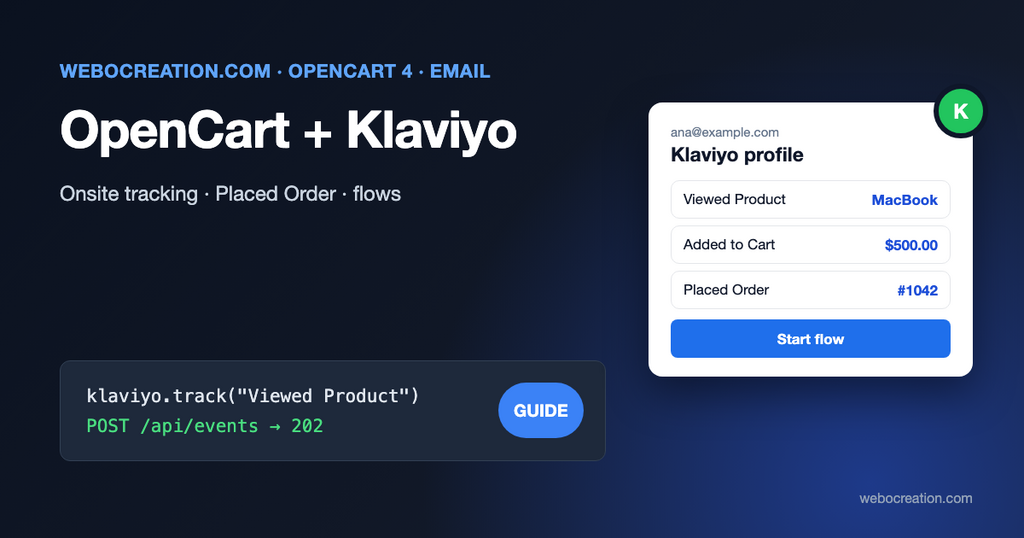
Klaviyo is the email and SMS platform most ecommerce brands end up on, because its flows react to what shoppers do: the products they viewed, what they left in the cart, what they bought. For Shopify, WooCommerce and Magento it’s a one-click integration. For OpenCart there isn’t an official one, so stores either skip Klaviyo or pay for a third-party connector.
The integration is less work than it looks. Klaviyo needs a handful of events, and OpenCart 4’s event system gives you clean places to send them. This guide shows what to send, where to send it from, and the code for each part.
The events Klaviyo needs
Klaviyo’s guide for platforms without a pre-built integration splits the work in two: browsing events are tracked in the browser with JavaScript, and order events are sent from the server. For each order, it says: “we recommend you send two types of events”: one Placed Order event for the order, and one Ordered Product event per line.
| Event | Sent from | OpenCart trigger | Powers |
|---|---|---|---|
| Active on Site | Browser (automatic) | Every page, once klaviyo.js is loaded | Browse tracking, segments |
| Viewed Product | Browser | Product page | Browse abandonment flow |
| Added to Cart | Browser | Successful add to cart | Abandoned cart flow |
| Started Checkout | Browser | Checkout page | Checkout abandonment flow |
| Placed Order, Ordered Product | Server | Order reaches a processing status | Post-purchase flows, revenue reporting, segments |
| Fulfilled Order, Cancelled Order | Server | Order status changes | Review requests, win-back |
Browser events only work for visitors Klaviyo can identify, which means visitors who have clicked a Klaviyo email, filled in a Klaviyo form, or that you identify yourself (we do that for logged-in customers below).
Part 1: klaviyo.js and the klaviyo object
Klaviyo’s current JavaScript API is the klaviyo object. Its documentation is clear about the older _learnq syntax you’ll still find in many examples: “The klaviyo object replaces the legacy _learnq and klOnsite objects”, and while the old objects keep working, “we highly recommend moving to klaviyo as soon as possible.”
Add the loader with your six-character public API key (Klaviyo account > Settings > API keys) to every page. The cleanest way in OpenCart 4 is a small extension with an event on catalog/view/common/header/after that inserts this before </head>:
<script async src="https://static.klaviyo.com/onsite/js/klaviyo.js?company_id=ABC123"></script>
<script>
!function(){if(!window.klaviyo){window._klOnsite=window._klOnsite||[];try{window.klaviyo=new Proxy({},{get:function(n,i){return"push"===i?function(){var n;(n=window._klOnsite).push.apply(n,arguments)}:function(){for(var n=arguments.length,o=new Array(n),w=0;w<n;w++)o[w]=arguments[w];var t="function"==typeof o[o.length-1]?o.pop():void 0,e=new Promise((function(n){window._klOnsite.push([i].concat(o,[function(i){t&&t(i),n(i)}]))}));return e}}})}catch(n){window.klaviyo=window.klaviyo||[],window.klaviyo.push=function(){var n;(n=window._klOnsite).push.apply(n,arguments)}}}}();
</script>
The second script is Klaviyo’s official stub. It lets you call klaviyo.track() and klaviyo.identify() immediately, before klaviyo.js has finished loading. Copy it from Klaviyo’s “Introduction to the klaviyo object” page so you have the current version.
If your store shows a cookie consent banner, load Klaviyo only after consent, like OpenCart’s analytics extensions do. Our Google Consent Mode v2 guide explains the consent side.
Identify logged-in customers
When a customer is logged in, tell Klaviyo who they are, so their browsing counts even if they never clicked an email. In the same header event:
if ($this->customer->isLogged()) {
	$identify = json_encode([
		'email'      => $this->customer->getEmail(),
		'first_name' => $this->customer->getFirstName(),
		'last_name'  => $this->customer->getLastName()
	], JSON_HEX_TAG | JSON_HEX_AMP | JSON_HEX_APOS | JSON_HEX_QUOT);

	$html .= '<script>klaviyo.identify(' . $identify . ');</script>';
}
The JSON_HEX_* flags make the JSON safe inside a <script> tag. Never print customer data into JavaScript without them.
Part 2: browser events
Viewed Product
Add an event on catalog/view/product/product/after that appends a script to the product page output. Klaviyo’s documented property names:
public function product(string &$route, array &$data, string &$output): void {
	$this->load->model('catalog/product');
	$this->load->model('tool/image');

	$product = $this->model_catalog_product->getProduct((int)$data['product_id']);

	if (!$product) {
		return;
	}

	$item = [
		'ProductName' => html_entity_decode($product['name'], ENT_QUOTES, 'UTF-8'),
		'ProductID'   => (string)$product['product_id'],
		'SKU'         => $product['model'],
		'ImageURL'    => $product['image'] ? $this->model_tool_image->resize($product['image'], 500, 500) : '',
		'URL'         => $this->url->link('product/product', 'language=' . $this->config->get('config_language') . '&product_id=' . $product['product_id'], true),
		'Price'       => round((float)($product['special'] ?: $product['price']), 2)
	];

	$json = json_encode($item, JSON_HEX_TAG | JSON_HEX_AMP | JSON_HEX_APOS | JSON_HEX_QUOT);

	// Keep the item for the Added to Cart listener below.
	$output .= '<script>window.klaviyoItem = ' . $json . '; klaviyo.track("Viewed Product", ' . $json . ');</script>';
}
Added to Cart
OpenCart 4 adds to the cart with an AJAX request to checkout/cart.add. Listen for successful responses and send the event with the item stored above:
jQuery(document).ajaxSuccess(function (event, xhr, settings) {
  var json = xhr.responseJSON;
  if (settings.url.indexOf('checkout/cart.add') === -1 || !json || !json.success || !window.klaviyoItem) {
    return;
  }
  var item = window.klaviyoItem;
  klaviyo.track('Added to Cart', {
    '$value': item.Price,
    'AddedItemProductName': item.ProductName,
    'AddedItemProductID': item.ProductID,
    'AddedItemSKU': item.SKU,
    'AddedItemImageURL': item.ImageURL,
    'AddedItemURL': item.URL,
    'AddedItemPrice': item.Price,
    'AddedItemQuantity': 1,
    'CheckoutURL': location.origin + '/index.php?route=checkout/checkout'
  });
});
Klaviyo recommends including the whole cart in this event (an Items array and ItemNames), which makes abandoned cart emails show every product. To do that, add the cart contents to the JSON response of checkout/cart.add with an after-event, the same technique our GA4 ecommerce extension uses for add_to_cart.
Started Checkout
On catalog/view/checkout/checkout/after, build the event from $this->cart->getProducts(): $value (cart total), ItemNames, CheckoutURL and an Items array with ProductID, ProductName, Quantity, ItemPrice, RowTotal, ProductURL and ImageURL.
Part 3: Placed Order from the server
Order events must come from the server: the browser never reliably reaches the success page (payment redirects, closed tabs), and order events carry revenue. Klaviyo’s current Events API:
- Endpoint:
POST https://a.klaviyo.com/api/events - Headers:
Authorization: Klaviyo-API-Key pk_...(a private key, server-side only),revision: 2026-10-15(the API version you built against),Content-Type: application/vnd.api+json - Body: the event’s metric name, the profile (email), properties,
value, and aunique_idso a retried request isn’t counted twice.
Register an event on catalog/model/checkout/order.addHistory/after and send Placed Order the first time the order reaches one of your processing statuses:
public function order(string &$route, array &$args, &$output): void {
	[$order_id, $order_status_id] = [(int)$args[0], (int)$args[1]];

	if (!in_array($order_status_id, (array)$this->config->get('config_processing_status'))) {
		return;
	}

	$this->load->model('checkout/order');

	$order = $this->model_checkout_order->getOrder($order_id);

	if (!$order) {
		return;
	}

	$items = [];

	foreach ($this->model_checkout_order->getProducts($order_id) as $product) {
		$items[] = [
			'ProductID'   => (string)$product['product_id'],
			'SKU'         => $product['model'],
			'ProductName' => html_entity_decode($product['name'], ENT_QUOTES, 'UTF-8'),
			'Quantity'    => (int)$product['quantity'],
			'ItemPrice'   => (float)$product['price'],
			'RowTotal'    => (float)$product['total']
		];
	}

	$body = ['data' => ['type' => 'event', 'attributes' => [
		'metric'     => ['data' => ['type' => 'metric', 'attributes' => ['name' => 'Placed Order']]],
		'profile'    => ['data' => ['type' => 'profile', 'attributes' => [
			'email'      => $order['email'],
			'first_name' => $order['firstname'],
			'last_name'  => $order['lastname']
		]]],
		'properties' => ['OrderId' => (string)$order_id, 'ItemNames' => array_column($items, 'ProductName'), 'Items' => $items],
		'value'          => round((float)$order['total'] * (float)$order['currency_value'], 2),
		'value_currency' => $order['currency_code'],
		'unique_id'      => 'order-' . $order_id,
		'time'           => date('c', strtotime($order['date_added']))
	]]];

	$curl = curl_init('https://a.klaviyo.com/api/events');

	curl_setopt_array($curl, [
		CURLOPT_POST           => true,
		CURLOPT_POSTFIELDS     => json_encode($body),
		CURLOPT_RETURNTRANSFER => true,
		CURLOPT_TIMEOUT        => 5,
		CURLOPT_HTTPHEADER     => [
			'Authorization: Klaviyo-API-Key ' . $this->config->get('module_klaviyo_private_key'),
			'revision: 2026-10-15',
			'Content-Type: application/vnd.api+json',
			'Accept: application/vnd.api+json'
		]
	]);

	$response = curl_exec($curl);
	$status = (int)curl_getinfo($curl, CURLINFO_RESPONSE_CODE);

	// Never let a Klaviyo problem break checkout: log it and move on.
	if ($status != 202) {
		$this->log->write('Klaviyo: Placed Order ' . $order_id . ' returned HTTP ' . $status . ' ' . substr((string)$response, 0, 300));
	}
}
Notes on this code:
- Klaviyo answers 202 Accepted when the event is validated; processing happens afterwards.
- The
unique_idmakes a duplicate send harmless, which matters becauseaddHistorycan be called again for the same status. - Send Ordered Product events the same way, one per item, with
unique_idlikeorder-1042-40. - This runs during checkout, so keep the timeout short. If you already use our free order webhooks extension, a cleaner design is to receive its
order.createdandorder.status_changedwebhooks on a small service and send to Klaviyo from there, with retries. - Store the private key as an extension setting, never in theme files or JavaScript.
Send Fulfilled Order when the status changes to your shipped or complete status, and Cancelled Order or Refunded Order for those statuses, with the same structure and a different metric name.
Part 4: subscribers and consent
Events don’t subscribe anyone to marketing. A customer who places an order becomes a profile in Klaviyo, but can’t receive marketing emails unless they’ve consented. Two ways to handle it:
- Use Klaviyo signup forms for newsletter signups, and leave OpenCart’s newsletter checkbox off.
- Or sync OpenCart’s newsletter flag (
customer.newsletter) to a Klaviyo list with Klaviyo’s subscribe API when it changes, so both systems agree. Record where and when consent was given.
Abandoned cart and browse abandonment emails count as marketing in most countries. Our loyalty and wishlist guide and bulk sender requirements cover the rules and deliverability side.
Part 5: the first five flows
With these events flowing, build these flows in Klaviyo, in this order:
- Welcome series (trigger: added to list): 3 emails over a week.
- Abandoned cart (trigger: Added to Cart, no Placed Order): first email after 1 to 4 hours.
- Checkout abandonment (trigger: Started Checkout, no Placed Order): shorter delay than cart abandonment.
- Browse abandonment (trigger: Viewed Product, no Added to Cart): gentle, no discount.
- Post-purchase (trigger: Placed Order, then Fulfilled Order): thank you, how to use the product, review request.
If you use our free OpenCart abandoned cart extension or review request emails, turn them off once the Klaviyo flows are live, or customers get two emails for the same cart.
Testing
- Open Analytics > Metrics in Klaviyo, or a test profile’s activity feed.
- Log in to the store as a test customer, view a product, add it to the cart, start checkout and place an order with a test payment method.
- Within a minute or two, the profile should show Active on Site, Viewed Product, Added to Cart, Started Checkout and Placed Order with the right value and currency.
- Change the order to your shipped status and check Fulfilled Order.
What about Mailchimp?
Mailchimp has its own ecommerce model (stores, products, carts and orders through its Marketing API) rather than events, and it offers connectors for many platforms. The same principles apply: identify customers in the browser, send orders from the server, and handle consent explicitly. Our comparison of marketing automation tools for ecommerce helps if you’re still choosing.

Author of four Opencart book.
The recent are Opencart 4 developer book and Opencart 4 user manual