B2B and Wholesale in OpenCart 4: Customer Group Prices, Quantity Discounts, Approval, Tax Exemption and Hidden Prices
Sell wholesale in OpenCart 4.1 without a B2B platform: a Wholesale customer group with approval, fixed, percentage and subtract discounts by quantity, login-to-see-prices, VAT-exempt tax rates, minimum quantities, company custom fields and a separate trade store.
 Rupak NepaliPublished Oct 26, 2026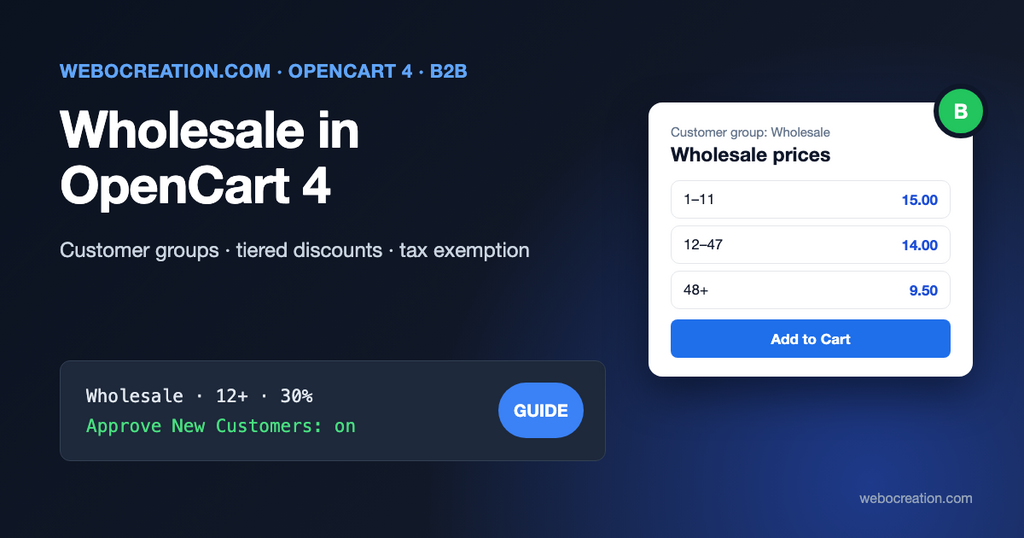
Many OpenCart stores sell to two audiences from one catalog: consumers paying retail, and trade customers (shops, salons, contractors, schools) who expect lower prices, invoices with their company details and no consumer-facing distractions. Dedicated B2B platforms cost a lot. OpenCart 4.1 covers most of what a small or mid-sized wholesale operation needs with built-in features, as long as you set them up together.
This guide builds a complete wholesale setup step by step, then lists the gaps you’d need an extension for.
The building block: customer groups
Everything in OpenCart’s B2B toolkit hangs off customer groups. A group decides which prices, discounts, tax rates, custom fields and reward points a customer gets. A new store has one group, Default.
Create the trade group under Customers > Customer Groups > Add New:
- Customer Group Name: Wholesale (customers may see this name when registering).
- Description: who qualifies, for example “For registered businesses. Your account is reviewed within one working day.”
- Approve New Customers: On. New wholesale registrations wait for you before they can log in.
Then decide whether trade customers can choose the group themselves. Under System > Settings > Option:
- Customer Group: the group new customers get by default. Keep it Default.
- Customer Groups: tick both Default and Wholesale. Ticked groups appear as a choice on the registration form.
Customers who pick Wholesale land in Customers > Customer Approvals. Check the business and approve or deny. If you’d rather not show the choice publicly, tick only Default, and move approved trade customers to Wholesale by hand when editing them in Customers > Customers. Our customer groups guide has more on the group settings.
Collect company details with custom fields
A wholesale account needs a company name, a VAT or tax number, maybe a trade licence number. Add them under Customers > Custom Fields:
- Custom Field Name: VAT number. Location: Account. Type: Text.
- Customer Group: tick Wholesale, and tick Required next to it. Leave Default unticked, so consumers never see the field.
- Optional Validation with a regular expression, for example
/^[A-Z]{2}[0-9A-Z]{8,12}$/for EU VAT numbers.
Because the field is tied to the group, it appears on the registration form only when someone selects Wholesale. The values are shown on the customer’s record and on orders. See managing custom fields in OpenCart 4.
Wholesale prices: the Discount tab
Each product has one base Price on the Data tab. Group-specific prices go on the Discount tab. OpenCart 4.1 reworked this tab: earlier versions had separate Discount and Special tabs, and in 4.1 both live in one table, with these columns:
| Column | Meaning |
|---|---|
| Customer Group | Who gets this price |
| Quantity | Minimum quantity of this product in the cart for the row to apply |
| Priority | When two rows match, the lower number wins |
| Price | The value, interpreted by Type |
| Type | Fixed Amount (the price becomes this value), Subtract (this amount is taken off the base price), or Percentage (this percent is taken off) |
| Special | On: shown as a sale price (the old Special). Off: a discount |
| Date Start / Date End | Optional time window |
Here’s a typical tiered wholesale price for a product with a base price of 20.00:
| Customer Group | Quantity | Priority | Price | Type | Special |
|---|---|---|---|---|---|
| Wholesale | 1 | 1 | 25 | Percentage | Off |
| Wholesale | 12 | 1 | 30 | Percentage | Off |
| Wholesale | 48 | 1 | 9.50 | Fixed Amount | Off |
A wholesale customer pays 15.00 per unit for 1 to 11 units, 14.00 for 12 to 47, and 9.50 from 48. A retail customer sees 20.00 and isn’t shown the wholesale tiers at all.
How OpenCart applies it, from the cart code in 4.1.0.4:
- The quantity is the total of that product in the cart, across all option combinations.
- The matching row with the highest quantity wins, then the lowest priority number. The chosen price applies to every unit of that product, not only the units above the threshold.
- Options with a price (+2.00 for size XL) are added on top of a Fixed Amount price, and are included in the base before a Percentage or Subtract discount is calculated.
The Percentage type is what makes this practical for large catalogs: “Wholesale gets 25% off” is one row per product instead of a price you recalculate every time the retail price changes. To add that row to hundreds of products, export the product IDs with our bulk CSV tool and ask a developer to insert the discount rows with one SQL statement, or use a mass-edit extension.
Product pages show the tiers with a quantity above 1 to logged-in customers in the group (“12 or more 14.00”), already converted from percentages to prices. For trade buyers that is often enough of a price list.
Hide prices from the public
Some wholesalers don’t want consumers or competitors to see trade prices, or any prices. System > Settings > Option > Login Display Prices (“Only show prices when a customer is logged in”) hides prices from visitors who aren’t logged in, on product, category, search and special pages and in the cart. The add to cart button stays, and the cart page asks the visitor to log in or register.
It’s all or nothing: it applies to everyone not logged in, in this store. If you sell retail too and want prices visible to consumers, leave it off. Wholesale prices are already invisible to anyone outside the Wholesale group.
Tax: exempt wholesale buyers where the law allows
Tax rates in OpenCart are assigned to customer groups. Open System > Localisation > Taxes > Tax Rates, edit a rate, and you’ll see a Customer Group checkbox list. A rate only applies to the groups that are ticked.
For example, a UK seller selling to VAT-registered EU businesses (reverse charge) can create the EU VAT rate with only Default ticked. Wholesale customers in the EU zone then pay no VAT, while consumers do. Rules differ by country and change, so confirm with your accountant which customers can be exempt, and keep the VAT number custom field required so you have the evidence. Our US tax setup example shows how tax classes, rates and geo zones fit together.
One limitation: whether prices are displayed with or without tax (Settings > Option > Display Prices With Tax) is a store-wide setting, not per group. Trade buyers usually think in prices without tax. If most of your customers are trade, turn it off; if most are consumers, keep it on and say “excl. VAT” in your wholesale price list.
Minimum quantities and minimum orders
- Per product: the Minimum Quantity field on the Data tab forces a minimum, for example 6 for products sold by the case. It applies to everyone, so for products sold to both audiences, use the tier table instead.
- Per order: the Low Order Fee order total (Extensions > Extensions > Order Totals) charges a fee below a set subtotal. It’s a fee, not a block, which is often a friendlier way to discourage small trade orders.
Payment terms
Trade customers expect to pay on invoice. The built-in Bank Transfer and Cheque methods work for this, with order status Pending until you receive the money. OpenCart can’t limit payment methods by customer group out of the box; every customer sees the same list. If invoice payment must be trade-only, a developer can add one condition to the payment method’s getMethods():
// In the catalog model of the payment extension (a copy, not the core file)
// 2 is the customer_group_id of Wholesale (see the URL when you edit the group)
if ($this->customer->getGroupId() != 2) {
	return [];
}
Alternatively, use the second-store approach below.
The big option: a separate trade store
OpenCart can run several stores from one admin and one database (System > Settings > Add Store). A trade store at trade.example.com can share products with the retail store, have its own theme and logo, its own default customer group (Wholesale), Login Display Prices on, its own payment methods, and its own information pages (trade terms). Products are assigned to stores on the product’s Links tab, so trade-only products simply aren’t linked to the retail store.
This gives you real separation: no consumer ever lands on the trade site by accident, and your retail site doesn’t advertise the existence of trade pricing. The setup is covered in OpenCart multi-store setup.
What still needs an extension
OpenCart’s built-in features cover pricing, approval, tax and separation. Typical B2B requirements they don’t cover:
- Quote requests (“request a price for 500 units”) and negotiated one-off prices.
- Credit limits and net-30 terms that block ordering when an account is over its limit.
- Several buyers per company account, with approval of orders by a manager.
- Quick order forms: type SKUs and quantities into a grid, or upload a CSV of a purchase order.
- Per-customer catalogs beyond what a second store gives you.
Search the OpenCart Marketplace for “B2B” or “quote”, and check the version compatibility carefully. For the order side, our free order webhooks extension can send every trade order to your ERP or accounting system automatically.
Checklist
- Wholesale customer group with Approve New Customers on.
- Required VAT or company custom field for the Wholesale group.
- Discount rows per product: Percentage or tiered Fixed Amount, Special off.
- Tax rates ticked only for the groups that should pay them.
- Decide on Login Display Prices and Display Prices With Tax.
- Payment methods for trade customers.
- Consider a separate trade store if you need the audiences kept apart.
- Test as a retail customer and as an approved wholesale customer, from registration to order confirmation email.

Author of four Opencart book.
The recent are Opencart 4 developer book and Opencart 4 user manual