Custom Product Tabs for OpenCart 4: Shipping, Warranty and Care Tabs for All Products, Categories or Chosen Products (Free Extension)
Add Shipping & Returns, Warranty or Care tabs to product pages: written once in every language, shown on all products, chosen categories (with subcategories) or chosen products.
 Rupak NepaliPublished Nov 22, 2026
Shipping times, returns, warranty, care instructions, size and fit: shoppers want this information on the product page, but nobody wants to paste the same paragraph into five hundred product descriptions and then update all of them when the returns policy changes. OpenCart 4 has no way to share a block of content between products.
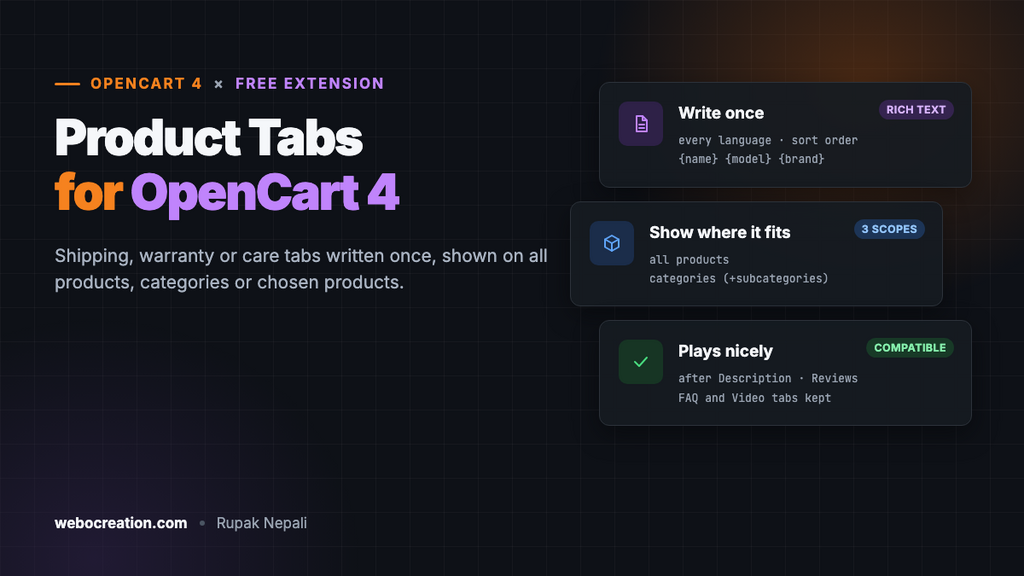
This free extension adds your own tabs to product pages. Write a tab once and show it on every product, on the products of chosen categories, or on a few chosen products.
Download Product Tabs for OpenCart 4 (free, tested on OpenCart 4.1.0.4)
What it does
- Unlimited tabs, each with a title and rich-text content in every language, written with OpenCart’s own editor.
- Three ways to assign a tab: all products; products in chosen categories, including their subcategories; or chosen products.
- Placeholders:
{name},{model}and{brand}are replaced with each product’s own, so one “Warranty” tab can say “Your iPhone is covered for 2 years”. - Sort order and status per tab, so you can prepare a tab and switch it on later.
- Works with other tab extensions such as FAQ and product video: your tabs are added after the existing ones.
Install
- Go to Extensions > Installer, upload
producttabs.ocmod.zipand click the green + button. - Go to Extensions > Extensions, choose Modules, and install Product Tabs.
- Click Edit, turn Status on and click Save.
- Click + to write your first tab.
Writing a tab
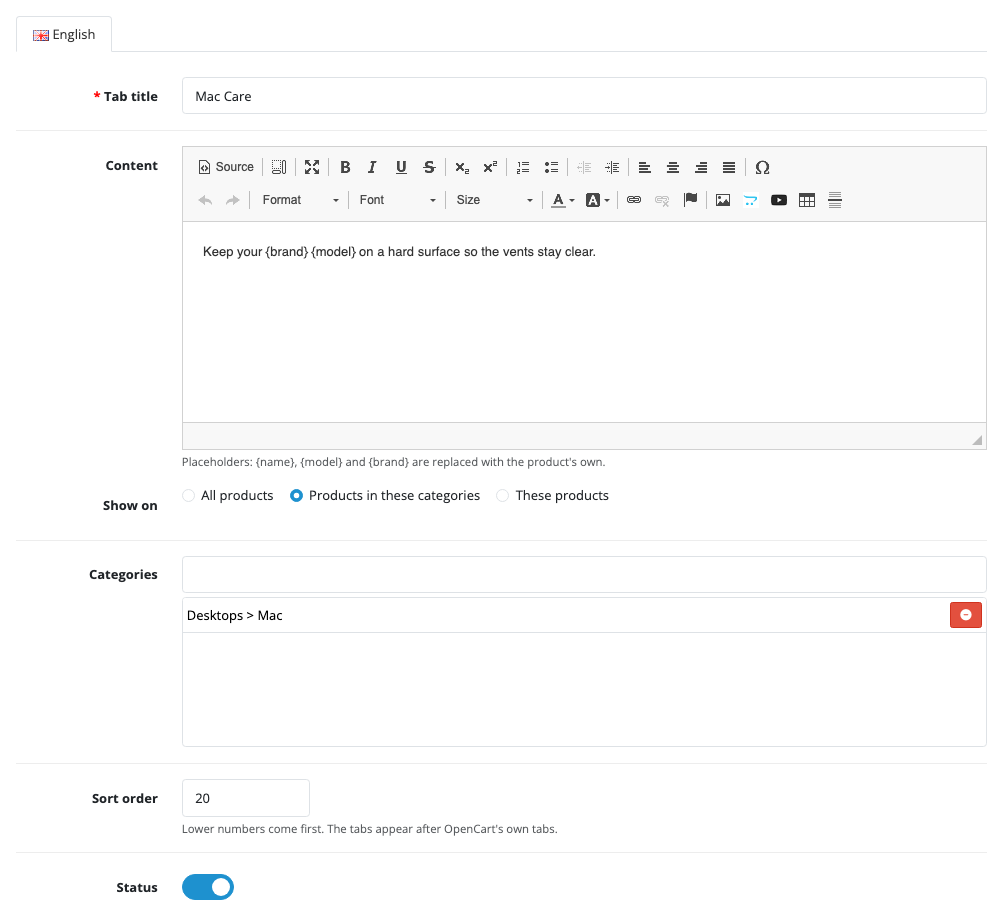
- Tab title: what the tab says, such as “Shipping & Returns”. Keep it short; tabs share one line on desktop.
- Content: text, lists, tables, images, even an embedded video, in the same editor as product descriptions. One title and content per language.
- Show on: All products, Products in these categories (type a category name to add it) or These products (type a product name).
- Sort order: lower numbers come first. All your tabs appear after OpenCart’s Description, Specification and Reviews tabs.
Choosing a parent category covers its subcategories too: a tab for “Desktops” also appears on products that are only in “Desktops > Mac”. That’s usually what you want for things like care instructions or sizing that apply to a whole department.
Ideas for tabs
- Shipping & Returns on all products: delivery times, costs, and the returns window. Change it once when your policy changes.
- Warranty per brand’s products, or for the electronics category.
- Care instructions for clothing, furniture or leather goods.
- Size & Fit for a clothing category (or use our Size Chart extension for a popup chart).
- Ingredients or safety information for a group of products.
- Installation guide or downloads for technical products.
Testing it
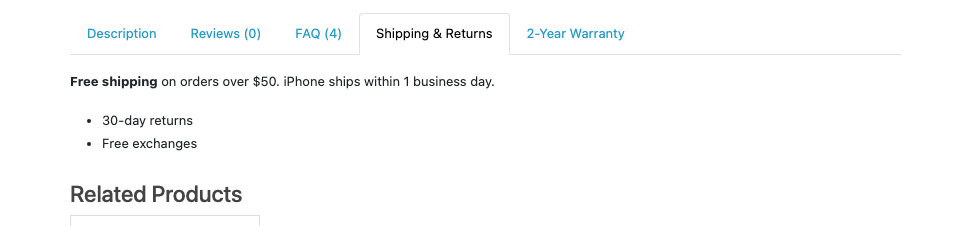
On the OpenCart demo store we created three tabs: “Shipping & Returns” for all products, “Mac Care” for the Desktops > Mac category, and “2-Year Warranty” for the iPhone only. The iMac showed Shipping & Returns and Mac Care; the iPhone showed Shipping & Returns and 2-Year Warranty; the MacBook, in neither category, showed only Shipping & Returns. In each case they sat after the tabs added by our FAQ and video extensions. Saving a category tab without choosing a category is refused with “Choose at least one category”.
SEO
The tab content is part of the product page’s HTML, not loaded later, so search engines see it. Text repeated on every product doesn’t hurt a page, but it doesn’t help it rank either: your own product description still does that work. For questions shoppers ask, our FAQ extension adds an accordion with FAQPage structured data.
How it works
One storefront event, catalog/view/product/product/after, finds the tab list (<ul class="nav nav-tabs">) and the tab content in the product page and adds the tabs and their panes. If a theme has no tabs, the tabs are added as headed sections near the end of the page instead. Two admin events remove a deleted product’s or category’s assignments. No core or theme files are changed.
Tab content is stored HTML-encoded, like OpenCart’s own descriptions, in four tables: oc_producttab, oc_producttab_description, oc_producttab_to_category and oc_producttab_to_product.
Uninstall
Uninstalling removes the events, so the tabs disappear from product pages. The tabs you wrote stay in the database and come back if you reinstall.

Rupak Nepali is a web developer, manage Webocreation website and the author of six books:
Getting Started with OpenCart Module Development (Packt, 2013),
OpenCart Theme and Module Development (Packt, 2015),
OpenCart 4: Dev Guide for Themes & Extensions (2024),
OpenCart 4: User Manual (2025),
Cloudflare for the Enterprise Website (2026) and
The Technical Web Guide for Marketers (2026).
Rupak has built OpenCart stores and extensions since 2010, has published more than 600 tutorials on Webocreation, and shares free OpenCart extensions on GitHub.
Find Rupak on
GitHub | Amazon | LinkedIn | X | YouTube.