Webocreation Theme for OpenCart 4: Change Colors, Fonts and Layout From the Admin, With a Live Preview and Dark Mode (Free Theme)
A free OpenCart 4 theme you customize from the admin: colors and presets, light or dark scheme, Google or system fonts, layout, sticky header, footer, social icons and custom CSS.
 Rupak NepaliPublished Nov 22, 2026
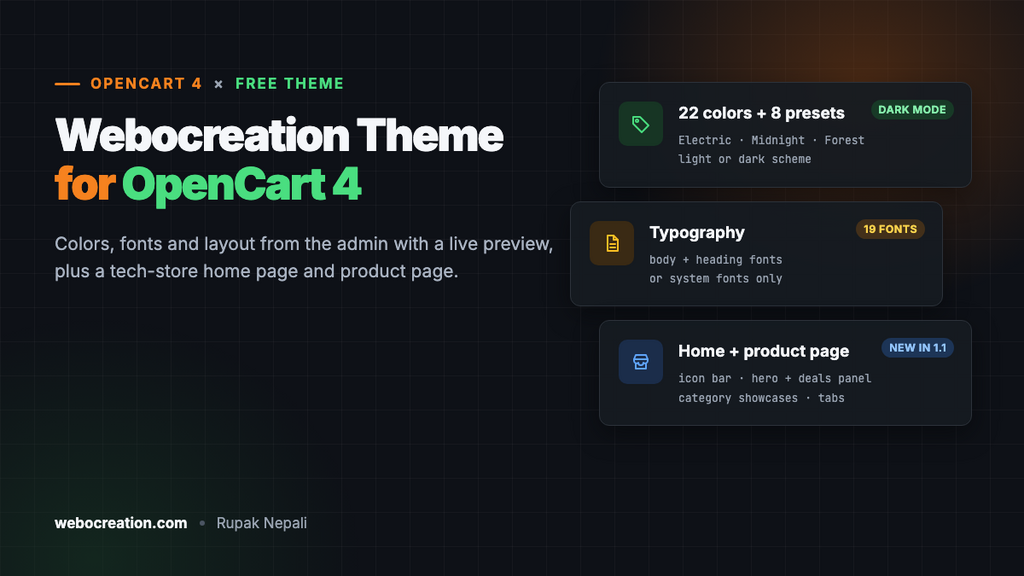
Most OpenCart stores look like the default theme because changing it means editing Twig templates and CSS, or buying a big commercial theme with hundreds of settings and its own way of doing everything. There’s a middle ground: keep OpenCart’s own templates, which every extension already works with, and make the look fully adjustable from the admin.
That’s the Webocreation Theme: a free OpenCart 4 theme with settings for colors, fonts and layout, eight color presets including a dark one, a live preview that updates as you change things, and since version 1.1 a complete electronics-store look with a category icon bar, a hero slider with a deals panel and category showcases. Version 1.2 adds a store footer with your logo, contact details and a newsletter box.
Download the Webocreation Theme for OpenCart 4 (free, tested on OpenCart 4.1.0.4)
What you can change
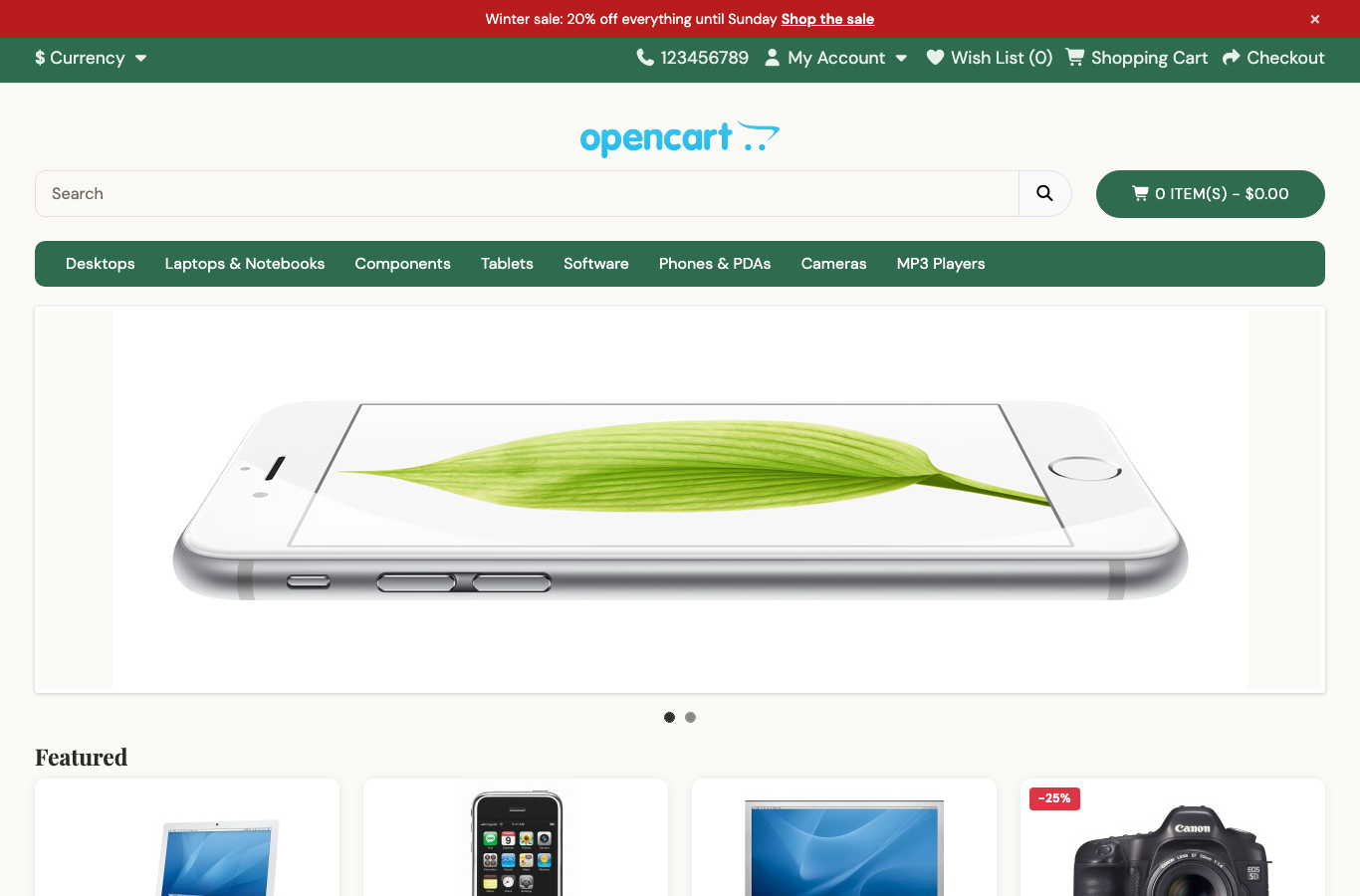
- Colors: 22 settings covering brand colors, links, page background, product cards, text, borders, prices and special prices, and the top bar, header, menu, category icon bar and footer separately.
- Presets: OpenCart Blue, Midnight (dark), Forest, Sunset, Rose, Monochrome, Electric and Ocean, as a starting point.
- Light or dark scheme, using Bootstrap 5.3’s own dark mode so forms, dropdowns, tables and popups turn dark too.
- Typography: separate body and heading fonts from 19 Google Fonts, or system fonts only; base size, line height, heading weight and letter spacing; uppercase headings or buttons.
- Layout: page width (1140, 1320, 1500 px or full width), corner radius, button radius (up to pill-shaped), product card style (border, shadow or flat), a lift on hover, and wishlist and compare buttons on or off.
- Header and footer: a sticky header, a sticky category menu or both, a compact header that cuts the logo row to about 58px, the logo on the left or centered, the top bar on or off, your own footer line instead of “Powered by OpenCart”, social icons, a back-to-top button, and a store footer with your logo, a store description, contact details and a newsletter box.
- Store style: a category icon bar instead of the text menu, five section heading styles, corner-ribbon badges, a breadcrumb band, boxed product tabs, quantity buttons, a full-width Add to Cart button, compact product cards and a white logo for colored headers.
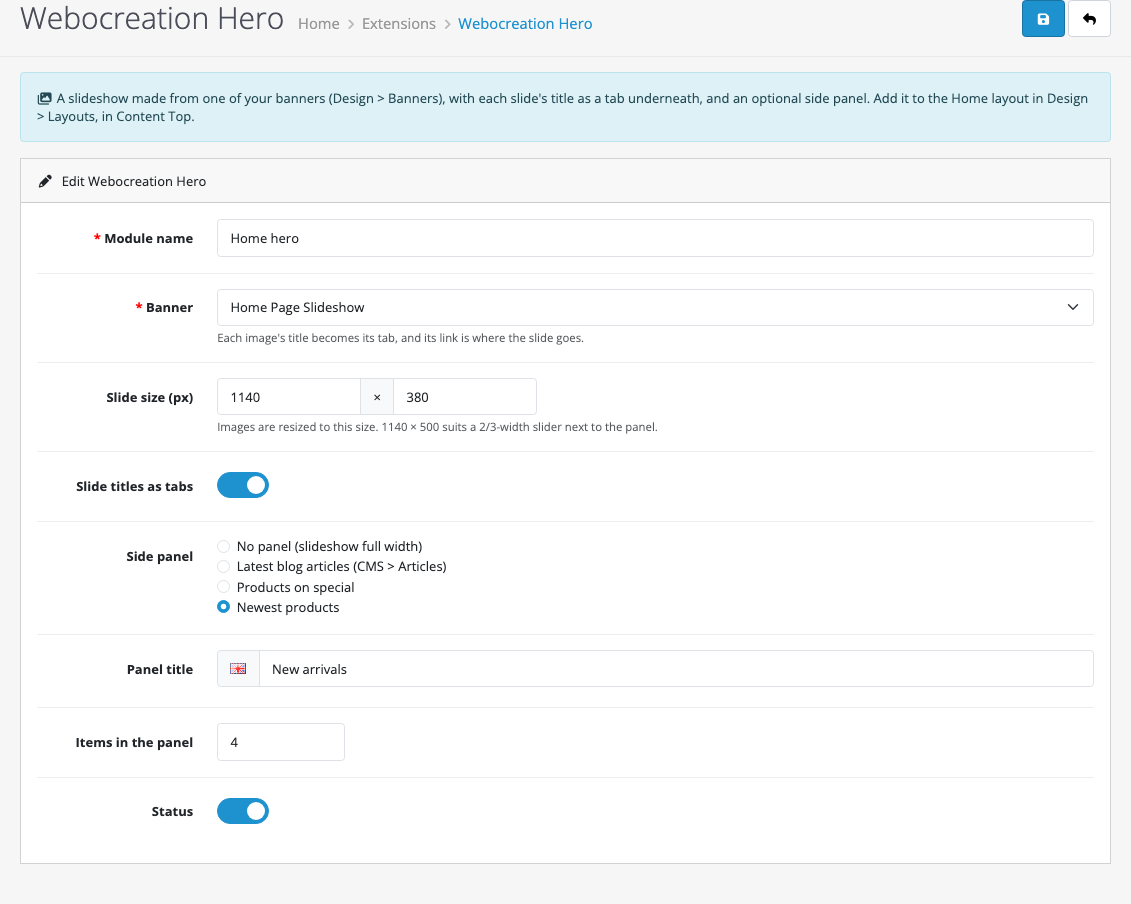
- Two home page modules: Webocreation Hero (a slider with tabs and a side panel) and Webocreation Category Showcase (a category with its brands, a promo banner and its products).
- Custom CSS, with every setting available as a CSS variable.
- Per store: each store in a multi-store setup has its own theme settings.
Install
- Go to Extensions > Installer, upload
webocreationtheme.ocmod.zipand click the green + button. - Go to Extensions > Extensions, choose Themes, and install Webocreation Theme.
- Click Edit, turn Status on and save.
- Go to System > Settings, edit your store, and on the General tab choose Webocreation Theme under Theme. Save.
Until step 4 the store keeps its current look, so you can set everything up first. The settings page reminds you if Webocreation Theme isn’t the store’s theme yet.
For the home page modules, also install Webocreation Hero and Webocreation Category Showcase under Extensions > Extensions > Modules, create one of each, and add them to the Home layout in Design > Layouts (Content Top). They’re optional: the theme works without them.
A tech-store look: store style, hero and showcases
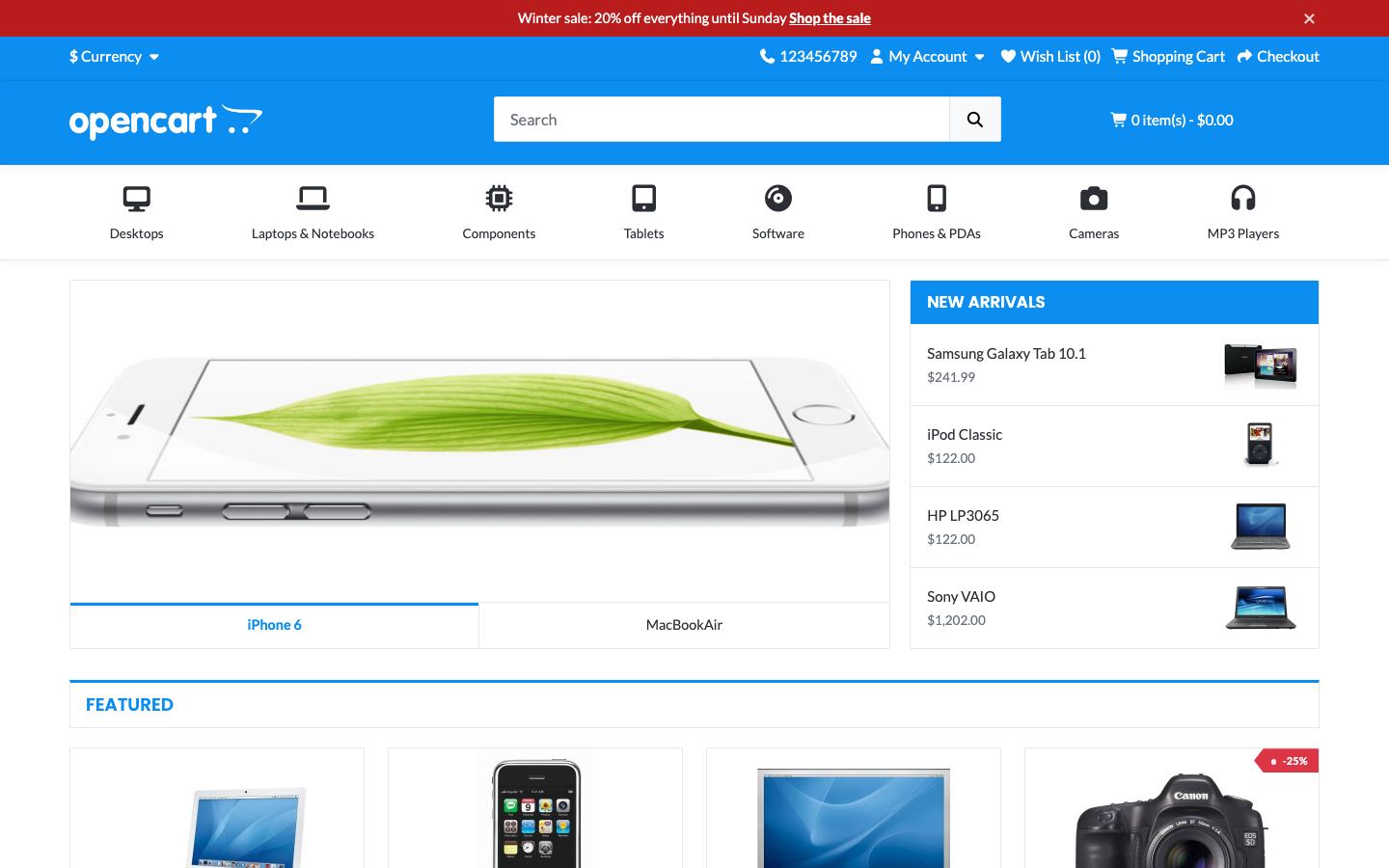
Version 1.1 adds the layout ideas big electronics stores use: a strip of category icons under a bold header, a slider with a deals panel next to it, and a block per department with its brands and a promo banner. Everything is a setting or a module, so you can use all of it or one piece.
Store style settings
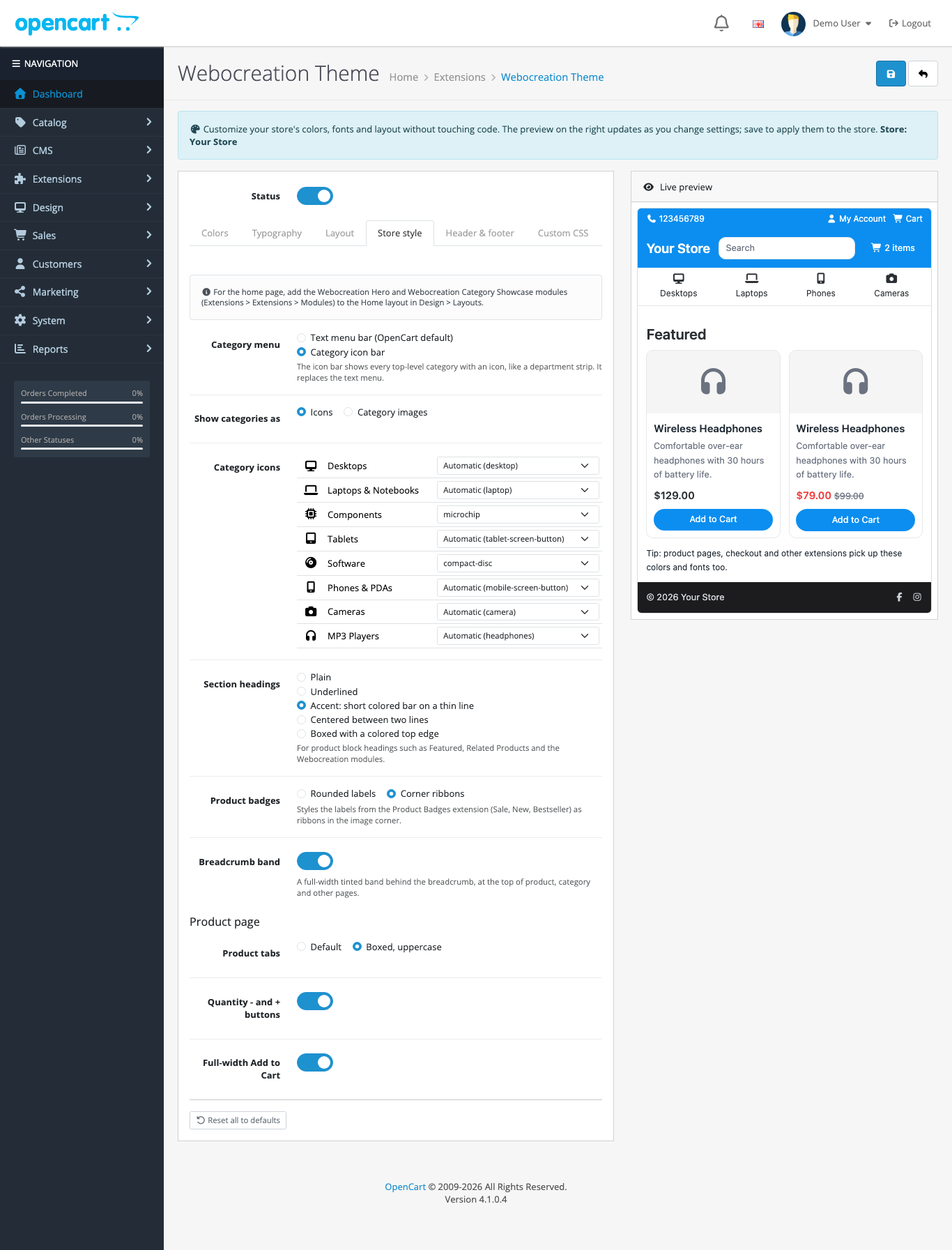
- Category icon bar replaces OpenCart’s text menu with every top-level category as an icon and a name. Icons are picked automatically from the category name (a laptop for “Laptops & Notebooks”, a camera for “Cameras”, headphones for “MP3 Players”), and you can choose a different one per category. Or show the category images instead. The bar has its own background and text colors under Colors. On phones the strip scrolls sideways.
- Section headings for product blocks such as Featured and Related Products, and the showcase modules: plain, underlined, an accent bar on a thin line, centered between two lines, or a compact box with a colored top edge.
- Corner ribbons turn the labels from our Product Badges extension into ribbons in the image corner.
- Breadcrumb band: a full-width tinted band behind the breadcrumb at the top of product, category and other pages.
- Compact product cards: image, name and price, without the short description, stock line and tax line.
- White logo for colored headers: your logo shown in white, best with a transparent PNG.
- The Electric preset pairs a bright blue header with a white page; it looks best with Poppins headings, Lato text, a 2 px radius and boxed headings.
Webocreation Hero module
A slider made from any banner in Design > Banners. Each image’s title becomes a tab under the slider, so shoppers see every promotion at a glance and can jump to one; the active tab follows the slider. Next to it, a side panel lists your latest blog articles, products on special, or the newest products, with a “View all” link. Without a panel, the slider runs full width. On tablets and phones the panel moves under the slider.
Webocreation Category Showcase module
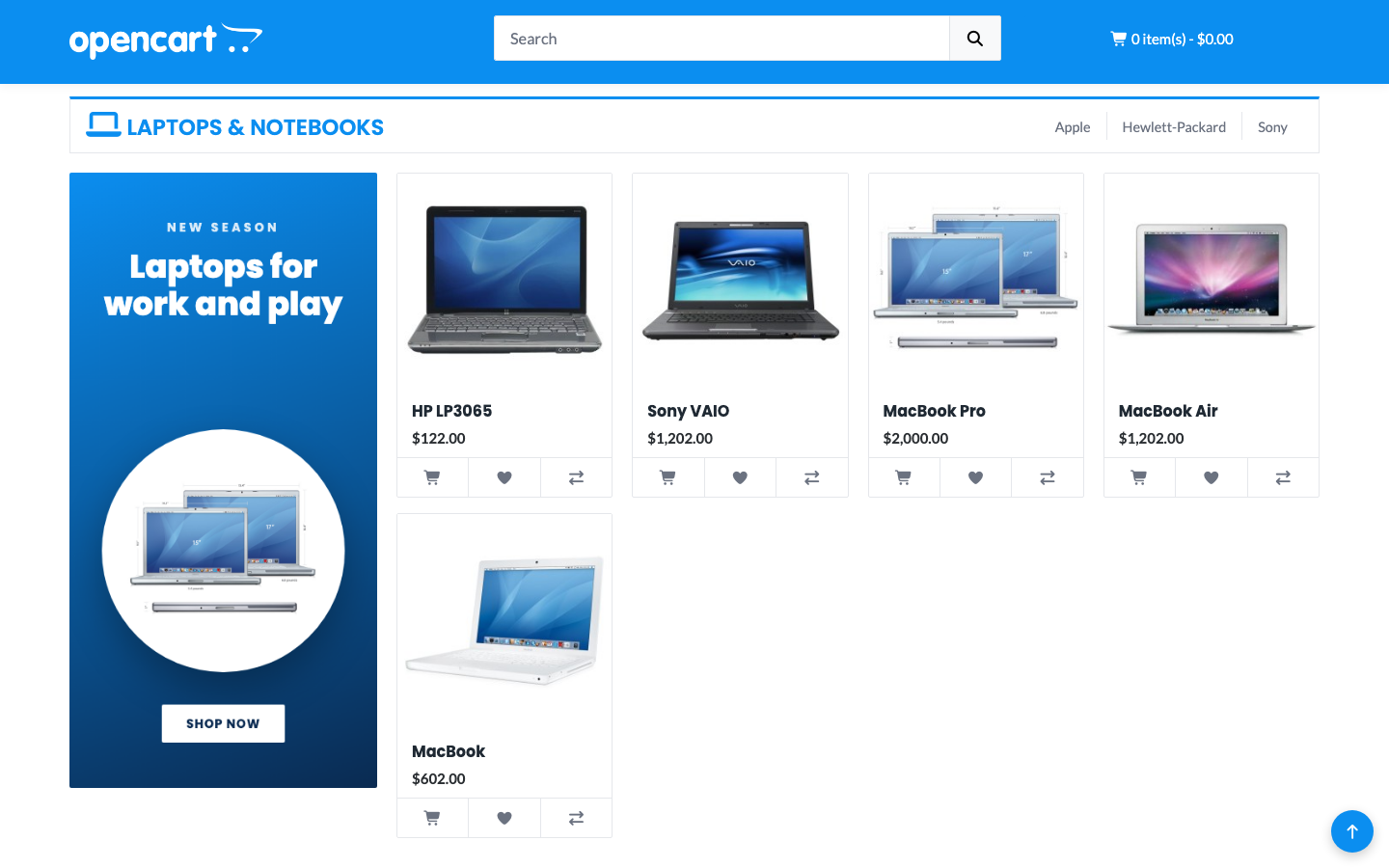
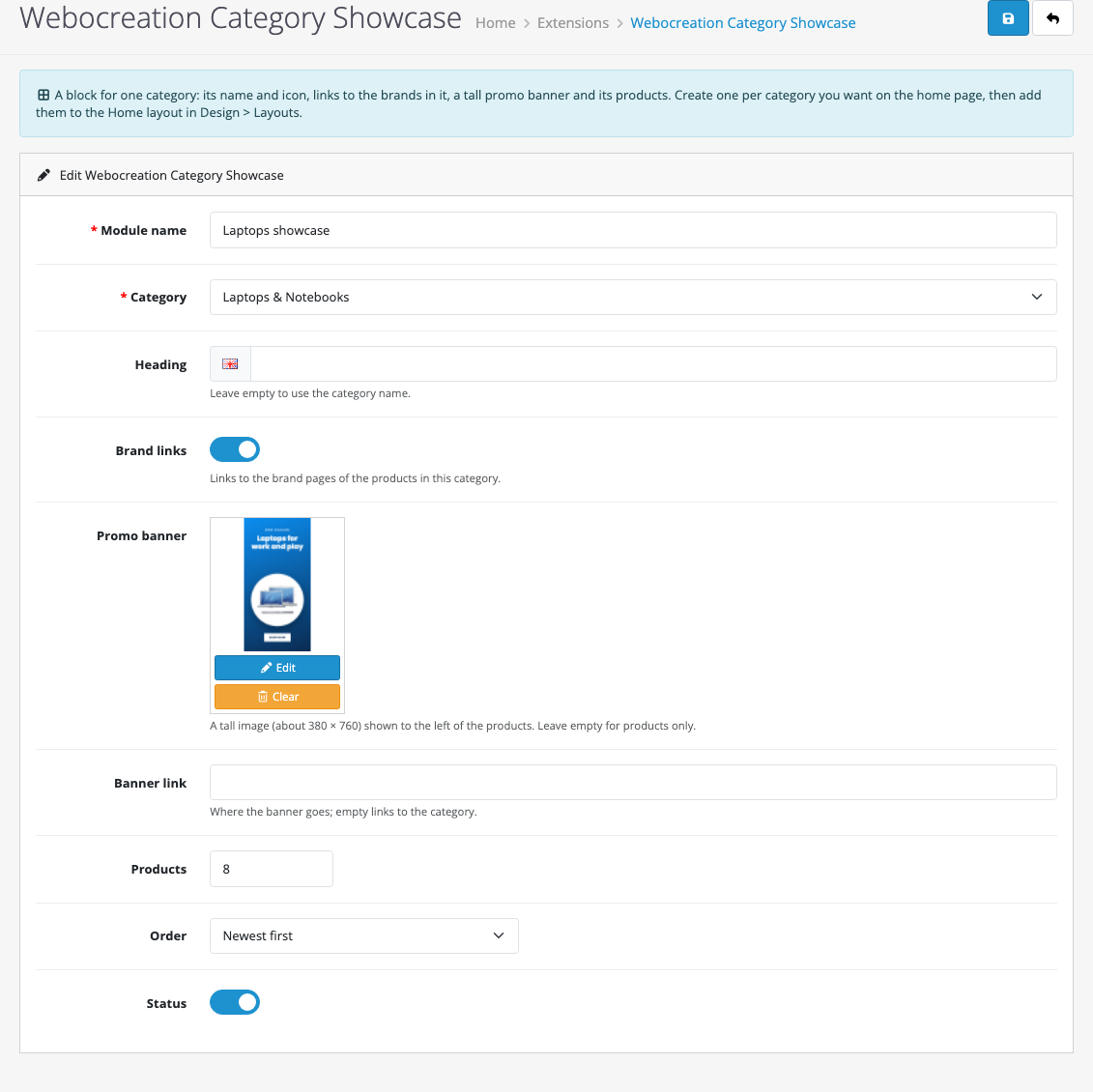
A block for one department: its icon and name, links to the brands of the products in it, a tall promo banner on the left and the category’s products on the right, using OpenCart’s own product cards so prices, specials, badges and buttons behave as everywhere else. Create one per category you want on the home page, choose the order (newest, sort order, most viewed or best rated) and how many products to show.
The product page
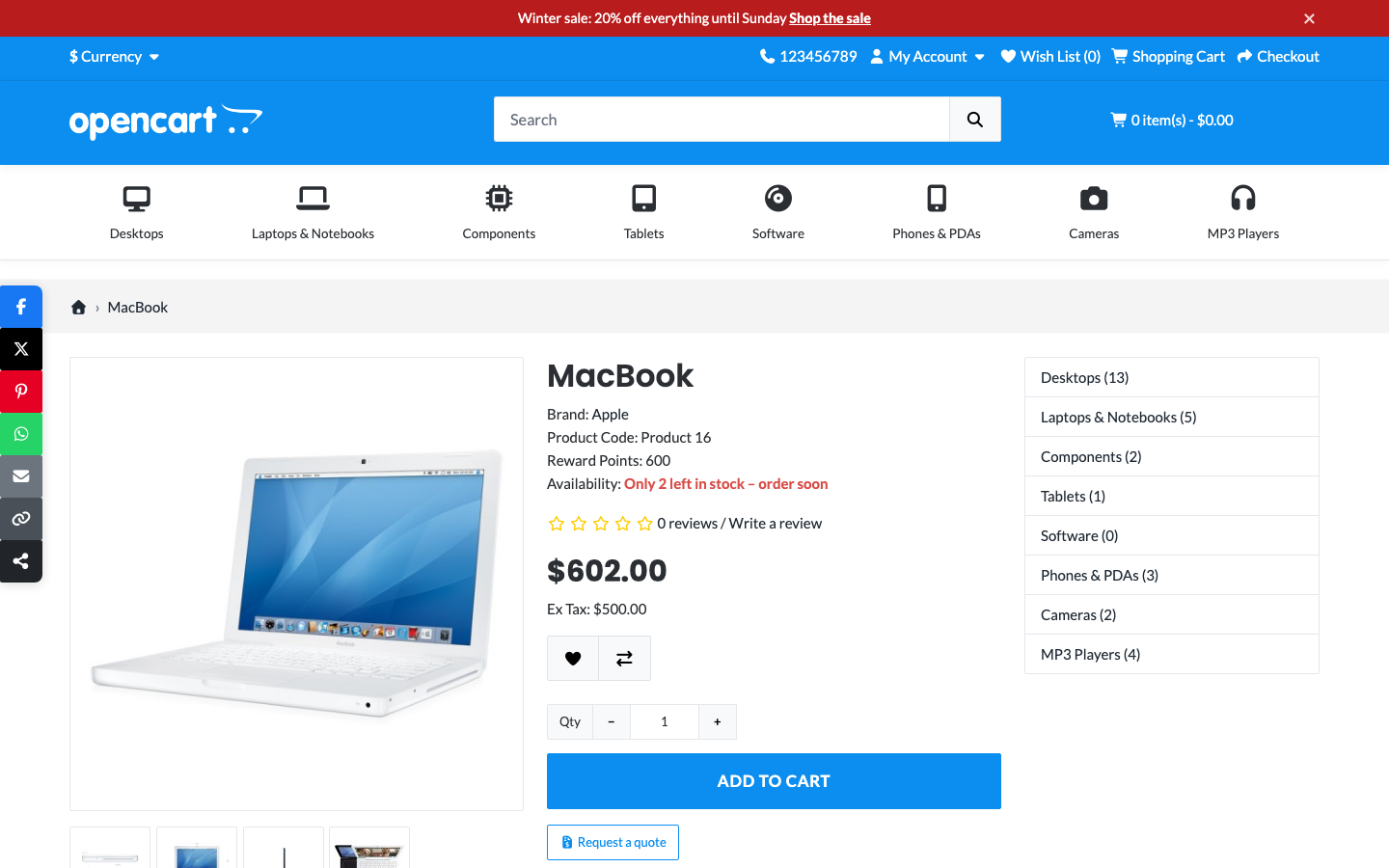
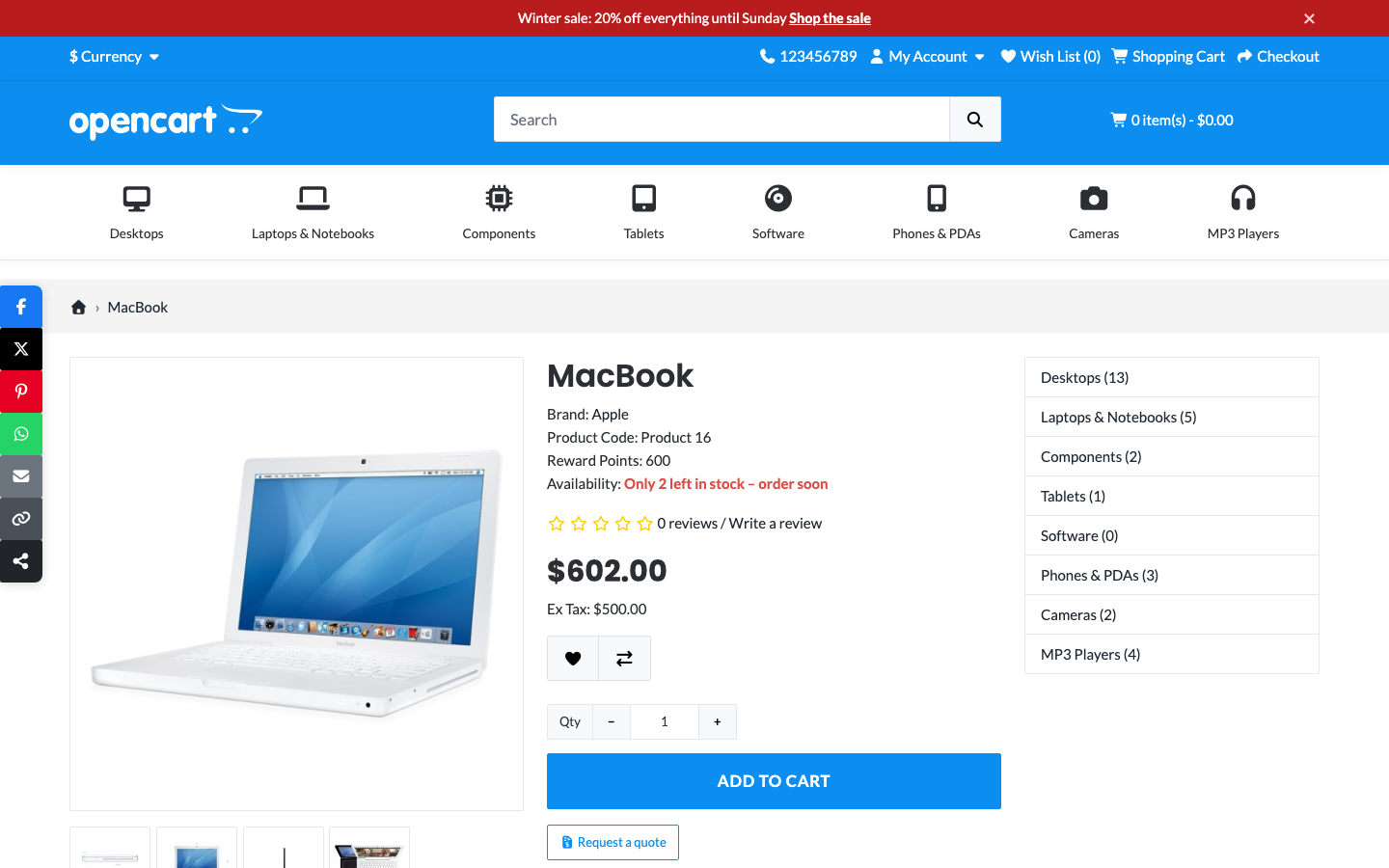
Three settings change the product page: quantity − and + buttons around the quantity field, a full-width Add to Cart button under it, and boxed, uppercase tabs for Description, Specification and Reviews (and tabs from other extensions). The right-hand category list is OpenCart’s own Category module in the Product layout’s right column; add a Bestseller or Featured module under it for a suggested-products box.
The settings page
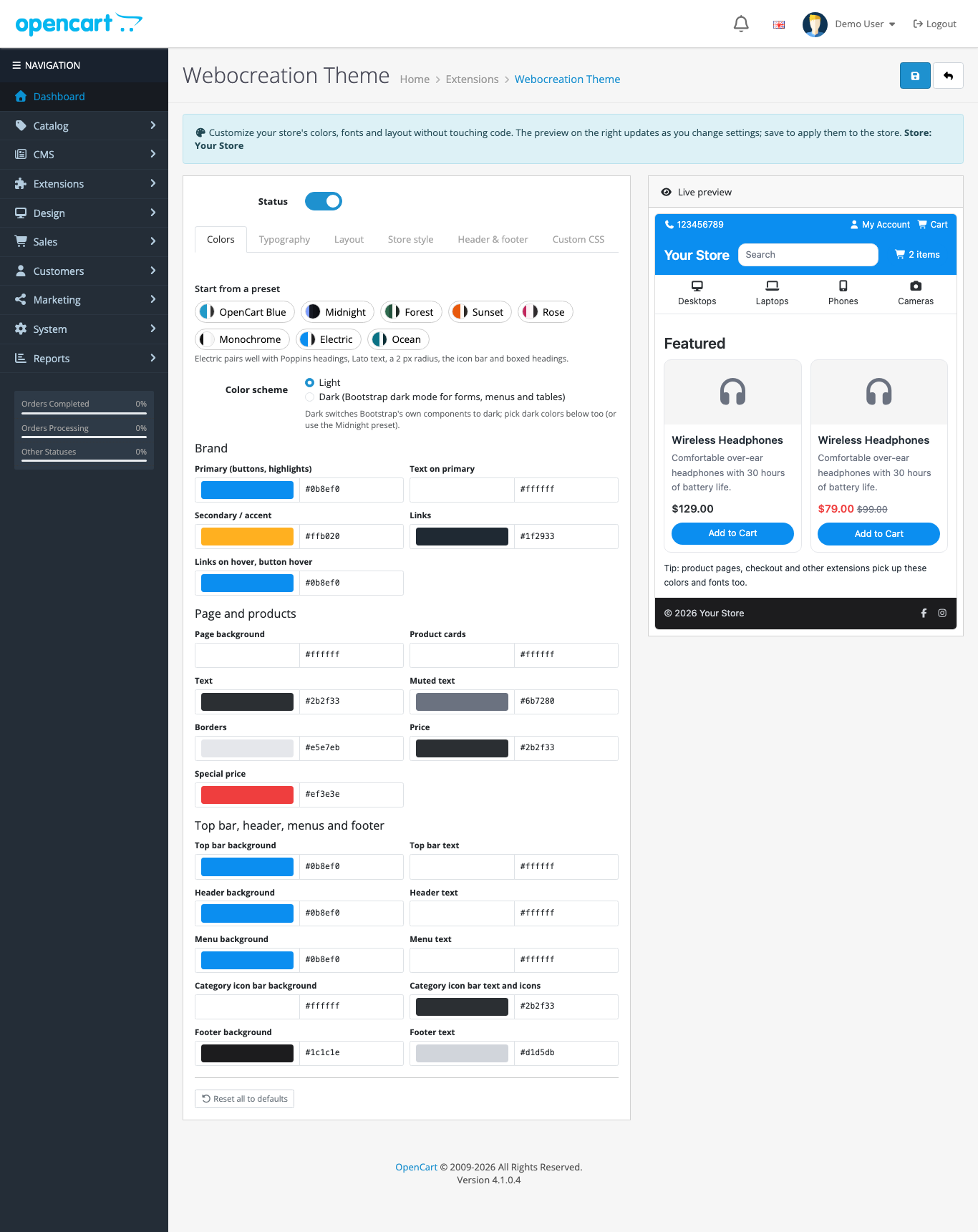
The page has six tabs (Colors, Typography, Layout, Store style, Header & footer, Custom CSS) and a live preview on the right: a small store with a top bar, header, menu, two product cards (one on special) and a footer. Every change shows in the preview straight away, including fonts, which load in the admin as you choose them. Nothing reaches the store until you click Save.
Each color has a picker and a hex field; type a hex value or pick one, and they stay in sync. Clicking a preset fills in all 22 colors and the scheme, but leaves your fonts and layout alone. Reset all to defaults puts every field back to the original look, again only on the page until you save.
Typography
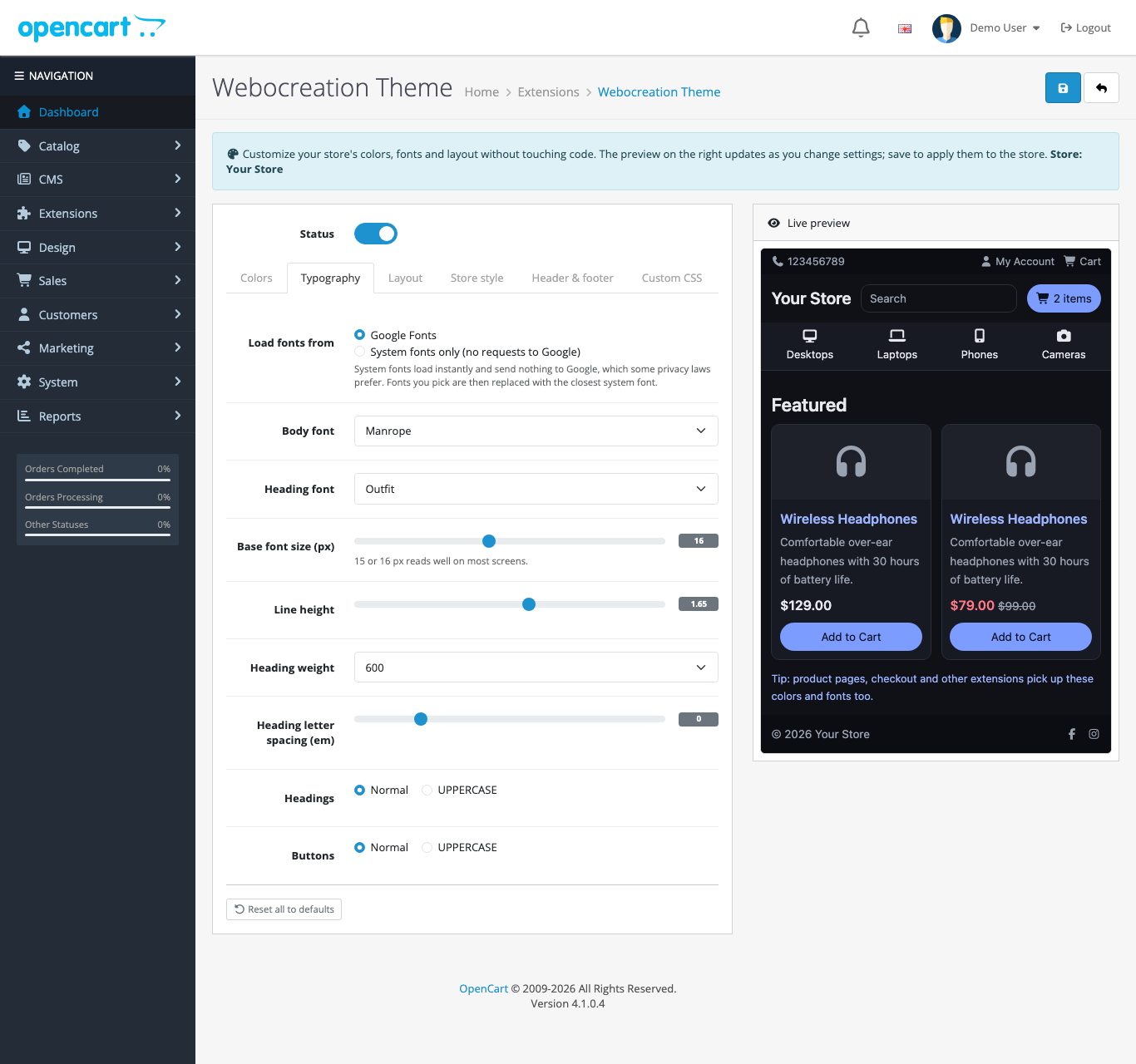
Pick a body font and a heading font from 19 Google Fonts: popular sans-serifs such as Inter, Roboto, Poppins, DM Sans and Manrope, and serifs such as Playfair Display, Merriweather and Lora. The theme requests only the fonts and weights you use, in one request with display=swap so text shows immediately, and with preconnect hints to Google’s font servers.
System fonts only sends nothing to Google. Each font is replaced with the closest system font (the device’s UI font, or Georgia for serifs), so pages render instantly. Some privacy rules frown on loading Google Fonts from Google’s servers without consent; this setting avoids the question. In our test, switching it on removed every request to fonts.googleapis.com from the page.
Layout, header and footer
- Sticky on scroll: keep the logo, search and cart bar at the top, just the category menu, both together, or neither. With both, the category icon bar shrinks to a slim row of names once you scroll, and on phones only the category bar sticks so the products keep the screen.
- Logo centered puts the logo on its own row with search and cart below it. On phones everything stacks full width as usual.
- Top bar off hides the currency, account and links bar if your header has all you need.
- Wishlist and compare off hides those buttons on product cards and product pages, and the “Product Compare” button on category pages. The cart button then fills the card’s button row.
- Footer line replaces “Powered by OpenCart”. Use
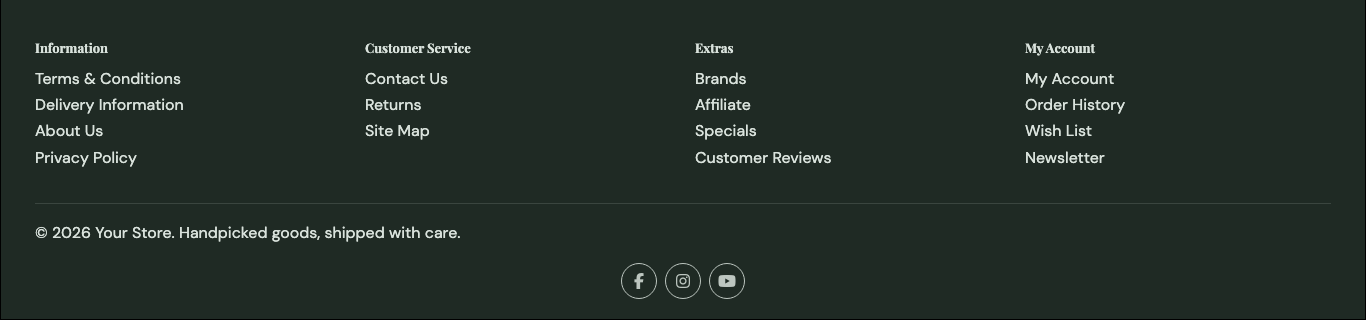
{year}and{store}, for example © {year} {store}. All rights reserved. - Social profiles add round icons to the footer for Facebook, Instagram, X, YouTube, TikTok, Pinterest and LinkedIn. Only full
https://addresses are accepted. - Footer layout: keep OpenCart’s classic four link columns, or switch to the store footer described below.
Store footer
Version 1.2 adds a second footer layout, the kind most shops use: your logo centered at the top with a short store description under it, OpenCart’s own footer links in three columns (Information, Customer Service and My Account), a Contact Us column, a newsletter box and a bottom bar with the footer line on the left and the social icons on the right. Choose it under Header & footer > Footer layout and write the description in Store description.
- Links come from OpenCart’s footer, so information pages you add in Catalog > Information, the blog link, the GDPR page and the affiliate link appear or disappear exactly as they do in the default footer.
- Contact Us shows the telephone, email and address from System > Settings > your store > Store, each with a round icon in your brand color. The phone number and email are clickable, and anything you leave empty is left out.
- Newsletter uses OpenCart’s own subscription, so Marketing > Mail reaches everyone who signs up. A guest who enters an email goes to the account form with the email filled in and the newsletter switch on; a signed-in customer gets a button to their newsletter page, or a note that they’re already subscribed. Turn the box off with Newsletter box.
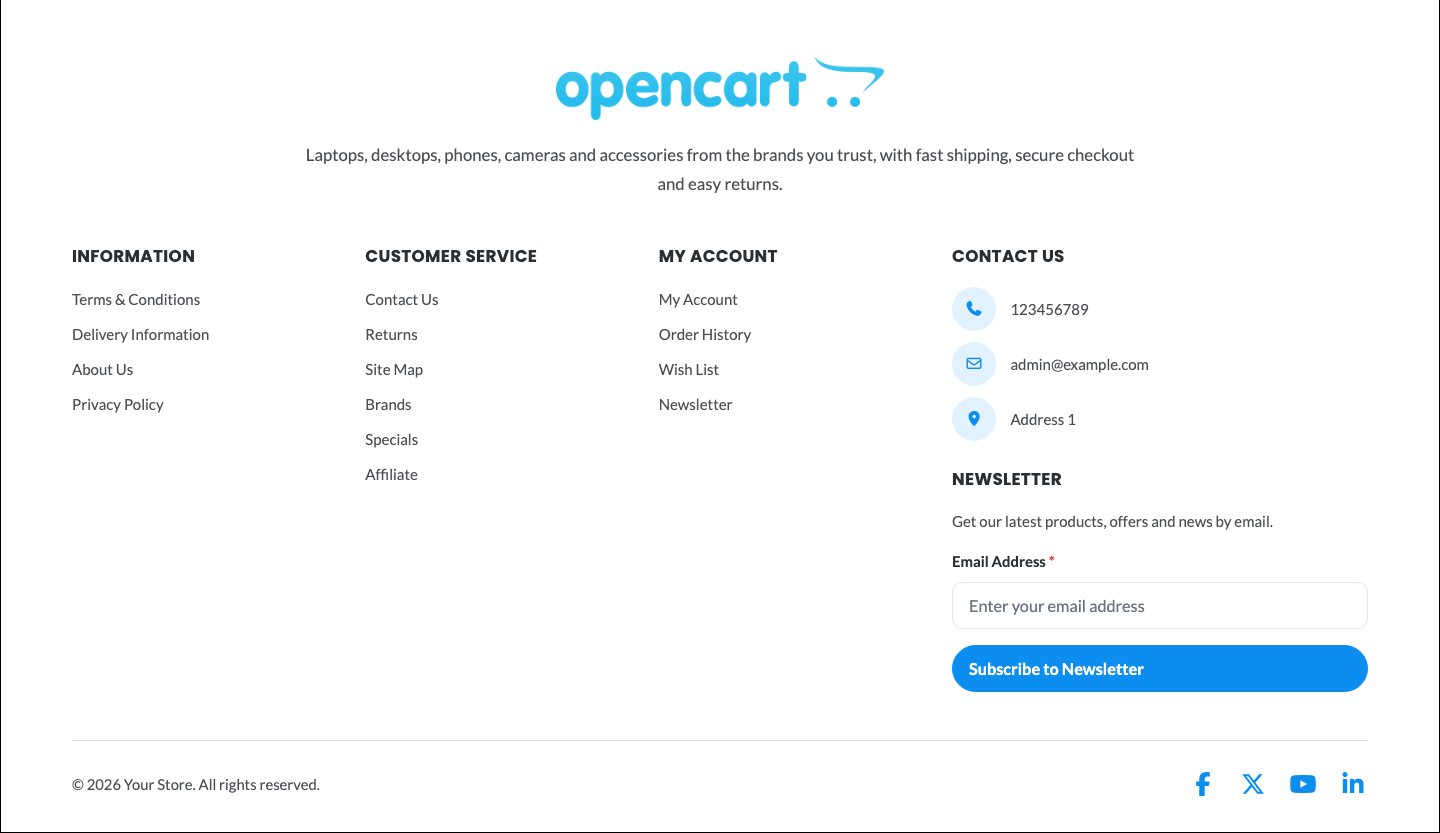
The footer’s colors are the Footer background and Footer text settings under Colors; the demo uses white and near-black, with the icons and button in the brand color.
Dark mode
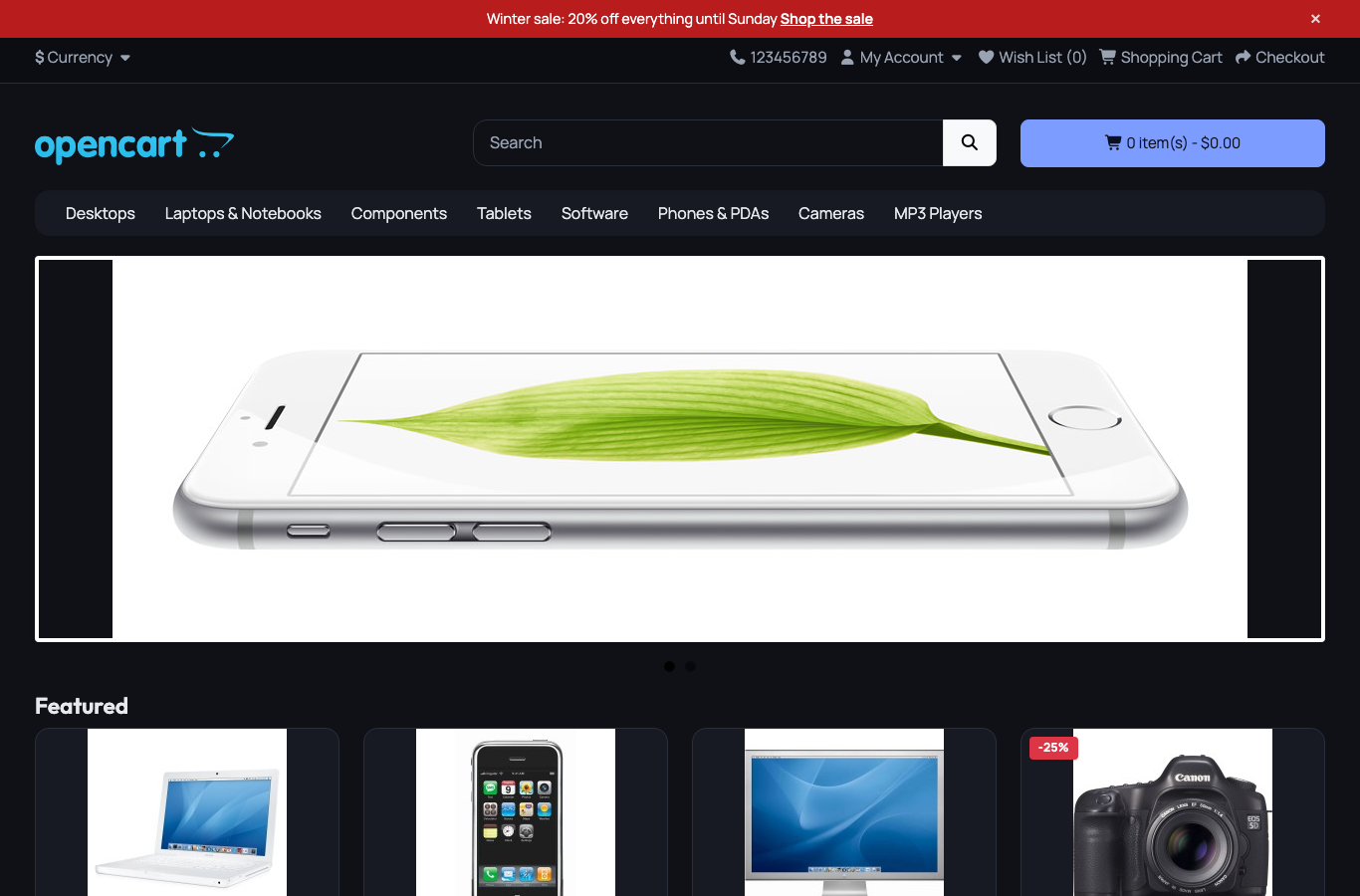
Dark stores usually break in the details: a white dropdown, a white search box, a table with dark text on dark rows. OpenCart 4.1 ships Bootstrap 5.3.8, which has a dark mode built in. When you choose the dark scheme, the theme adds data-bs-theme="dark" to the page, so Bootstrap switches its own forms, dropdowns, tables and modals to dark, and the theme’s colors go on top. The Midnight preset is a ready-made dark palette.
Product photos with white backgrounds stay white, which looks fine on cards but stands out on a black page. If your catalog is all white-background photos, a light scheme with a dark header and footer can work better.
Custom CSS
Everything you set is available as a CSS variable on the page, so your own CSS can follow the settings:
/* Bigger product names, in the heading font and brand color */
body.wt .product-thumb h4 a {
  font-family: var(--wt-font-heading);
  color: var(--wt-primary);
  font-size: 1.1rem;
}

/* A thin accent line under the menu */
body.wt #menu { border-bottom: 3px solid var(--wt-secondary); }
The variables include --wt-primary, --wt-primary-text, --wt-secondary, --wt-background, --wt-surface, --wt-text, --wt-muted, --wt-link, --wt-border, the region colors such as --wt-menu-bg, and --wt-font-body, --wt-font-heading, --wt-font-size, --wt-radius, --wt-button-radius and --wt-container. Custom CSS is printed after the theme’s styles. Anything that would close the style tag is neutralized, so a pasted </style><script> can’t escape into the page.
Works with your extensions
Webocreation Theme doesn’t replace OpenCart’s templates. It adds a stylesheet, the variables and a few classes to the default theme, so modules, payment and shipping methods, and other extensions that add to product pages keep working, and the Theme Editor still edits the same templates.
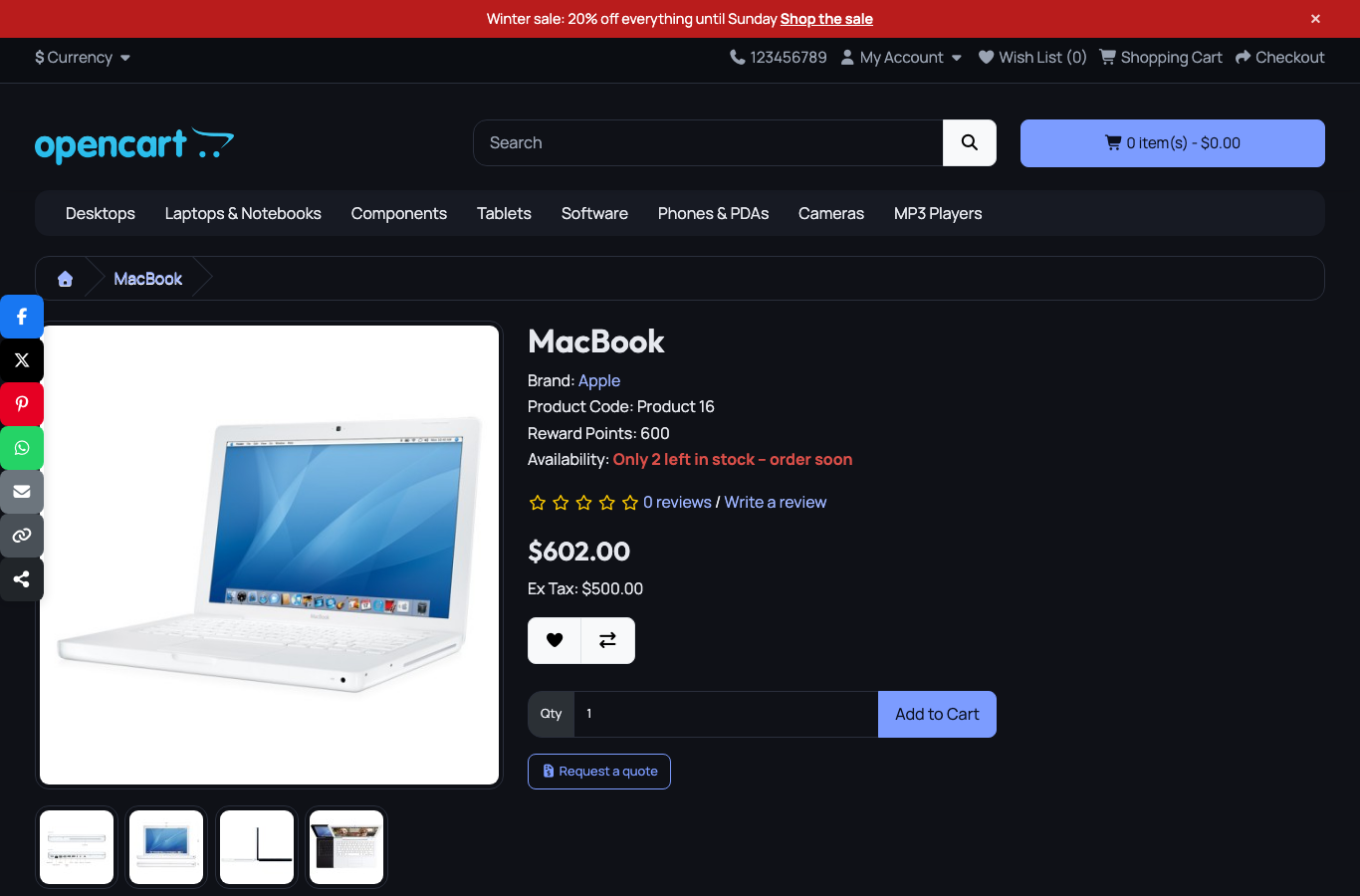
On the demo store, product pages kept their social share buttons, request-a-quote button and low-stock warning from other extensions, and category pages their sale badges and countdown timers, all in the theme’s fonts and colors. Extensions with their own fixed colors keep them; use Custom CSS with the variables to bring them in line.
On phones
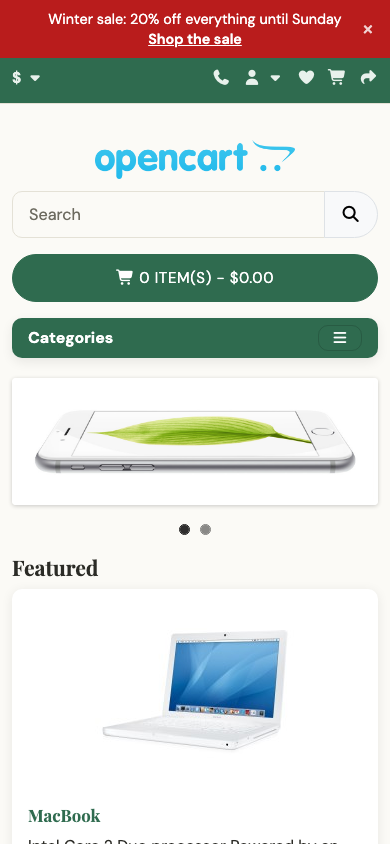
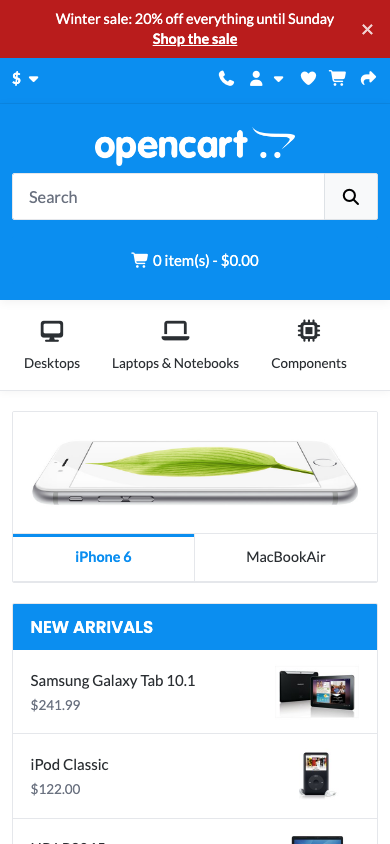
Webocreation Theme keeps OpenCart’s responsive Bootstrap layout. The centered logo option stacks the search box and cart button full width on phones, and the menu collapses into OpenCart’s usual Categories button.
Testing it
We tested the Webocreation Theme on the OpenCart 4.1.0.4 demo store with a dozen other extensions installed:
- Saving with an invalid color or a non-
httpssocial link is refused, with an error for that field. - The Forest settings produced the expected classes on the page, one Google Fonts request for exactly DM Sans and Playfair Display, the theme stylesheet, the footer line and the social icons.
- The sticky menu stayed at the top while scrolling a category page, and the back-to-top button appeared after scrolling down.
- Choosing the Midnight preset, two new fonts and new layout options in the admin, then saving, changed the store to dark mode with Manrope and Outfit on the next page load.
- With the store’s theme set back to Default, nothing from the theme was left on the page.
- For version 1.1 we placed a Webocreation Hero and two Category Showcases on the Home layout: the icon bar listed all eight top-level categories, the hero built its tabs from the Home Page Slideshow banner, the panel listed the newest products, and each showcase showed its brands (Apple, Hewlett-Packard and Sony for laptops) and products. Saving a showcase without a category, or with a
javascript:banner link, is refused. - For version 1.2 we switched the demo store to the store footer: every default footer link was there, the contact details matched the store settings, and entering an email in the newsletter box opened the account form with that email filled in and the newsletter switch on. Saving the settings page without changes left every stored setting identical.
Testing also caught styling bugs, all fixed in the download: among them OpenCart’s own slideshow styling adding a 50 px margin and a white border to every carousel, and a product-page price rule overriding the red special price on product cards. The store footer found one more: OpenCart 4.1 pins its footer to the bottom of the page with position: absolute and reserves 400 px of padding under the content (730 px on phones), so a taller footer covers the end of the page, in our case the brand carousel. The store footer goes back into the normal page flow and removes that padding. The first four are useful lessons if you write your own OpenCart CSS; we wrote them up in Restyle OpenCart 4 with Bootstrap 5.3 CSS variables.
Speed
Webocreation Theme adds one small stylesheet and a short block of variables to each page, plus the font files you choose (none with system fonts). There’s no JavaScript framework, slider or icon font beyond OpenCart’s own. For more on keeping a theme fast, see Core Web Vitals for OpenCart themes.
Uninstall
Set the store’s theme back to Default Store Theme in System > Settings, and your store looks exactly as before. Uninstalling the theme removes its startup action. OpenCart’s own templates were never changed.
Related
- How to develop an OpenCart 4 custom theme
- How to install and create an OpenCart 4 theme
- OpenCart 4 layout management
- The European Accessibility Act for online stores: check your colors’ contrast when you pick them

Rupak Nepali is a web developer, manage Webocreation website and the author of six books:
Getting Started with OpenCart Module Development (Packt, 2013),
OpenCart Theme and Module Development (Packt, 2015),
OpenCart 4: Dev Guide for Themes & Extensions (2024),
OpenCart 4: User Manual (2025),
Cloudflare for the Enterprise Website (2026) and
The Technical Web Guide for Marketers (2026).
Rupak has built OpenCart stores and extensions since 2010, has published more than 600 tutorials on Webocreation, and shares free OpenCart extensions on GitHub.
Find Rupak on
GitHub | Amazon | LinkedIn | X | YouTube.