Product Bundles for OpenCart 4: “Buy These Together and Save 10%” as a Real Discount at Checkout (Free Extension)
Group products into bundles with a discount, show a "Buy these together" offer on each product page, and apply the discount in the cart, at checkout and on the order.
 Rupak NepaliPublished Nov 21, 2026

“Buy the laptop, monitor and headphones together and save 10%” is one of the oldest ways to raise the average order. OpenCart 4 can suggest products to buy together, but it can’t give a discount for buying them together: specials and quantity discounts are per product, and a coupon needs a code the customer has to know.
This free extension adds real product bundles. Pick 2 to 6 products and a percentage, and customers see a “Buy these together” offer on each of those products’ pages. Whenever the whole bundle is in the cart, the discount appears as its own line in the cart, at checkout, on the order and in the confirmation email, however the products got there.
Download Product Bundles for OpenCart 4 (free, tested on OpenCart 4.1.0.4)
What it does
- Bundles of 2 to 6 products, each with its own name and percentage discount. Switch a bundle off without deleting it.
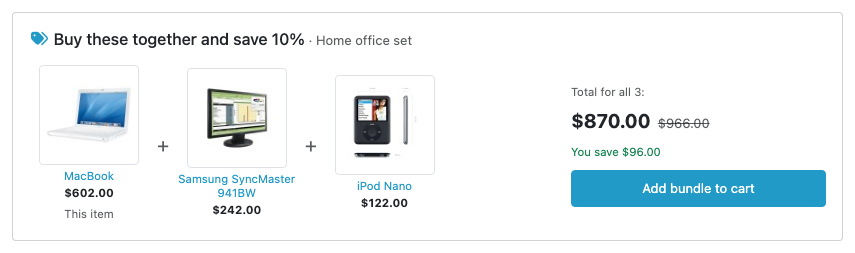
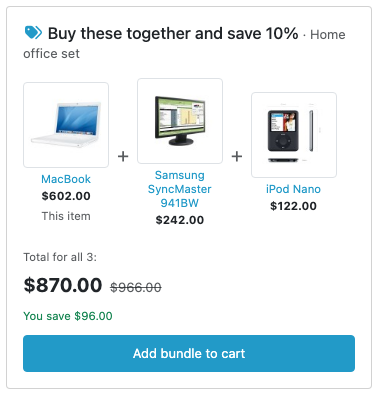
- A “Buy these together and save 10%” box on the page of every product in a bundle, with the bundle price, the full price crossed out and the saving.
- Add bundle to cart puts every product in the cart in one click.
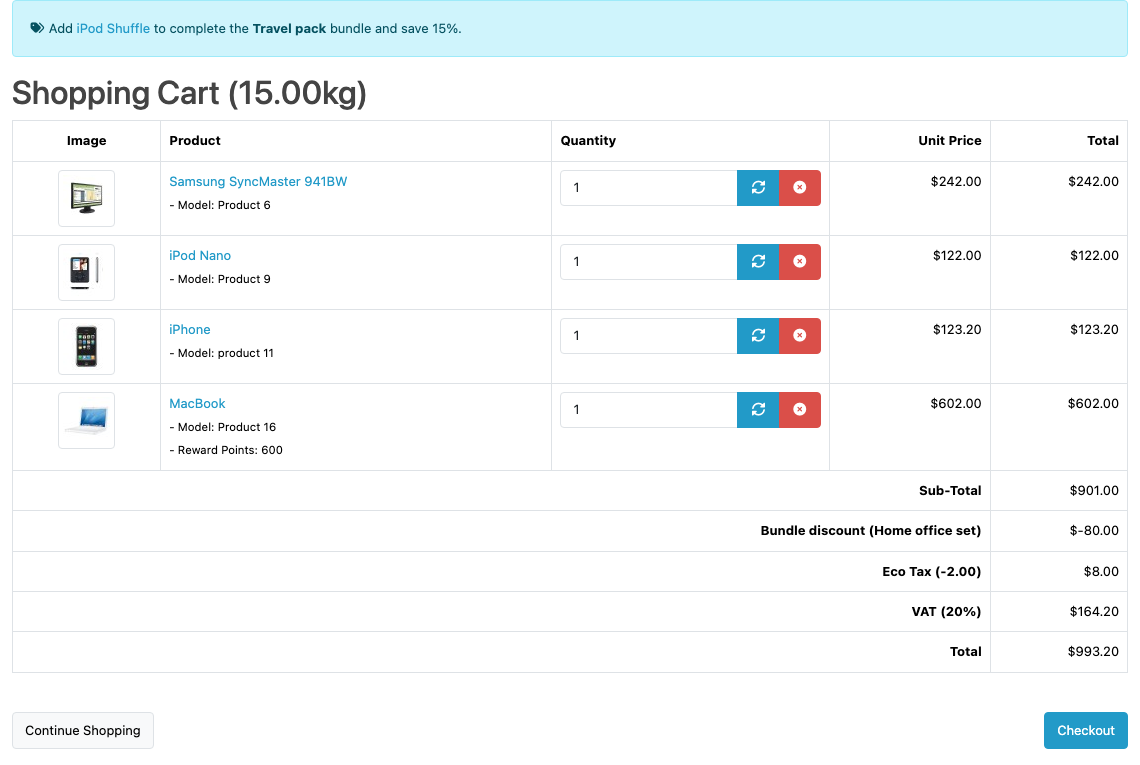
- A real discount at checkout. It’s an order total, like coupons and shipping, so it’s listed as “Bundle discount (Home office set)”, tax is worked out on the discounted price, and it’s saved on the order.
- Works however products reach the cart: from the bundle button, one by one, from a wishlist or from a reorder. Two complete bundles get the discount twice.
- “Complete the bundle” hint in the cart: “Add iPod Shuffle to complete the Travel pack bundle and save 15%.”
- Your choice on coupons: let customers have both, or only the coupon.
Install it
- Download
productbundle.ocmod.zip. - Go to Extensions → Installer, upload it, and click the green +.
- Go to Extensions → Extensions, choose Order Total from the list, and install Product Bundles.
- Click Edit, add your bundles, turn Status on and save.
It’s an order total extension, so it’s listed with Coupon, Shipping and Taxes rather than with the modules. That’s what lets it change the order total.
Create your bundles
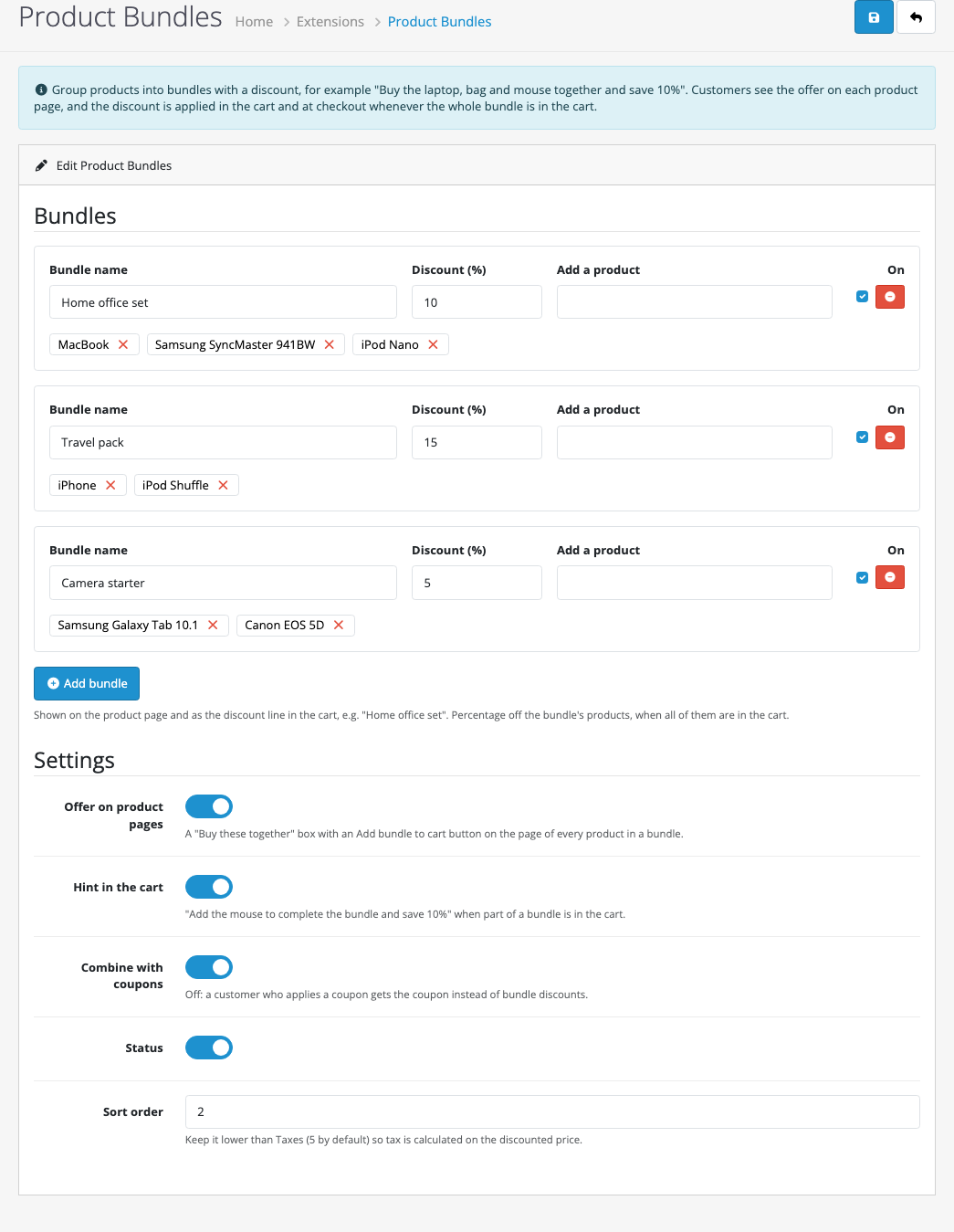
Click Add bundle, give it a name, set the discount, and add products by typing their names in Add a product. The × next to a product removes it. A bundle needs a name, at least 2 products and a discount between 0 and 100%. Otherwise the page says what’s missing and doesn’t save.
| Setting | What it does |
|---|---|
| Offer on product pages | The “Buy these together” box. Turn it off if you’d rather promote bundles yourself, for example in a banner, and only apply the discount. |
| Hint in the cart | The “Add … to complete the bundle” message when some of a bundle’s products are in the cart. |
| Combine with coupons | On: a coupon is applied on top of bundle discounts. Off: a customer who applies a coupon gets only the coupon. |
| Sort order | Where the discount line appears in the totals. Keep it lower than Taxes (5 by default) so tax is calculated after the discount. The default is 2. |
What customers see
The box sits under the product’s main details, above the description tabs. The page’s own product comes first, marked “This item”. On a phone the products shrink to fit one row:
Products with options
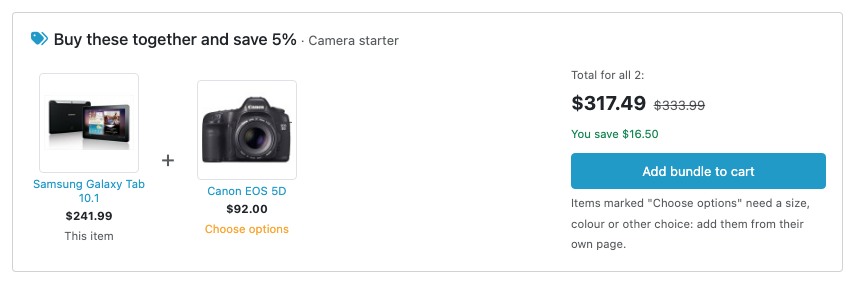
A product that needs a choice (size, colour, a subscription plan) can’t be added without it. On its own page, the bundle button uses the options the customer picked above. If nothing is picked, OpenCart’s usual “Select required!” message appears under the option and nothing is added. On the other products’ pages, that product shows a Choose options link instead, and the button adds the rest:
In the cart and at checkout
The discount line appears as soon as the whole bundle is in the cart. If only part of another bundle is there, the hint at the top links to the missing product:
The same line appears in the checkout’s order summary and is saved on the order, so it shows in Sales → Orders, on invoices, in the customer’s order history and in the confirmation email, just like a coupon.
How the discount is calculated
- The percentage comes off the price before tax, using the price in the cart. Specials, customer group prices and option prices all count.
- Tax is taken off the discounted part too, the way OpenCart’s own coupon total does it. In our test, 10% off $800 of products brought VAT down from $160 to $144. Fixed taxes such as an eco tax of $2 per item are left whole.
- The price shown in the box uses the same maths, so it matches the cart to the cent ($870.00 in the box and in the cart).
- Each product in the cart counts towards one bundle only. If a product is in two bundles, the bundle higher in the list gets it first.
- Two of each product gives the discount twice, shown as “Bundle discount (Home office set ×2)”.
- With coupons combined, the coupon is worked out on the full price: in our test, WELCOME10 took $20.10 off $201.00 of products and the Travel pack took $30.15 off.
How it’s built
The discount is an order total model with OpenCart’s standard getTotal(&$totals, &$taxes, &$total) method, which OpenCart calls for the cart, the checkout and the order. It counts how many complete sets of each bundle are in the cart and adds one line per bundle:
foreach ($this->getBundles() as $bundle) {
    $sets = PHP_INT_MAX;

    foreach ($bundle['products'] as $product_id) {
        $sets = min($sets, $left[$product_id] ?? 0);
    }

    if ($sets < 1) {
        continue;
    }

    foreach ($bundle['products'] as $product_id) {
        $left[$product_id] -= $sets; // these items can't count towards another bundle

        $unit = $items[$product_id]['total'] / $items[$product_id]['quantity'];

        $discounts[$product_id] = $unit * $sets * $bundle['discount'] / 100;
    }
}
Because the discount comes from the cart’s contents, not from the button that added them, it can’t be gamed by adding a bundle and then removing one product: the line disappears as soon as the bundle is incomplete.
The product page box and the cart hint are two events: catalog/view/product/product/after and catalog/view/checkout/cart_list/after. No core files are changed. New to events? OpenCart 4 events by example explains them, and order totals in OpenCart 4 explains how totals and their sort order work.
Testing
| Test | Result |
|---|---|
| Save a bundle with one product | “A bundle needs at least 2 products.” |
| MacBook page, Home office set (10%) | Box shows $870.00 instead of $966.00, You save $96.00 |
| Add bundle to cart | 3 products in the cart; Bundle discount (Home office set) −$80.00; VAT $144.00; total $870.00, matching the box |
| Canon page (required colour), Add bundle with no colour chosen | “Select required!” under the option; nothing added |
| Same, with Red chosen | Canon (Red) and Galaxy Tab added; Bundle discount (Camera starter) −$13.75 |
| iPhone in the cart without the iPod Shuffle | Hint: “Add iPod Shuffle to complete the Travel pack bundle and save 15%.” |
| 2 iPhones and 2 iPod Shuffles | Bundle discount (Travel pack ×2) −$60.30 |
| Order placed (customer in Arizona, flat shipping) | Order totals saved: Sub-Total $800.00, Bundle discount −$80.00, Flat Shipping $5.00, Total $725.00 |
| Travel pack + coupon WELCOME10, “Combine with coupons” off | Only Coupon (WELCOME10) −$20.10 |
| Same, “Combine with coupons” on | Bundle discount −$30.15 and Coupon −$20.10 |
Troubleshooting
| Problem | Cause and fix |
|---|---|
| No box on the product page | Check Status and “Offer on product pages” are on, and the bundle is ticked. If any product in the bundle is disabled or not in this store, the whole bundle is hidden. Stores that hide prices from guests only show it to logged-in customers. |
| No discount line in the cart | Every product of the bundle must be in the cart. If a coupon is applied, check “Combine with coupons”. |
| Tax is charged on the full price | The sort order is higher than Taxes. Set it below Taxes (Extensions → Extensions → Order Total). |
| “Add bundle to cart” added only some products | The others need options, are out of stock with stock checkout off, or have been disabled. The message lists which ones weren’t added. |
Related: Frequently Bought Together for OpenCart 4 suggests products from your real orders (no discount), and works well alongside fixed bundles. See also B2B wholesale pricing and selling in packs.

Rupak Nepali is a web developer, manage Webocreation website and the author of six books:
Getting Started with OpenCart Module Development (Packt, 2013),
OpenCart Theme and Module Development (Packt, 2015),
OpenCart 4: Dev Guide for Themes & Extensions (2024),
OpenCart 4: User Manual (2025),
Cloudflare for the Enterprise Website (2026) and
The Technical Web Guide for Marketers (2026).
Rupak has built OpenCart stores and extensions since 2010, has published more than 600 tutorials on Webocreation, and shares free OpenCart extensions on GitHub.
Find Rupak on
GitHub | Amazon | LinkedIn | X | YouTube.