Restyle OpenCart 4 With Bootstrap 5.3 CSS Variables: Brand Colors, Fonts, Dark Mode and Four Gotchas
How to restyle OpenCart 4 with Bootstrap 5.3 CSS variables and dark mode, the four CSS gotchas we hit building a theme, and how to package it as a theme extension.
 Rupak NepaliPublished Nov 22, 2026
OpenCart 4.1 ships with Bootstrap 5.3.8, and that changes how you restyle a store. Bootstrap 5.3 runs on CSS variables: the body color, link color, borders, corner radius and every button’s colors are variables you can set in one place, instead of overriding dozens of selectors. It also has a dark mode built in.
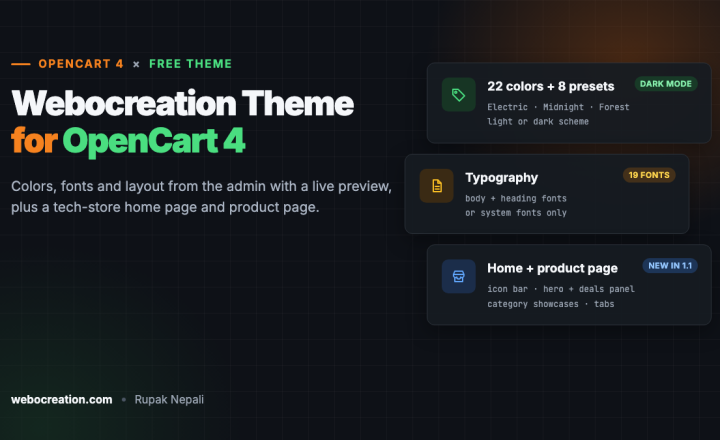
We used this to build the free Webocreation Theme, which restyles OpenCart’s default templates from admin settings. This guide shows the technique, so you can restyle a store with a short stylesheet, and the four problems we ran into on the way, each of which will catch you too.
Check your Bootstrap version
Open catalog/view/stylesheet/bootstrap.css. On OpenCart 4.1.0.4 the first lines say Bootstrap v5.3.8, followed by a :root block of variables such as --bs-body-font-family, --bs-link-color-rgb and --bs-border-radius. Everything below needs 5.3. Older OpenCart 4.0 releases with Bootstrap 5.2 support some of it, but not dark mode or the full set of variables.
Set your design once, as variables
Start with your own variables, then point Bootstrap’s at them. Put this in a stylesheet loaded after OpenCart’s (in a theme, through a header event; in a quick test, at the end of stylesheet.css):
:root {
  --brand: #2f6b4f;
  --brand-rgb: 47, 107, 79;
  --brand-text: #ffffff;
  --brand-dark: #1f4a36;
  --page: #fbfaf6;
  --ink: #2b2b26;
  --ink-rgb: 43, 43, 38;
  --line: #e4e1d6;
  --radius: 10px;
  --font-body: "DM Sans", system-ui, sans-serif;
  --font-heading: "Playfair Display", Georgia, serif;
}

body {
  --bs-body-font-family: var(--font-body);
  --bs-body-bg: var(--page);
  --bs-body-color: var(--ink);
  --bs-body-color-rgb: var(--ink-rgb);
  --bs-link-color: var(--brand);
  --bs-link-color-rgb: var(--brand-rgb);
  --bs-link-hover-color: var(--brand-dark);
  --bs-primary: var(--brand);
  --bs-primary-rgb: var(--brand-rgb);
  --bs-border-color: var(--line);
  --bs-border-radius: var(--radius);
  font-family: var(--font-body);
  background-color: var(--page);
  color: var(--ink);
}

h1, h2, h3, h4, h5, h6 { font-family: var(--font-heading); }
Two details matter. Bootstrap 5.3 builds many colors from the -rgb versions (rgba(var(--bs-link-color-rgb), var(--bs-link-opacity, 1)) for links), so set both the hex and the RGB variable or some links won’t change. And set them on body rather than :root, so they win over OpenCart’s stylesheet without !important.
Buttons have their own variables
Bootstrap 5.3 buttons don’t read --bs-primary. Each button variant defines its own --bs-btn-* variables, so recolor them per variant:
.btn-primary {
  --bs-btn-bg: var(--brand);
  --bs-btn-border-color: var(--brand);
  --bs-btn-color: var(--brand-text);
  --bs-btn-hover-bg: var(--brand-dark);
  --bs-btn-hover-border-color: var(--brand-dark);
  --bs-btn-hover-color: var(--brand-text);
  --bs-btn-active-bg: var(--brand-dark);
  --bs-btn-active-border-color: var(--brand-dark);
  background-image: none;   /* OpenCart's default theme adds a gradient */
}
.btn { --bs-btn-border-radius: 999px; }   /* pill buttons everywhere */
The same applies to pagination (--bs-pagination-active-bg), cards (--bs-card-bg, --bs-card-border-color) and dropdowns (--bs-dropdown-link-active-bg).
Dark mode in one attribute
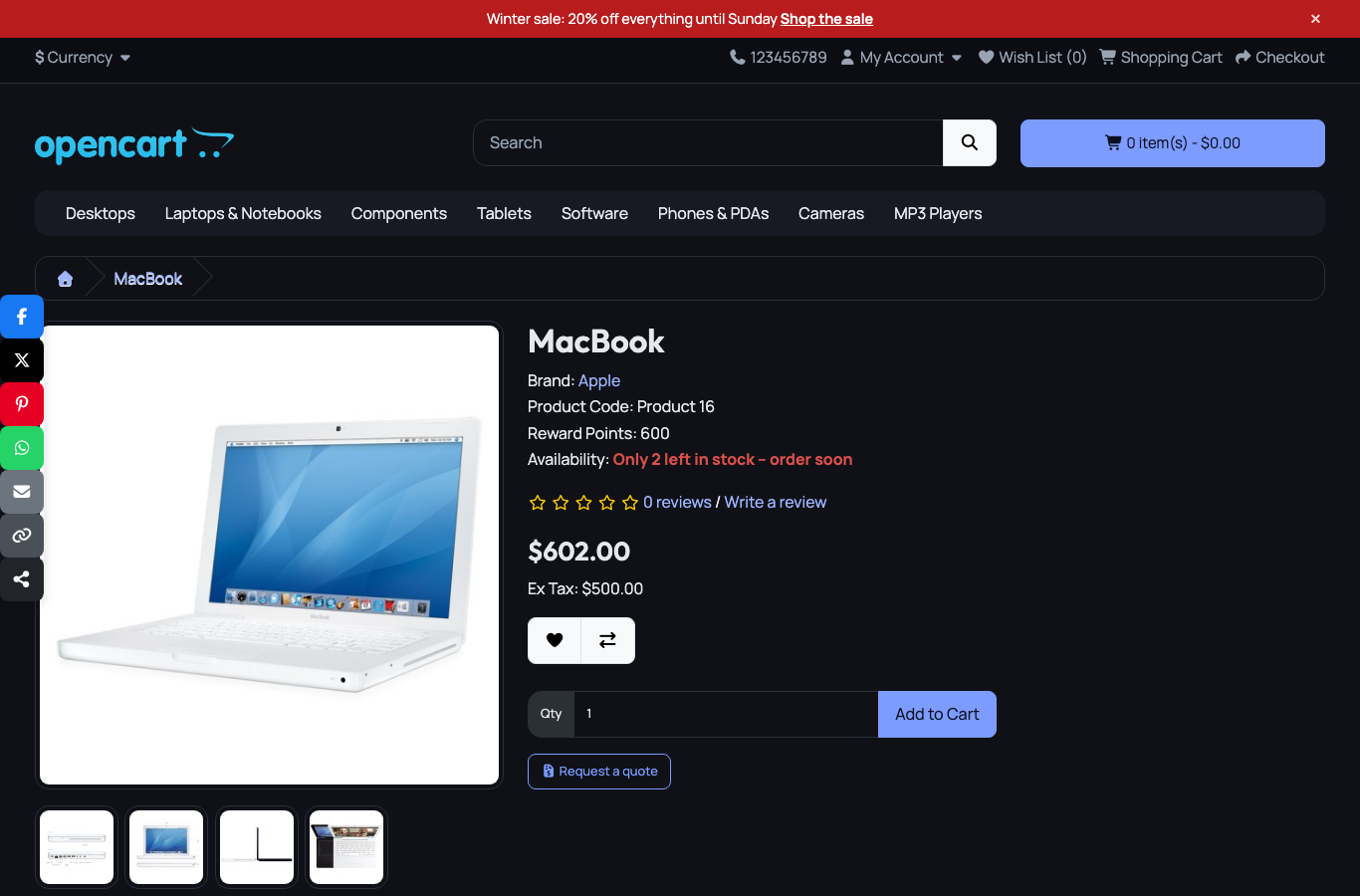
Add data-bs-theme="dark" to the <html> tag and Bootstrap switches its own components to dark: form fields, dropdowns, tables, modals, list groups and cards. That’s the part that usually goes wrong in hand-made dark themes, where a white search box or dropdown appears on a black page. Then set your page, text and region colors on top.
In a theme, add the attribute with a view/common/header/after event:
public function header(string &$route, array &$args, mixed &$output): void {
    $output = preg_replace('/<html([^>]*)>/', '<html$1 data-bs-theme="dark">', $output, 1);
}
data-bs-theme="dark" and a dark palette on top.Four things that will catch you
1. The menu’s bg-primary uses !important
OpenCart’s category menu is <nav id="menu" class="navbar navbar-expand-lg bg-primary">. Bootstrap’s utility classes use !important, and .bg-primary paints the background from --bs-primary-rgb. So #menu { background: #171a23; } does nothing, and the menu always takes your primary color. We only noticed when a dark preset with a light blue primary color gave a light blue menu: in our first test the menu and primary colors were similar greens.
#menu {
  background-color: var(--menu-bg) !important;
  background-image: none;   /* the default theme's gradient */
}
2. Your link color beats button text
A rule like body a { color: var(--brand); } also hits links styled as buttons, such as the category page’s “Product Compare” button (<a class="btn btn-primary">). Its text becomes brand color on a brand-color button: invisible. The obvious fix, body a:not(.btn), creates a second problem: :not(.btn) adds the weight of a class to the selector, so it now beats Bootstrap’s active states and your own footer links. In our test the active category in the sidebar (.list-group-item.active) became green text on a green background.
Use :where(), which matches the same elements but adds no specificity:
body a:where(:not(.btn)) { color: var(--brand); }Now buttons are excluded, and anything more specific, such as .list-group-item.active or footer a, still wins.
3. A sticky menu needs a sticky wrapper
#menu { position: sticky; top: 0; } looks right and does nothing. A sticky element only sticks within its parent, and OpenCart wraps the menu in its own <div class="container">, exactly as tall as the menu. There’s no room to stick. Make the wrapper sticky instead; :has() selects it without editing the template:
main > .container:has(> #menu) {
  position: sticky;
  top: 0;
  z-index: 1020;
}
The header (logo, search and cart) has no such wrapper: header { position: sticky; top: 0; } works as is.
4. Hidden buttons leave gaps
Product cards in the default theme give each of the three buttons (cart, wishlist, compare) a fixed width: 33.33%. Hide two and the cart button sits in a third of the row. Make the row a flex container and let the buttons share it:
.product-thumb .button { display: flex; }
.product-thumb .button button { flex: 1 1 0; width: auto; }
.product-thumb .button button[formaction*="wishlist"] { display: none; }
Matching on formaction also catches the wishlist button on the product page, which has a different class and isn’t inside .product-thumb.
Packaging it as a theme extension
An OpenCart 4 theme extension doesn’t need to copy any templates. The official example theme shows the pattern: a startup action that checks whether the store’s theme is yours, and registers events only then.
class Mytheme extends \Opencart\System\Engine\Controller {
    public function index(): void {
        if ($this->config->get('config_theme') != 'mytheme' || !$this->config->get('theme_mytheme_status')) {
            return;
        }

        $this->event->register('view/common/header/after',
            new \Opencart\System\Engine\Action('extension/mytheme/startup/mytheme.header'));
    }

    public function header(string &$route, array &$args, mixed &$output): void {
        $css = '<link href="' . $this->config->get('config_url')
             . 'extension/mytheme/catalog/view/stylesheet/mytheme.css" rel="stylesheet">';

        $output = str_replace('</head>', $css . '</head>', $output);
    }
}
The theme’s admin controller adds the startup on install with model_setting_startup->addStartup() (action catalog/extension/mytheme/startup/mytheme) and removes it on uninstall. Once installed, the theme appears in System > Settings > edit store > General > Theme, with the preview image from extension/mytheme/admin/view/image/mytheme.png.
Two properties make this safe. The storefront core never reads config_theme itself, so when the store is set back to the default theme, your startup does nothing and the store looks exactly as before; we checked, and no trace of the theme was left on the page. And because you style OpenCart’s own templates rather than replacing them, every extension that adds to those templates keeps working.
To make colors adjustable from the admin, print the settings as variables in the same header event:
$output = str_replace('</head>',
    '<style>:root{--brand:' . $brand . ';--radius:' . (int)$radius . 'px}</style></head>', $output);
Validate every value before it goes into CSS: hex colors against /^#[0-9a-f]{6}$/i, numbers cast and limited, fonts from a fixed list. If you accept free-form custom CSS, make sure it can’t contain </style, or an admin user (or someone with a stolen admin password) can inject a script into every page.
Fonts
Load web fonts with one Google Fonts request for exactly the families and weights you use, with display=swap and preconnect hints:
<link rel="preconnect" href="https://fonts.googleapis.com">
<link rel="preconnect" href="https://fonts.gstatic.com" crossorigin>
<link href="https://fonts.googleapis.com/css2?family=DM+Sans:wght@400;600;700&family=Playfair+Display:wght@400;600;700&display=swap" rel="stylesheet">
Or skip downloads entirely with a system font stack (system-ui, -apple-system, "Segoe UI", Roboto, sans-serif, or Georgia, serif for a serif look). It costs nothing in speed and sends nothing to Google, which some privacy rules prefer.
Summary
- OpenCart 4.1 uses Bootstrap 5.3.8: restyle it through
--bs-*variables set onbody, including the-rgbversions. - Buttons, pagination, cards and dropdowns have their own component variables.
data-bs-theme="dark"on<html>makes Bootstrap’s components dark; add your palette on top.- Override the menu’s
bg-primarywith!important, wrap link rules in:where(), make the menu’s container sticky, and flex the product card buttons. - Package it as a theme extension with a startup action and a header event: no template copies, safe to switch off.
Or install the Webocreation Theme, which does all of this with settings and a live preview. More on theme building in how to develop an OpenCart 4 custom theme and the OpenCart 4 Theme Editor.

Rupak Nepali is a web developer, manage Webocreation website and the author of six books:
Getting Started with OpenCart Module Development (Packt, 2013),
OpenCart Theme and Module Development (Packt, 2015),
OpenCart 4: Dev Guide for Themes & Extensions (2024),
OpenCart 4: User Manual (2025),
Cloudflare for the Enterprise Website (2026) and
The Technical Web Guide for Marketers (2026).
Rupak has built OpenCart stores and extensions since 2010, has published more than 600 tutorials on Webocreation, and shares free OpenCart extensions on GitHub.
Find Rupak on
GitHub | Amazon | LinkedIn | X | YouTube.