Pre-orders for OpenCart 4: A Pre-order Button, Ship Date and Checkout for Sold-Out Products (Free Extension)
A free OpenCart 4 extension that turns sold-out products you will restock into pre-orders, with a ship date, checkout for those products only and the promise recorded on the order.
 Rupak NepaliPublished Nov 24, 2026
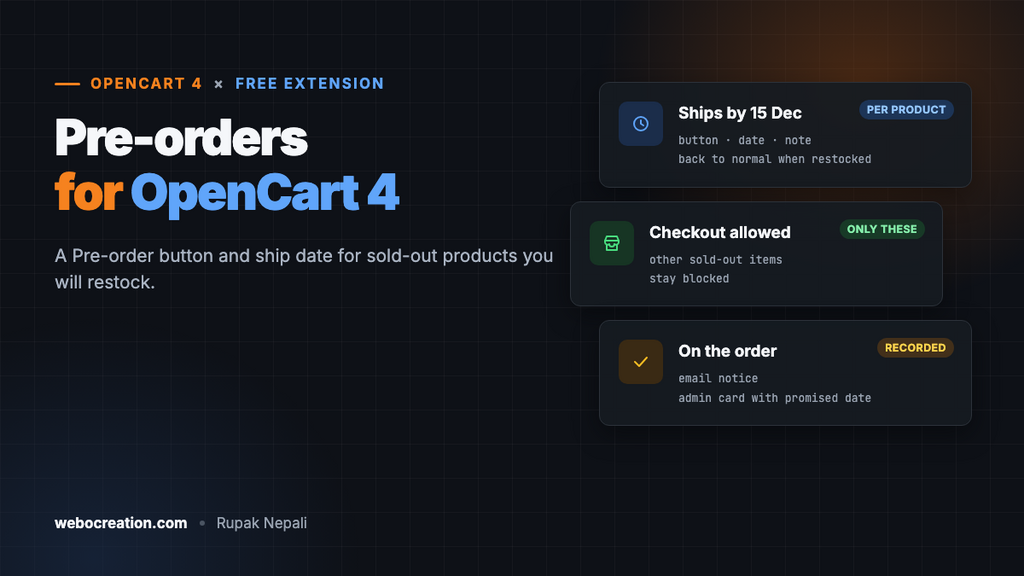
When a product sells out, OpenCart 4 gives you two choices. Block checkout for out-of-stock products, and customers who want the next batch leave. Or allow it (System > Settings > Option > Stock Checkout: Yes), and every out-of-stock product in the store can be bought, including the ones you’ll never restock. You can rename the stock status to “Pre-Order”, but the button still says Add to Cart, nobody is told when the item ships, and nothing on the order shows it was a pre-order.
The free Pre-order extension adds the missing layer. You switch pre-order on for the products you’ll restock and give them an expected ship date. When they run out, they show a Pre-order now button and “Ships by” date, they can be checked out even while the store blocks other out-of-stock products, and the order, the confirmation email and the admin order page all record which lines were pre-ordered and what date the customer was promised.
Download Pre-order for OpenCart 4 (free, tested on OpenCart 4.1.0.4).
What the opencart pre-order extension adds
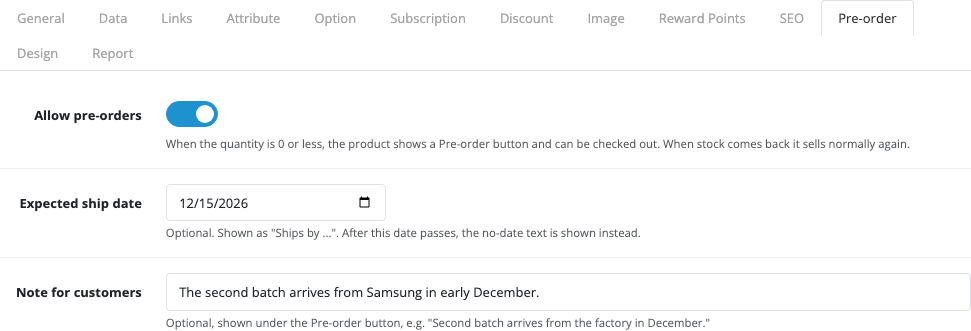
- Per-product switch, date and note on a new Pre-order tab in Catalog > Products > edit.
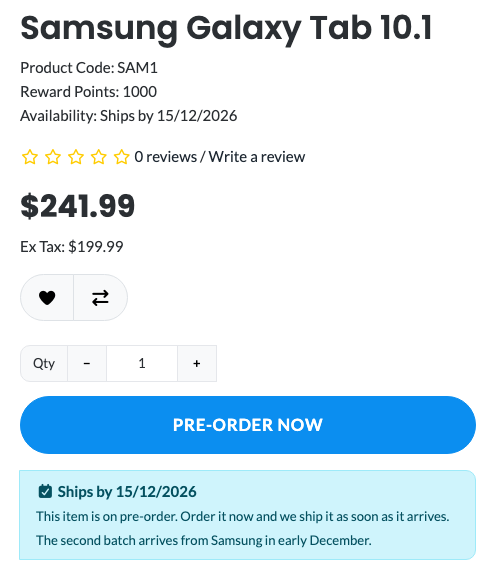
- Product page: the button says Pre-order now (your wording), Availability shows “Ships by 15/12/2026”, and a notice with your note appears under the button.
- Product cards in categories, search and modules show a Pre-order badge with the ship date.
- Checkout for pre-order products only: with Stock Checkout set to No, customers can check out with pre-order products, but a cart that also holds a normal out-of-stock product is still blocked, exactly as before.
- Cart, email and admin: the cart line shows the ship date, the order confirmation email gets a “Pre-order items” box, and the admin order page lists the pre-ordered lines with the promised date.
- Automatic switch back: pre-order only applies while the quantity is 0 or less. When you receive stock, the product sells normally again without touching the setting.
- Overview: the extension’s settings page lists every product with pre-order on, its stock, ship date and how many units were pre-ordered.
Install
- Go to Extensions > Installer, upload
preorder.ocmod.zipand click the green + button. - Go to Extensions > Extensions, choose Modules, install Pre-order, click the pencil, turn Status on and save.
- Open a product in Catalog > Products, go to the Pre-order tab, switch on Allow pre-orders, pick an expected ship date if you have one, and save.
- Leave System > Settings > Option > Stock Checkout at No if you only want pre-order products to be sold when stock runs out. The extension’s settings page tells you which mode your store is in.
Settings
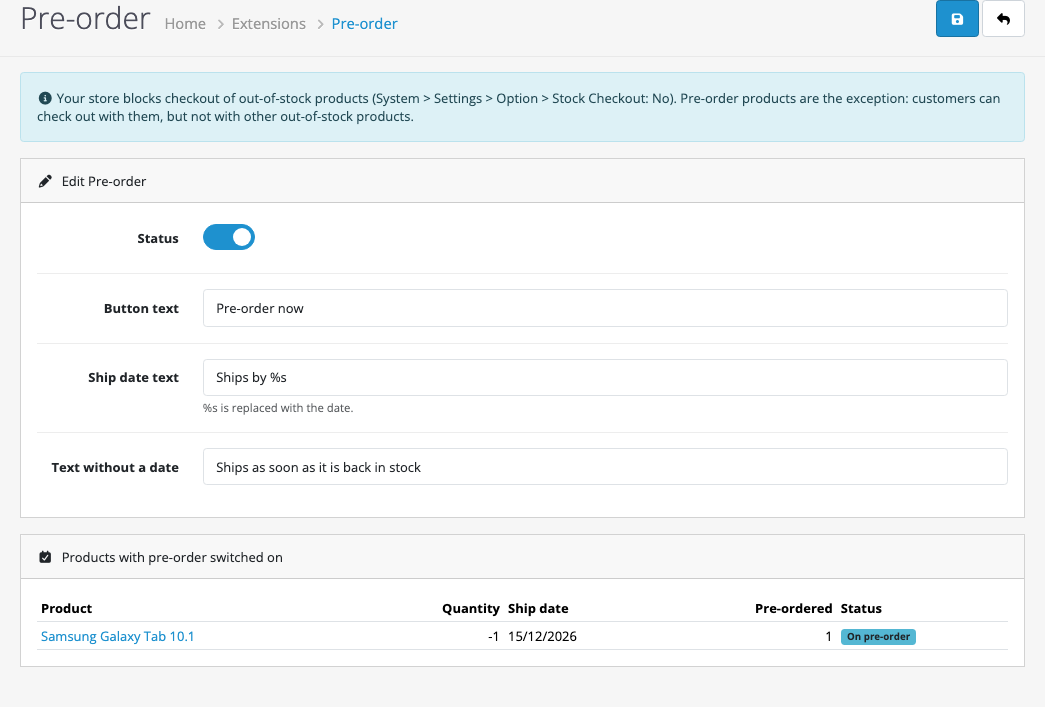
- Button text: what the cart button says, for example “Pre-order now” or “Reserve yours”.
- Ship date text: must contain
%s, which becomes the date in your store’s short date format. - Text without a date: shown when a product has no date, or when its date has passed, so you never show a ship date in the past.
What customers see
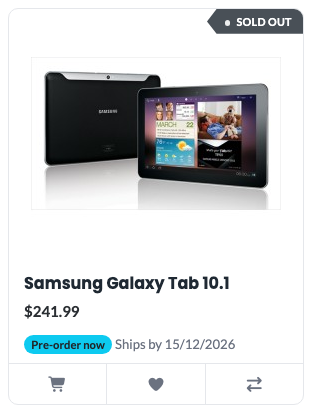
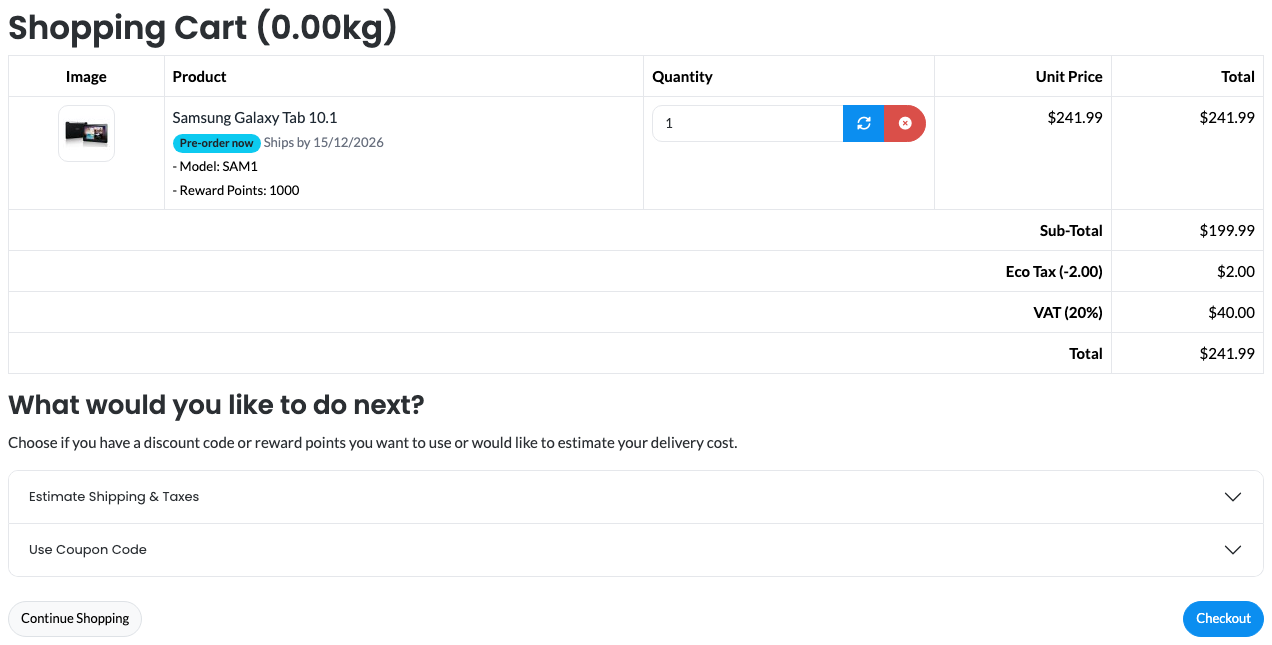
In the order confirmation email, a blue box above the product table says “Pre-order items. These items are on pre-order. We ship them as soon as they arrive:” followed by each product and its date. On the admin order page, a Pre-order items card lists the lines and the date that was shown to the customer when they ordered, even if you change the product’s date later.

How it works
OpenCart checks the Stock Checkout setting 12 times across eight checkout controllers (cart, register, addresses, shipping and payment methods, confirm). Rather than change each one, the extension registers a startup action that runs on every storefront request after the cart is loaded. If the store blocks out-of-stock checkout and every out-of-stock line in this cart is an active pre-order, it allows checkout for this request only:
public function startup(): void {
    if (!$this->config->get('module_preorder_status') || $this->config->get('config_stock_checkout') || !$this->cart->hasProducts()) {
        return;
    }

    $out_of_stock = [];

    foreach ($this->cart->getProducts() as $product) {
        if (!$product['stock']) {
            $out_of_stock[] = (int)$product['product_id'];
        }
    }

    if ($out_of_stock && count($this->active($out_of_stock)) == count(array_unique($out_of_stock))) {
        $this->config->set('config_stock_checkout', 1);
        // Also hides the "not in stock" warning and the *** on the cart page for these lines.
        $this->config->set('config_stock_warning', 0);
    }
}
The setting in your database never changes, so a cart with a normal out-of-stock product is still blocked by OpenCart’s own checks. The other parts are events: catalog/view/product/product/before changes the button text and availability, catalog/model/checkout/order.addOrder/after saves the pre-order lines, and view events add the badge, cart label, email box and admin card. No core files are edited.
What we tested
- The demo store’s Samsung Galaxy Tab 10.1 already has quantity 0 and the “Pre-Order” stock status, with Stock Checkout set to No. Before the extension, checkout was blocked. With pre-order switched on, a guest checkout with Cash On Delivery went through to the success page. The order saved the pre-order line with the 15/12/2026 date, and the confirmation email arrived with the pre-order box.
- The same cart plus a second out-of-stock product without pre-order: checkout sent us back to the cart with OpenCart’s “Products marked with *** are not available” warning.
- Quantity set to 5: the product page showed Add to Cart again and no notice.
- Saving the settings with a ship text without
%swas refused with an error.
Things to know
- Stock goes negative. OpenCart subtracts stock for every order, so after three pre-orders the quantity is -3. That is your pre-order count. When the shipment arrives, add it to that number (receiving 50 units makes the quantity 47).
- Payment is taken at checkout with whatever payment method the customer picks. OpenCart has no “charge when it ships” option, so say so in your note or terms if you take card payments for pre-orders.
- Badges from other extensions still apply. If you use our Product Badges extension, its Sold Out badge still appears on pre-order products, so you may want to turn that badge off.
- Pre-order follows the product quantity, not option stock. If a product still has stock but one option value (say, size M) is sold out, that line is treated like any other out-of-stock line.
Related
- Back-in-stock notifications for products you don’t want to sell before they arrive.
- Product availability on product cards: show In stock, quantity or your stock status names on every listing.
- Estimated delivery date for products that are in stock.

Rupak Nepali is a web developer, manage Webocreation website and the author of six books:
Getting Started with OpenCart Module Development (Packt, 2013),
OpenCart Theme and Module Development (Packt, 2015),
OpenCart 4: Dev Guide for Themes & Extensions (2024),
OpenCart 4: User Manual (2025),
Cloudflare for the Enterprise Website (2026) and
The Technical Web Guide for Marketers (2026).
Rupak has built OpenCart stores and extensions since 2010, has published more than 600 tutorials on Webocreation, and shares free OpenCart extensions on GitHub.
Find Rupak on
GitHub | Amazon | LinkedIn | X | YouTube.