Product Image Zoom for OpenCart 4: Hover Zoom, Thumbnail Switching and a Large Popup (Free Extension)
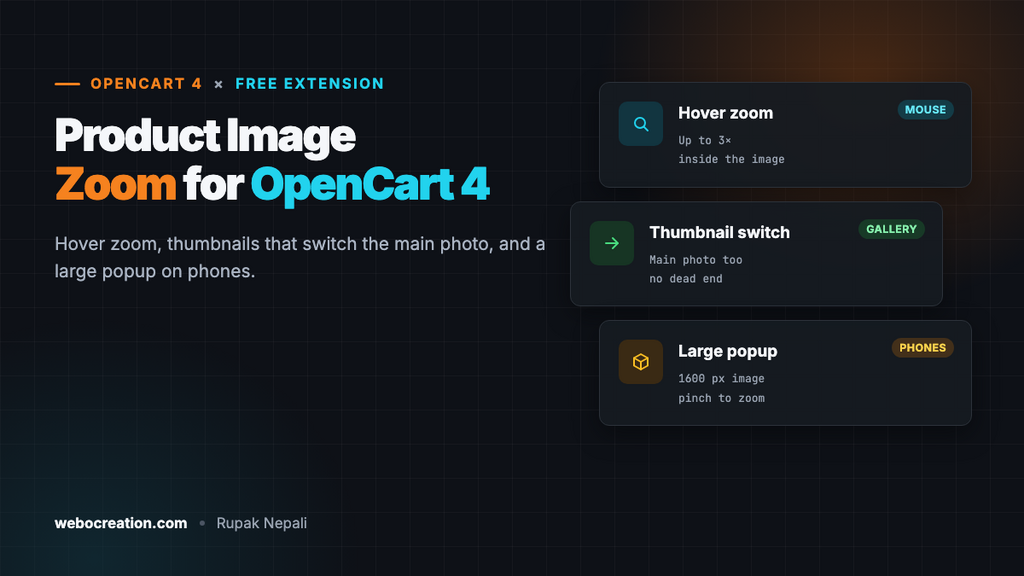
Add product image zoom to OpenCart 4: hover zoom inside the main image, thumbnails that switch the main photo, and a popup with large images that phone users can pinch to zoom.
 Rupak NepaliPublished Nov 24, 2026
Shoppers can’t pick up your product, so they zoom in: on the fabric, the label, the ports on the back. OpenCart 4 shows the main product image at 500 × 500 px and opens a popup at 800 × 800 px by default, so fine print stays blurry no matter how good your original photo is. Clicking a thumbnail opens the popup instead of changing the main image, which also makes comparing photos slow. There is no product image zoom at all.
This free extension adds product image zoom to OpenCart 4: hover over the main image on a computer to see that spot enlarged inside the image box, click thumbnails to switch the main image, and get a popup that shows the large version of each photo, which phone users can pinch to zoom. Tested on OpenCart 4.1.0.4 with the Webocreation Theme.
Download: imagezoom.ocmod.zip (OpenCart 4.0.2.x to 4.1.x, free, no core file changes)
What the product image zoom extension does
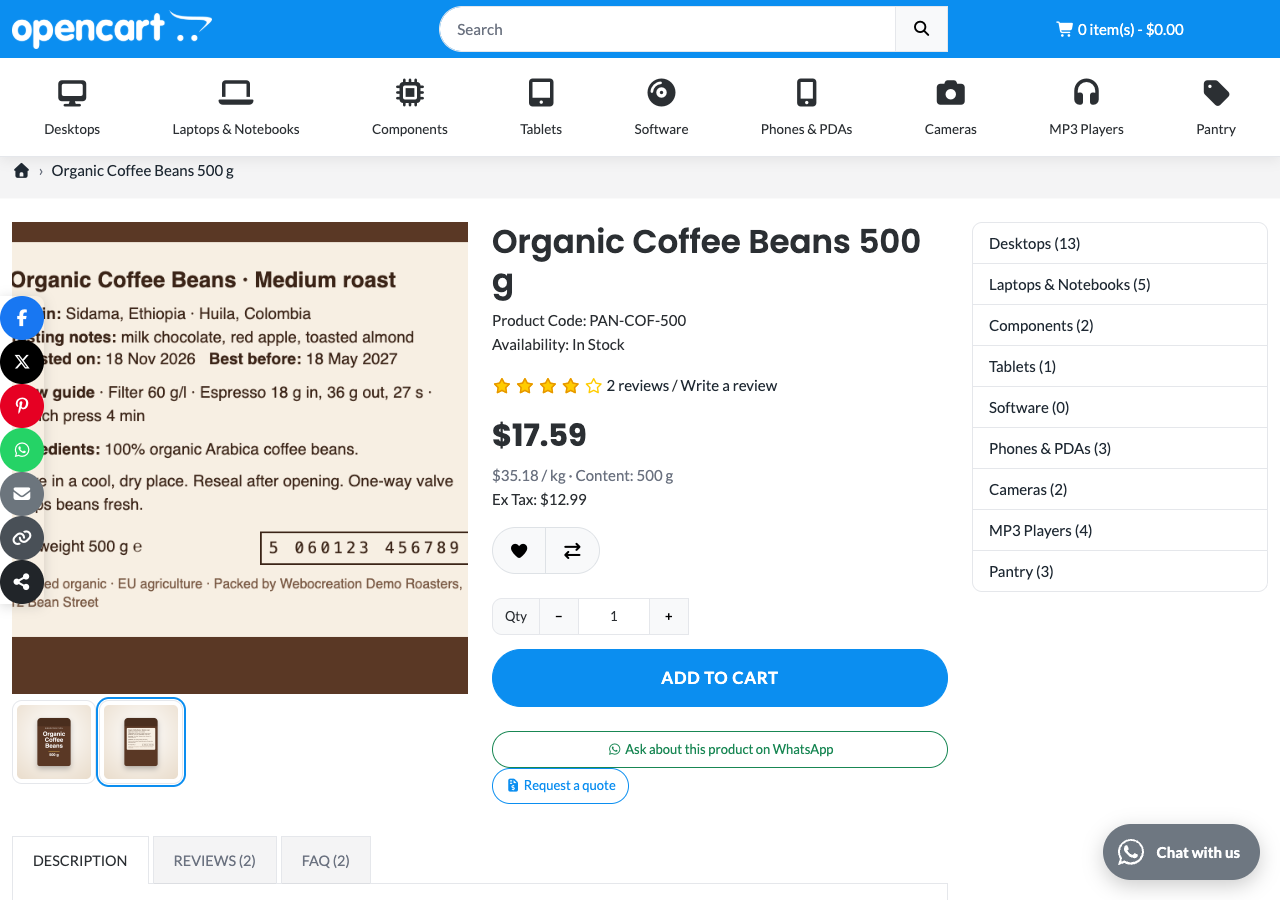
- Hover zoom on computers: the area under the mouse is shown enlarged inside the main image, up to 3 times the shown size.
- Thumbnails switch the main image instead of opening the popup, and a thumbnail of the main photo is added so shoppers can get back to it.
- A large popup: clicking the main image opens OpenCart’s own popup (Magnific Popup) with a large version of each photo, in gallery order, starting at the photo you were looking at.
- Touch screens skip hover zoom and use the popup, where the browser’s pinch zoom works on the large image.
- Large originals are scaled down once to your chosen size (1600 px by default) and cached like every other OpenCart image. Smaller originals are used as they are.
Install the extension
- Download
imagezoom.ocmod.zip. - Go to Extensions > Installer, click Upload and choose the zip.
- Go to Extensions > Extensions, choose Modules, find Product Image Zoom and click Install.
- Click Edit, switch Status on and click Save.
Settings
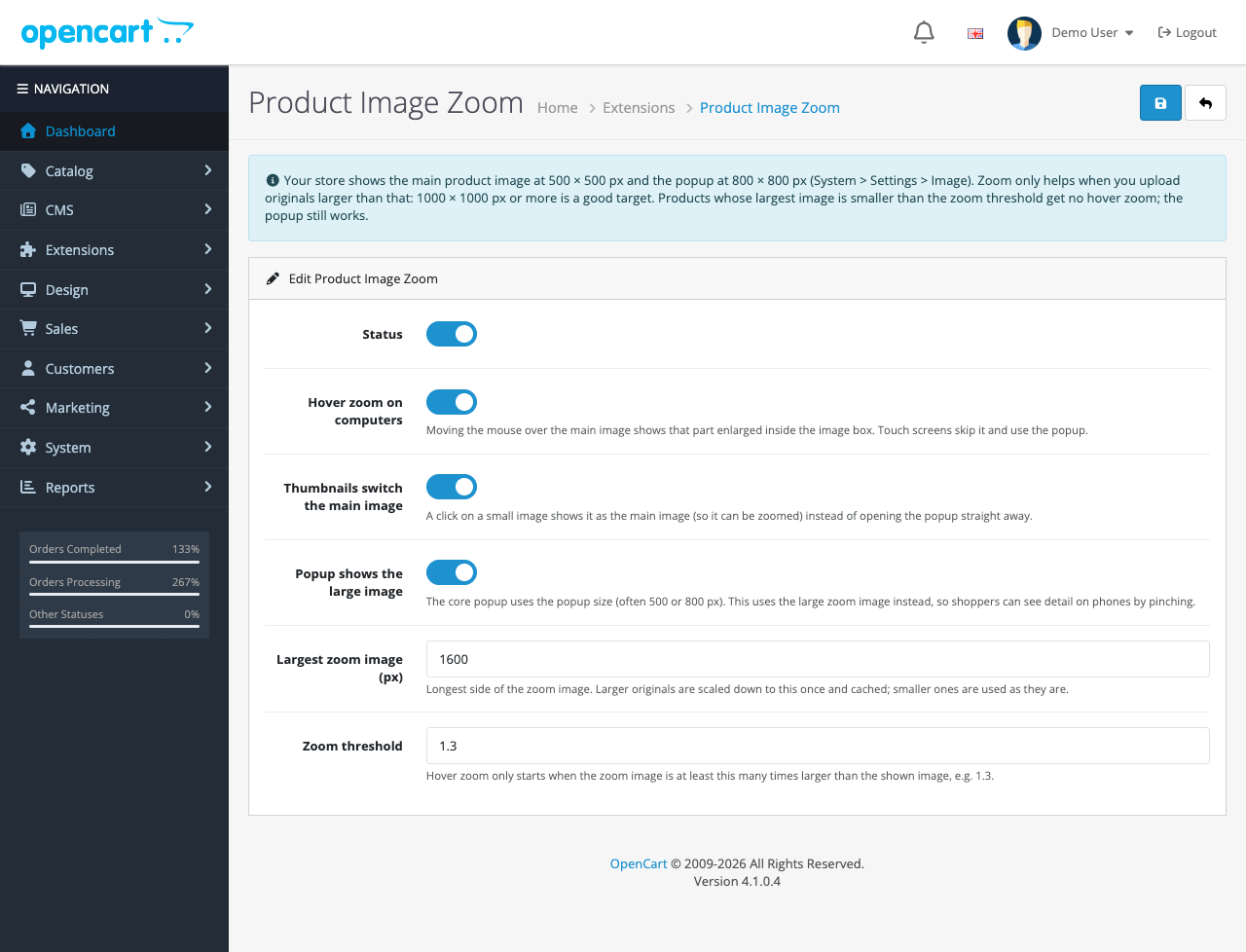
- Hover zoom on computers: on or off.
- Thumbnails switch the main image: on or off. Off keeps OpenCart’s behavior (thumbnails open the popup), but the popup still uses the large images.
- Popup shows the large image: replaces the 800 px popup with the zoom image.
- Largest zoom image: 800 to 4000 px on the longest side.
- Zoom threshold: hover zoom only starts when the zoom image is at least this many times bigger than the shown picture (1.3 by default). Small photos get no zoom, because enlarging a 600 px image just shows blur.
Zoom needs big photos
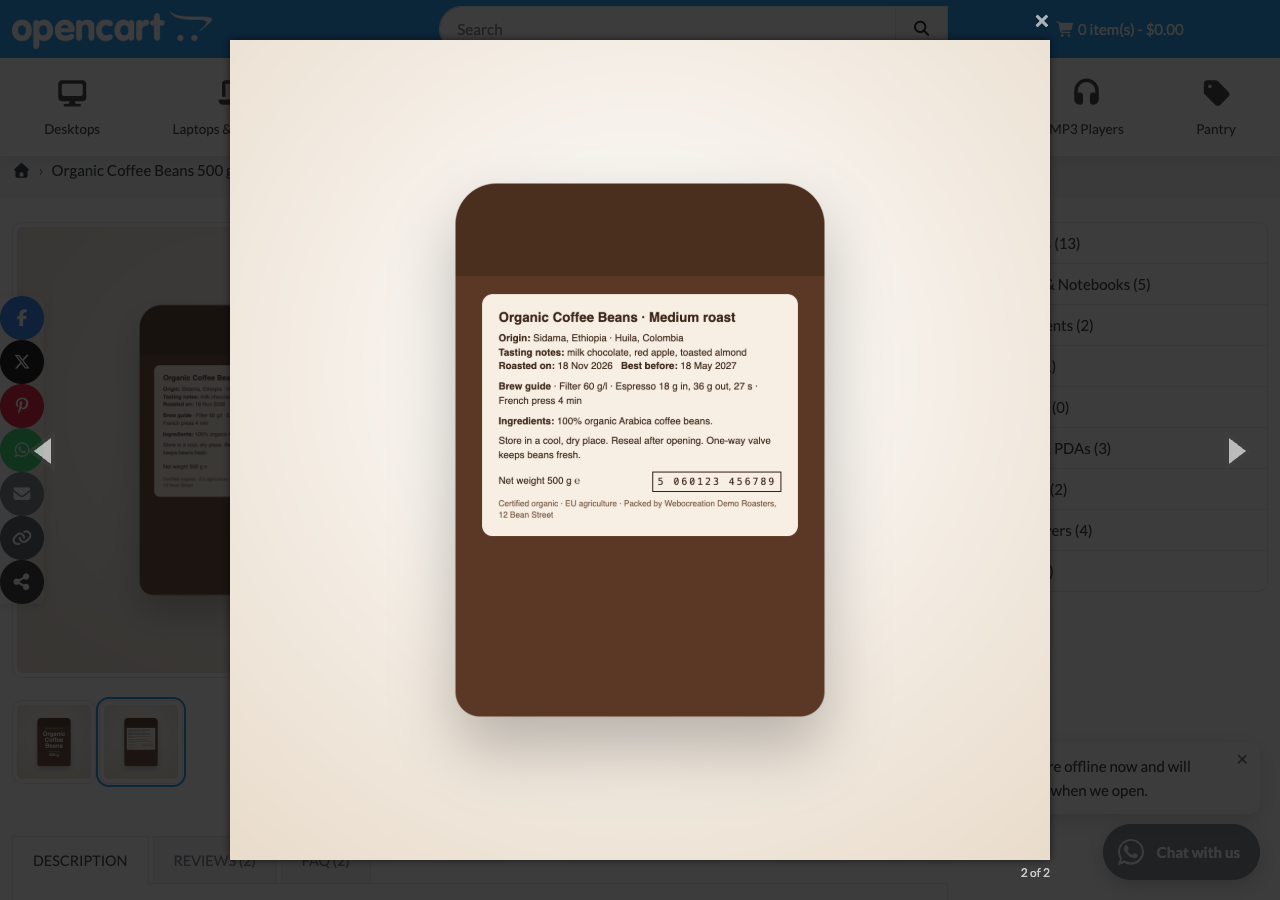
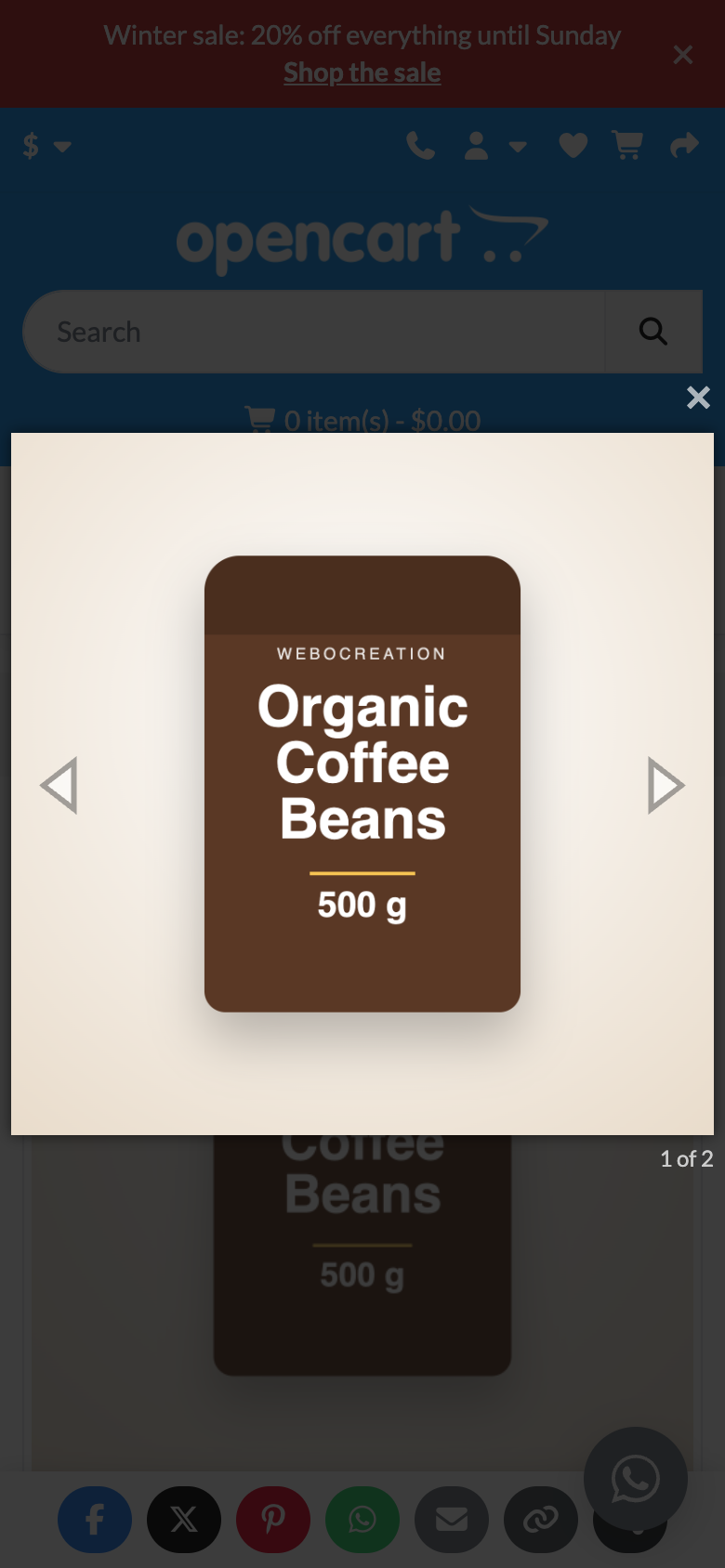
The extension can only show detail that’s in the original file. The OpenCart demo images are 720 × 540 px, so on a 500 px product box there is only 1.44 times more to see. For this test we uploaded 1600 × 1600 px photos of a coffee bag, front and back. As a rule of thumb, upload product photos at least twice your Product Image Thumb Size (System > Settings > Image), so 1000 px or more for the default 500 px.
How it works
A catalog/view/product/product/after event adds a small script with the list of photos (main size, popup size, thumbnail and zoom image with its width and height). Zoom image URLs come from this function, which keeps each photo’s shape:
private function zoomImage(string $path, int $max): ?array {
    $file = DIR_IMAGE . html_entity_decode($path, ENT_QUOTES, 'UTF-8');

    if (!$path || !is_file($file) || !($info = @getimagesize($file))) {
        return null;
    }

    [$width, $height] = $info;

    if (max($width, $height) > $max) {
        $scale = $max / max($width, $height);
        $width = (int)round($width * $scale);
        $height = (int)round($height * $scale);

        $url = $this->model_tool_image->resize(html_entity_decode($path, ENT_QUOTES, 'UTF-8'), $width, $height);
    } else {
        $url = $this->config->get('config_url') . 'image/' . str_replace(' ', '%20', html_entity_decode($path, ENT_QUOTES, 'UTF-8'));
    }

    return ['url' => $url, 'w' => $width, 'h' => $height];
}
OpenCart’s own popup is bound to the image box with jQuery and listens for clicks on the links inside it. The extension listens on the same box in the capture phase, which runs first, so it can decide what a click does and stop the core handler from opening a second popup:
  // Capture phase, so the core magnificPopup handler on the same box never sees these clicks.
  box.addEventListener('click', function (e) {
    var a = e.target.closest('a[data-iz]');
    if (!a) return;
    var key = a.getAttribute('data-iz');
    var index = key === 'main' ? current : parseInt(key, 10);
    if (!cfg.items[index]) return;
    if (key !== 'main' && cfg.swap) {
      e.preventDefault(); e.stopPropagation();
      setMain(index);
      return;
    }
    if (openPopup(index)) { e.preventDefault(); e.stopPropagation(); }
  }, true);
Hover zoom is a background image on an overlay inside the main image link. The script works out where the picture sits inside the white square OpenCart pads it to, so the zoom follows the mouse correctly on wide and tall photos.
What we found when testing
- The main photo had no thumbnail. OpenCart lists only the additional images as thumbnails. Once a thumbnail replaced the main image, there was no way back to the front of the bag. The extension now adds a thumbnail of the main photo when switching is on.
- Native size was too much. Showing the 1600 px image at full size over a 448 px picture is a 3.6× jump that makes the zoom jerk with every mouse move. We capped it at 3× the shown picture.
- Phones. With touch emulation on, no hover overlay was created and a tap opened the popup with the 1600 px image.
- The MacBook demo product (720 px originals) still zooms, at 1.44×, because that’s above the 1.3 threshold.
Limitations
- Themes that replace the product image markup (no
.image.magnific-popupbox) need a small change to the selector. - Product option images (for example a color swatch that changes the photo) aren’t part of the zoom gallery.
- Very large originals take a moment the first time a zoom image is created; after that it’s cached in
image/cache.
Related posts
- Swap image on hover for OpenCart 4 product cards
- Product video for OpenCart 4
- Core Web Vitals for OpenCart themes
- Product quick view for OpenCart 4

Rupak Nepali is a web developer, manage Webocreation website and the author of six books:
Getting Started with OpenCart Module Development (Packt, 2013),
OpenCart Theme and Module Development (Packt, 2015),
OpenCart 4: Dev Guide for Themes & Extensions (2024),
OpenCart 4: User Manual (2025),
Cloudflare for the Enterprise Website (2026) and
The Technical Web Guide for Marketers (2026).
Rupak has built OpenCart stores and extensions since 2010, has published more than 600 tutorials on Webocreation, and shares free OpenCart extensions on GitHub.
Find Rupak on
GitHub | Amazon | LinkedIn | X | YouTube.