Staff Order Notes for OpenCart 4: Private Team Notes, a Pinned Note and a Badge in the Order List (Free Extension)
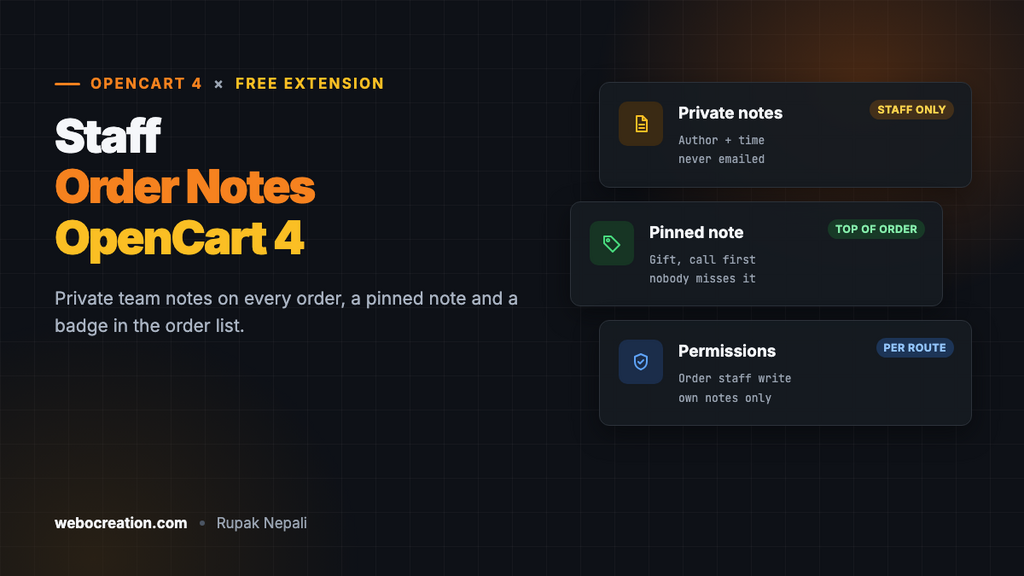
Private notes for your team on every OpenCart 4 order, with author and time, one pinned note at the top of the order and a note badge in the order list. Customers never see them.
 Rupak NepaliPublished Nov 26, 2026
“The customer called, deliver after 5 pm.” “Don’t put the invoice in the box, it’s a gift.” “Packed, waiting for the courier.” Every store team has messages like these, and in OpenCart they usually end up in an email thread, a sticky note on a monitor, or worse, in the order history, where they change the order status and can show up on the customer’s order page.
This free extension adds staff order notes to OpenCart 4: private notes on every order that only your team can see, with who wrote them and when, one pinned note shown at the top of the order, and a note badge in the order list. Customers never see them and they’re never emailed. Tested on OpenCart 4.1.0.4.
Download: ordernotes.ocmod.zip (OpenCart 4.0.2.x to 4.1.x, free, no core file changes)
Why not use the order history comment?
OpenCart’s order history looks like the place for notes, but it was built to talk to the customer:
- Every history entry is an order status change. To add a comment you pick a status, and the history event runs again (stock, emails, fraud checks and any extension listening to it).
- The customer’s order page lists every history entry. With Notify off, the comment text is hidden, but the status line and date still appear for the customer. We checked this in the 4.1.0.4 code:
account/orderloads all history rows and only blanks the comment when notify is off. - History entries can’t be edited, deleted or pinned, and they don’t say which staff member wrote them.
Staff order notes live in their own table, so none of that applies.
What the staff order notes extension does
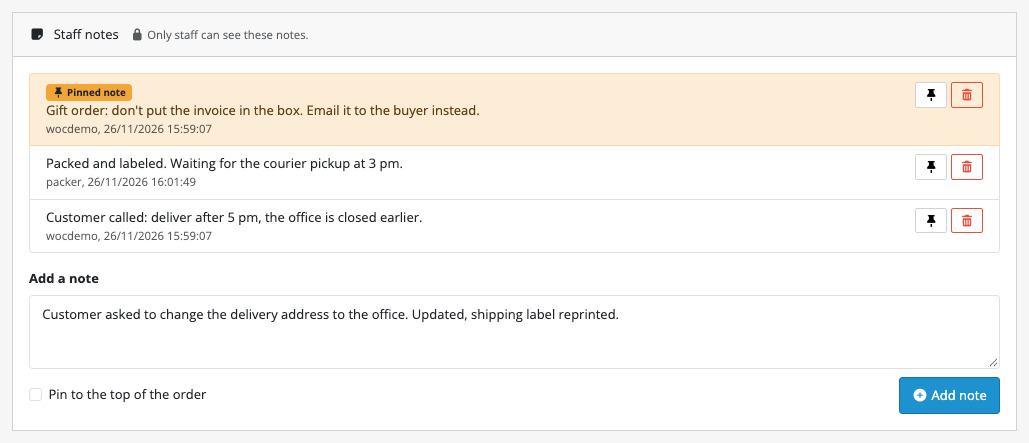
- Notes card on every order, above the History card: the note, the staff username and the date and time. Add a note without leaving the page.
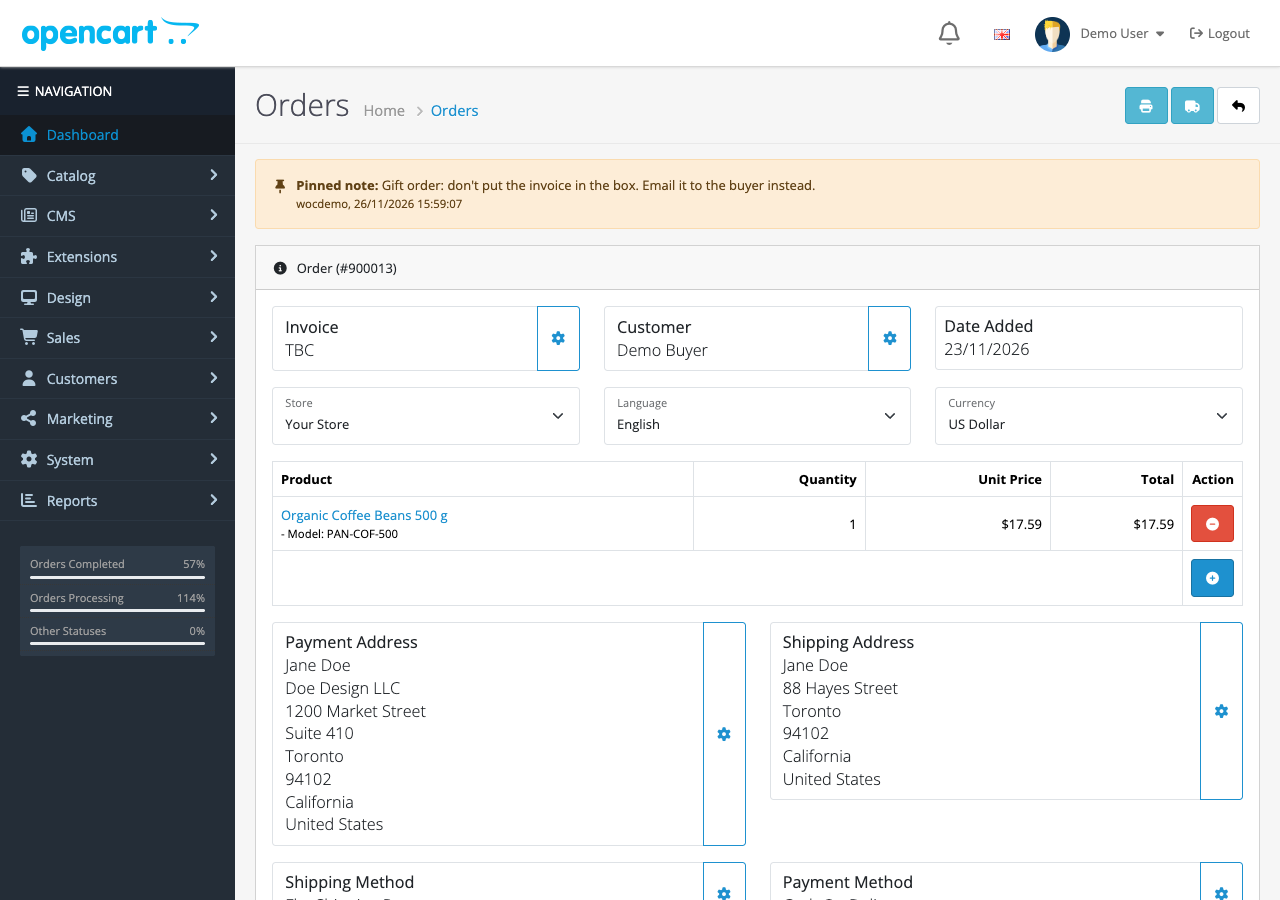
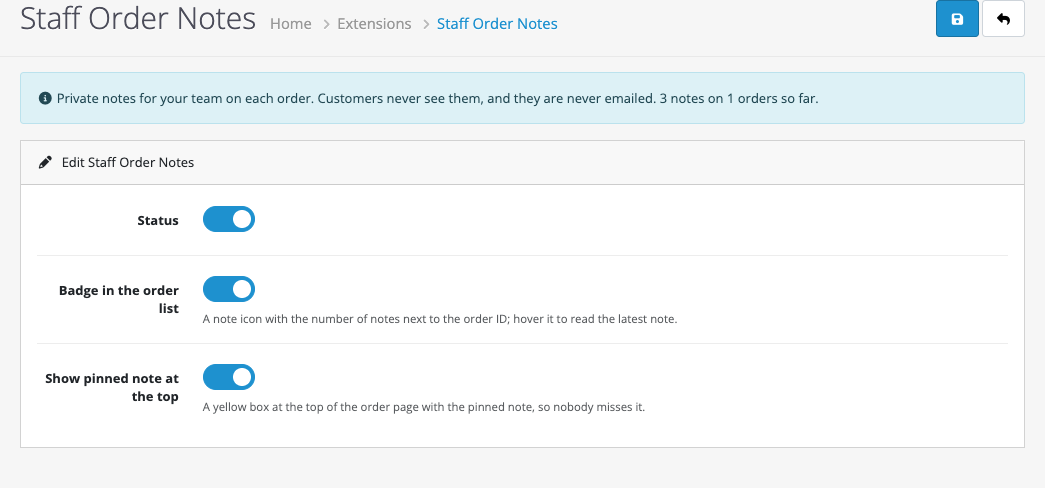
- Pinned note: tick “Pin to the top of the order” and the note appears in a yellow box above the order details, so nobody packs the order without reading it. One pinned note per order; pinning another replaces it.
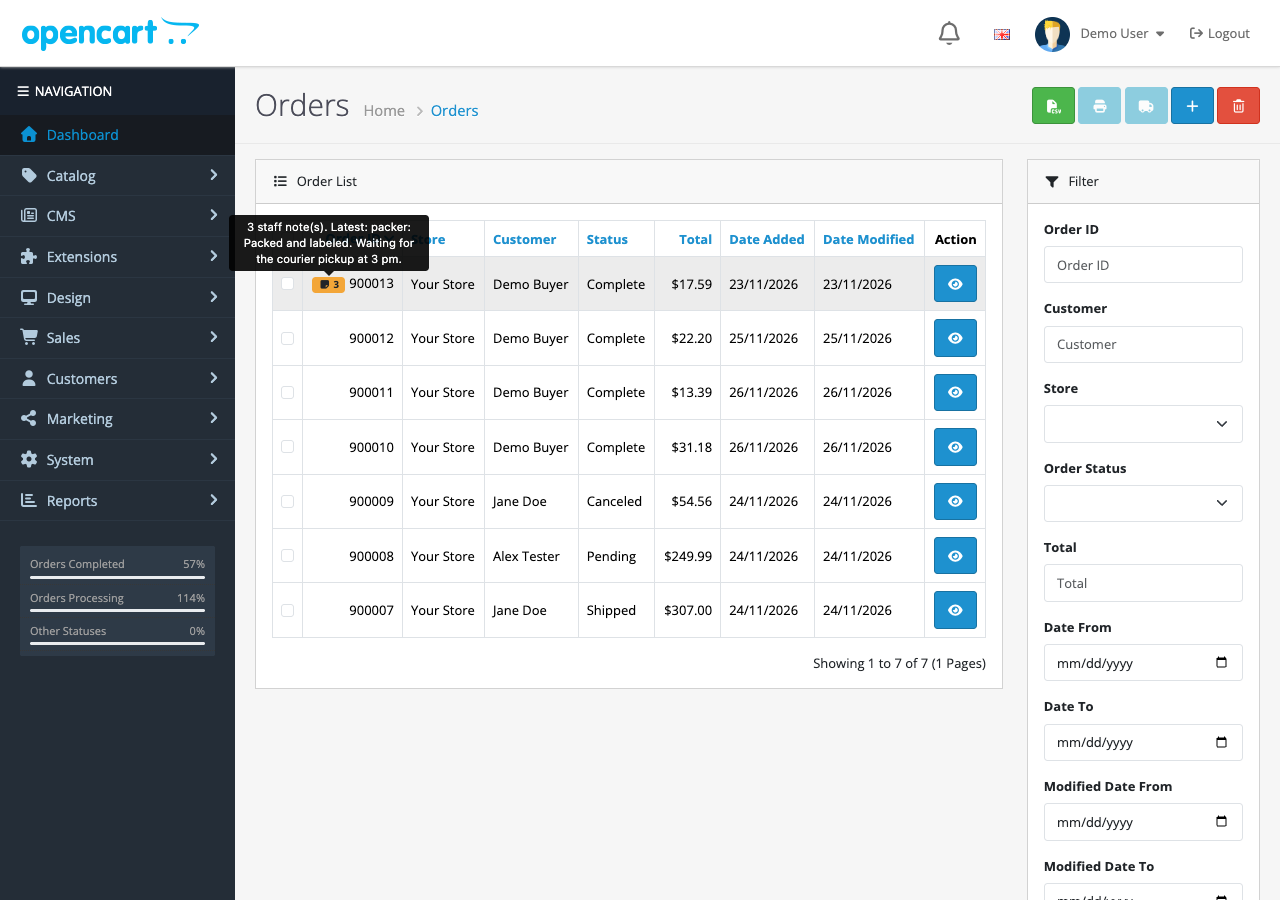
- Badge in the order list: a note icon with the number of notes next to the order ID. Hover it to read the latest note and who wrote it.
- Delete rules: staff can delete their own notes. Users who can change the extension’s settings can delete anyone’s.
- Private: notes are never shown on the storefront and never added to emails.
Install the extension
- Download
ordernotes.ocmod.zip. - Go to Extensions > Installer, click Upload and choose the zip.
- Go to Extensions > Extensions, choose Modules, find Staff Order Notes and click Install.
- Click Edit, switch Status on and click Save.
Permissions: which staff can write notes
OpenCart checks an access permission for every admin route, including the small requests behind an “Add note” button. In our first build the notes lived in the extension’s settings controller, and a test user in an “Order staff” group (access and modify on Sales > Orders only) got “Permission Denied” on every click. Giving order staff access to the extension’s settings page just to write notes wasn’t a good answer.
So the notes run on their own route, extension/ordernotes/sale/note, and the installer gives it to every user group that can already modify orders:
// Every user group that can modify orders may use the notes (OpenCart checks access per route).
$this->load->model('user/user_group');

foreach ($this->model_user_user_group->getUserGroups() as $user_group) {
    $permission = $user_group['permission'] ? json_decode($user_group['permission'], true) : [];

    if (in_array('sale/order', $permission['modify'] ?? [])) {
        $this->model_user_user_group->addPermission((int)$user_group['user_group_id'], 'access', 'extension/ordernotes/sale/note');
        $this->model_user_user_group->addPermission((int)$user_group['user_group_id'], 'modify', 'extension/ordernotes/sale/note');
    }
}
If you add a user group later, or want a group to read notes but not write them, edit it in System > Users > User Groups and tick extension/ordernotes/sale/note under Access (read) and Modify (write). The settings page stays under extension/ordernotes/module/ordernotes, so you decide separately who can change the settings and delete other people’s notes.
How it works
Two events, no core changes. admin/view/sale/order_info/after adds the card above the History card and the pinned note above the first card. If a theme or another extension has changed the order page so much that the History card can’t be found, the card goes at the top of the content instead:
// Put the card above the History card; if a theme changed the page, add it at the top of the content.
$marker = strpos($output, 'fa-solid fa-comment"></i> ');
$start = $marker !== false ? strrpos(substr($output, 0, $marker), '<div class="card mb-3">') : false;

if ($start !== false) {
    $output = substr_replace($output, $card, $start, 0);
} else {
    $output = str_replace('<div id="content">', '<div id="content">' . $card, $output);
}
admin/view/sale/order_list/after loads the note count and latest note for all orders on the page in one query and adds the badges with a few lines of JavaScript. Because the order list reloads by AJAX when you filter or page through it, the badges are added again each time.
Request data arrives HTML-encoded in OpenCart, so the extension decodes a note before saving it and escapes it with |e when it’s shown. A note containing <b> or quotes shows those characters as typed.
What we found when testing
- Fresh install: Status off, badge and pinned note on, as intended.
- Two staff users wrote notes on the same order; each saw a delete button only on their own notes, and the server refused “You can only delete your own notes.” when the order staff user tried to delete the other note directly.
- The order staff user got “Permission Denied” on the settings page but could add, pin and delete their own notes.
- Empty notes are refused (“Write a note of 1 to 2000 characters.”), as are notes for orders that don’t exist and GET requests.
- The badge on order 900013 read “3 staff note(s). Latest: packer: Packed and labeled. Waiting for the courier pickup at 3 pm.”
- One OpenCart gotcha cost us a reinstall: PHP’s opcache rechecks files every 2 seconds on our Docker store, so running the module install within 2 seconds of uninstalling the old version ran the old, cached install code. If an extension update behaves like the previous version, wait a few seconds and install it again.
Limits
- Notes can’t be edited. Delete and add a new one, so the record stays honest.
- Uninstalling keeps the notes table (
oc_ordernote), so reinstalling doesn’t lose your team’s notes. Drop the table yourself if you want them gone. - Notes are per order, not per customer. For a note that should follow a customer, pin it on their latest order or use the customer’s own fields.
Related posts
- Admin activity log for OpenCart 4
- Users, permissions and 2FA in OpenCart 4
- Order tracking numbers for OpenCart 4
- Customer order cancellation for OpenCart 4

Rupak Nepali is a web developer, manage Webocreation website and the author of six books:
Getting Started with OpenCart Module Development (Packt, 2013),
OpenCart Theme and Module Development (Packt, 2015),
OpenCart 4: Dev Guide for Themes & Extensions (2024),
OpenCart 4: User Manual (2025),
Cloudflare for the Enterprise Website (2026) and
The Technical Web Guide for Marketers (2026).
Rupak has built OpenCart stores and extensions since 2010, has published more than 600 tutorials on Webocreation, and shares free OpenCart extensions on GitHub.
Find Rupak on
GitHub | Amazon | LinkedIn | X | YouTube.