Full-Width Layout Position for OpenCart 4: Put Modules Edge to Edge Under the Menu (Free Extension)
A free OpenCart 4 extension that adds a Content Full Width position to Design > Layouts, so any module (slideshow, banner, HTML, testimonials) shows across the whole page under the menu, without editing theme templates.
 Rupak NepaliPublished Nov 19, 2026
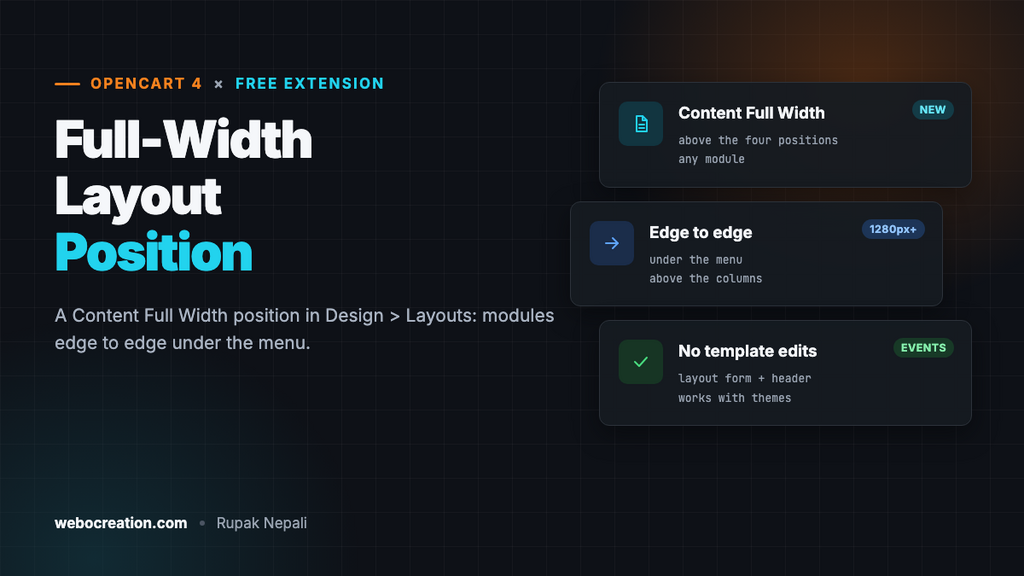
OpenCart’s layout system gives you four places to put modules: Column Left, Column Right, Content Top and Content Bottom. All four sit inside the page’s container, a centred box about 1,140 pixels wide. That’s fine for most modules, but not for the things designers want edge to edge: a full-width slideshow, a coloured promotion strip, a testimonials band.
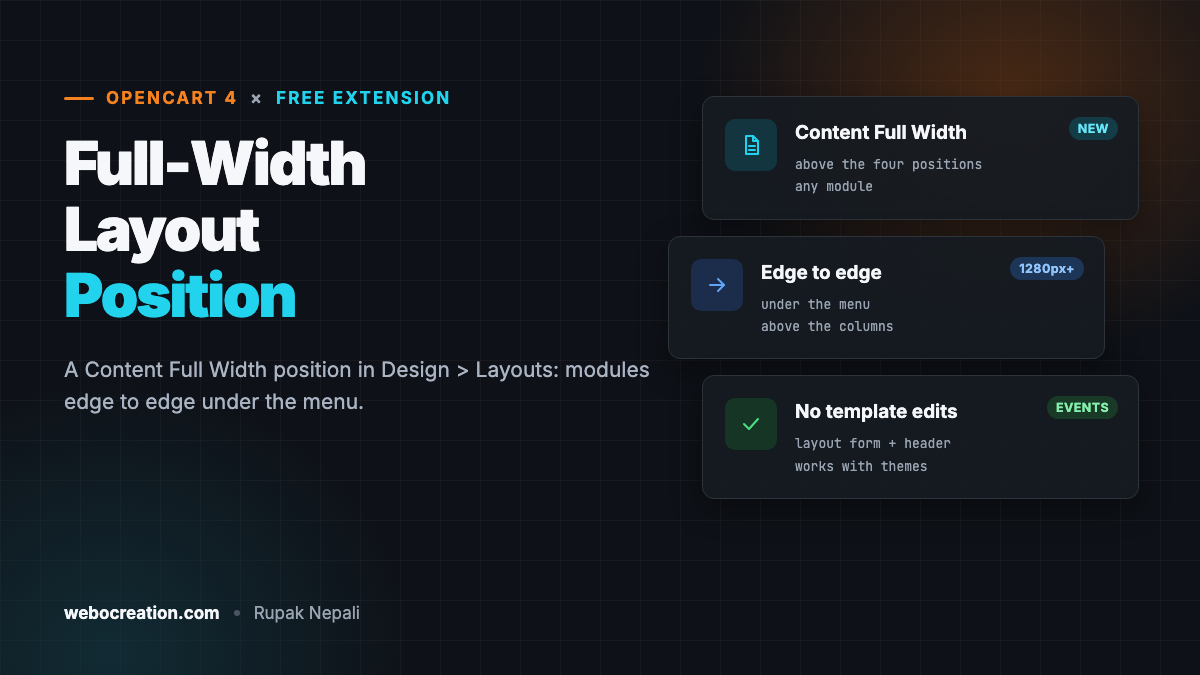
This free extension adds a fifth position, Content Full Width, to every layout. Modules you put there show right under the menu, across the whole width of the screen. It’s the OpenCart 4 version of our OpenCart 3 full-width position extension, and unlike the original it doesn’t change your theme’s templates.
Download Full-Width Layout Position for OpenCart 4 (free, tested on OpenCart 4.1.0.4)

What it does
- A Content Full Width table in Design → Layouts, above the four standard positions, that works exactly like them: add modules, choose the order, edit or remove them.
- Any module works there, OpenCart’s own (Banner/Slideshow, HTML Content, Featured) and extensions alike.
- Full width, under the menu, above the breadcrumb, the columns and the page content.
- Per layout, so you can have a band on the home page only, or a different one on category pages.
- No template changes. It works with the default theme and any theme that keeps OpenCart’s standard header.
Install it
- Download
fullwidth.ocmod.zip. - Go to Extensions → Installer, upload it, and click the green +.
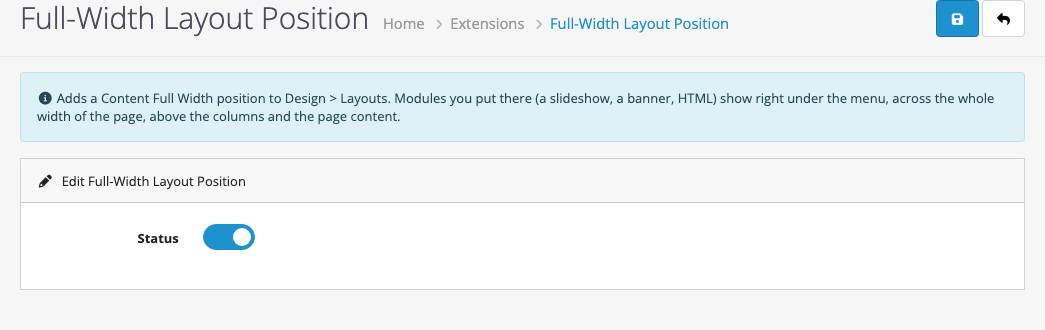
- Go to Extensions → Extensions → Modules and install Full-Width Layout Position.
- Click Edit, turn Status on and save.
Use it
- Go to Design → Layouts and edit a layout, for example Home.
- Under Choose the position of the modules there’s a new Content Full Width table at the top.
- Click its blue +, choose a module from the list, and save the layout.
Modules designed for a container still work there. A Banner module set to a wide image looks best, and an HTML Content module can hold anything, a coloured promotion strip for example. If you want the module’s text centred on the page while its background runs full width, wrap the HTML in <div class="container">.
Which pages show it
The extension uses the same rules as OpenCart’s own Content Top position:
- A product, category, manufacturer or information page with its own layout (set on its Design tab) uses that layout.
- Every other page uses the layout whose route matches it (Home for
common/home, Category forproduct/categoryand so on), and the store’s default layout otherwise.
So to show a band on every page, add the module to the Default layout and to the layouts that override it, the same as you would with Content Top.
How it’s built
The OpenCart 3 version used OCMOD to add a line to every controller and every template in the store: catalog/controller/*/*.php and catalog/view/theme/*/template/*/*.twig. That touched hundreds of files and broke on themes with different templates.
The OpenCart 4 version needs two events:
admin/view/design/layout_form/afteradds the Content Full Width table to the layout form. OpenCart’s ownaddModule()JavaScript and layout model already accept any position name, so the table saves like the other four.catalog/view/common/header/afterrenders the modules saved with thecontent_fullposition and adds them to the end of the header output. In OpenCart 4’s default theme, the header ends by opening<main>and printing the menu, so the modules land right under the menu and above the page’scontainer.
$modules = $this->modules($this->layoutId());

if ($modules) {
    $output .= '<div id="content-full" class="oc-content-full">' . implode('', $modules) . '</div>';
}
If you switch the extension off, its modules stay saved in the layout until you next save that layout: the form doesn’t show the table, so saving removes them. Switch it back on before editing those layouts.
Style it with the #content-full wrapper, for example #content-full { margin-bottom: 2rem; }.
Testing
| Test | Result |
|---|---|
| Layout form | Content Full Width table above the standard positions; the module’s edit button links to its settings |
| Save and reload the Home layout | The module stays in Content Full Width (saved with position content_full) |
| Home page at 1280 px | The module renders inside <main>, after the menu and before the page container, 1280 px wide |
| Status off | The table disappears from the layout form and nothing is rendered on the storefront |

Rupak Nepali is a web developer, manage Webocreation website and the author of six books:
Getting Started with OpenCart Module Development (Packt, 2013),
OpenCart Theme and Module Development (Packt, 2015),
OpenCart 4: Dev Guide for Themes & Extensions (2024),
OpenCart 4: User Manual (2025),
Cloudflare for the Enterprise Website (2026) and
The Technical Web Guide for Marketers (2026).
Rupak has built OpenCart stores and extensions since 2010, has published more than 600 tutorials on Webocreation, and shares free OpenCart extensions on GitHub.
Find Rupak on
GitHub | Amazon | LinkedIn | X | YouTube.