Automate Orders, Payments and Fulfillment in Your Online Store
Fix checkout leaks, then automate order statuses, payment confirmation, fraud checks, shipping labels, tracking emails and dropship handoffs.
 Rupak NepaliPublished Nov 22, 2026
An order is a promise. The customer paid; now the store must confirm, charge, pack, ship and keep the customer informed. Every one of those steps can run without you, and the order should reach you only when something is unusual.
The manual way
In a manual store, the owner checks the admin panel several times a day. They open each new order, check the payment, email the supplier or print a packing slip, buy a shipping label on a carrier website, paste the tracking number into the order, change the status and send a message. Then customers email to ask where their order is, and the owner looks it up and replies. Each order might take 10 to 20 minutes of scattered attention.
Why checkout comes first
Before automating what happens after the order, make sure orders actually happen. Baymard Institute’s average documented cart abandonment rate is 70.22%, based on 50 studies (Baymard Institute, 2025). Roughly seven out of ten carts never become orders.
Some abandonment is unavoidable: in Baymard’s research, 42% of US shoppers had abandoned a cart because they were just browsing. But among the other reasons, many are fixable.
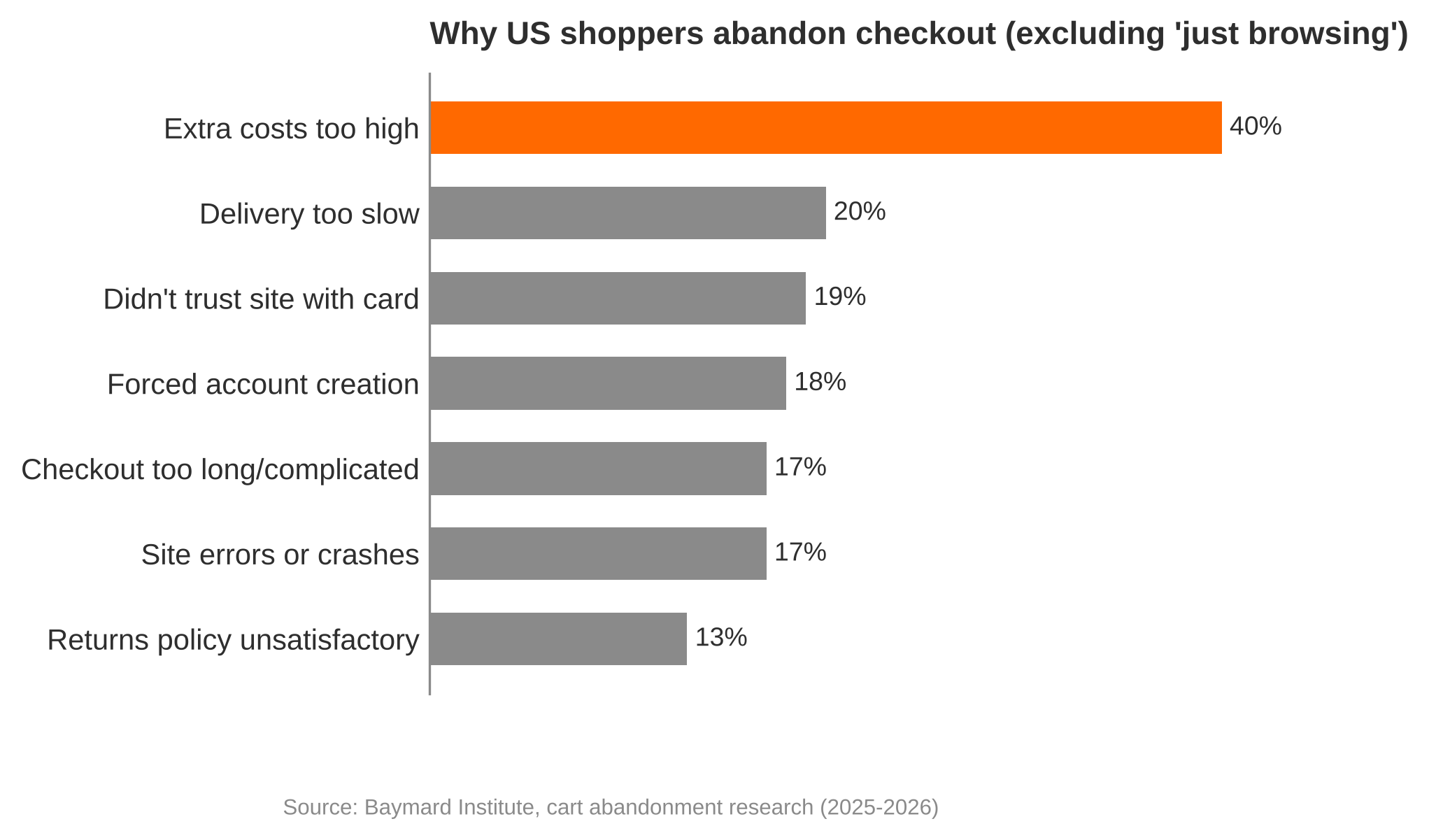
Extra costs that appear too late lead the list at 40%. Slow delivery, lack of trust, forced account creation and long checkouts follow (Baymard Institute, 2025). Fix these with settings, not effort:
- Show shipping costs early. Add an estimated shipping calculator on the cart page (OpenCart includes one) and display your free-shipping threshold on product pages.
- Keep guest checkout on (see Building an Automation-Ready Store).
- Show trust signals near the payment step: SSL badge, accepted payment logos, return policy link, real contact details.
- Cut form fields. Baymard found the average US checkout shows 23.48 form elements by default (Baymard Institute, 2025). Remove anything you do not need, such as a fax number or a second address line shown by default.
- Offer the payment methods your customers use: cards, PayPal, Apple Pay and Google Pay, and buy now, pay later where it fits your price range. Adobe recorded $20 billion in buy now, pay later spending during the 2025 US holiday season (Adobe, 2026).
Order status flows and automatic notifications
OpenCart moves each order through statuses, and each status change can notify the customer. Set them up deliberately.
| Status | Set by | Customer message |
|---|---|---|
| Pending | System (payment not confirmed) | None, or “We’re waiting for your payment” |
| Processing | Payment extension when payment succeeds | Order confirmation with items and total |
| Shipped | Fulfillment automation when a label is created | Shipping confirmation with tracking link |
| Complete | Automation after delivery is confirmed | Thank you, review request (see Reviews, Social Proof and Referrals) |
| Canceled / Refunded | You or the payment gateway | Clear explanation and refund timing |
In OpenCart, configure statuses under System > Localisation > Order Statuses, and set which status means “processing” and “complete” under System > Settings > Option. When you add order history with “Notify” checked, OpenCart emails the customer. Your automations do the same thing through events and the API.
Tip
Write each notification in plain language and include exactly one next step: track the package, contact us, or leave a review. Customers who know what is happening do not email you.
Payment automation
Choose gateways that confirm payments automatically. Most modern gateways (Stripe, PayPal, Square, Braintree, Authorize.net) send a callback that moves the order to Processing without you touching it.
Fraud screening. Card-testing bots and stolen cards hit small stores too. Use the gateway’s built-in fraud tools (for example, Stripe Radar), require CVV and address verification, and set rules: hold orders where billing and shipping countries differ above a certain amount, or where several cards were tried in a short time. Held orders go to a “Review” status and alert you.
Failed payments. For subscriptions or saved-card payments, gateways can retry failed charges on a schedule and email the customer to update their card. Turn this on.
Reconciliation. Connect your gateway and store to your accounting software (Section 5.7) so every payment, fee and refund is recorded without manual entry.
Shipping rules, labels and tracking
Shipping is where small stores lose the most time.
Rules first. In OpenCart, use weight-based shipping, flat rate by geo zone or carrier extensions that fetch live rates. Accurate weights (see Building an Automation-Ready Store) make live rates reliable. Set a free-shipping threshold slightly above your average order value to nudge bigger baskets.
Labels automatically. Connect your store to a shipping platform such as ShipStation, Shippo or EasyPost. New paid orders flow in automatically. Presets choose the carrier, service and package by weight and destination. You print labels in a batch once a day instead of one by one.
Tracking back to the store. When a label is created, the shipping tool sends the tracking number back to OpenCart (natively, through an extension, or through your connector tool), sets the order to Shipped and triggers the shipping email.
Delivery confirmation. Carrier tracking webhooks or the shipping tool can tell your store when a package is delivered. Use that event to set the order to Complete and start the review request timer.
Dropship and 3PL handoffs
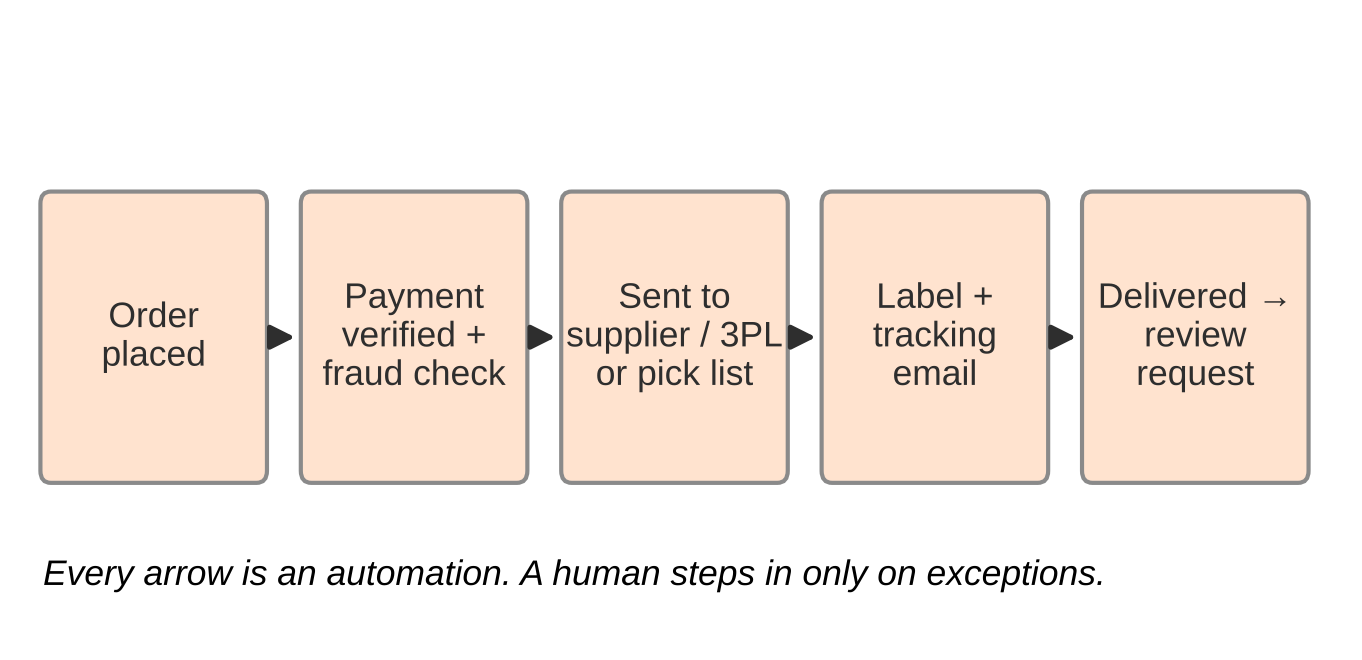
If a supplier or third-party logistics (3PL) warehouse ships for you, the handoff must be instant and exact.
- By email: an event or connector sends a formatted email with the order, SKUs, quantities and shipping address to the supplier when an order reaches Processing. Simple, but the supplier must send tracking back by email, which you then parse.
- By file: a scheduled job exports new orders to a CSV in the supplier’s format and uploads it to their FTP folder. The supplier returns a tracking file you import.
- By API: the best option. Many dropship platforms and 3PLs have APIs or OpenCart extensions that send orders and receive tracking automatically.
For mixed carts (some items shipped by you, some by a supplier), split the order by supplier field or manufacturer during the handoff.
Invoices, taxes and bookkeeping
- Invoices: OpenCart generates invoice numbers (enable automatic invoice numbers in settings). Attach a PDF invoice to the confirmation email with an extension if your customers need one.
- Sales tax and VAT: Set tax classes and geo zones correctly. If you sell across many US states or internationally, a tax service such as TaxJar, Avalara or Quaderno can calculate rates and file returns.
- Bookkeeping sync: Connect the store or payment gateway to QuickBooks, Xero or Wave through an extension or connector. Each day’s orders, fees and refunds are recorded automatically. Your accountant will be grateful.
Build it: an order that ships with zero manual clicks
On your staging store:
- Set up order statuses and customer notification templates from section 5.3.
- Confirm your payment gateway’s sandbox moves a test order to Processing automatically.
- Connect a shipping platform (most have free trials) and import the test order.
- Create a shipping preset based on weight and destination.
- Create the label in the shipping platform’s test mode and confirm the tracking number returns to OpenCart and the order becomes Shipped.
- Confirm the customer receives the shipping email with a working tracking link.
- Simulate delivery (or use the platform’s test webhook) and confirm the order becomes Complete.
- If you dropship, send the test order to your supplier’s test channel instead of step 3.
Other platforms
Shopify handles statuses as payment and fulfillment states and sends notifications automatically; ShipStation, Shippo and most 3PLs have native Shopify apps. WooCommerce uses order statuses much like OpenCart, with shipping plugins for labels and tracking. PrestaShop’s order states can each send an email template. The flow from payment to label to tracking to delivery is the same everywhere.
Tools
| Need | Free option | Paid option |
|---|---|---|
| Payments with auto-confirmation | Stripe, PayPal (transaction fees only) | Same, plus advanced fraud tools |
| Shipping labels and tracking | Carrier websites, Shippo pay-as-you-go | ShipStation, EasyPost, Shippo paid plans |
| Dropship handoff | Email templates via events | Dropship platforms, 3PL integrations |
| Tax | OpenCart tax classes | TaxJar, Avalara, Quaderno |
| Bookkeeping | Wave | QuickBooks Online, Xero |
Guardrails
- Exceptions go to a human. Fraud holds, failed handoffs and address problems change the order to a “Needs attention” status and alert you.
- Watch for stuck orders. A daily check finds orders in Processing for more than two business days and alerts you.
- Log every handoff. If the supplier says they never got an order, you can prove when it was sent.
- Test after every gateway or shipping update. Place a real low-value order on live once a month.
Autopilot checklist
- ☐ Shipping costs and the free-shipping threshold are visible before checkout.
- ☐ Checkout has guest option, trust signals and only necessary fields.
- ☐ Order statuses and customer notifications are set and tested.
- ☐ Payments confirm automatically; fraud rules hold risky orders.
- ☐ Paid orders flow to a shipping tool or supplier automatically.
- ☐ Tracking numbers return to the store and trigger the shipping email.
- ☐ Delivered orders become Complete automatically.
- ☐ Orders, fees and refunds sync to bookkeeping.
- ☐ Stuck or exception orders alert me.
This article is part of the book Stores That Sell on Autopilot by Rupak Nepali.
Get every chapter, the printable checklists and the worksheets in one place. See the automations running live at demo.webocreation.com. Want it done for you? Ask about the Stores That Sell on Autopilot service.
← Previous: Catalog on Autopilot | Next: Inventory and Suppliers →
The Stores That Sell on Autopilot series
- Start here: Series overview
- Part 1: What "Autopilot" Really Means
- Part 2: The Autopilot Stack
- Part 3: Building an Automation-Ready Store
- Part 4: Catalog on Autopilot
- Part 5: Orders, Payments and Fulfillment (you are here)
- Part 6: Inventory and Suppliers
- Part 7: Search Traffic That Compounds
- Part 8: Email and SMS Flows That Sell While You Sleep
- Part 9: Reviews, Social Proof and Referrals
- Part 10: Ads and Retargeting with Guardrails
- Part 11: Customer Service Without the Inbox
- Part 12: AI Agents and Agentic Commerce
- Part 13: The 30-Minute Weekly Owner Routine
- Part 14: Case Study: Automating the Demo Store
- Resource: The Complete Ecommerce Automation Checklist
- Resource: Ecommerce Automation Tools Directory: Free and Paid Options
- Resource: Copy-Ready Email Templates for Ecommerce Flows
- Resource: OpenCart Automation Quick Reference: Menus, Events and Cron
Sources
- Adobe and Adobe Digital Insights: 2025 holiday shopping recap (January 2026), AI traffic reports and holiday mobile forecasts. business.adobe.com / news.adobe.com
- Baymard Institute: Cart abandonment rate statistics (updated September 22, 2025) and checkout usability research. baymard.com

Rupak Nepali is a web developer, manage Webocreation website and the author of six books:
Getting Started with OpenCart Module Development (Packt, 2013),
OpenCart Theme and Module Development (Packt, 2015),
OpenCart 4: Dev Guide for Themes & Extensions (2024),
OpenCart 4: User Manual (2025),
Cloudflare for the Enterprise Website (2026) and
The Technical Web Guide for Marketers (2026).
Rupak has built OpenCart stores and extensions since 2010, has published more than 600 tutorials on Webocreation, and shares free OpenCart extensions on GitHub.
Find Rupak on
GitHub | Amazon | LinkedIn | X | YouTube.