Catalog on Autopilot: Automate Product Imports, AI Descriptions and Feeds
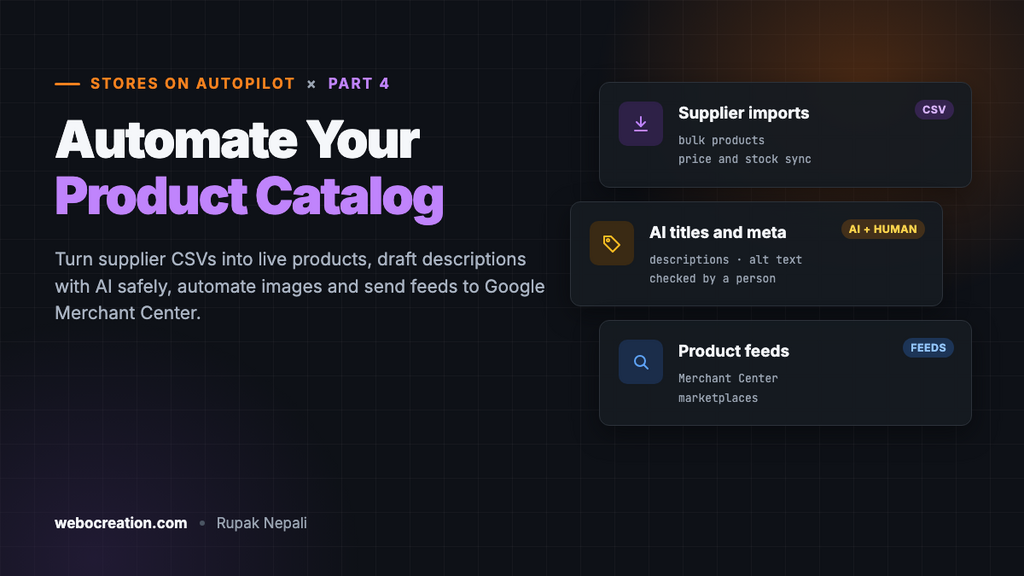
Turn supplier CSVs into live products, draft descriptions with AI safely, automate images and send feeds to Google Merchant Center.
 Rupak NepaliPublished Nov 22, 2026
Your catalog is the raw material for everything else. Search engines read it, ads are built from it, emails show it and AI assistants quote it. A catalog that updates itself, stays accurate and reads well is the single most valuable automation for most stores.
The manual way
Adding a product by hand in OpenCart takes 15 to 45 minutes: copy specs from the supplier, write a title and description, resize and upload images, set options, fill in SEO fields, pick categories and attributes. Multiply that by a catalog of a few hundred products, then add the work of keeping prices and stock in sync with suppliers, and catalog upkeep alone can become a part-time job.
Automate or keep human
| Task | Automate? | How |
|---|---|---|
| Importing supplier data | Yes | CSV/XML import on a schedule |
| Mapping fields and categories | Yes, after you define the rules | Import mapping templates |
| Writing first-draft titles and descriptions | Yes, with review | AI drafting from structured specs |
| Approving copy before publishing | Keep human | Review queue |
| Resizing, compressing, converting images | Yes | Image pipeline |
| Writing alt text | Yes, with spot checks | AI image description |
| Choosing which products to carry | Keep human | Your judgment |
| Syncing price and stock | Yes | Scheduled supplier sync |
| Sending product feeds to Google and Meta | Yes | Feed extension, scheduled |
Bulk imports from supplier files
Most suppliers provide a product file: CSV, Excel, XML or an API. Your automation turns that file into products in four steps.
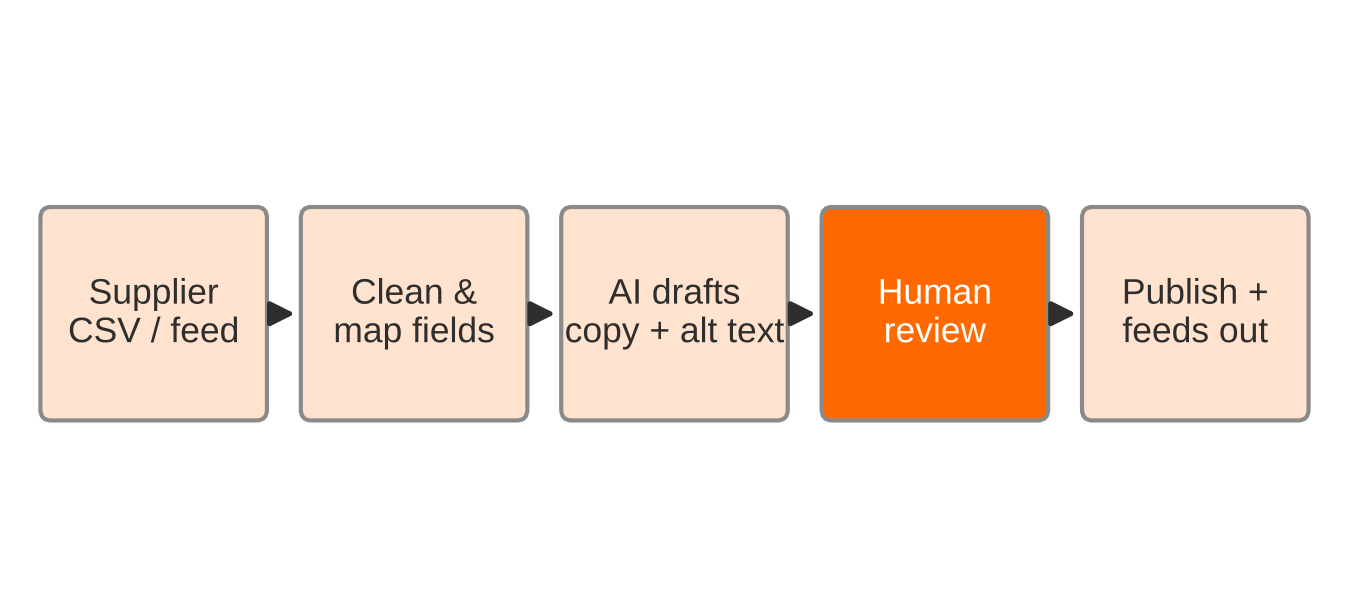
Step 1: Collect. Get the file the same way each time: a URL the supplier updates, an FTP folder, an email attachment or an API. Automate the download with a cron job or connector tool.
Step 2: Clean and map. Supplier files rarely match your fields. Build a mapping once: supplier column “Item_No” becomes your SKU, “Wholesale” becomes cost, “Cat_Path” maps to your category IDs. Apply your price rule (for example, cost times 2.2, rounded to .99). Reject rows that are missing required data and put them in an exceptions list.
Step 3: Enrich. Add what the supplier does not give you: your copy, your SEO fields, your images, your attributes.
Step 4: Load. Insert new products as disabled (status off) and update existing products’ price and stock directly.
For OpenCart, you can use an import/export extension from the Marketplace that supports scheduled imports, or a small custom PHP script run by cron. Connector tools can also read a spreadsheet and call your store’s API row by row.
Tip
Always import new products as disabled. They go live only after the human review in step 4 of the pipeline. This one rule prevents most catalog disasters.
AI-written titles, descriptions and meta tags
AI models are very good at turning structured specs into readable copy, as long as you give them good input and clear rules. They are bad at inventing facts they were not given, and they will invent them if you let them.
Give the AI structured facts, not a vague request. Feed it the product name, brand, attributes, dimensions, materials, use cases and your brand voice notes. Ask it to use only those facts.
Use a fixed prompt template. Here is one you can adapt:
You write product copy for [Store Name], a store that sells [category]
to [audience]. Voice: [plain, friendly, specific; no hype words].

Using ONLY the facts below, write:
1. A product title under 70 characters: Brand + Product + key attribute.
2. A 2-sentence summary that says who it is for and the main benefit.
3. 4-6 bullet points of features, each starting with the benefit.
4. A meta title under 60 characters and meta description under 155.
If a fact is missing, leave it out. Do not invent specifications,
certifications, awards or claims.

FACTS:
[paste structured attributes here]
Store the output in a review queue, such as a spreadsheet with one row per product and columns for each field, plus an “Approved” checkbox. Your import script only publishes rows marked approved.
Check for the common AI mistakes: invented dimensions, health or safety claims you cannot support, competitor names, and the same three adjectives in every description. Spot-check every product for the first month, then a sample each week.
Note
Many countries regulate product claims. If you sell health, beauty, children’s or safety products, keep a human review on every description, not just a sample.
Image workflows
Images sell products, and they are also the heaviest part of most pages. Automate the boring parts:
- Resize to the largest size your theme displays (often 1,000 to 1,500 pixels wide for product images) and let OpenCart generate thumbnails.
- Compress and convert to WebP, keeping a JPEG fallback if your theme needs it. Tools: Squoosh (free, manual), ImageMagick or cwebp in a script (free, automated), or image CDNs that convert on the fly.
- Remove or standardize backgrounds for a consistent catalog. Tools like remove.bg, Photoroom or Canva offer bulk processing.
- Name files descriptively (brand-product-color-front.webp) rather than IMG_4492.jpg.
- Write alt text that describes the image for people who cannot see it. AI vision models can draft alt text in bulk; spot-check for accuracy and keep it under about 125 characters.
Product feeds to Google, Meta and marketplaces
A product feed is a file listing your products in the format a channel expects. Once your catalog is clean, feeds are pure automation.
- Google Merchant Center powers free listings and Shopping ads. Required fields include ID, title, description, link, image link, availability, price and, for most products, brand and GTIN.
- Meta Commerce Manager uses a similar catalog feed for Facebook and Instagram shops and dynamic ads.
- Marketplaces like Amazon, eBay and Etsy each have their own formats. Multichannel tools can map one feed to many channels.
In OpenCart, install a Google Shopping or product feed extension that generates an XML feed at a URL, then tell Merchant Center to fetch that URL daily. The feed updates itself every time your catalog changes.
By the numbers
Free product listings in Google Merchant Center cost nothing and put your products in Google’s Shopping tab. A clean feed is the entry ticket.
Price and stock sync rules
Selling a product the supplier no longer has is one of the fastest ways to earn bad reviews. Sync rules prevent it.
- Schedule stock syncs as often as your supplier updates: hourly if possible, at least daily.
- Use a safety buffer. If the supplier shows 3 units, show 1 or 0. Their number is often out of date.
- Auto-disable products when stock reaches zero and the supplier gives no restock date, or switch them to “back-in-stock alert” mode (see Inventory and Suppliers).
- Protect your margins. If the supplier’s cost rises, reprice automatically using your formula, but alert yourself when a price would change by more than 10%.
- Never let price drop below cost plus fees. Build a floor into the formula.
Build it: supplier CSV to live products and a Merchant Center feed
- Get a sample supplier file and list its columns.
- Create a mapping sheet: supplier column, your OpenCart field, transformation rule.
- Set up an import extension or script on staging that downloads the file nightly and applies the mapping.
- Import new products as disabled. Write updates to price and stock directly.
- Send new products’ facts to an AI model with the prompt template from section 4.4 and store the drafts in a review sheet.
- Review and approve. Your import publishes approved copy and enables the product.
- Run images through your resize and WebP step.
- Install a feed extension, submit the feed URL to Google Merchant Center and schedule daily fetches.
- Check Merchant Center’s diagnostics for errors and fix them in your mapping, not product by product.
Other platforms
Shopify supports CSV imports natively and apps such as Matrixify for scheduled imports; its Google & YouTube channel app builds the Merchant Center feed. WooCommerce has a built-in CSV importer, WP All Import for scheduled feeds and several Google feed plugins. PrestaShop has a built-in CSV import and feed modules. The AI drafting and review queue work the same way on every platform.
Tools
| Need | Free option | Paid option |
|---|---|---|
| Scheduled imports | Custom PHP + cron | OpenCart import/export extensions, Matrixify (Shopify), WP All Import (Woo) |
| AI copy drafting | Free tiers of AI assistants (manual) | AI APIs in n8n, Make or Zapier workflows |
| Image processing | ImageMagick, cwebp, Squoosh | Photoroom, remove.bg, image CDNs |
| Product feeds | Free feed extensions, Merchant Center supplemental sheets | Feed management tools (DataFeedWatch, GoDataFeed) |
Guardrails
- New products import disabled. Publishing requires approval.
- AI uses only supplied facts. Your prompt says so, and your review checks it.
- Price floors and change alerts stop formula errors from selling at a loss.
- An exceptions list catches rows with missing data instead of importing broken products.
- Merchant Center diagnostics are checked weekly. Disapproved products earn nothing.
Autopilot checklist
- ☐ Supplier files download automatically on a schedule.
- ☐ A field mapping and price formula (with a floor) are documented.
- ☐ New products import disabled; updates to price and stock apply directly.
- ☐ AI drafts copy from structured facts using a fixed prompt.
- ☐ A human approves copy before publishing.
- ☐ Images are resized, converted to WebP and given alt text automatically.
- ☐ A product feed updates daily in Google Merchant Center (and Meta if used).
- ☐ Stock syncs use a safety buffer and auto-disable at zero.
This article is part of the book Stores That Sell on Autopilot by Rupak Nepali.
Get every chapter, the printable checklists and the worksheets in one place. See the automations running live at demo.webocreation.com. Want it done for you? Ask about the Stores That Sell on Autopilot service.
← Previous: Building an Automation-Ready Store | Next: Orders, Payments and Fulfillment →
The Stores That Sell on Autopilot series
- Start here: Series overview
- Part 1: What "Autopilot" Really Means
- Part 2: The Autopilot Stack
- Part 3: Building an Automation-Ready Store
- Part 4: Catalog on Autopilot (you are here)
- Part 5: Orders, Payments and Fulfillment
- Part 6: Inventory and Suppliers
- Part 7: Search Traffic That Compounds
- Part 8: Email and SMS Flows That Sell While You Sleep
- Part 9: Reviews, Social Proof and Referrals
- Part 10: Ads and Retargeting with Guardrails
- Part 11: Customer Service Without the Inbox
- Part 12: AI Agents and Agentic Commerce
- Part 13: The 30-Minute Weekly Owner Routine
- Part 14: Case Study: Automating the Demo Store
- Resource: The Complete Ecommerce Automation Checklist
- Resource: Ecommerce Automation Tools Directory: Free and Paid Options
- Resource: Copy-Ready Email Templates for Ecommerce Flows
- Resource: OpenCart Automation Quick Reference: Menus, Events and Cron
Sources
- Zapier: SMB automation survey conducted by Centiment, May 2026. zapier.com

Rupak Nepali is a web developer, manage Webocreation website and the author of six books:
Getting Started with OpenCart Module Development (Packt, 2013),
OpenCart Theme and Module Development (Packt, 2015),
OpenCart 4: Dev Guide for Themes & Extensions (2024),
OpenCart 4: User Manual (2025),
Cloudflare for the Enterprise Website (2026) and
The Technical Web Guide for Marketers (2026).
Rupak has built OpenCart stores and extensions since 2010, has published more than 600 tutorials on Webocreation, and shares free OpenCart extensions on GitHub.
Find Rupak on
GitHub | Amazon | LinkedIn | X | YouTube.