Inventory on Autopilot: Reorder Points, Back-in-Stock Alerts and Returns
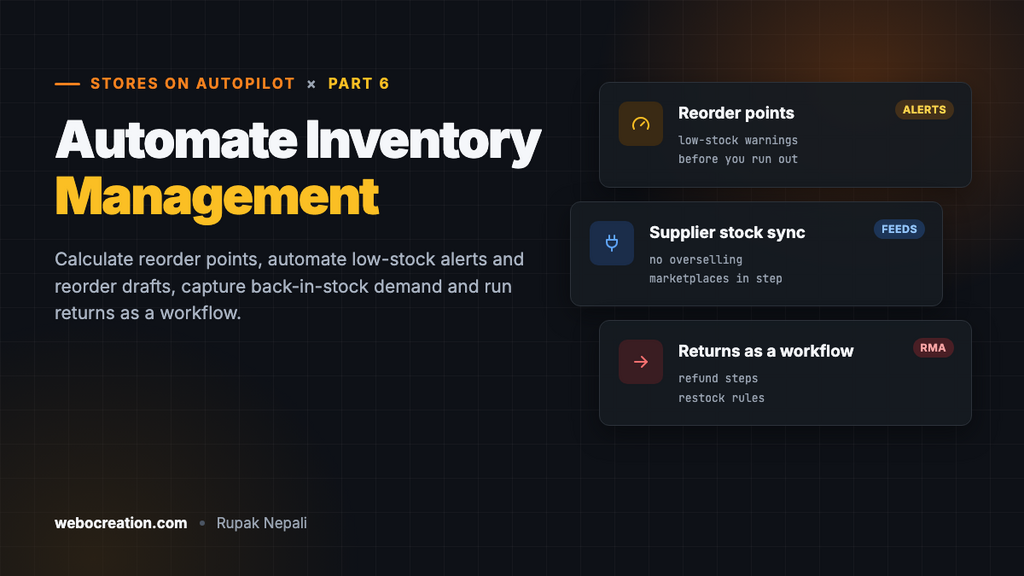
Calculate reorder points, automate low-stock alerts and reorder drafts, capture back-in-stock demand and run returns as a workflow.
 Rupak NepaliPublished Nov 22, 2026
Inventory is money sitting on a shelf. Too little and you lose sales; too much and your cash is stuck in boxes. Automation keeps stock levels honest, warns you before you run out and turns out-of-stock moments into future sales.
The manual way
The owner counts stock now and then, notices a bestseller is low only when it sells out, emails the supplier, waits, and meanwhile the product page says “Out of Stock” to every visitor. Returns arrive and sit in a corner because nobody updated the system. Stock numbers in the store drift further from reality every week.
Automate or keep human
| Task | Automate? | Notes |
|---|---|---|
| Decrementing stock on each sale | Yes | Built into OpenCart |
| Low-stock alerts | Yes | Scheduled check |
| Drafting reorder requests | Yes | Template with quantities filled in |
| Approving purchase orders | Keep human | Cash decision |
| Supplier stock sync (dropship) | Yes | Scheduled import (see Catalog on Autopilot) |
| Back-in-stock notifications | Yes | Waitlist extension or email tool |
| Deciding what to discontinue | Keep human | Use the data, make the call |
| Return authorizations | Mostly | Portal + rules, human for exceptions |
Stock tracking basics in OpenCart
- Subtract stock is a per-product setting. Turn it on for everything you track.
- Track stock by option when sizes or colors have separate quantities. Each option value has its own quantity and its own “subtract” flag.
- Out-of-stock status controls what customers see (Out of Stock, 2-3 Days, Pre-Order, In Stock). Choose a status that matches reality for each product.
- Stock checkout (System > Settings > Option) decides whether customers can buy items with zero stock. For products you hold yourself, set it to No.
Reorder points and low-stock alerts
A reorder point answers: “At what stock level must I reorder so I do not run out before the new stock arrives?”
Reorder point = (average daily sales x supplier lead time in days) + safety stock
Example: You sell 3 units a day, your supplier takes 10 days to deliver, and you keep 9 units (three days of sales) as a safety buffer. Your reorder point is (3 x 10) + 9 = 39 units. When stock falls to 39, reorder.
To automate it:
- Store each product’s reorder point in a custom field, a spreadsheet keyed by SKU, or the product’s minimum-quantity-style field your extension provides.
- Run a daily scheduled job that compares current stock with the reorder point.
- For each product at or below its point, add it to a “reorder” list with a suggested quantity (for example, 30 days of sales).
- Email or message yourself the list, grouped by supplier.
Recalculate average daily sales monthly so seasonal changes are captured.
Supplier stock sync
For dropshipped or supplier-held products, the supplier’s stock is your stock. our guide Catalog on Autopilot set up the scheduled import. Add these inventory rules:
- Buffer: show less than the supplier reports, as covered in our guide Catalog on Autopilot.
- Zero handling: when supplier stock is zero, either disable the product (if no restock date) or switch it to a “Notify me” state.
- Discontinued detection: if a SKU disappears from the supplier file for three days in a row, alert yourself and disable the product.
- Lead time display: if the supplier provides restock dates, show them on the product page.
Back-in-stock waitlists
An out-of-stock page does not have to be a dead end. A waitlist captures demand and brings buyers back.
Back-in-stock emails convert extremely well because the customer asked for them. Omnisend’s 2026 report, based on 2025 data from 150,000 brands, found back-in-stock emails had the highest conversion rate of any automation type, at 6.46% (Omnisend, 2026).
To set one up:
- Replace the disabled Add to Cart button on out-of-stock products with an email field: “Email me when it’s back.”
- Store each request with the product ID (a waitlist extension does this, or your email tool’s back-in-stock feature).
- When stock rises above zero, trigger an email to everyone on that product’s list.
- Send in batches if the waitlist is larger than the new stock, so you do not disappoint hundreds of people chasing ten units.
By the numbers
Back-in-stock emails converted at 6.46%, the highest of any automated email type. (Omnisend 2026 Ecommerce Marketing Report)
The waitlist also gives you data. A product with 200 people waiting deserves a bigger reorder.
Running a small home inventory well
Many new stores hold inventory at home or in a small storage unit. Simple systems make a big difference.
- Shelving with labeled bins, one bin per SKU, with the SKU and a barcode on the label.
- Location codes in your product data (for example, A-2-3 for aisle A, shelf 2, bin 3) so pick lists are sorted by walking order.
- Daily pick lists printed or shown on a phone, generated from the day’s Processing orders and grouped by location.
- A barcode scanner app to confirm the right item goes in each box.
- A packing station with boxes sorted by size, tape, filler and printed returns slips.
- Monthly cycle counts: count one section each week instead of the whole stock once a year. Update any differences in the store immediately.
Returns and refunds as a workflow
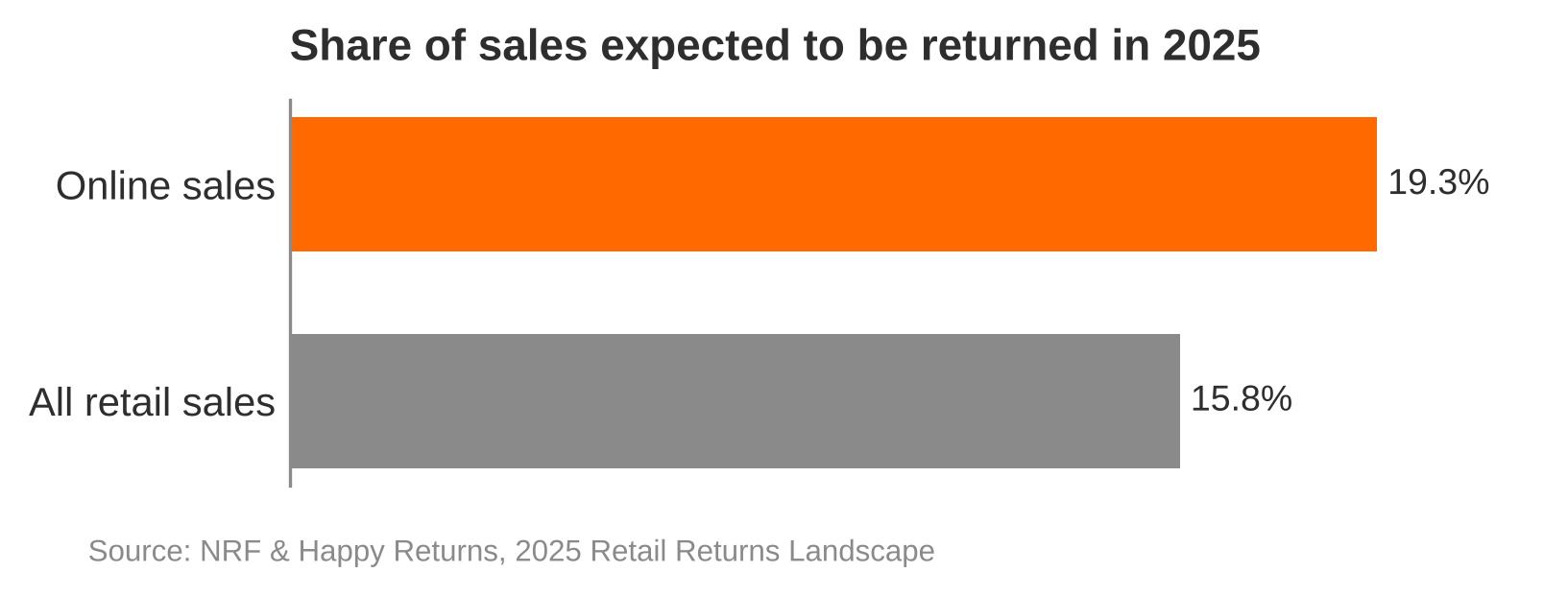
Returns are part of online selling. The National Retail Federation and Happy Returns estimated that 15.8% of all US retail sales would be returned in 2025, and 19.3% of online sales (NRF, 2025).
Customers care about returns before they buy: 82% said free returns were a major consideration when making a purchase. Retailers also reported that 9% of returns were fraudulent (NRF, 2025). A clear, automated returns process serves both sides.
Build a returns workflow:
- Publish a simple returns policy with the window (for example, 30 days), condition rules and who pays shipping.
- Use a returns form. OpenCart includes a product returns feature (customers request returns from their account or a form; you manage them under Sales > Returns). Returns apps add self-service portals and label generation.
- Auto-approve within rules. Inside the window, unused condition, not a final-sale item: approve automatically and email a return label or instructions.
- Send exceptions to a human. Outside the window, high value, or a customer with many returns: route to review.
- Update stock on receipt. When the return is received and inspected, add it back to stock (if resellable) and trigger the refund.
- Learn from reasons. Require a return reason. Review the top reasons monthly. “Smaller than expected” means your size chart or photos need work; “damaged in transit” means your packaging does.
Build it: a low-stock alert that drafts the reorder email
- Add a reorder point for your top 20 products, using the formula in section 6.4.
- Create a scheduled job (OpenCart cron task, n8n schedule or Zapier schedule) that runs every morning.
- The job reads each product’s current quantity and compares it with the reorder point.
- For products at or below the point, it calculates a suggested order quantity (30 days of average sales, rounded up to the supplier’s case size).
- It groups the products by supplier and fills a reorder email template: supplier name, SKUs, product names, quantities and your account number.
- It sends the drafts to you, not the supplier. You review, adjust and forward.
- Once you trust the numbers for a few months, you can let it send directly for low-cost items, keeping approval for expensive ones.
Other platforms
Shopify tracks inventory per variant and location, and Shopify Flow can send low-stock alerts; inventory apps add reorder points and purchase orders. WooCommerce has built-in low-stock and out-of-stock email thresholds, plus plugins such as back-in-stock notifiers. PrestaShop includes stock management and alert modules. The reorder formula and approval rule apply everywhere.
Tools
| Need | Free option | Paid option |
|---|---|---|
| Low-stock alerts | Cron job + email | Inventory apps, ERP-lite tools (e.g., inFlow, Zoho Inventory) |
| Back-in-stock | Waitlist extension, email tool feature | Klaviyo or Omnisend back-in-stock flows |
| Barcode scanning | Free scanner apps | Dedicated scanners with inventory software |
| Returns | OpenCart Returns feature | Returns platforms with label generation |
Guardrails
- Human approval for purchase orders above a value you choose.
- Alert on negative stock. It means a sync or option is misconfigured.
- Alert on sudden spikes. A product selling ten times its usual rate may be a pricing error or fraud.
- Cycle counts weekly so small drifts never become big surprises.
Autopilot checklist
- ☐ Stock subtracts on sale for every tracked product and option.
- ☐ Reorder points are set for my top products and recalculated monthly.
- ☐ A daily job drafts reorder emails grouped by supplier.
- ☐ Supplier stock syncs with a buffer and discontinued-SKU detection.
- ☐ Out-of-stock products collect back-in-stock signups.
- ☐ Back-in-stock emails send automatically when stock returns.
- ☐ Returns follow a published policy with auto-approval inside the rules.
- ☐ Return reasons are reviewed monthly.
This article is part of the book Stores That Sell on Autopilot by Rupak Nepali.
Get every chapter, the printable checklists and the worksheets in one place. See the automations running live at demo.webocreation.com. Want it done for you? Ask about the Stores That Sell on Autopilot service.
← Previous: Orders, Payments and Fulfillment | Next: Search Traffic That Compounds →
The Stores That Sell on Autopilot series
- Start here: Series overview
- Part 1: What "Autopilot" Really Means
- Part 2: The Autopilot Stack
- Part 3: Building an Automation-Ready Store
- Part 4: Catalog on Autopilot
- Part 5: Orders, Payments and Fulfillment
- Part 6: Inventory and Suppliers (you are here)
- Part 7: Search Traffic That Compounds
- Part 8: Email and SMS Flows That Sell While You Sleep
- Part 9: Reviews, Social Proof and Referrals
- Part 10: Ads and Retargeting with Guardrails
- Part 11: Customer Service Without the Inbox
- Part 12: AI Agents and Agentic Commerce
- Part 13: The 30-Minute Weekly Owner Routine
- Part 14: Case Study: Automating the Demo Store
- Resource: The Complete Ecommerce Automation Checklist
- Resource: Ecommerce Automation Tools Directory: Free and Paid Options
- Resource: Copy-Ready Email Templates for Ecommerce Flows
- Resource: OpenCart Automation Quick Reference: Menus, Events and Cron
Sources
- Klaviyo: Abandoned cart benchmarks (2024 Benchmark Report) and 2026 Omnichannel Benchmark Report. klaviyo.com
- National Retail Federation and Happy Returns: 2025 Retail Returns Landscape (October 2025). nrf.com
- Omnisend: 2026 and 2025 Ecommerce Marketing Reports. omnisend.com
- Zapier: SMB automation survey conducted by Centiment, May 2026. zapier.com

Rupak Nepali is a web developer, manage Webocreation website and the author of six books:
Getting Started with OpenCart Module Development (Packt, 2013),
OpenCart Theme and Module Development (Packt, 2015),
OpenCart 4: Dev Guide for Themes & Extensions (2024),
OpenCart 4: User Manual (2025),
Cloudflare for the Enterprise Website (2026) and
The Technical Web Guide for Marketers (2026).
Rupak has built OpenCart stores and extensions since 2010, has published more than 600 tutorials on Webocreation, and shares free OpenCart extensions on GitHub.
Find Rupak on
GitHub | Amazon | LinkedIn | X | YouTube.