OpenCart 4 ERP Integration: Sync Products, Orders and Inventory
Learn how to integrate OpenCart 4 with an ERP system to synchronize products, orders, inventory, pricing, shipments, and customer data reliably.
 Rupak NepaliPublished Nov 26, 2026
An OpenCart 4 store often becomes one part of a larger business system. Product information may be managed in an ERP, orders need to reach finance and fulfillment teams, and inventory must stay accurate across warehouses, marketplaces, and physical stores. Without a reliable integration, teams end up re-entering data, correcting stock errors, and reconciling orders manually.
This guide explains how to plan an OpenCart 4 ERP integration that synchronizes products, customers, orders, pricing, and inventory. It covers integration architecture, data mapping, API workflows, example payloads, reliability, security, and testing.
What should an OpenCart–ERP integration synchronize?
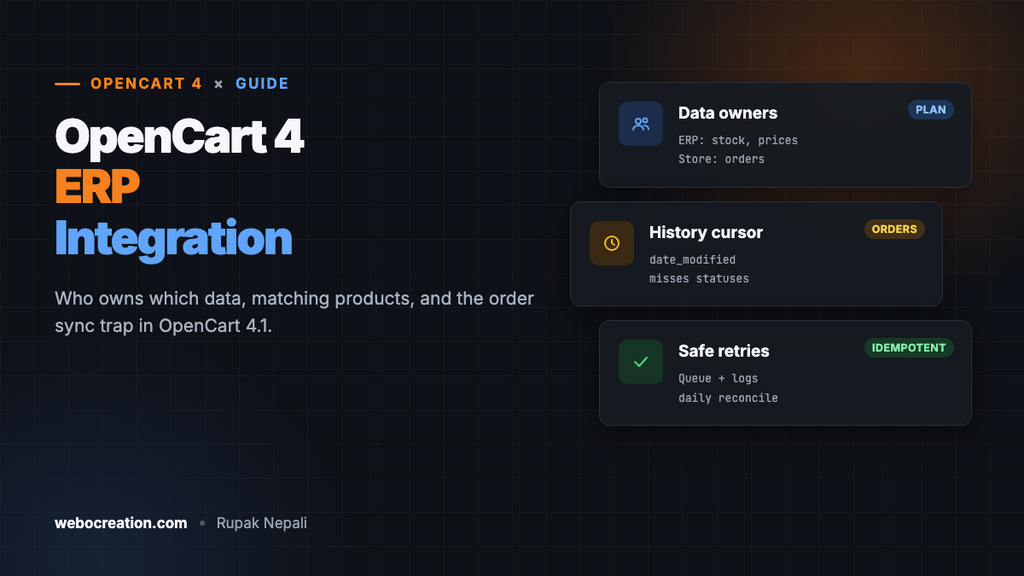
Define the systems of record before writing code. A common division of responsibility is:
| Data | Possible system of record | Integration direction |
|---|---|---|
| Product master, SKU, description | ERP or PIM | ERP → OpenCart |
| Price lists and customer terms | ERP | ERP → OpenCart |
| Available inventory | ERP / warehouse system | ERP → OpenCart |
| Web orders | OpenCart at capture; ERP after import | OpenCart → ERP |
| Shipment and tracking status | ERP / WMS | ERP → OpenCart |
| Invoices and credit status | ERP | ERP → OpenCart, where needed |
These are starting points, not universal rules. The important thing is to assign one authoritative owner to each field. If both systems can update the same value, define conflict resolution explicitly.
Choose an integration architecture
There are three common approaches:
- Direct API integration: OpenCart communicates with the ERP through APIs. This can work for smaller integrations with a limited number of workflows.
- Middleware or integration platform: a separate service handles mapping, queues, retries, monitoring, and transformations. This is usually easier to scale and maintain as integrations grow.
- Scheduled file exchange: CSV, XML, or other files are exchanged on a schedule. This can be suitable for legacy systems, but it is less suitable when inventory and order updates must be near real time.
For a production integration, avoid putting long-running ERP calls directly in a customer-facing checkout request. Accept the order reliably in OpenCart, record an integration event, and process it asynchronously. The checkout should not fail simply because the ERP is temporarily unavailable.
Map products and identifiers
SKU is usually the most useful cross-system identifier, but it must be unique and consistently formatted. Map OpenCart product IDs to ERP item IDs and retain both values in an integration mapping table. Do not assume that IDs generated independently in two systems will match.
Typical product fields include SKU, name, description, status, manufacturer, barcode, dimensions, weight, tax class, options, images, and category assignments. Decide which system owns each field and whether the ERP sends full product snapshots or only changed fields.
{
  "event": "product.updated",
  "external_id": "ERP-ITEM-1042",
  "sku": "CHAIR-BLK-01",
  "name": "Black Office Chair",
  "status": true,
  "price": 129.95,
  "currency": "USD",
  "updated_at": "2026-11-26T10:30:00Z"
}
This is an illustrative integration payload, not a built-in OpenCart endpoint contract. Your connector should validate required fields, normalize data types, and log rejected records with a clear reason.
Synchronize inventory safely
Inventory synchronization is more complex than copying a quantity field. Determine whether the ERP quantity represents on-hand, available-to-promise, reserved, damaged, or in-transit stock. The storefront should normally display a sellable quantity, not a raw warehouse count.
A simplified available-to-promise calculation is:
available_to_sell =
    on_hand
  - reserved_for_orders
  - safety_stock
  + approved_inbound_stock
Only include inbound stock if the business explicitly allows customers to purchase it before receipt. For multi-warehouse stores, define whether OpenCart displays a global total or a location-specific quantity, and how orders reserve stock from a warehouse.
Prefer event-driven updates or frequent incremental synchronization for busy stores. Include a scheduled full reconciliation as a safety net. Every update should identify the SKU, source system, source timestamp or version, and location where relevant.
Send OpenCart orders to the ERP
When an order is placed, the integration should transmit the order number, customer details, billing and shipping addresses, line items, SKU, quantity, unit price, discounts, taxes, shipping charge, currency, payment method, and any purchase order reference.
Preserve the values actually charged at checkout. Do not recalculate historical order prices from the current product catalog because prices, tax rates, and customer terms may change after the order is placed.
{
  "event": "order.created",
  "store_order_id": 5821,
  "currency": "USD",
  "customer": {
    "email": "buyer@example.com"
  },
  "items": [
    {
      "sku": "CHAIR-BLK-01",
      "quantity": 2,
      "unit_price": 129.95,
      "tax": 10.40
    }
  ],
  "totals": {
    "subtotal": 259.90,
    "shipping": 15.00,
    "total": 285.30
  }
}
Use a stable external reference such as the OpenCart order ID to prevent duplicate sales orders in the ERP. If the ERP creates its own sales order number, save that reference against the OpenCart order.
Return fulfillment, shipment, and invoice updates
After accepting an order, the ERP or warehouse management system may allocate stock, create a shipment, generate tracking information, or issue an invoice. Send relevant updates back to OpenCart so customers and support staff can see the latest order status.
Map ERP statuses to OpenCart order statuses deliberately. For example, ERP statuses such as allocated, picked, packed, dispatched, and delivered may need to map to a smaller set of storefront statuses. Store the original ERP status as integration metadata if it is useful for support and reporting.
Use an integration queue and idempotency
Network failures, timeouts, and temporary ERP outages are normal. A robust integration stores outgoing events in a queue or outbox table, processes them in the background, and retries temporary failures with increasing delays.
Each event should have a unique event ID or idempotency key. The receiving system should recognize a repeated event and avoid creating a duplicate order, invoice, shipment, or stock movement.
CREATE TABLE oc_integration_event (
  integration_event_id BIGINT AUTO_INCREMENT PRIMARY KEY,
  event_key VARCHAR(100) NOT NULL,
  event_type VARCHAR(80) NOT NULL,
  entity_id BIGINT NOT NULL,
  payload MEDIUMTEXT NOT NULL,
  status VARCHAR(20) NOT NULL DEFAULT 'pending',
  attempts INT NOT NULL DEFAULT 0,
  next_attempt_at DATETIME NULL,
  last_error TEXT NULL,
  date_added DATETIME NOT NULL,
  date_modified DATETIME NULL,
  UNIQUE KEY uq_event_key (event_key),
  KEY idx_status_next (status, next_attempt_at)
);
Use transactions when creating the order and its outbox event so that the order cannot be committed without a corresponding integration event. Keep retryable errors separate from permanent validation errors that require staff attention.
Build the connector as a maintainable OpenCart 4 module
Keep ERP credentials, endpoints, field mappings, and synchronization settings in a dedicated module configuration. Separate the connector into services for API communication, product mapping, order export, inventory import, and status updates. Avoid editing OpenCart core files; use supported extension mechanisms and events where possible.
For every inbound request, authenticate the source, validate the payload, check the external identifier, and record the result. For outbound requests, use HTTPS, protect credentials, set timeouts, and avoid logging secrets or unnecessary personal data.
Support incremental sync and reconciliation
Full catalog exports are expensive and increase the risk of overwriting correct data. Use updated timestamps, version numbers, or change events to synchronize only modified records. Account for clock differences and use a small overlap window when querying by timestamp; then deduplicate using stable IDs.
Run periodic reconciliation reports for product counts, prices, inventory by SKU and warehouse, orders awaiting ERP acknowledgement, and shipment statuses. Provide an admin view that shows last successful sync, pending events, failed events, retry count, and the latest error message.
Security and operational safeguards
- Use dedicated integration accounts with the minimum permissions required.
- Keep API credentials outside source control and rotate them periodically.
- Use HTTPS and validate certificates.
- Authenticate inbound webhooks and reject invalid signatures or timestamps.
- Validate all incoming values and enforce size limits.
- Rate-limit endpoints and protect against replayed events.
- Redact passwords, tokens, payment data, and sensitive personal information from logs.
- Back up mapping and queue tables and define a recovery procedure.
Testing an ERP integration before launch
- Test product creation, updates, disabled products, and missing SKUs.
- Verify price, currency, tax class, and customer-specific price mapping.
- Test stock reservations, concurrent orders, backorders, and warehouse allocation.
- Confirm an order is exported once even when the same event is retried.
- Simulate ERP downtime, timeouts, invalid responses, and rate limits.
- Verify shipment, tracking, cancellation, refund, and invoice updates.
- Compare ERP and OpenCart totals, including discounts, shipping, and taxes.
- Run reconciliation reports and confirm failed events can be safely replayed.
Which ERP systems can integrate with OpenCart?
The same integration principles can be applied to platforms such as Odoo, SAP, Microsoft Dynamics 365, Oracle NetSuite, and ERPNext. The actual implementation depends on the ERP edition, available APIs, customizations, middleware, and the business’s accounting and warehouse workflows. Confirm API capabilities and licensing with the ERP provider before estimating the work.
Frequently asked questions
Can OpenCart 4 connect to an ERP system?
Yes. OpenCart can be integrated with an ERP through a custom extension, APIs, middleware, or scheduled data exchange. The right approach depends on the ERP and the required synchronization frequency.
Should inventory sync in real time?
Near-real-time or event-driven updates are useful when stock changes frequently or sales occur across multiple channels. Lower-volume stores may use scheduled updates, provided the business accepts the delay and has safeguards against overselling.
Can ERP integration create orders automatically?
Yes. The connector can export newly placed OpenCart orders and create corresponding sales orders in the ERP. Use a stable external reference and idempotency checks to prevent duplicate records.
What happens if the ERP is offline?
Store the integration event in a durable queue, keep the customer-facing order intact, and retry the ERP request according to a defined policy. Alert administrators when an event exceeds its retry threshold.
Is a connector extension better than middleware?
A connector extension can be suitable for a small number of simple workflows. Middleware is often preferable when several systems, stores, warehouses, or complex transformations are involved because it centralizes queues, monitoring, and mapping.
Conclusion
A reliable OpenCart 4 ERP integration is built around clear data ownership, stable identifiers, accurate inventory rules, durable event processing, and reconciliation. Start with the highest-value workflows—usually product and inventory synchronization plus order export—then add fulfillment, invoicing, and advanced customer pricing. Test failure scenarios as carefully as successful transactions before connecting the integration to a live store.
For help planning or developing an OpenCart integration, visit Webocreation OpenCart development and Webocreation services.

Rupak Nepali is a web developer, manage Webocreation website and the author of six books:
Getting Started with OpenCart Module Development (Packt, 2013),
OpenCart Theme and Module Development (Packt, 2015),
OpenCart 4: Dev Guide for Themes & Extensions (2024),
OpenCart 4: User Manual (2025),
Cloudflare for the Enterprise Website (2026) and
The Technical Web Guide for Marketers (2026).
Rupak has built OpenCart stores and extensions since 2010, has published more than 600 tutorials on Webocreation, and shares free OpenCart extensions on GitHub.
Find Rupak on
GitHub | Amazon | LinkedIn | X | YouTube.