OpenCart 4 Inventory Management: Multi-Warehouse Stock Synchronization
Learn how to manage product inventory across multiple warehouses in OpenCart 4, including stock synchronization, warehouse allocation, stock transfers, ERP integration, and order fulfillment.
 Rupak NepaliPublished Nov 26, 2026
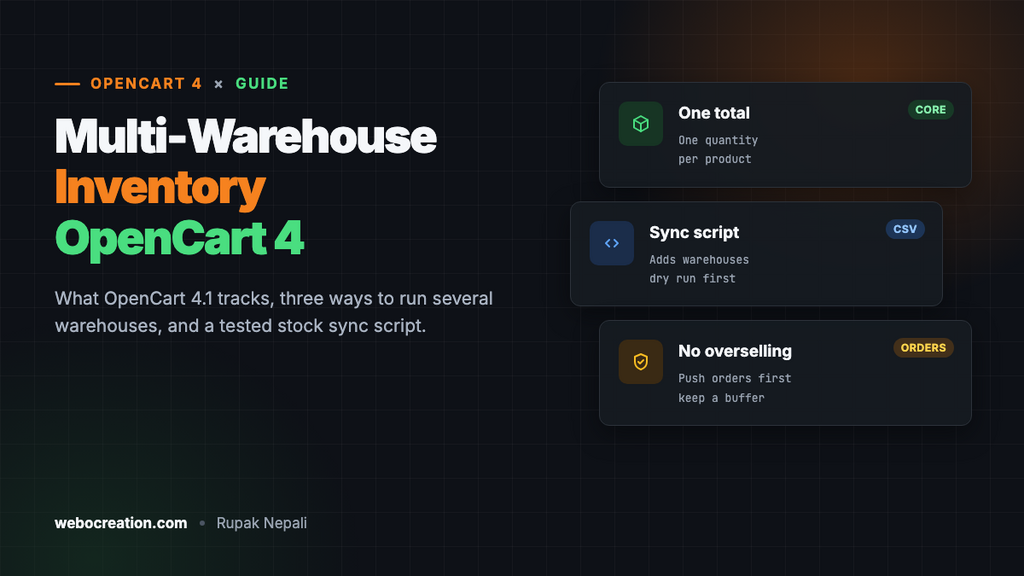
Managing inventory becomes more complicated as an eCommerce business grows. A store that starts with one warehouse may eventually operate multiple warehouses, retail locations, fulfillment centers, or regional distribution facilities.
For OpenCart 4 store owners, this creates an important challenge: how do you maintain accurate product availability across multiple warehouses while ensuring orders are fulfilled from the right location?
OpenCart provides standard product quantity management, but its core product inventory model does not provide a complete multi-warehouse stock allocation system. A business that needs warehouse-level quantities, stock transfers, warehouse selection, and synchronized inventory generally needs a custom extension or an external inventory management integration.
In this guide, we’ll explore how to design and implement a multi-warehouse inventory management system for OpenCart 4.
1. What Is Multi-Warehouse Inventory Management?
Multi-warehouse inventory management allows an online store to track product quantities separately for each warehouse while presenting a unified inventory view to customers.
For example, imagine an OpenCart store selling electronics from three warehouses:
| Product | Warehouse A | Warehouse B | Warehouse C | Total |
|---|---|---|---|---|
| Laptop | 25 | 15 | 10 | 50 |
| Wireless Mouse | 100 | 75 | 40 | 215 |
| Keyboard | 30 | 20 | 15 | 65 |
Instead of maintaining only one product quantity, the inventory system tracks how many units are available at each location. This helps businesses fulfill orders from the nearest warehouse, avoid overselling, transfer inventory, reduce shipping costs, and maintain accurate inventory across sales channels.
2. Does OpenCart 4 Support Multiple Warehouses by Default?
OpenCart 4 includes standard product inventory fields such as quantity, minimum order quantity, stock status, and location. However, the standard product quantity represents a single inventory figure. The product location field is descriptive information; it is not a warehouse-level stock allocation system.
A product can have a quantity of 50 and a location of Warehouse A, but OpenCart does not automatically maintain separate quantities for Warehouse A, Warehouse B, and Warehouse C. A multi-warehouse implementation therefore needs additional database tables and custom inventory logic.
See the OpenCart product documentation and the OpenCart product model.
3. Essential Features of a Multi-Warehouse System
Warehouse management
Administrators should be able to create and manage warehouses with a name, code, address, contact details, manager, operating status, fulfillment priority, and supported shipping regions.
| Code | Warehouse | Location |
|---|---|---|
| WH-001 | Main Warehouse | New York |
| WH-002 | West Coast Warehouse | Los Angeles |
| WH-003 | Central Warehouse | Chicago |
Product stock by warehouse
Each product should have an independent inventory record for every warehouse. For example, SKU LAPTOP-001 may have 25 units in New York, 15 in Los Angeles, and 10 in Chicago. The system should calculate total quantity automatically.
Stock transfers
A stock transfer should validate source stock, record the request, reserve or deduct the source quantity, track the shipment in transit, increase destination stock after receipt, and preserve a complete transfer history. Do not simply change two quantity fields without creating an auditable transaction.
Warehouse-based order fulfillment
Orders can be assigned by nearest warehouse, highest available stock, predefined priority, lowest shipping cost, or split fulfillment. The right strategy depends on the store’s logistics and business requirements.
4. Recommended Database Structure
A reliable extension should keep warehouse inventory separate from the standard OpenCart product record. These example tables are a starting point, not a complete production-ready schema.
Warehouse table
CREATE TABLE `oc_warehouse` (
    `warehouse_id` INT NOT NULL AUTO_INCREMENT,
    `name` VARCHAR(128) NOT NULL,
    `code` VARCHAR(64) NOT NULL,
    `address` TEXT,
    `status` TINYINT(1) NOT NULL DEFAULT 1,
    `sort_order` INT NOT NULL DEFAULT 0,
    `date_added` DATETIME NOT NULL,
    `date_modified` DATETIME NOT NULL,
    PRIMARY KEY (`warehouse_id`),
    UNIQUE KEY `code` (`code`)
) ENGINE=InnoDB DEFAULT CHARSET=utf8mb4;
Product warehouse inventory table
CREATE TABLE `oc_product_warehouse` (
    `product_warehouse_id` INT NOT NULL AUTO_INCREMENT,
    `product_id` INT NOT NULL,
    `warehouse_id` INT NOT NULL,
    `quantity` INT NOT NULL DEFAULT 0,
    `reserved_quantity` INT NOT NULL DEFAULT 0,
    `date_modified` DATETIME NOT NULL,
    PRIMARY KEY (`product_warehouse_id`),
    UNIQUE KEY `product_warehouse` (`product_id`, `warehouse_id`),
    KEY `warehouse_id` (`warehouse_id`)
) ENGINE=InnoDB DEFAULT CHARSET=utf8mb4;
Available stock is Quantity - Reserved Quantity. If a warehouse has 50 physical units and 5 are reserved, 45 are available for new orders.
Inventory transaction table
CREATE TABLE `oc_inventory_transaction` (
    `transaction_id` INT NOT NULL AUTO_INCREMENT,
    `product_id` INT NOT NULL,
    `warehouse_id` INT NOT NULL,
    `order_id` INT NOT NULL DEFAULT 0,
    `transaction_type` VARCHAR(32) NOT NULL,
    `quantity` INT NOT NULL,
    `reference` VARCHAR(128) DEFAULT NULL,
    `comment` TEXT,
    `date_added` DATETIME NOT NULL,
    PRIMARY KEY (`transaction_id`),
    KEY `product_warehouse` (`product_id`, `warehouse_id`),
    KEY `order_id` (`order_id`)
) ENGINE=InnoDB DEFAULT CHARSET=utf8mb4;
Transaction types can include purchase, sale, reservation, reservation release, stock adjustment, transfer out, transfer in, return, and damaged stock. Production schemas should consider foreign keys, user IDs, transfer IDs, and suitable indexes.
5. How to Synchronize Inventory Across Warehouses
Consider a customer ordering two laptops assigned to Warehouse A:
| Warehouse | Before reservation | After reservation |
|---|---|---|
| Warehouse A | 25 | 23 |
| Warehouse B | 15 | 15 |
| Warehouse C | 10 | 10 |
Total available stock becomes 48. The storefront should display availability according to the store’s inventory policy.
Use database transactions
Inventory updates should be atomic to prevent simultaneous orders from selling the same available stock. A simplified PHP example:
$this->db->query("START TRANSACTION");

try {
    $query = $this->db->query("
        SELECT quantity, reserved_quantity
        FROM `" . DB_PREFIX . "product_warehouse`
        WHERE product_id = '" . (int)$product_id . "'
        AND warehouse_id = '" . (int)$warehouse_id . "'
        FOR UPDATE
    ");

    if (!$query->num_rows) {
        throw new \\Exception('Inventory record not found');
    }

    $available = (int)$query->row['quantity']
        - (int)$query->row['reserved_quantity'];

    if ($available < $order_quantity) {
        throw new \\Exception('Insufficient stock');
    }

    $this->db->query("
        UPDATE `" . DB_PREFIX . "product_warehouse`
        SET reserved_quantity = reserved_quantity + " . (int)$order_quantity . ",
            date_modified = NOW()
        WHERE product_id = '" . (int)$product_id . "'
        AND warehouse_id = '" . (int)$warehouse_id . "'
    ");

    // Insert the corresponding inventory transaction here.
    $this->db->query("COMMIT");
} catch (\\Throwable $e) {
    $this->db->query("ROLLBACK");
    throw $e;
}
This is an illustrative transaction pattern. Production code must handle database errors, missing rows, order state changes, transaction boundaries, and reservation release or deduction.
Keep OpenCart’s product quantity synchronized
One approach is to set the standard OpenCart product quantity to the sum of available quantities across active warehouses. For example, 25 + 15 + 10 = 50. However, updating the aggregate quantity alone is insufficient. The extension must enforce warehouse-level availability during cart validation and order processing, or an order could be accepted when no individual warehouse can fulfill it.
6. Automatic Warehouse Selection During Checkout
Allocate a warehouse before reserving inventory. A basic workflow is:
- Read the customer’s shipping address.
- Find active warehouses serving the destination.
- Check available stock for each product.
- Apply warehouse priority.
- Select a warehouse that can fulfill the order.
- Reserve the required inventory.
- Save the allocation against the order.
$warehouses = $this->getAvailableWarehouses(
    $product_id,
    $order_quantity,
    $shipping_zone_id
);

if (!$warehouses) {
    throw new \\Exception('No warehouse has sufficient stock.');
}

$selected_warehouse = $warehouses[0];

$this->reserveStock(
    $product_id,
    $selected_warehouse['warehouse_id'],
    $order_quantity
);
This assumes getAvailableWarehouses() returns eligible warehouses in the desired priority order. Advanced allocation can consider shipping cost, delivery estimates, warehouse capacity, product restrictions, and split shipments.
7. Handling Orders Fulfilled by Multiple Warehouses
Sometimes no single warehouse can fulfill an entire order. For example, a customer orders two laptops, three keyboards, and two mice. Warehouse A has all laptops and mice but only one keyboard; Warehouse B has the remaining keyboards.
Option 1: Single-warehouse fulfillment
Only allocate the order when one warehouse can fulfill every product. This simplifies shipping and inventory management, but can delay orders even when stock is available elsewhere.
Option 2: Split fulfillment
Allocate individual products or quantities to different warehouses. This improves stock utilization and flexibility, but may require multiple shipments, more complex shipping calculations, and separate fulfillment records. Store shipment and warehouse allocation records separately from the main OpenCart order.
8. Stock Transfer Between Warehouses
Stock transfers should have their own workflow:
Create Transfer
      |
      v
Validate Source Stock
      |
      v
Approve Transfer
      |
      v
Reserve Source Quantity
      |
      v
Mark as In Transit
      |
      v
Receive at Destination
      |
      v
Update Destination Inventory
      |
      v
Complete Transfer
For example, transferring 20 keyboards from Warehouse A to Warehouse B should not increase destination available stock until the receiving warehouse confirms delivery. Support partial receipts, rejected or damaged quantities, cancellation, and a complete transaction history.
9. Integrating OpenCart with an ERP or Inventory Management System
Businesses may already use an external inventory system or ERP such as Odoo, SAP, Microsoft Dynamics 365, Oracle NetSuite, or ERPNext. OpenCart can act as the storefront while the ERP manages inventory and warehouse operations.
          ERP / Inventory System
                    |
                    v
             Integration Layer
                    |
             API / Queue / Jobs
                    |
                    v
               OpenCart 4
                    |
                    v
                Storefront
The integration layer should manage product SKU mapping, warehouse identifiers, stock updates, order synchronization, reservations, shipment status, and failed synchronization attempts.
Do not assume OpenCart 4 provides a universal built-in API for every inventory operation. Verify the API endpoints and authentication capabilities of the exact OpenCart release and any installed API extension. A custom extension with scheduled tasks, event listeners, and a secure integration endpoint may be more appropriate.
OpenCart’s event system supports extending application behavior without directly modifying core files. See the OpenCart developer guide on events.
10. Scheduled Inventory Synchronization
Not every inventory system supports real-time synchronization. A scheduled task can periodically retrieve stock updates from an ERP or warehouse management system.
| Task | Suggested frequency |
|---|---|
| Product synchronization | When products change or periodically |
| Inventory synchronization | Every 1–5 minutes, depending on business needs |
| Order synchronization | Near real time |
| Shipment updates | When shipment status changes |
| Inventory reconciliation | Daily |
Choose frequency based on order volume, API limits, and the required storefront freshness. High-volume stores should consider queues rather than one large scheduled task. Include retry handling, failed-job logging, duplicate event protection, timestamp tracking, SKU and warehouse mapping, conflict resolution, and reconciliation.
11. Preventing Inventory Synchronization Problems
Prevent overselling
Use database transactions and row-level locking when reserving inventory. A storefront quantity check alone cannot prevent two customers from attempting to buy the last unit simultaneously.
Avoid duplicate deductions
Make order inventory operations idempotent. Processing the same order-status event twice must not deduct stock twice. Use a unique transaction reference to identify previously processed operations.
Track reservations separately
Maintain separate values for physical quantity, reserved quantity, available quantity, incoming quantity, and damaged or unavailable quantity.
Reconcile inventory regularly
Compare warehouse records with the ERP, warehouse management system, or physical stock counts. Regular reconciliation helps identify missing updates and incorrect quantities.
12. Admin Dashboard and Inventory Reports
A useful extension should show total products in stock, available inventory, low-stock and out-of-stock products, stock value by warehouse, pending transfers, reserved inventory, recent adjustments, and synchronization errors. Administrators should be able to filter by warehouse, product, SKU, manufacturer, and stock status. CSV or Excel exports can simplify reconciliation.
13. Security and Development Best Practices
- Use the OpenCart extension architecture rather than modifying core files.
- Check administrator permissions before allowing warehouse or stock changes.
- Validate product IDs, warehouse IDs, and quantities.
- Use database transactions for reservations and transfers.
- Log adjustments with administrator and transaction details.
- Protect integration endpoints with authentication and authorization.
- Avoid exposing warehouse-level inventory unless required.
- Use unique transaction references to prevent duplicate processing.
- Test against the exact OpenCart 4 release and installed extensions.
- Provide backup and recovery procedures.
See the OpenCart extension development guide.
14. Multi-Warehouse Inventory Implementation Checklist
- Multiple warehouses can be created and managed.
- Each product can have stock in multiple warehouses.
- Available quantity is calculated correctly.
- Warehouse stock is reserved during order processing.
- Orders cannot oversell available inventory.
- Stock is released or deducted correctly when order statuses change.
- Transfers support approval and receipt.
- Partial transfers and damaged stock are handled.
- Orders can be allocated to the correct warehouse.
- Split fulfillment is supported if required.
- ERP synchronization handles errors and duplicate updates.
- Inventory reports show accurate warehouse quantities.
- Administrator permissions are enforced.
- Inventory changes are recorded in an audit log.
15. Frequently Asked Questions
Does OpenCart 4 support multiple warehouses by default?
No. OpenCart 4 includes standard product quantity and location fields, but not a complete warehouse-level inventory management system. A custom extension or integration is needed.
Can I manage different stock quantities for the same product in different warehouses?
Yes. A custom extension can store quantities separately for each warehouse and calculate total available inventory.
Can OpenCart automatically select the nearest warehouse?
Yes. Custom checkout logic can select a warehouse based on shipping address, stock availability, delivery zones, shipping cost, or priority.
Can I synchronize OpenCart inventory with Odoo or SAP?
Yes. A custom integration can synchronize product, warehouse, inventory, and order information. Use reliable APIs, scheduled jobs, queues, and transaction safeguards.
Can one order be fulfilled from multiple warehouses?
Yes. A split-fulfillment workflow can allocate products or quantities to multiple warehouses and manage separate shipments.
How can I prevent overselling across warehouses?
Use atomic database transactions, row-level locking, inventory reservations, and idempotent order processing. Validate stock at checkout and during order allocation.
Conclusion
Multi-warehouse inventory management is an important capability for growing OpenCart stores. It gives businesses better visibility into stock availability, improves order fulfillment, and makes it easier to operate across multiple locations.
OpenCart 4 provides a flexible foundation for building this functionality, but proper multi-warehouse management requires additional inventory tables, warehouse allocation logic, stock reservations, transfer workflows, and synchronization mechanisms.
Whether you are managing two warehouses or integrating a large fulfillment network, a carefully designed OpenCart 4 inventory extension can help keep stock accurate and orders moving efficiently.
Need help implementing multi-warehouse inventory management in OpenCart 4? Webocreation can help with custom OpenCart development, inventory synchronization, ERP integration, and eCommerce automation.
Related Resources
Implementation note: The SQL and PHP snippets are illustrative starting points. Adapt and test them against the store’s exact OpenCart version, database engine, order-status workflow, and installed extensions before production use.

Rupak Nepali is a web developer, manage Webocreation website and the author of six books:
Getting Started with OpenCart Module Development (Packt, 2013),
OpenCart Theme and Module Development (Packt, 2015),
OpenCart 4: Dev Guide for Themes & Extensions (2024),
OpenCart 4: User Manual (2025),
Cloudflare for the Enterprise Website (2026) and
The Technical Web Guide for Marketers (2026).
Rupak has built OpenCart stores and extensions since 2010, has published more than 600 tutorials on Webocreation, and shares free OpenCart extensions on GitHub.
Find Rupak on
GitHub | Amazon | LinkedIn | X | YouTube.