How to Build an Automation-Ready OpenCart Store
Set up staging, clean catalog data, OpenCart events, webhooks and cron, backups, speed, security and tracking before you automate.
 Rupak NepaliPublished Nov 22, 2026
Automation runs on data and events. If your categories are a mess, your products lack weights and your store has no way to tell other systems what is happening, every automation you add will be fragile. This article sets up OpenCart so the rest of the series is easy.
The manual way
In many stores, product data grows by accident. One product has its size in the title, another in an option, a third in the description. Weights are missing, so shipping is calculated by hand. Categories overlap. Customers check out as guests, so the store cannot connect repeat purchases. Nothing triggers anything; the owner watches the admin panel and reacts.
Every one of those habits blocks automation later. Fixing them now costs a few hours. Fixing them after you have 500 products and ten connected tools costs weeks.
Set up a test store first
Never build automations directly on your live store. Create a copy you can break.
- Create a subdomain such as staging.yourstore.com (or use the demo store pattern: demo.yourstore.com).
- Copy your OpenCart files and database to it. Many hosts offer one-click staging.
- Edit both config.php files (the main one and the one in the admin folder) so the URLs and database point to the copy.
- Block search engines from the copy with a password or an IP allow list, so it does not compete with your real store in search results.
- Switch payment extensions on the copy to their sandbox or test modes.
Tip
Keep the staging store on the same OpenCart version as your live store. An automation that works on a different version may fail when you move it.
Clean catalog structure
Automation tools read structured fields, not paragraphs. Put every fact in the right field.
Categories. Keep them shallow (two or three levels) and do not let them overlap. Every category gets a unique name, an SEO keyword (URL) and a short description. Category descriptions help search engines and AI assistants understand your store.
Attributes. Use OpenCart’s Attributes (Catalog > Attributes) for facts that do not change the price or stock: material, dimensions, compatibility, care instructions. Attributes show up in a neat specifications table and are easy to export to feeds.
Options. Use Options for choices that change price or stock: size, color, plan length. Give each option value its own stock quantity if you track inventory by variant.
Required data on every product:
- Model and SKU (unique)
- Price and tax class
- Weight and dimensions (shipping depends on them)
- Quantity and minimum quantity
- Manufacturer (brand)
- At least one image, ideally three or more
- GTIN, UPC or EAN where the product has one (Google Merchant Center uses these)
Note
Make a “new product checklist” today, even if you add products by hand. It becomes the template (Rung 1) for the automated import you will build in our guide Catalog on Autopilot.
Customer accounts and consent
Automation needs to recognize returning customers and needs permission to contact them.
- Keep guest checkout on. Forcing account creation causes abandonment: in Baymard Institute’s research, 18% of US shoppers who abandoned a checkout did so because the site wanted them to create an account (Baymard Institute, 2025). OpenCart still records the guest’s email with the order, which is enough for most automations.
- Offer account creation after the order, on the success page, with a one-click option.
- Separate transactional and marketing consent. Order confirmations and shipping updates are transactional and do not need marketing consent. Promotional emails do. Add a clear newsletter opt-in checkbox at checkout and in the account area, and never pre-tick it where the law requires active consent.
- Publish a privacy policy that names the tools that receive customer data (email provider, analytics, support tool).
OpenCart’s automation hooks
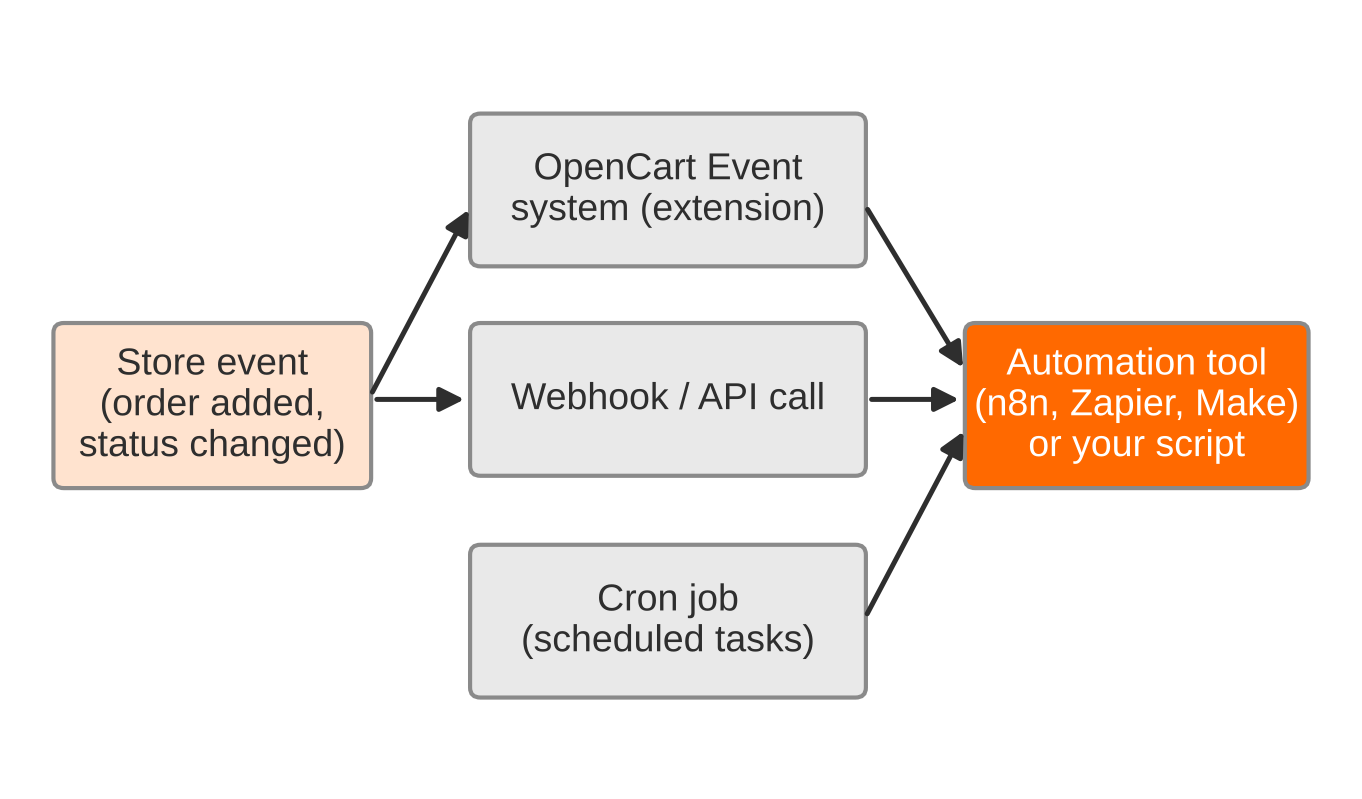
OpenCart gives you three ways to make things happen automatically.
Events
The OpenCart event system lets an extension run code before or after almost any controller, model or view action, without editing core files. For example, you can run code after an order’s history is added, which happens when an order is placed and every time its status changes.
You can see registered events in the admin under Extensions > Events. Extensions register their own events when you install them. A typical order event trigger in OpenCart 4 looks like this:
catalog/model/checkout/order.addHistory/afterNote
The separator between the route and the method changed during the OpenCart 4.0 releases (earlier builds used a vertical bar instead of a dot). Check an existing event in Extensions > Events on your version and copy its format.
Sending a webhook from an event
Here is the core of a tiny extension method that sends order details to an automation tool whenever an order’s status changes. The URL would come from the extension’s settings.
public function sendWebhook(string &$route, array &$args, mixed &$output): void {
    $order_id = (int)$args[0];
    $order_status_id = (int)$args[1];

    $this->load->model('checkout/order');
    $order = $this->model_checkout_order->getOrder($order_id);

    $payload = json_encode([
        'order_id'  => $order_id,
        'status_id' => $order_status_id,
        'email'     => $order['email'],
        'total'     => $order['total'],
        'currency'  => $order['currency_code'],
    ]);

    $ch = curl_init($this->config->get('module_webhook_url'));
    curl_setopt($ch, CURLOPT_POST, true);
    curl_setopt($ch, CURLOPT_POSTFIELDS, $payload);
    curl_setopt($ch, CURLOPT_HTTPHEADER, ['Content-Type: application/json']);
    curl_setopt($ch, CURLOPT_TIMEOUT, 5);
    curl_exec($ch);
    curl_close($ch);
}
Keep the timeout short so a slow automation tool never slows down your checkout. For production, add a shared secret header so the receiving tool can verify the request came from your store. If you would rather not write code, several Marketplace extensions add webhooks and Zapier or n8n connections to OpenCart.
The API
OpenCart includes an API (System > Users > API) that the admin uses to edit orders. For broader integrations, most stores use an extension that exposes a REST API for products, orders and customers, or let the connector tool read the database through a secure, read-only user.
Cron jobs
OpenCart 4 includes a built-in cron manager that runs scheduled tasks when your server calls the store’s cron URL. Set up a single server cron entry that calls OpenCart every few minutes, and let OpenCart decide which tasks are due. Use cron for anything that runs on a schedule: stock imports, feed generation, abandoned-cart checks, nightly reports.
Hosting, backups and updates on autopilot
A store that is down sells nothing. Automate the foundation:
- Daily automated backups of files and database, stored off the server (for example in cloud storage). Keep at least 14 days.
- A monthly restore test on your staging store. A backup you have never restored is a hope, not a backup.
- Uptime monitoring that checks your home page and checkout every few minutes and alerts you by email or phone. UptimeRobot and Better Stack have free tiers.
- Update routine: apply OpenCart and extension updates to staging first, test checkout, then apply to live.
Speed: the silent conversion engine
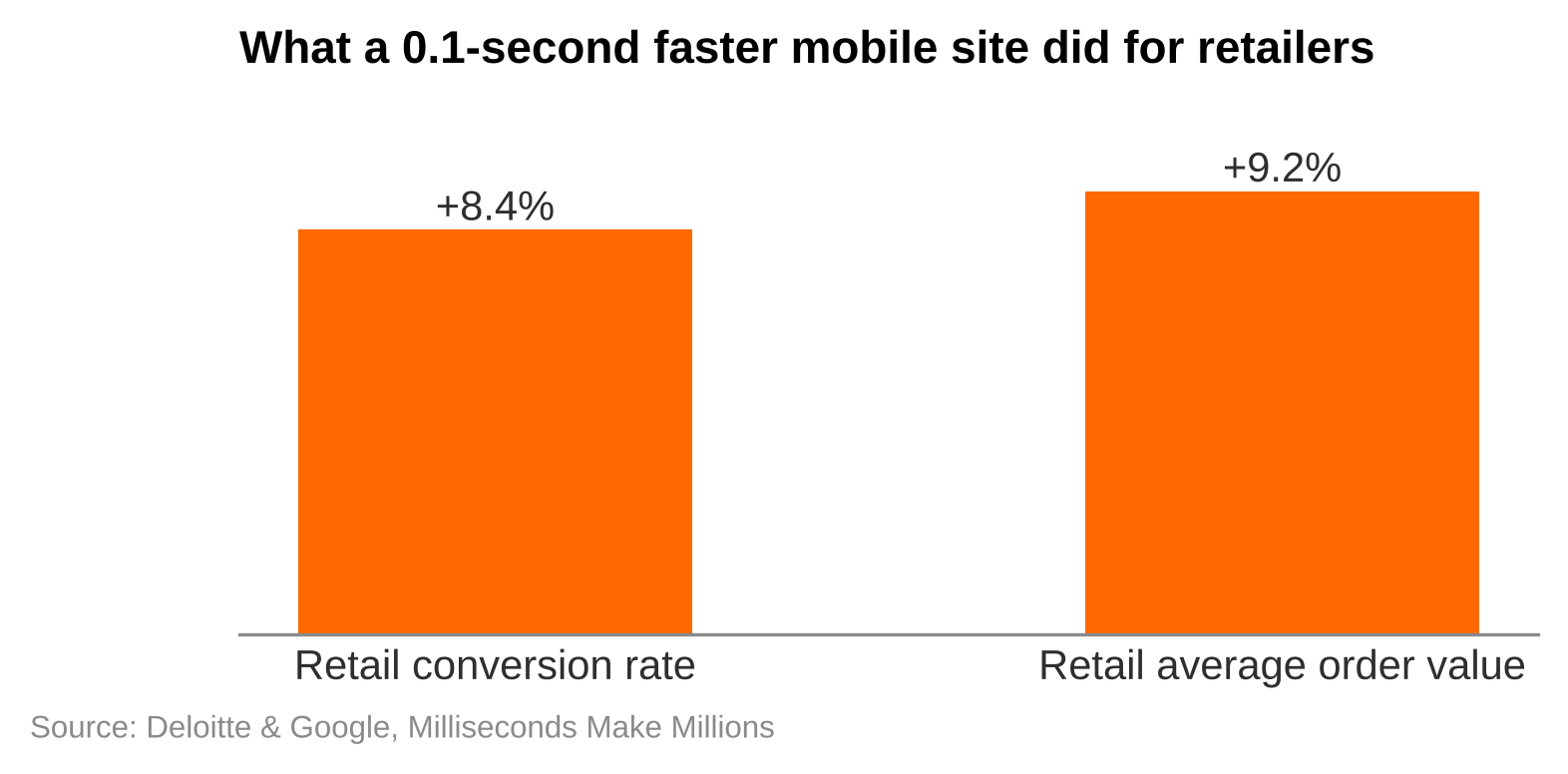
Speed is not just a technical nicety. In the Deloitte and Google study Milliseconds Make Millions, a 0.1-second improvement in mobile site speed increased retail conversion rates by 8.4% and average order value by 9.2% (Deloitte, Google).
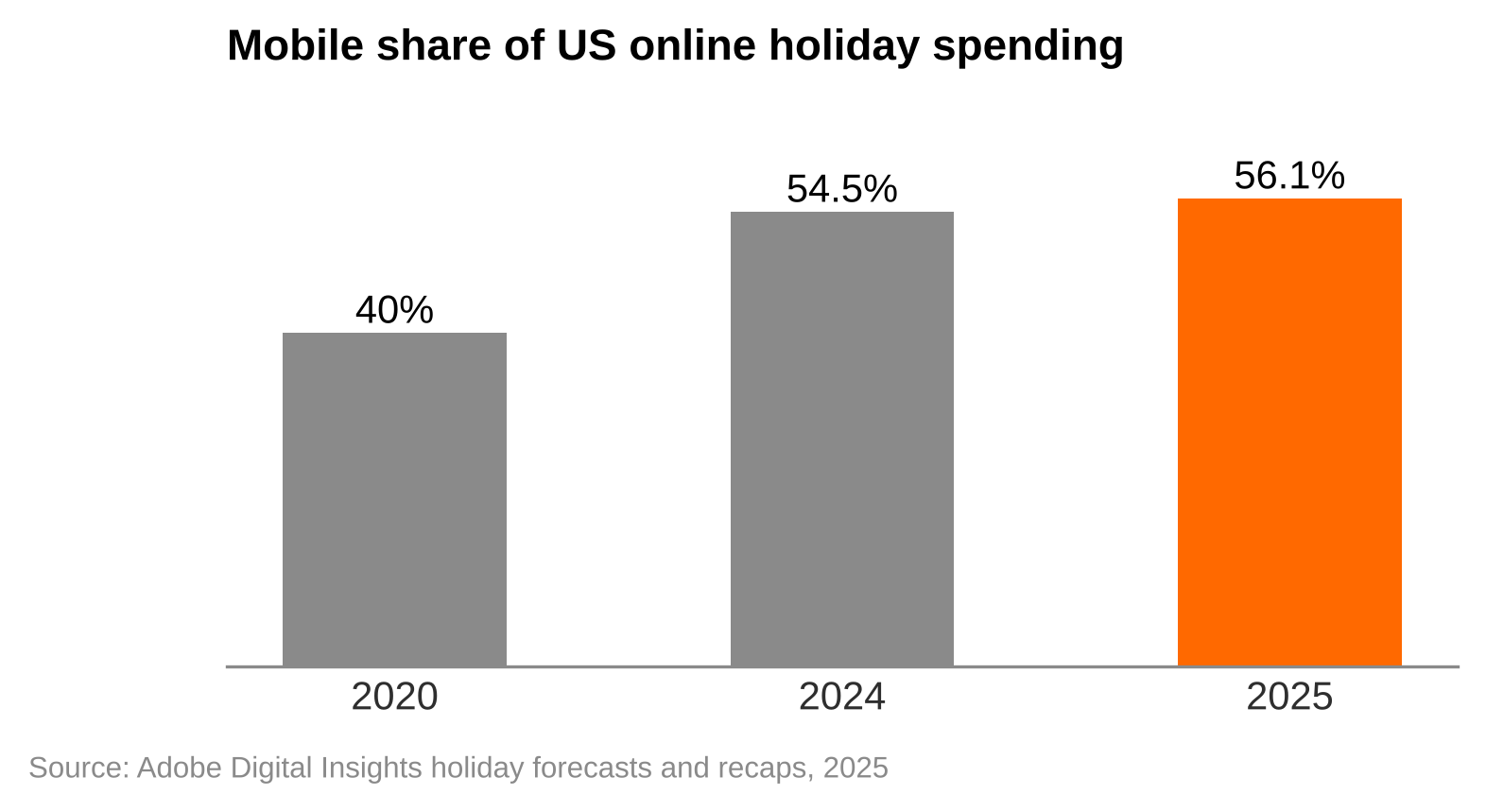
Mobile matters most because that is where most shopping happens. Adobe forecast that mobile devices would drive 56.1% of US online holiday spending in 2025, up from 54.5% in 2024 and 40% in 2020 (Adobe, 2025).
Speed basics for OpenCart:
- Use a current PHP version supported by your OpenCart release.
- Turn on OpenCart’s caching and use server-level caching where your host supports it.
- Serve images in WebP at the size they are displayed (our guide Catalog on Autopilot automates this).
- Remove unused extensions and modifications.
- Put a CDN in front of the store.
Security and a CDN
Automated stores attract automated attacks: card-testing bots, credential stuffing and spam registrations. Put basic protection in place:
- SSL everywhere, with HTTP redirected to HTTPS.
- A CDN with a web application firewall, such as Cloudflare. Even the free plan adds caching, DDoS protection and bot filtering. Add rate limiting on login, registration and checkout pages.
- Rename the admin folder and restrict it by IP address if you work from fixed locations.
- Two-factor authentication for admin users where available, and strong unique passwords for every admin and API user.
- A CAPTCHA or bot challenge on registration, contact and review forms.
Tracking from day one
You cannot automate decisions about data you do not collect. Set these up now:
- Google Analytics 4 with ecommerce events (view item, add to cart, begin checkout, purchase). Use an OpenCart extension or Google Tag Manager.
- Google Search Console for your domain, with your XML sitemap submitted.
- Google Merchant Center account, even if you are not running ads yet. Free product listings on Google need it.
- Microsoft Clarity (free) for session recordings and heatmaps, so you can see where shoppers struggle.
Build it: an automation-ready store on a test subdomain
- Create staging.yourstore.com with a copy of your store, protected from search engines.
- Audit ten products against the required-data list in section 3.3. Fix what is missing and note the most common gaps.
- Confirm guest checkout is on and the newsletter opt-in is clear and unticked.
- Install or build a webhook event for order status changes and point it at a free test endpoint (n8n, Make, or a request-inspection site).
- Place a test order and change its status. Confirm the webhook arrives with the right data.
- Set up daily backups and uptime monitoring for the live store.
- Connect GA4, Search Console and Merchant Center.
Other platforms
Shopify includes webhooks for orders, products and customers in its admin and API, and Shopify Flow can trigger on the same events. WooCommerce has built-in webhooks under WooCommerce > Settings > Advanced > Webhooks. PrestaShop uses hooks such as actionOrderStatusPostUpdate in modules. Staging is built into many Shopify and WooCommerce hosts.
Tools
| Need | Free option | Paid option |
|---|---|---|
| Uptime monitoring | UptimeRobot free, Better Stack free | Better Stack paid, Pingdom |
| Backups | Host backups + cloud storage script | Managed backup services, JetBackup on cPanel hosts |
| CDN and firewall | Cloudflare Free | Cloudflare Pro or Business |
| Webhook testing | n8n self-hosted, Make free tier | Zapier |
| Analytics | GA4, Search Console, Clarity | Paid analytics suites |
Guardrails
- Never test on the live store with real customers’ data or real payment gateways.
- Keep webhook timeouts short so outside tools cannot slow checkout.
- Log every outgoing webhook (time, order ID, response code) so you can replay failures.
- Re-check events after every update. OpenCart or extension updates can change routes or arguments.
Autopilot checklist
- ☐ A protected staging copy of my store exists and matches the live version.
- ☐ Every product has SKU, price, weight, dimensions, brand, stock and images.
- ☐ Categories are shallow, unique and described.
- ☐ Guest checkout is on; marketing consent is separate and clear.
- ☐ An order-status webhook (or connector) fires and is logged.
- ☐ Daily off-server backups and a monthly restore test are scheduled.
- ☐ Uptime monitoring alerts me when the store or checkout is down.
- ☐ SSL, CDN, firewall and admin protections are in place.
- ☐ GA4, Search Console, Merchant Center and Clarity are connected.
This article is part of the book Stores That Sell on Autopilot by Rupak Nepali.
Get every chapter, the printable checklists and the worksheets in one place. See the automations running live at demo.webocreation.com. Want it done for you? Ask about the Stores That Sell on Autopilot service.
← Previous: The Autopilot Stack | Next: Catalog on Autopilot →
The Stores That Sell on Autopilot series
- Start here: Series overview
- Part 1: What "Autopilot" Really Means
- Part 2: The Autopilot Stack
- Part 3: Building an Automation-Ready Store (you are here)
- Part 4: Catalog on Autopilot
- Part 5: Orders, Payments and Fulfillment
- Part 6: Inventory and Suppliers
- Part 7: Search Traffic That Compounds
- Part 8: Email and SMS Flows That Sell While You Sleep
- Part 9: Reviews, Social Proof and Referrals
- Part 10: Ads and Retargeting with Guardrails
- Part 11: Customer Service Without the Inbox
- Part 12: AI Agents and Agentic Commerce
- Part 13: The 30-Minute Weekly Owner Routine
- Part 14: Case Study: Automating the Demo Store
- Resource: The Complete Ecommerce Automation Checklist
- Resource: Ecommerce Automation Tools Directory: Free and Paid Options
- Resource: Copy-Ready Email Templates for Ecommerce Flows
- Resource: OpenCart Automation Quick Reference: Menus, Events and Cron
Sources
- Adobe and Adobe Digital Insights: 2025 holiday shopping recap (January 2026), AI traffic reports and holiday mobile forecasts. business.adobe.com / news.adobe.com
- Baymard Institute: Cart abandonment rate statistics (updated September 22, 2025) and checkout usability research. baymard.com
- Deloitte and Google: Milliseconds Make Millions. deloitte.com
- Zapier: SMB automation survey conducted by Centiment, May 2026. zapier.com

Rupak Nepali is a web developer, manage Webocreation website and the author of six books:
Getting Started with OpenCart Module Development (Packt, 2013),
OpenCart Theme and Module Development (Packt, 2015),
OpenCart 4: Dev Guide for Themes & Extensions (2024),
OpenCart 4: User Manual (2025),
Cloudflare for the Enterprise Website (2026) and
The Technical Web Guide for Marketers (2026).
Rupak has built OpenCart stores and extensions since 2010, has published more than 600 tutorials on Webocreation, and shares free OpenCart extensions on GitHub.
Find Rupak on
GitHub | Amazon | LinkedIn | X | YouTube.