Drupal Canvas (Formerly Experience Builder): Build and Publish Pages Without Code in Drupal CMS 2
A tested look at Drupal Canvas in Drupal CMS 2.2: installing it, the component library, editing, drafts and publishing, and SEO fields on every page.
 Rupak NepaliPublished Nov 23, 2026
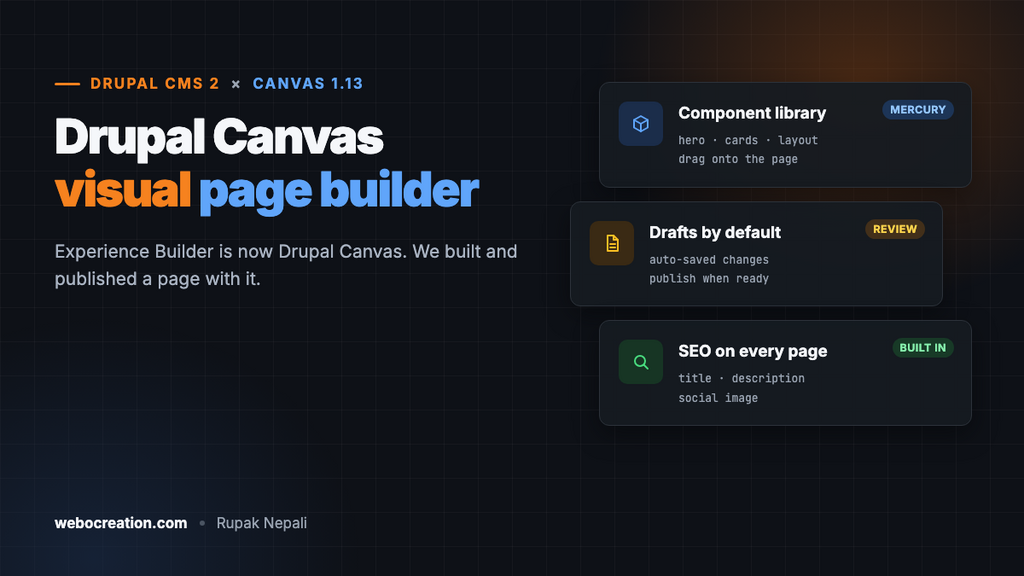
Drupal finally has a visual page builder. Drupal Canvas, developed under the working name Experience Builder, lets editors build pages by dragging components onto a live preview and editing their content in a side panel, without writing code or touching a template. It reached 1.0 in December 2025 and is the default page builder in Drupal CMS 2.0, released on 28 January 2026.
We installed the current Drupal CMS (2.2.10, on Drupal core 11.4.13 with Canvas 1.13.0), edited and published a page with Canvas, and checked what visitors see before and after publishing. This is what to expect.
Getting Canvas
The quickest way is Drupal CMS, which ships with Canvas, the Mercury theme built for it, and a starter home page made with it. With Composer:
composer create-project drupal/cms cms
cd cms
Then install it in the browser, or from the command line with Drush:
php -d memory_limit=-1 vendor/bin/drush.php site:install drupal_cms_installer \
  --db-url=sqlite://localhost//opt/cms/db/drupal.sqlite \
  --account-name=admin --site-name="Canvas Test" -y
Two things tripped us up. The install ran out of memory with PHP’s default 128 MB limit, hence memory_limit=-1 for the install (give the web server at least 512 MB too). And a relative SQLite path such as sqlite://sites/default/files/.ht.sqlite ended up in an unexpected folder, so use an absolute path outside the web root as above, or MySQL/MariaDB/PostgreSQL for a real site.
On an existing Drupal 11 site, Canvas is the contributed module drupal/canvas; install it with Composer like any other module (see upgrading Drupal 10 to 11 first if you are still on 10). If you would rather not use the command line at all, Project Browser and Automatic Updates cover installing modules from the admin.
Pages are their own content type
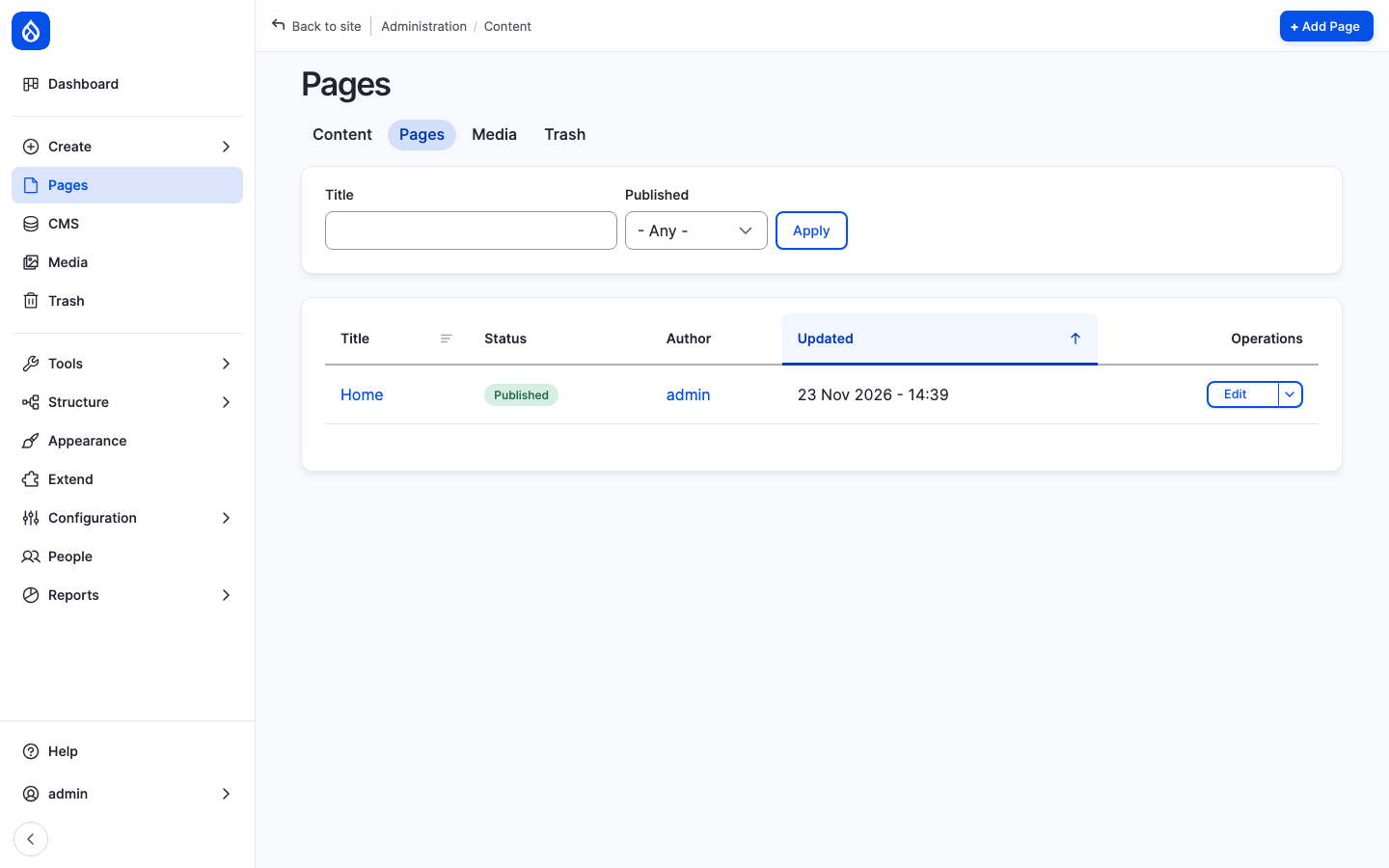
Canvas pages live under Content > Pages (/admin/content/pages), next to the usual Content list, with their own Add Page button. They are a separate entity, not nodes, built for landing pages and marketing pages; articles and other structured content stay as nodes.
Building a page
The component library
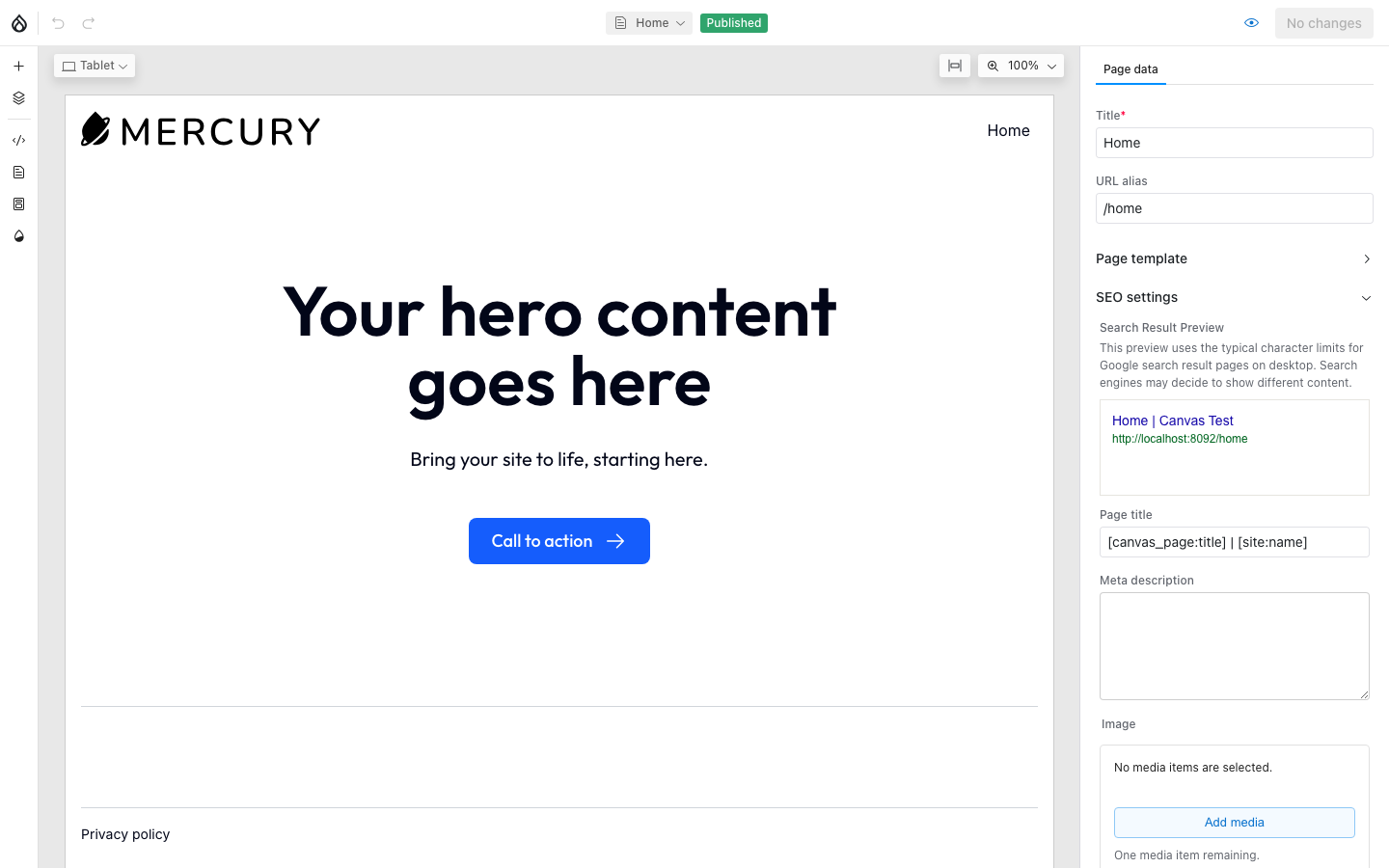
The + icon at the top of the left rail opens the Library: components grouped into folders, and patterns (saved groups of components). On Drupal CMS the Mercury theme supplies the components: Base (anchor, badge, blockquote, button, heading, icon, image, text, video), Card (icon, image, logo, pricing and testimonial cards), Hero, Layout and Menus, plus Drupal blocks and Views. Drag one onto the preview to add it.
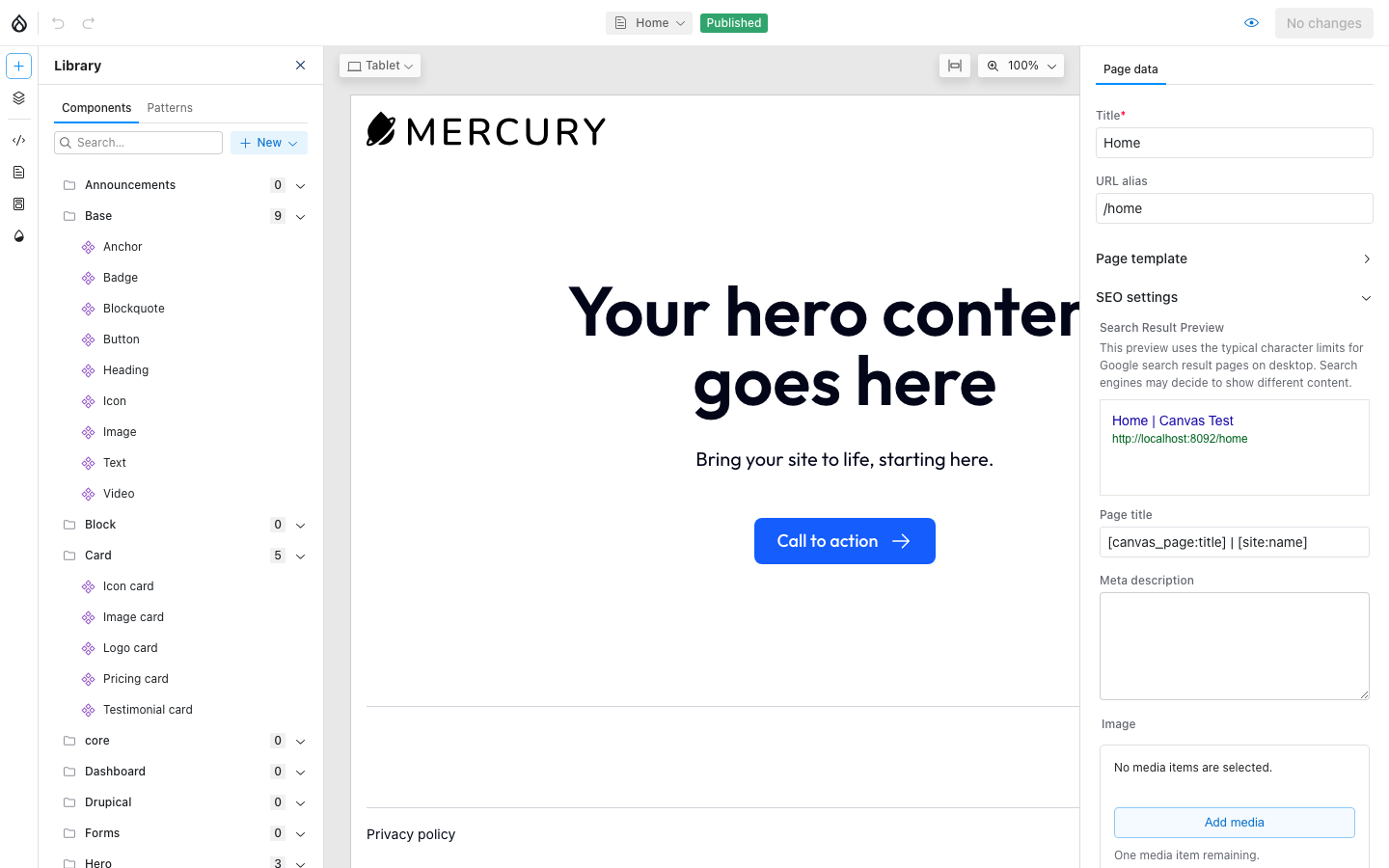
The other icons in the rail open Layers (the page’s component tree), Code (code components written in the browser), Pages, Templates (layouts for content types) and the Brand kit.
Editing a component
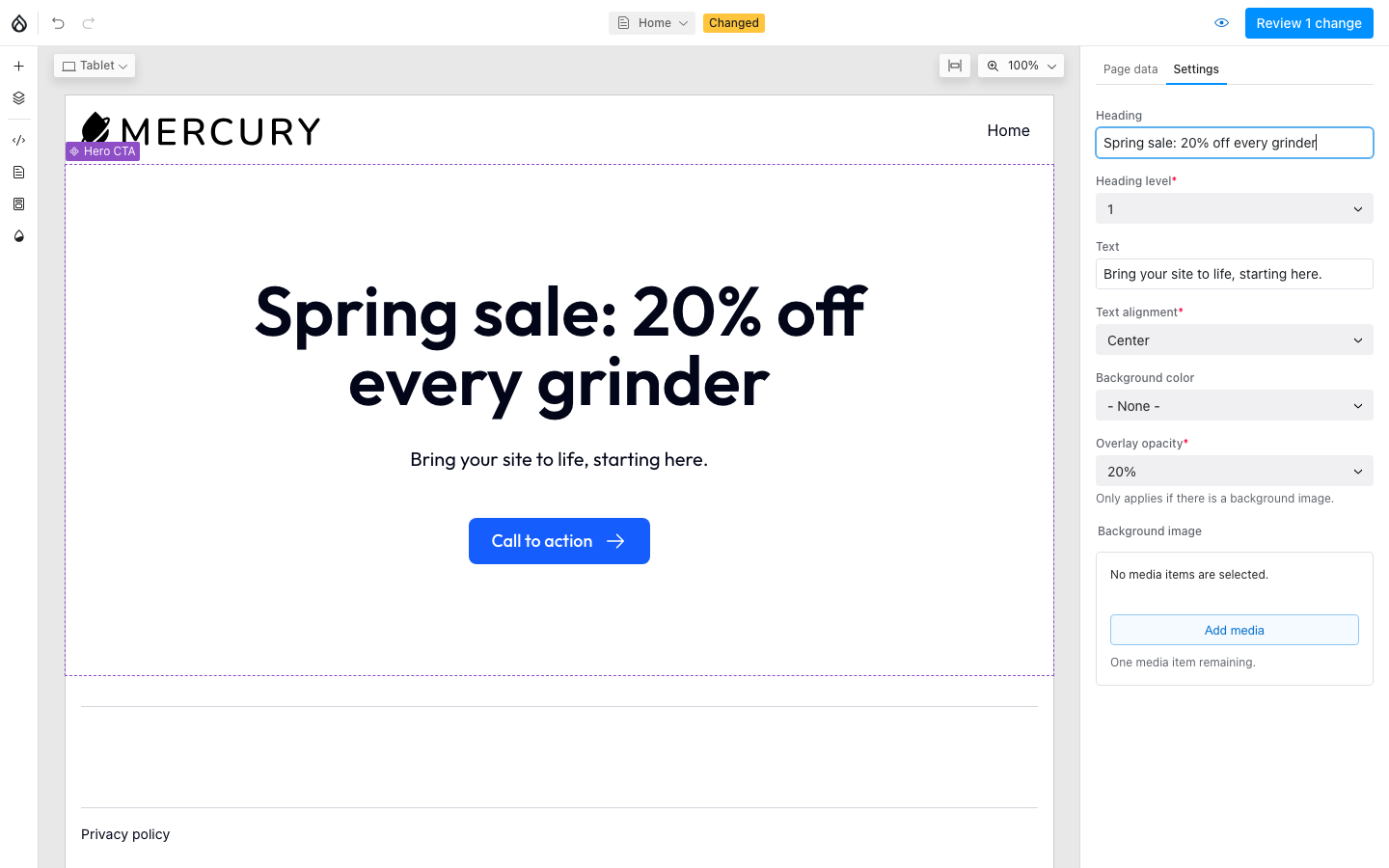
Click a component in the preview and the right-hand panel switches to its settings. For the Mercury hero that’s the heading, heading level, text, alignment, background color, overlay opacity and background image. The preview updates as you type.
Drafts, review and publish
Canvas saves every change automatically as a draft. The page gets a yellow Changed badge and the top bar shows Review 1 change. Visitors keep seeing the published version: in our test, an edited heading stayed out of the live page until we published it.
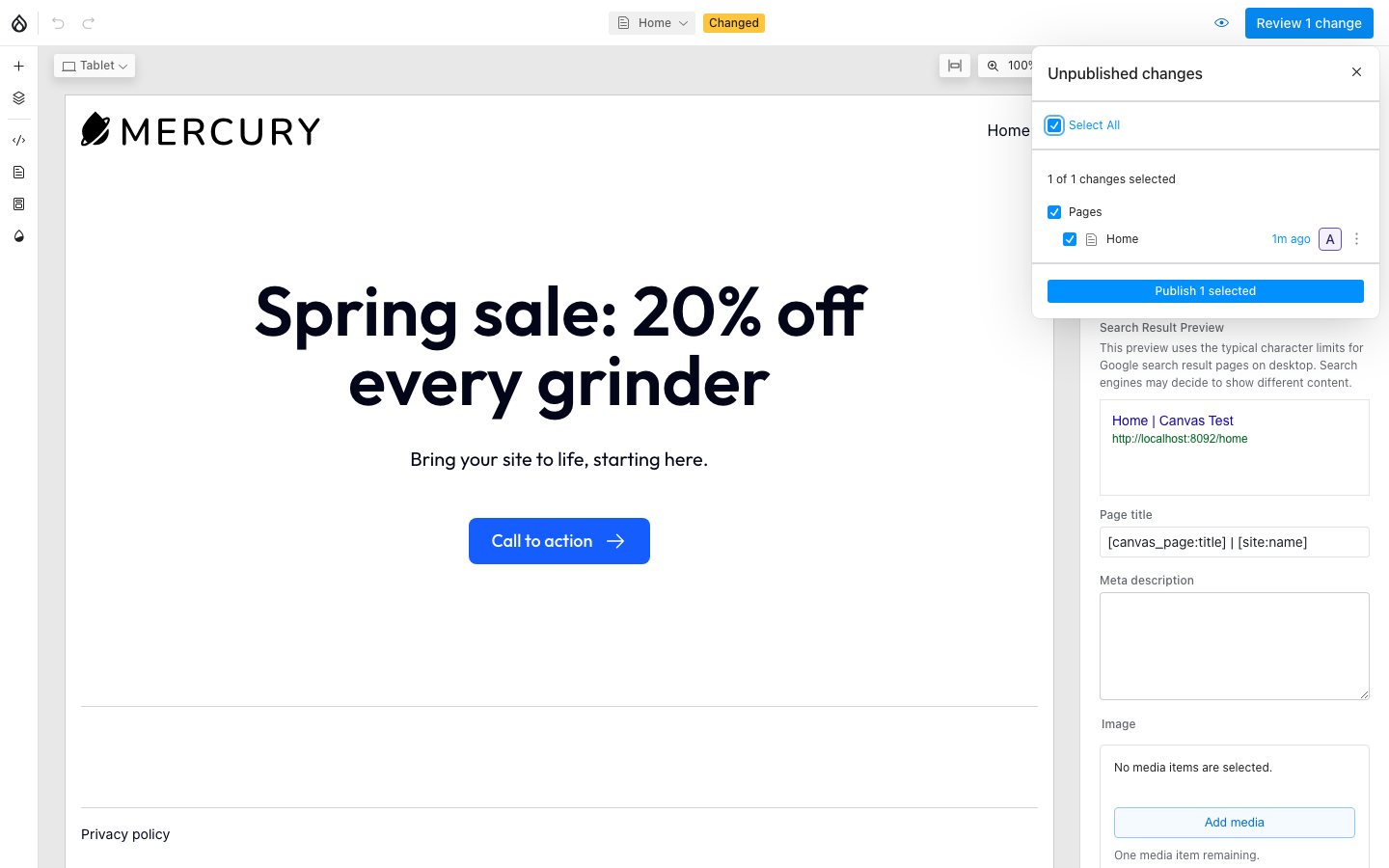
To publish, click Review, tick the changes you want (several pages can have unpublished changes at once), and click Publish 1 selected.
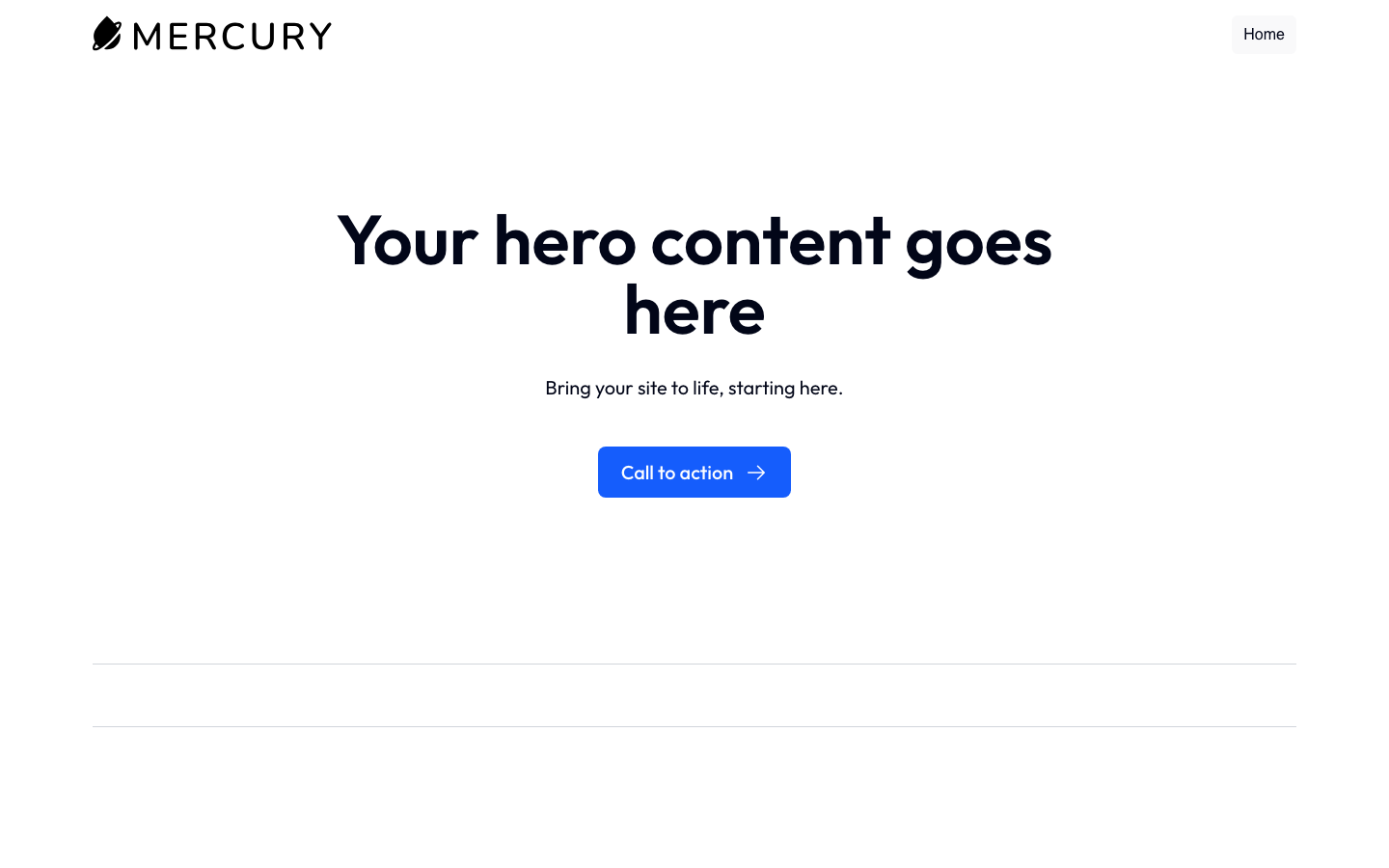
After publishing, the live home page showed the new heading straight away, with the page cache handled for us.
SEO fields on every page
The Page data tab holds the title, URL alias and SEO settings: a search result preview, the page title pattern ([canvas_page:title] | [site:name] by default), a meta description and an image for social sharing, so editors don’t need a separate SEO screen for landing pages.
Is it ready?
- For landing pages and marketing pages, yes: the editing, drafts and publish flow worked smoothly in our test, and editors never see a template.
- Components come from your theme, so what editors can build depends on the components it provides. Mercury gives a good set; a custom theme needs its own Single Directory Components (SDC) or code components.
- Keep structured content as nodes. Use Canvas Templates for how a content type looks rather than building every article as a Canvas page.
Related

Rupak Nepali is a web developer, manage Webocreation website and the author of six books:
Getting Started with OpenCart Module Development (Packt, 2013),
OpenCart Theme and Module Development (Packt, 2015),
OpenCart 4: Dev Guide for Themes & Extensions (2024),
OpenCart 4: User Manual (2025),
Cloudflare for the Enterprise Website (2026) and
The Technical Web Guide for Marketers (2026).
Rupak has built OpenCart stores and extensions since 2010, has published more than 600 tutorials on Webocreation, and shares free OpenCart extensions on GitHub.
Find Rupak on
GitHub | Amazon | LinkedIn | X | YouTube.