WooCommerce Back in Stock Notifications in Core: Setup, Double Opt-in and Emails (Tested on 11.3.1)
We tested the back in stock notifications built into WooCommerce 11.3.1: the sign-up form, double opt-in, the emails, the admin list and what triggers the restock email.
 Rupak NepaliPublished Nov 26, 2026
When a product sells out, every visitor who wanted it leaves, and most never come back. A “notify me when it’s back” form turns those visitors into a list of people to email the day stock arrives. For years WooCommerce needed a paid extension or plugin for that. WooCommerce now ships back in stock notifications in core, as an experimental feature you switch on.
We tested it on WooCommerce 11.3.1 with WordPress 7.1.4 in a throwaway Docker site: the sign-up form, double opt-in, the emails, the admin list and the restock trigger. Here’s how to set it up and what happened at each step.
Turn on back in stock notifications
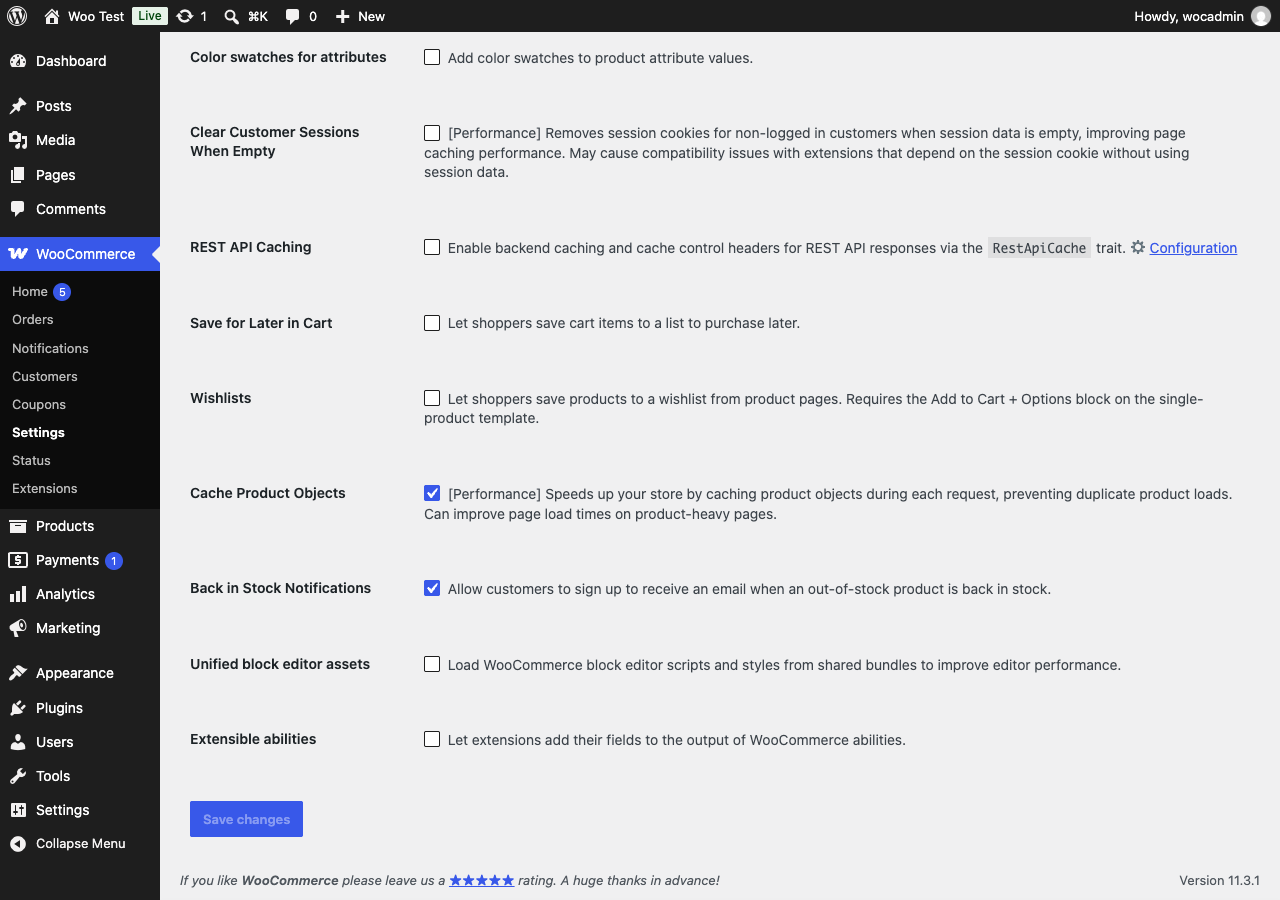
- Go to WooCommerce > Settings > Advanced > Features.
- Under the experimental features, tick Back in Stock Notifications (“Allow customers to sign up to receive an email when an out-of-stock product is back in stock”) and save.
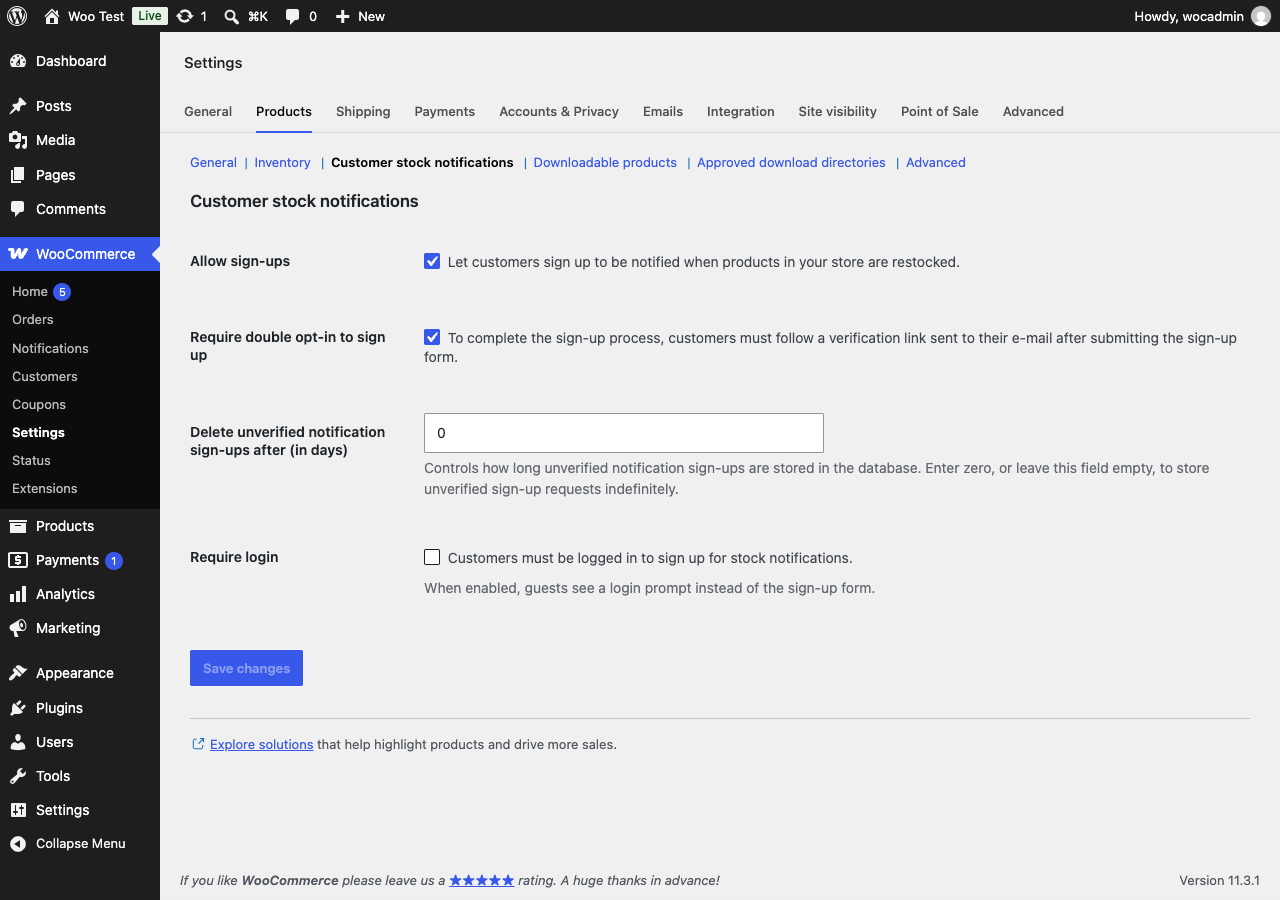
- Go to WooCommerce > Settings > Products > Customer stock notifications and tick Allow sign-ups. It’s off by default, so enabling the feature alone shows nothing on the storefront.
- Decide on the other options (below) and save.
The settings
| Setting | Default | What it does |
|---|---|---|
| Allow sign-ups | Off | Shows the form on out-of-stock products |
| Require double opt-in to sign up | Off | Customers must click a verification link in an email before they’re on the list |
| Delete unverified notification sign-ups after (in days) | 0 (keep) | Cleans up sign-ups that were never confirmed; 0 or empty keeps them forever, so set a number if you use double opt-in |
| Require login | Off | Only logged-in customers can sign up |
We recommend double opt-in. It proves each address belongs to the person who signed up, keeps typos and bots off your list, and in much of the EU that proof matters when the emails go out.
One catch the settings page warns about: if Hide out of stock items from the catalog is on (Settings > Products > Inventory), out-of-stock products aren’t shown, so nobody can sign up.
What the customer sees
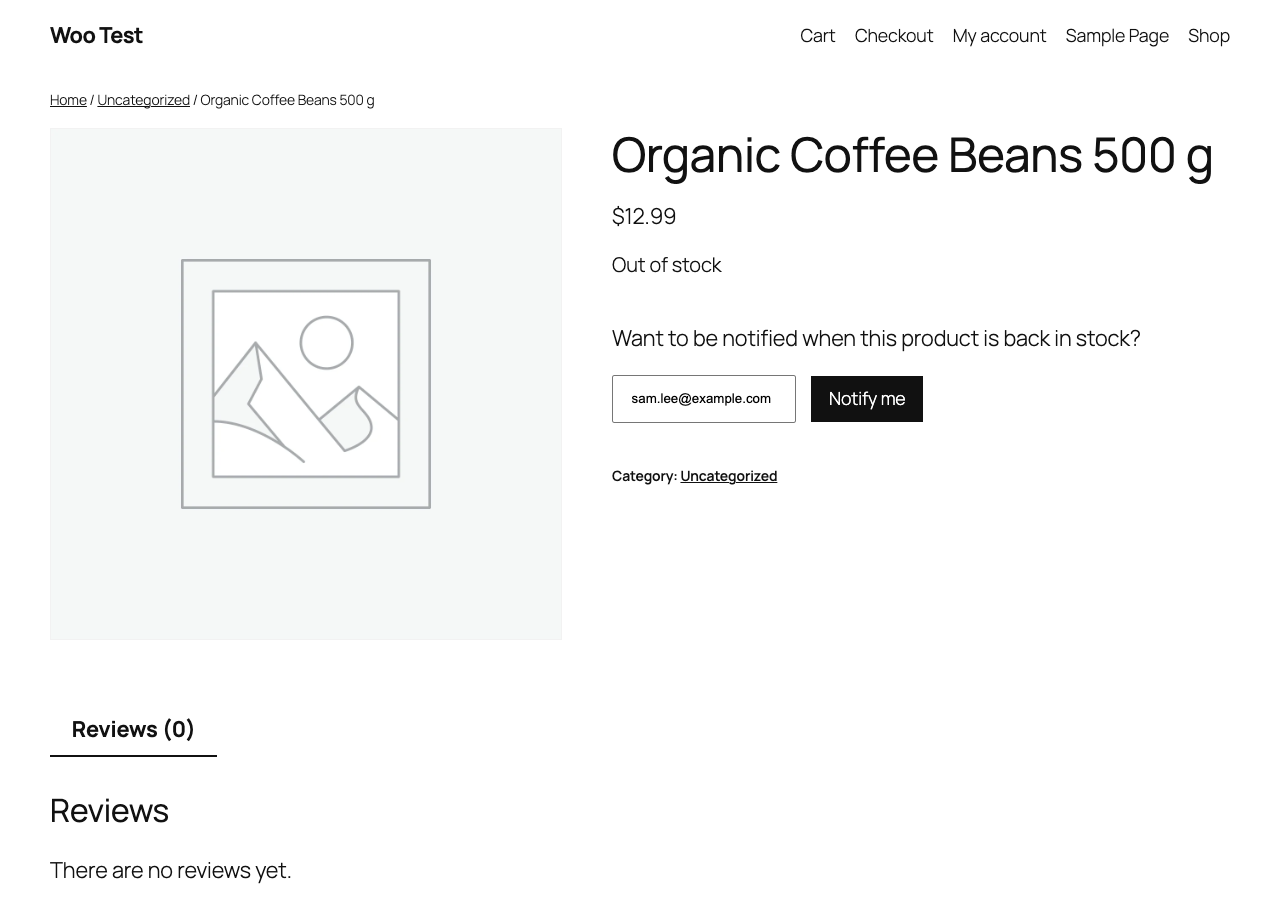
- On a sold-out product: “Want to be notified when this product is back in stock?”, an email field and a Notify me button.
- After submitting, with double opt-in: “Thanks for signing up! Please complete the sign-up process by following the verification link sent to your e-mail.”
- Email 1: Join the “Organic Coffee Beans 500 g” waitlist. with a Confirm sign-up button.
- The link opens the shop with “Successfully verified stock notifications for “Organic Coffee Beans 500 g”.”
- Email 2: You have joined the “Organic Coffee Beans 500 g” waitlist. (“You will hear from us again when … is back in stock.”)
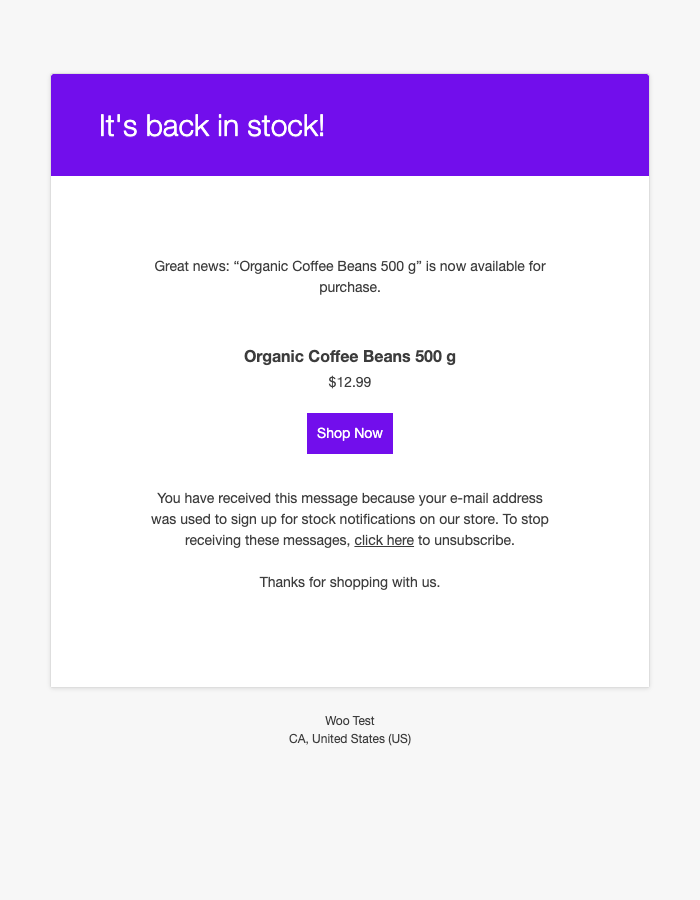
- Email 3, after the restock: “Organic Coffee Beans 500 g” is back in stock! with the product, price and a Shop Now button.
What triggers the email
WooCommerce listens for a product’s stock status changing (the woocommerce_product_set_stock_status action). When a product with sign-ups goes back in stock, it schedules an Action Scheduler job, wc_send_stock_notifications_batch, which sends the emails in batches. In our test the job was scheduled exactly 60 seconds after the restock, the default first-batch delay (filter woocommerce_customer_stock_notifications_first_batch_delay). On a real site WP-Cron or a server cron runs it; ours ran on the next page view and sent the email at 06:06:10, after a restock at 06:04:57.
That has two consequences:
- Changing stock in any normal way works: the product editor, a stock import, an order refund that restocks. What matters is the stock status changing to “In stock”.
- If your site’s cron doesn’t run reliably, the emails wait. On low-traffic sites, set up a real server cron for WordPress.
Managing sign-ups
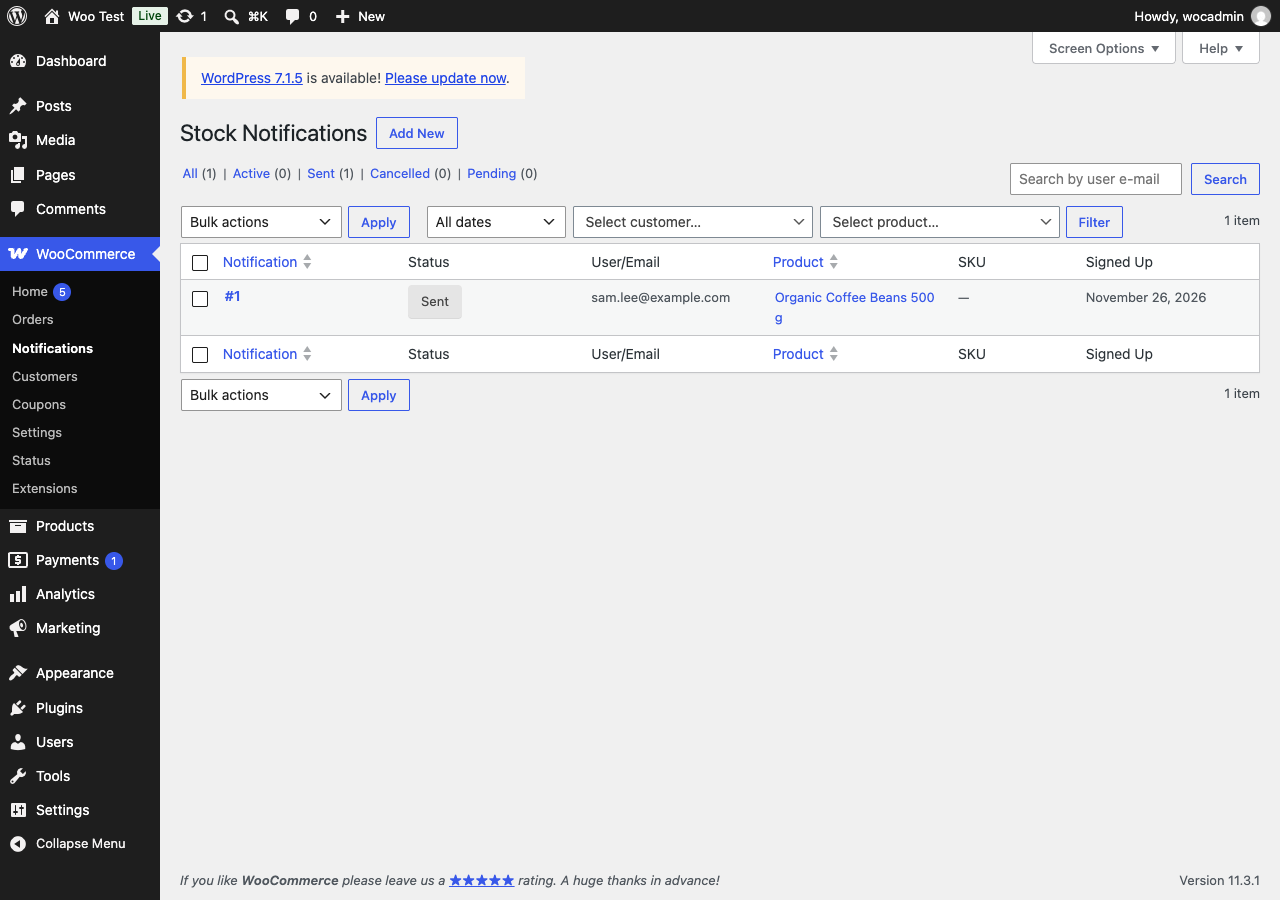
WooCommerce > Notifications lists every sign-up with its status: Active, Sent, Cancelled or Pending (waiting for double opt-in). You can filter by date, customer or product, add sign-ups by hand, and bulk activate, cancel or delete them. Customers also get a Stock notifications page in My Account.
What we found when testing
- The sign-up was stored as pending until the link was clicked, then active (with the confirmation time), then sent after the restock.
- Guests could sign up; nothing required an account unless Require login is on.
- All three emails used the store’s email template and included an unsubscribe link.
- Because the feature is experimental in 11.3.1, check it after each WooCommerce update, and test on staging if you depend on it.
Core feature or plugin?
Use core if you sell simple products and want the basics: form, opt-in, one email, an admin list. Keep a dedicated plugin if you need things core doesn’t do yet, such as SMS, product types beyond simple, variable and variation products (the three core supports), analytics on waitlist demand, or sending through your email platform. If you run OpenCart instead, our back-in-stock extension for OpenCart 4 does the same job.
Related posts
- WooCommerce review request emails, tested
- Cost of goods sold in WooCommerce core
- Speed up WooCommerce in 2026

Rupak Nepali is a web developer, manage Webocreation website and the author of six books:
Getting Started with OpenCart Module Development (Packt, 2013),
OpenCart Theme and Module Development (Packt, 2015),
OpenCart 4: Dev Guide for Themes & Extensions (2024),
OpenCart 4: User Manual (2025),
Cloudflare for the Enterprise Website (2026) and
The Technical Web Guide for Marketers (2026).
Rupak has built OpenCart stores and extensions since 2010, has published more than 600 tutorials on Webocreation, and shares free OpenCart extensions on GitHub.
Find Rupak on
GitHub | Amazon | LinkedIn | X | YouTube.