Chapter 12: QA, Accessibility and Content Review
Build a website QA checklist with light, standard and full tiers, accessibility at every step and content review on staging instead of in documents.
 Rupak NepaliPublished Nov 26, 2026
This is Chapter 12 of The Web Delivery Manager’s Playbook, a free series on running enterprise websites from request to release. Build a website QA checklist with light, standard and full tiers, accessibility at every step and content review on staging instead of in documents.
The new product microsite at Webocreation Group launched on time. By most measures, it was a success. Within a week, three problems surfaced.
First, the lead form did not submit on Safari for iPhone, which turned out to be 38 percent of the site’s visitors. Second, an accessibility consultant hired by legal for an unrelated audit found that the product comparison table could not be read by a screen reader and that several images had no alternative text. Third, a regional manager pointed out that the pricing footnote on one page referred to a promotion that had ended.
None of these issues was hard to fix. All of them could have been caught before launch. The microsite had been tested, but only on the developers’ desktop browsers, only for the happy path, and only by people who had worked on it for weeks and could no longer see it with fresh eyes.
Right-sizing the website QA checklist
What quality means for a website
Quality on a website is broader than “no bugs.” A high-quality page or site:
- Works on the browsers and devices your visitors use.
- Is accessible to people with disabilities, including those using screen readers, keyboard navigation or magnification.
- Says the right things, with accurate, approved, on-brand content and compliant legal text.
- Is findable, with the basics of search optimization in place.
- Is fast enough that visitors do not give up.
- Is measured, with analytics and conversion tracking working correctly.
- Is secure, with no exposed test content, debugging tools or unsafe third-party scripts.
A good QA process checks all of these, at the right depth for the size and risk of the change.
Right-sizing QA
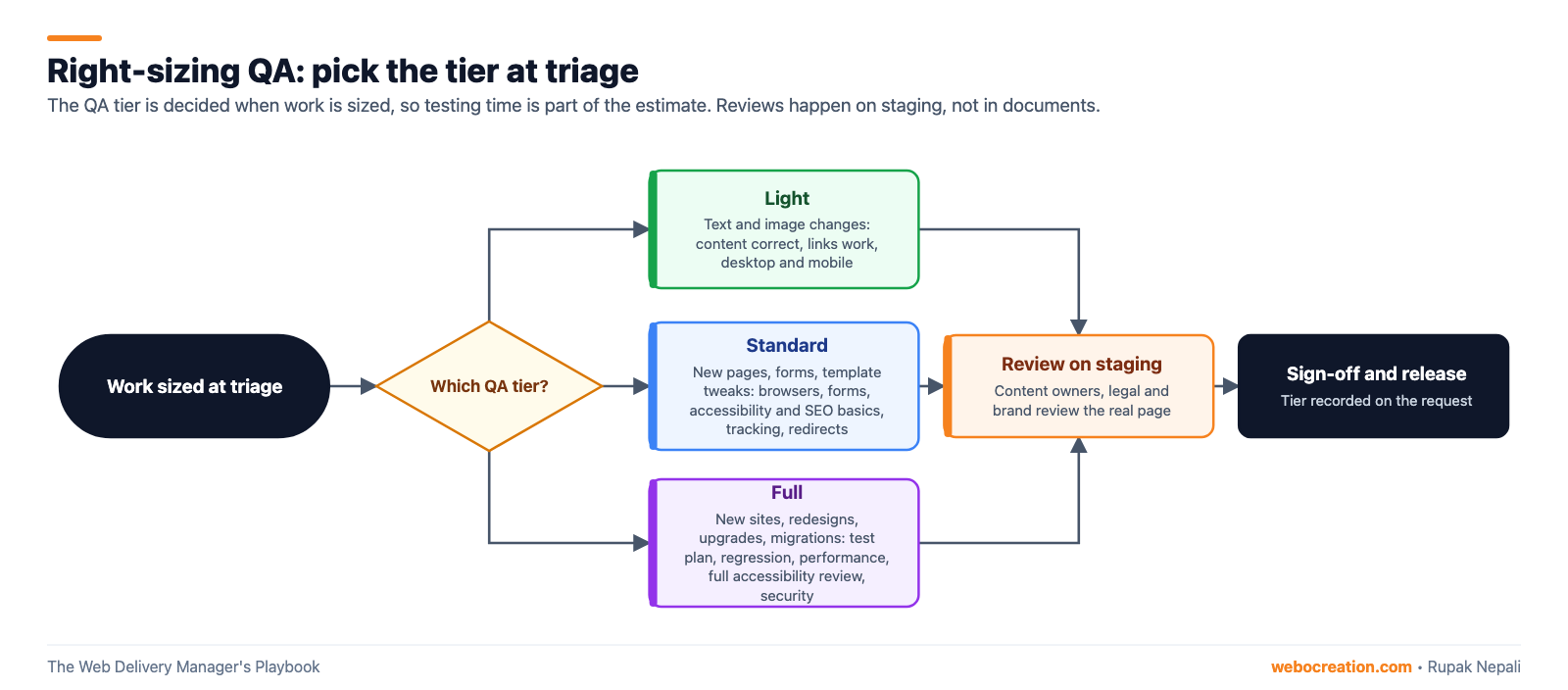
Not every change needs the same testing. Testing a typo fix like a site launch wastes time. Testing a site launch like a typo fix causes outages. Use tiers.
| Tier | Applies to | QA depth |
|---|---|---|
| Light | Text and image changes on existing pages | Check on staging or preview: content correct, links work, looks right on desktop and mobile |
| Standard | New pages, form changes, template tweaks, small features | Full page checklist: browsers and devices, forms, accessibility basics, SEO basics, tracking, redirects |
| Full | New sites, redesigns, major features, platform upgrades, migrations | Everything in standard, plus a written test plan, regression testing of key journeys, performance testing, a full accessibility review, security checks, and stakeholder acceptance testing |
Agree the tiers with your team and stakeholders, and record the tier on each request in ServiceNow or on the board. The tier should be decided at triage, when the work is sized, so time for QA is part of the estimate from the start.
Functional testing
Functional testing checks that the site works as intended. For web work, focus on these areas.
Browsers and devices
Use your analytics to decide which browsers and devices to test. A common approach is to support every browser and device combination with more than 2 percent of your traffic, plus the latest versions of the major browsers. For most sites, that means at least:
- Chrome, Safari, Edge and Firefox on desktop
- Safari on iPhone and Chrome on Android
- At least one tablet
Test on real devices for important releases. Device emulators in desktop browsers catch most layout issues, but not all touch, keyboard and browser-specific behavior. The iPhone form failure at Webocreation Group would have been caught in five minutes on a real phone.
Forms and integrations
Forms are where websites make money or capture leads, and they are among the most fragile parts of any site. For every form, test:
- Submitting with valid data, and confirming it arrives in the CRM or destination system.
- Submitting with missing or invalid data, and checking the error messages are clear.
- Confirmation messages and emails.
- Spam protection, without blocking real users.
- Consent checkboxes and privacy notices, where required.
Links, redirects and navigation
- Check every link on new or changed pages. Automated link checkers make this quick.
- Test every redirect from old URLs to new ones, including variations with and without trailing slashes.
- Confirm navigation menus, breadcrumbs and search work as expected.
Regression testing
Regression testing checks that new changes have not broken existing features. For full-tier releases, test the site’s key journeys end to end: for example, home page to product page to contact form submission. Over time, automate the most important journeys with a testing tool, so they run on every release without manual effort.
Accessibility: Built in, not bolted on
Web accessibility means making sure people with disabilities can use your sites. This is the right thing to do, it widens your audience, and in many countries and industries it is a legal requirement. The most widely used standard is the Web Content Accessibility Guidelines (WCAG), published by the World Wide Web Consortium (W3C). Many organizations aim for WCAG level AA conformance.
The most expensive way to handle accessibility is to test for it at the end and then rebuild things. The cheapest way is to build it in at every step: design, content, development and QA.
Accessibility at each step
- Design: sufficient color contrast; text that can be resized; clear focus states for keyboard users; not relying on color alone to convey meaning.
- Content: meaningful alternative text for images; descriptive link text (not “click here”); proper heading structure; captions and transcripts for video; plain language.
- Development: semantic HTML; form fields with labels; keyboard navigation for every interactive element; ARIA attributes only when needed and used correctly; accessible tables, menus and modal windows.
- QA: automated checks plus manual testing.
Testing accessibility
Automated tools catch only part of accessibility issues, often estimated at around a third. They are fast and useful, but they cannot judge whether alt text is meaningful or whether a page makes sense when read aloud. Combine them with manual checks:
- Run an automated checker on every new or changed page. Free browser extensions and built-in browser developer tools work well.
- Navigate using only the keyboard. Can you reach and use every link, button and form field? Can you always see where focus is?
- Use a screen reader on key pages and journeys. Free screen readers are available for Windows and built into macOS, iOS and Android.
- Zoom to 200 percent and check the page is still usable.
- Check color contrast for text and important graphics.
For full-tier releases on important sites, consider an external accessibility audit by specialists, ideally including testing by people with disabilities. Then add what you learn to your design system and checklists so the same issues do not return.
Content review
Many website errors are not technical at all. They are wrong words: an outdated price, an expired promotion, a claim that legal never approved, a typo in the CEO’s name. Content review catches them.
Who reviews what
Use your RACI from Chapter 2. Typical reviews include:
- Content approver: accuracy, tone and completeness. Always required.
- Brand: visual identity, imagery and voice, for high-visibility pages.
- Legal and compliance: prices, rates, fees, statistics, comparisons, testimonials, regulated claims and disclosures.
- Privacy: new forms, data collection and tracking.
Review on staging, not in documents
Content approvers often approve copy in a document, then never see it on the page. Things change between document and page: text gets cut off, images crop badly, footnotes go missing. Always ask approvers to review the actual page on staging or in a CMS preview before release, and record that approval in ServiceNow.
Content expiry
The expired promotion footnote is a common problem. Content that is correct at launch becomes wrong later. Prevent it by:
- Adding an expiry or review date to time-sensitive content in the CMS, if your platform supports it.
- Recording promotions and their end dates on a shared calendar, with a task to update pages before each end date.
- Running a scheduled content review for regulated pages, such as quarterly checks of every page with rates or legal disclosures.
SEO, performance, tracking and security checks
For standard and full tiers, add these quick checks.
SEO basics: each page has a unique title and meta description; one main heading; a sensible URL; a canonical tag; images with alt text; the page is included in the sitemap; no accidental noindex on production pages.
Performance: run a page speed test on new templates and key pages. Watch for oversized images, too many third-party scripts and fonts. Compare with your current site so new work does not make things slower.
Tracking: confirm analytics records page views and key events, such as form submissions, on production. Check that consent settings are respected, so tags only fire when the visitor has agreed where consent is required.
Security: no test pages, debug output or default credentials on production; forms protected against spam and abuse; any new third-party script approved through your tracking or vendor process.
Who does QA
Smaller web teams often have no dedicated QA staff, and testing falls to whoever built the work. That is better than no testing, but people are poor at finding problems in their own work. Some practical approaches:
- Peer testing. The developer or editor who built it does not test it alone. Someone else on the team runs through the checklist.
- A part-time QA specialist or a shared QA resource from IT, for standard and full tiers.
- Agency QA, written into statements of work for agency-built projects (Chapter 16), with your team doing acceptance testing.
- Requester acceptance testing on staging, focused on content and business behavior.
- Automation for repetitive checks: links, accessibility basics, performance and key journeys.
Webocreation Group: Fixing QA for good
After the microsite issues, Maya worked with the team to introduce the three QA tiers and the checklist below. The part-time QA analyst built a small device lab: two iPhones, an Android phone and a tablet, bought for less than the cost of one day of a lost lead campaign. The team added an automated accessibility and link check to every staging build.
The designer updated the design system so that every component met WCAG AA contrast and keyboard requirements, which meant new pages started accessible instead of being fixed later. And content editors added review dates to every page with prices or promotions.
In the following quarter, the number of defects found after release dropped by more than half.
Template: Pre-launch QA checklist
Use this checklist for standard and full-tier releases. Mark each item done or not applicable.
Content
- Content matches the approved version and has been approved on staging.
- Prices, rates, claims and disclosures approved by legal where required.
- No placeholder text, test content or expired promotions.
- Spelling and grammar checked.
Functionality
- Tested on all supported browsers and devices, including at least one real phone.
- Forms submit correctly and data arrives at the destination system.
- Error messages and confirmation messages are clear.
- All links work; all redirects tested.
Accessibility
- Automated accessibility check passed with no serious issues.
- Keyboard-only navigation works, with visible focus.
- Screen reader check on key pages.
- Images have meaningful alt text; headings are in order; color contrast meets WCAG AA.
SEO and performance
- Unique titles and meta descriptions; canonical tags; sitemap updated.
- No noindex on production pages.
- Page speed checked; images optimized.
Tracking and security
- Analytics and conversion events fire on production and respect consent.
- No test pages, debug tools or exposed credentials.
- New third-party scripts approved.
Checklist
- Agree light, standard and full QA tiers and assign a tier at triage.
- Pick supported browsers and devices from your analytics, and get access to real phones.
- Build accessibility into design, content, development and QA, not just testing.
- Combine automated accessibility checks with keyboard and screen reader testing.
- Require content approval on staging, recorded in ServiceNow.
- Add expiry or review dates to time-sensitive and regulated content.
- Make sure nobody is the only tester of their own work.
Common traps
- Testing only on desktop. Many visitors use phones. Test on real devices.
- Accessibility at the end. Fixing accessibility after launch costs far more than building it in.
- Relying only on automated tools. They catch part of the problems. Keyboard and screen reader testing catch the rest.
- Approving copy in documents. Approvers must see the real page.
- Content that silently expires. Promotions end and rates change. Put review dates on time-sensitive pages.
- Testing your own work. Fresh eyes find what the builder cannot see.
Related reading
- Accessibility (ADA/WCAG) for ecommerce stores: why it is not optional
- The European Accessibility Act: what it requires and the WCAG 2.2 fixes
- Page experience and speed: fixing Core Web Vitals
- Chapter 11: Environments, Branching and Release Management
- Chapter 13: Launch Day: Go-Live Runbooks

Rupak Nepali is a web developer, manage Webocreation website and the author of six books:
Getting Started with OpenCart Module Development (Packt, 2013),
OpenCart Theme and Module Development (Packt, 2015),
OpenCart 4: Dev Guide for Themes & Extensions (2024),
OpenCart 4: User Manual (2025),
Cloudflare for the Enterprise Website (2026) and
The Technical Web Guide for Marketers (2026).
Rupak has built OpenCart stores and extensions since 2010, has published more than 600 tutorials on Webocreation, and shares free OpenCart extensions on GitHub.
Find Rupak on
GitHub | Amazon | LinkedIn | X | YouTube.