Add Custom Fields to the WooCommerce Block Checkout With the Additional Checkout Fields API (Tested on WooCommerce 11)
How to add, validate and save custom fields on the WooCommerce block checkout with the Additional Checkout Fields API, with a tested plugin.
 Rupak NepaliPublished Nov 23, 2026
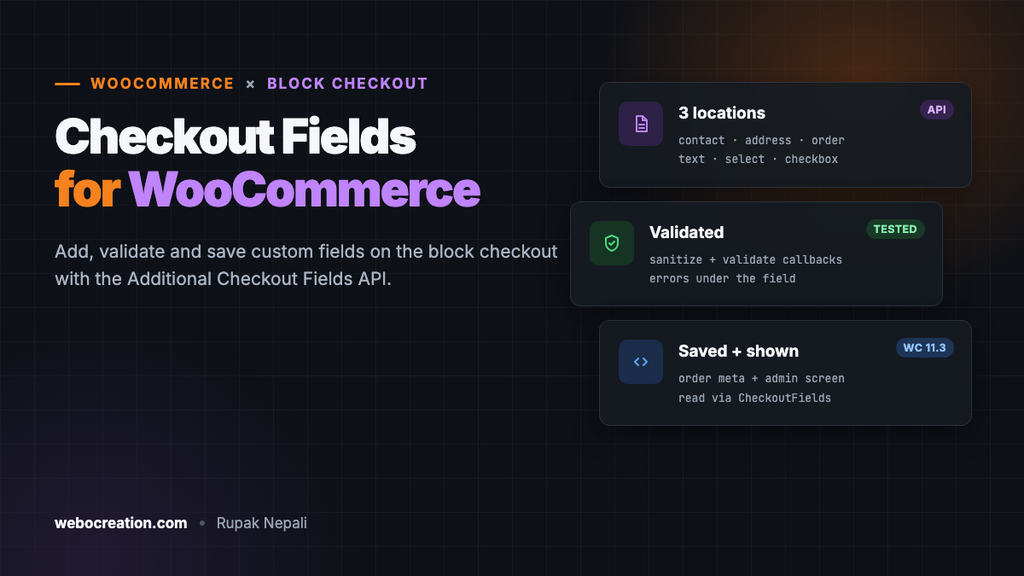
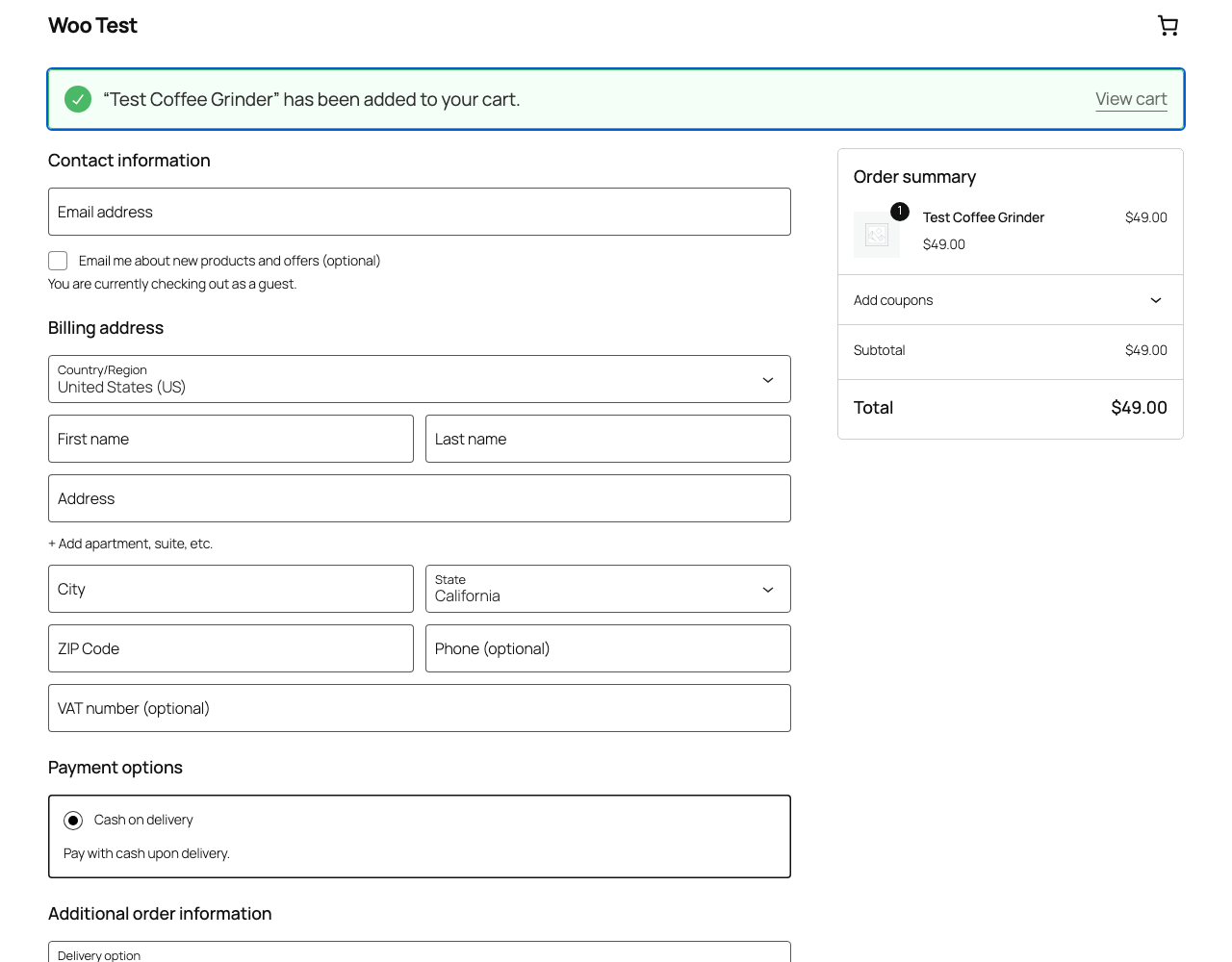
The WooCommerce checkout block doesn’t run the old woocommerce_checkout_fields filter, so the snippets most tutorials show for adding a field do nothing on a block checkout. Since WooCommerce 8.9 there is a proper way instead: the Additional Checkout Fields API, one PHP function that adds a field, validates it, saves it to the order and shows it in the admin.
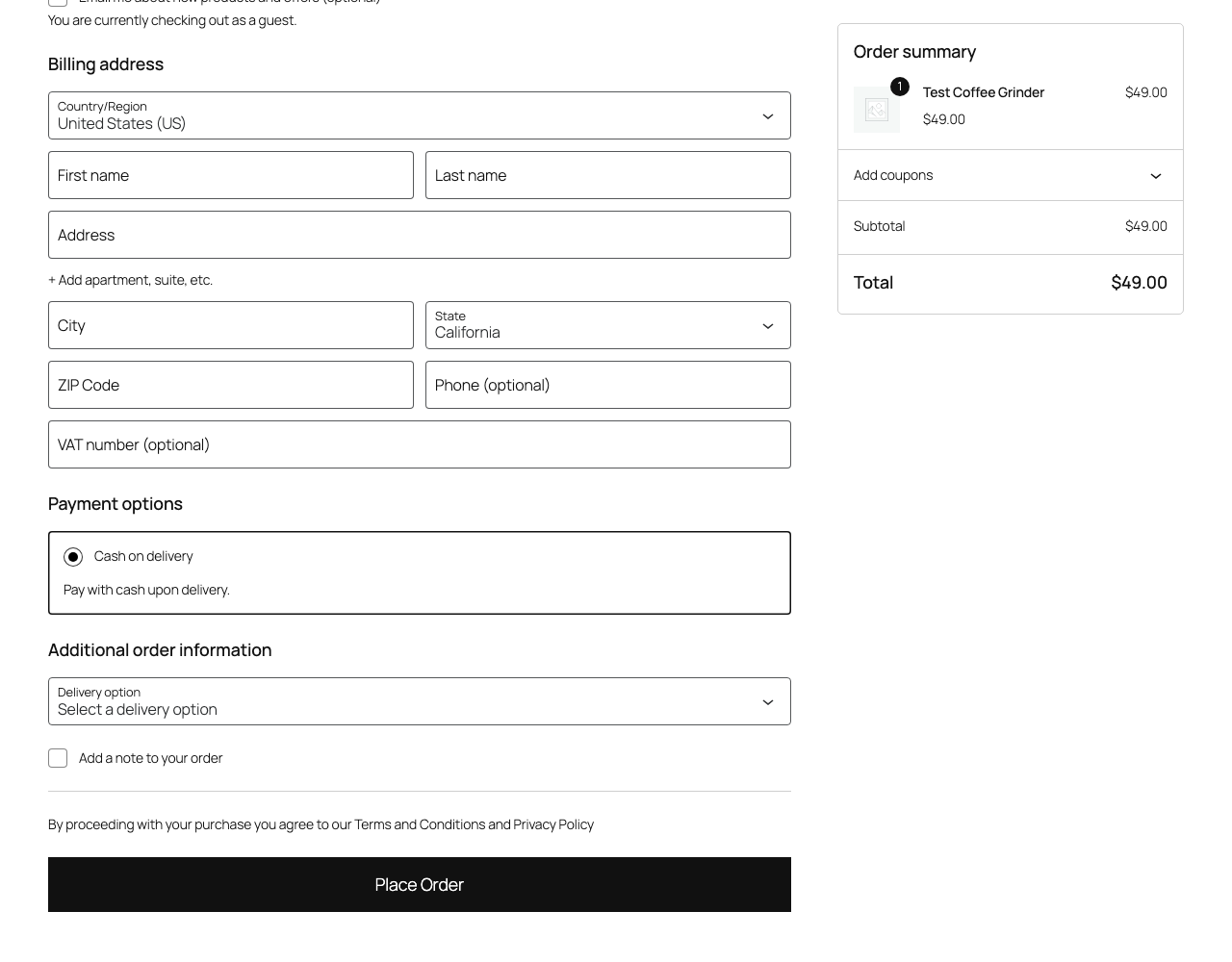
This guide adds three real fields, a VAT number, a delivery option and a marketing opt-in, and shows what we saw when we tested them on WooCommerce 11.3.1: the fields on the checkout, the validation errors, where the values are stored and how to read them.
Download the plugin (one PHP file; upload it under Plugins > Add New > Upload Plugin).
Three places a field can go
| Location | Where it shows | Saved as |
|---|---|---|
'contact' | Under the email address | Order meta _wc_other/<id> |
'address' | In both the billing and shipping address | _wc_billing/<id> and _wc_shipping/<id> |
'order' | In “Additional order information”, above the order note | _wc_other/<id> |
Fields can be text inputs, selects or checkboxes, and each needs a namespaced id such as webocreation/vat-number.
The plugin
<?php
/**
 * Plugin Name: Webocreation Checkout Fields
 * Description: A VAT number, delivery instructions and a marketing opt-in on the WooCommerce block checkout, using the Additional Checkout Fields API.
 * Version: 1.0.0
 * Requires Plugins: woocommerce
 */

defined( 'ABSPATH' ) || exit;

add_action( 'woocommerce_init', function () {
	if ( ! function_exists( 'woocommerce_register_additional_checkout_field' ) ) {
		return; // WooCommerce older than 8.9.
	}

	// Address section: shown with the billing and the shipping address, saved for each.
	woocommerce_register_additional_checkout_field(
		array(
			'id'                => 'webocreation/vat-number',
			'label'             => __( 'VAT number', 'webocreation' ),
			'optionalLabel'     => __( 'VAT number (optional)', 'webocreation' ),
			'location'          => 'address',
			'type'              => 'text',
			'required'          => false,
			'attributes'        => array(
				'autocomplete' => 'off',
				'maxLength'    => 16,
			),
			'sanitize_callback' => function ( $value ) {
				return strtoupper( preg_replace( '/[^A-Za-z0-9]/', '', (string) $value ) );
			},
			'validate_callback' => function ( $value ) {
				if ( '' !== $value && ! preg_match( '/^[A-Z]{2}[A-Z0-9]{2,14}$/', $value ) ) {
					return new WP_Error( 'invalid_vat_number', __( 'Enter the VAT number with its country code, for example DE123456789.', 'webocreation' ) );
				}
			},
		)
	);

	// Order section: once per order, under "Add a note to your order".
	woocommerce_register_additional_checkout_field(
		array(
			'id'       => 'webocreation/delivery-instructions',
			'label'    => __( 'Delivery option', 'webocreation' ),
			'location' => 'order',
			'type'     => 'select',
			'required' => true,
			'options'  => array(
				array( 'value' => 'front-door', 'label' => __( 'Leave at the front door', 'webocreation' ) ),
				array( 'value' => 'neighbour', 'label' => __( 'Leave with a neighbour', 'webocreation' ) ),
				array( 'value' => 'signature', 'label' => __( 'Signature required', 'webocreation' ) ),
			),
		)
	);

	// Contact section: saved to the order and, for signed-in customers, to their account.
	woocommerce_register_additional_checkout_field(
		array(
			'id'       => 'webocreation/marketing-opt-in',
			'label'    => __( 'Email me about new products and offers', 'webocreation' ),
			'location' => 'contact',
			'type'     => 'checkbox',
		)
	);
} );

// Read the values after the order is placed, for example to send them to a fulfilment service.
add_action( 'woocommerce_store_api_checkout_order_processed', function ( WC_Order $order ) {
	$fields = Automattic\WooCommerce\Blocks\Package::container()->get( Automattic\WooCommerce\Blocks\Domain\Services\CheckoutFields::class );

	$vat      = $fields->get_field_from_object( 'webocreation/vat-number', $order, 'billing' );
	$delivery = $fields->get_field_from_object( 'webocreation/delivery-instructions', $order, 'other' );
	$opt_in   = $fields->get_field_from_object( 'webocreation/marketing-opt-in', $order, 'other' );

	$order->add_order_note( sprintf( 'VAT: %s | Delivery: %s | Opt-in: %s', $vat ?: '-', $delivery, $opt_in ? 'yes' : 'no' ) );
} );
What each part does
- Registration runs on
woocommerce_init, after WooCommerce has loaded; registering earlier causes errors. Thefunction_exists()check keeps older WooCommerce versions from failing. - VAT number:
sanitize_callbackruns first and turns “de 123 456 789” into “DE123456789”;validate_callbackthen returns aWP_Errorif the result doesn’t look like a VAT number, and its message is shown under the field. Leaving it empty is allowed becauserequiredis false; WooCommerce adds “(optional)” to the label. - Delivery option: a required select. WooCommerce builds the placeholder from the label (“Select a delivery option”), so choose a label that reads well after “Select a”.
- Marketing opt-in: a checkbox under the email, saved as 1 when ticked.
- The last hook reads the three values once the order is placed, using WooCommerce’s
CheckoutFieldsservice, and adds them as an order note; that’s where you would send them to an ERP or fulfilment service.
What we saw when we tested it
We ran a checkout through the Store API, the same API the checkout block uses, on WooCommerce 11.3.1:
- A VAT number of “123” was refused with a 400 error and our message: “Enter the VAT number with its country code, for example DE123456789.”
- Leaving out the required delivery option was refused with an
additional_fieldserror. - A valid order was accepted with the VAT number saved as
DE123456789for both addresses, and the order note read “VAT: DE123456789 | Delivery: neighbour | Opt-in: yes”. - The order stored
_wc_billing/webocreation/vat-number,_wc_shipping/webocreation/vat-number,_wc_other/webocreation/delivery-instructionsand_wc_other/webocreation/marketing-opt-in.
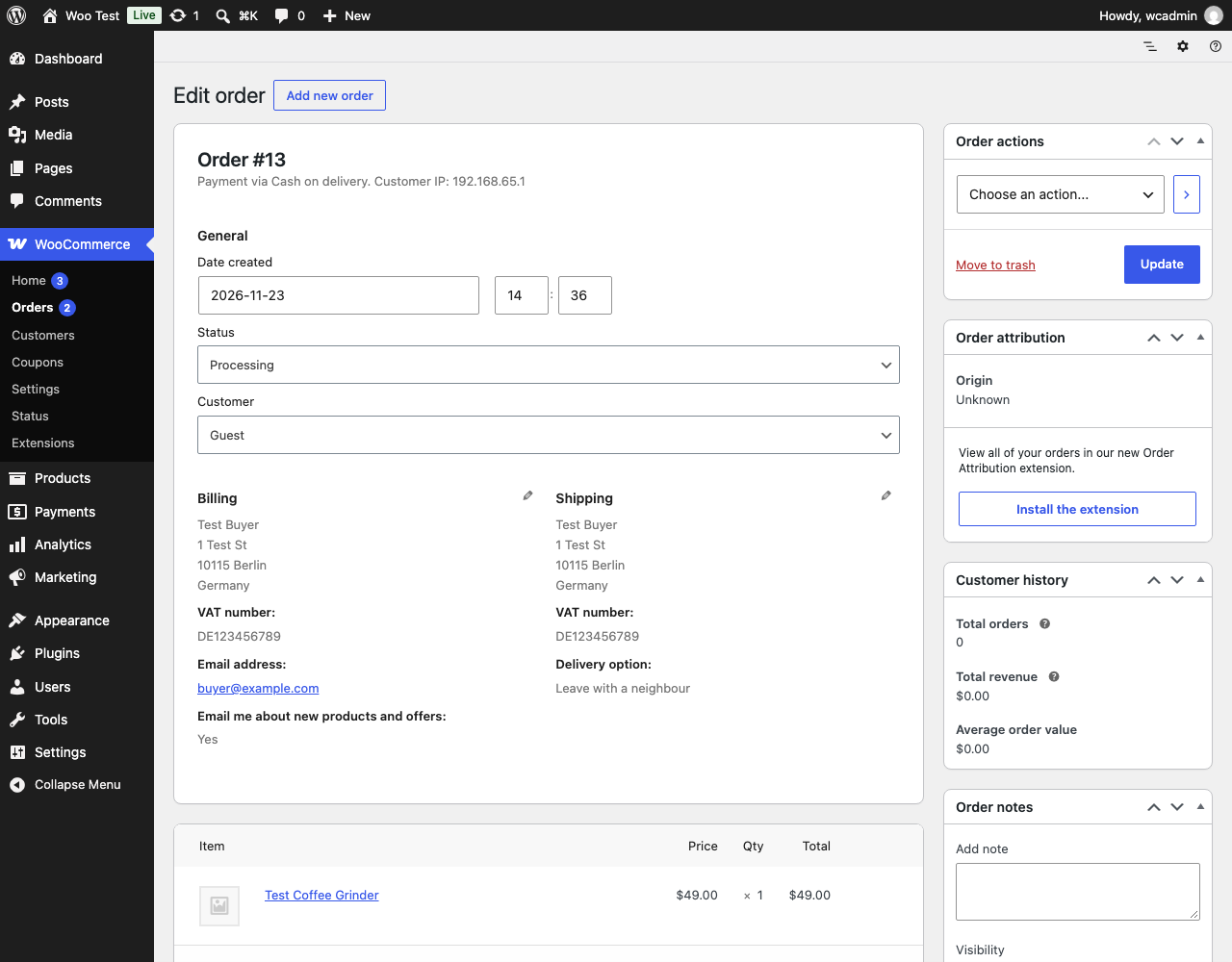
The values also appear on the order edit screen without any extra code, under the billing and shipping addresses:
Things to know
- Block checkout only. These fields don’t appear on the classic
[woocommerce_checkout]shortcode checkout. If you still use it, the old hooks are the way, or better, move to the block checkout. - Read values with the service, as in the plugin, rather than guessing meta keys, so your code keeps working if the storage changes.
- Headless checkouts: the Store API returns the fields under
additional_fieldsand in the addresses, and accepts them the same way. In WooCommerce 11 the Store API also expects state codes with a country prefix, such asDE-BEfor Berlin; a plainBEwas rejected. - Speed: the fields add nothing noticeable to the checkout; for the rest of the store see speeding up WooCommerce.
How we tested
WordPress with WooCommerce 11.3.1 (from wordpress.org) and PHP 8.3 in throwaway Docker containers, a $49 test product, Cash on Delivery, the plugin above, and a Python script calling the Store API cart and checkout endpoints. The containers were removed afterwards.
Related

Rupak Nepali is a web developer, manage Webocreation website and the author of six books:
Getting Started with OpenCart Module Development (Packt, 2013),
OpenCart Theme and Module Development (Packt, 2015),
OpenCart 4: Dev Guide for Themes & Extensions (2024),
OpenCart 4: User Manual (2025),
Cloudflare for the Enterprise Website (2026) and
The Technical Web Guide for Marketers (2026).
Rupak has built OpenCart stores and extensions since 2010, has published more than 600 tutorials on Webocreation, and shares free OpenCart extensions on GitHub.
Find Rupak on
GitHub | Amazon | LinkedIn | X | YouTube.