AI-Generated Product Images: Merchant Center’s IPTC Label, C2PA, and Why OpenCart’s Image Cache Strips It
Google Merchant Center's rule for AI-generated product images, how to add and check the IPTC label, a catalog audit script, and what OpenCart's image cache does to it.
 Rupak NepaliPublished Nov 23, 2026
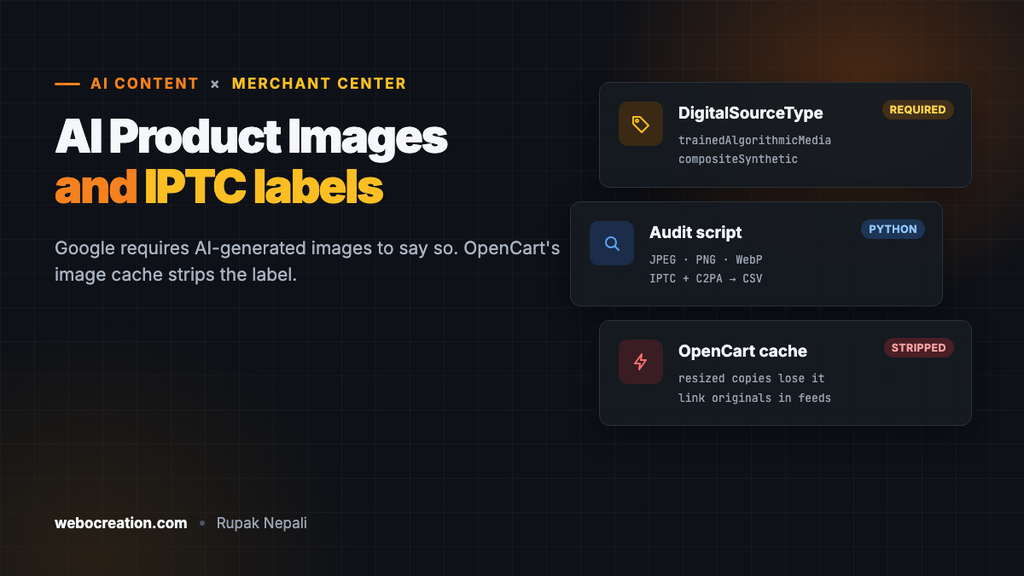
AI image tools now make convincing lifestyle shots, backgrounds and even product photos. Google Merchant Center allows them, with a condition many stores miss: an image made with generative AI must carry metadata that says so, and you must not strip it. If your platform quietly removes that metadata when it resizes images, your feed can break the rule without anyone noticing.
We checked exactly that on OpenCart. This guide covers what Google asks for, how to add and check the label, a small script that audits a whole image folder, and what OpenCart’s image cache does to the label.
What Merchant Center requires
- Images created with generative AI must contain the IPTC
DigitalSourceTypevalueTrainedAlgorithmicMediain their metadata. - Images edited with AI tools, such as a real photo with a generated background, keep or use
CompositeSynthetic. - Don’t remove these tags from images made with AI tools, including Google’s own Product Studio.
- The rule covers the main image, additional images and lifestyle images (
image_link,additional_image_linkandlifestyle_image_link), and it has applied since February 2024.
The label is metadata, not a visible badge, and it doesn’t replace the usual image rules: the image must still show the product accurately. For the rest of the feed, see our Merchant Center and free listings guide for OpenCart.
Two kinds of label
| IPTC DigitalSourceType | C2PA Content Credentials | |
|---|---|---|
| What it is | One XMP metadata field naming how the image was made | A signed manifest of the image’s origin and edits |
| Who adds it | AI tools, photo software, or you (exiftool) | Some generators, cameras and editing tools |
| Can be faked or removed | Yes, it’s just text | Removable; tampering is detectable because it’s signed |
| What Merchant Center asks for | Yes | Not required |
The IPTC values come from a published list: trainedAlgorithmicMedia (made by a generative model), compositeSynthetic (a composite with synthetic parts), compositeWithTrainedAlgorithmicMedia (edited with generative AI), algorithmicMedia (computer-made, not trained AI) and digitalCapture (a normal camera photo), among others.
Adding the label yourself
If your AI tool doesn’t write the label, ExifTool does, for JPEG, PNG and WebP alike:
exiftool -overwrite_original \
  "-XMP-iptcExt:DigitalSourceType=http://cv.iptc.org/newscodes/digitalsourcetype/trainedAlgorithmicMedia" \
  lifestyle-kitchen.jpg

# check it
exiftool -s -s -s -XMP-iptcExt:DigitalSourceType lifestyle-kitchen.jpg
Use compositeSynthetic instead for a real product photo placed in a generated scene.
Auditing a whole catalog
This Python script walks a folder, reads the label from every JPEG, PNG and WebP, notes whether a C2PA manifest is present, and prints a CSV you can open in a spreadsheet. It has no dependencies. Download it with sample images.
#!/usr/bin/env python3
"""List product images and whether they carry an AI label (IPTC DigitalSourceType in XMP) or a C2PA manifest.

Usage: python3 ai_image_check.py /path/to/opencart/image/catalog > report.csv
No dependencies. Reads JPEG, PNG and WebP. It reports what is embedded; it does not judge how an image was made.
"""
import csv, os, re, sys

AI_TYPES = {  # IPTC Digital Source Type codes that mean generative AI was involved
    'trainedAlgorithmicMedia': 'AI-generated',
    'compositeSynthetic': 'AI composite',
    'compositeWithTrainedAlgorithmicMedia': 'AI-edited',
    'algorithmicMedia': 'algorithmic (not trained AI)',
}
DST = re.compile(rb'DigitalSourceType(?:="|>)\s*(?:http://cv\.iptc\.org/newscodes/digitalsourcetype/)?([A-Za-z]+)')

def inspect(path):
    with open(path, 'rb') as f:
        data = f.read()
    start, end = data.find(b'<x:xmpmeta'), data.find(b'</x:xmpmeta>')
    xmp = data[start:end] if start != -1 and end > start else b''
    match = DST.search(xmp)
    code = match.group(1).decode() if match else ''
    # C2PA manifests live in a JUMBF box: JPEG APP11, a PNG "caBX" chunk or a WebP "C2PA" chunk.
    c2pa = b'jumb' in data and b'c2pa' in data or b'caBX' in data[:4096] or (data[:4] == b'RIFF' and b'C2PA' in data)
    return code, AI_TYPES.get(code, 'not AI' if code else 'no label'), 'yes' if c2pa else 'no'

def main(root):
    out = csv.writer(sys.stdout)
    out.writerow(['file', 'digital_source_type', 'meaning', 'c2pa_manifest'])
    counts = {}
    for folder, _, files in os.walk(root):
        for name in sorted(files):
            if name.lower().endswith(('.jpg', '.jpeg', '.png', '.webp')):
                path = os.path.join(folder, name)
                code, meaning, c2pa = inspect(path)
                counts[meaning] = counts.get(meaning, 0) + 1
                out.writerow([os.path.relpath(path, root), code, meaning, c2pa])
    print('; '.join(f'{k}: {v}' for k, v in sorted(counts.items())), file=sys.stderr)

if __name__ == '__main__':
    main(sys.argv[1] if len(sys.argv) > 1 else '.')
python3 ai_image_check.py /path/to/opencart/image/catalog > ai-image-report.csvOn our six sample images it reported exactly what we had written with ExifTool:
| File | digital_source_type | meaning |
|---|---|---|
| ai-generated.jpg | trainedAlgorithmicMedia | AI-generated |
| ai-generated.png | trainedAlgorithmicMedia | AI-generated |
| ai-generated.webp | trainedAlgorithmicMedia | AI-generated |
| composite.jpg | compositeSynthetic | AI composite |
| camera-photo.jpg | digitalCapture | not AI |
| no-label.jpg | no label |
On the OpenCart demo store’s image/catalog folder it listed 106 images, none labelled, as you would expect from stock photos. The C2PA column only says whether a manifest is embedded; to check that one is valid, use the Content Authenticity Initiative’s verify tool or c2patool.
What OpenCart does to the label
In the default theme, OpenCart doesn’t show your original upload on the storefront. It resizes every product image into image/cache/ with PHP’s GD library, and GD writes a new file with no metadata. We ran our labelled JPEG and PNG through OpenCart 4.1.0.4’s own Image class, the same code that builds the cache, and checked the results:
| File | Before resizing | After OpenCart resized it |
|---|---|---|
| ai-generated.jpg | trainedAlgorithmicMedia | no label |
| ai-generated.png | trainedAlgorithmicMedia | no label |
So the label survives in image/catalog/ but not in the resized copies your theme shows. What that means for the feed:
- Point
image_linkat the original file (https://yourstore.com/image/catalog/…), not at a resized cache URL. Most feed extensions let you choose; check yours by opening a few image links from the feed and running the script on them. - Watch other re-encoding steps. WebP conversion, image optimisation plugins and CDNs that compress images can drop metadata the same way. Test the final URL, not the file you uploaded.
- Write honest alt text for generated images too; see our AI alt text extension.
A checklist for AI product images
- Keep the label your AI tool writes, or add it with ExifTool before uploading.
- Run the script over
imdesawqage/catalogafter each batch of uploads. - Make sure the feed links to the original images.
- Use AI for settings and lifestyle shots, and keep the product itself accurate: same colour, size and features as what customers receive.
How we tested
Test images created with PHP GD, labelled with ExifTool 13.25 (WebP converted with cwebp), checked with the script above, and resized with OpenCart 4.1.0.4’s Opencart\System\Library\Image class (resize(200, 150) and save()) inside the store’s PHP 8.3 container.
Related
- Google Merchant Center and free listings for OpenCart
- AI alt text for OpenCart product images
- Serve WebP images in OpenCart 4

Rupak Nepali is a web developer, manage Webocreation website and the author of six books:
Getting Started with OpenCart Module Development (Packt, 2013),
OpenCart Theme and Module Development (Packt, 2015),
OpenCart 4: Dev Guide for Themes & Extensions (2024),
OpenCart 4: User Manual (2025),
Cloudflare for the Enterprise Website (2026) and
The Technical Web Guide for Marketers (2026).
Rupak has built OpenCart stores and extensions since 2010, has published more than 600 tutorials on Webocreation, and shares free OpenCart extensions on GitHub.
Find Rupak on
GitHub | Amazon | LinkedIn | X | YouTube.