MIME Types, nosniff and the Webflow Asset CDN: What You Can (and Can’t) Host
Why a .txt file runs as JavaScript but won't work as CSS or an ES module, and how to use Webflow assets for JSON data, templates and more.
 Rupak NepaliPublished Nov 13, 2026
In the previous post we hosted a JavaScript file on Webflow’s asset CDN by uploading it as .txt. Readers usually ask next: can I do the same with CSS? With ES modules? With JSON?
The answer depends on how strictly the browser checks the Content-Type header for each kind of request. Once you know the rules, you can predict what will work without guessing.
How the browser decides
Every response from a server has a Content-Type header. For a .txt asset on Webflow’s CDN that’s text/plain. What the browser does with it depends on how the file was requested:
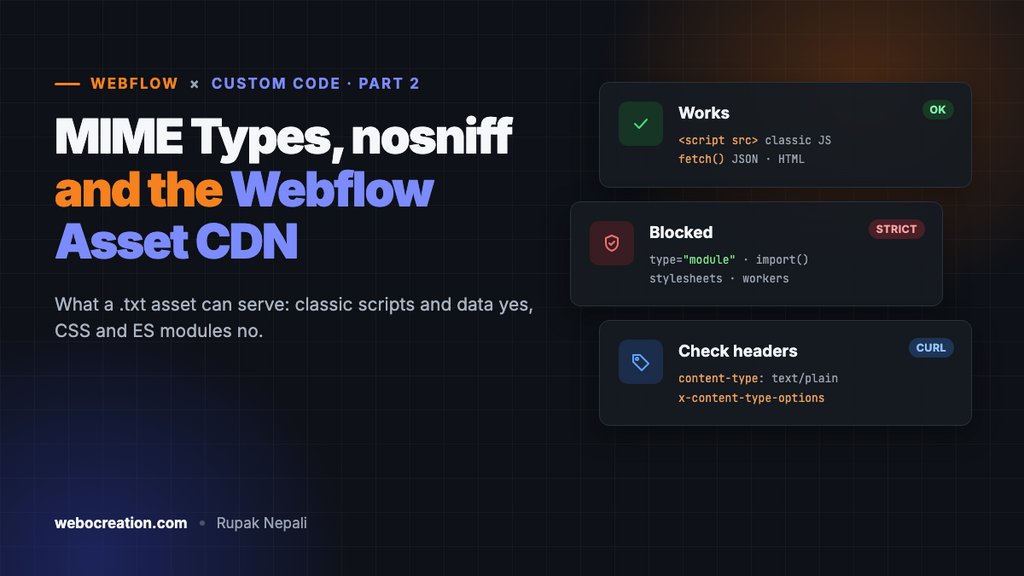
| Requested as | Example | Accepts text/plain? |
|---|---|---|
| Classic script | <script src="x.txt"> |
✅ Yes, unless nosniff is sent |
| Module script | <script type="module" src="x.txt"> |
❌ No, needs a JavaScript MIME type |
| Stylesheet | <link rel="stylesheet" href="x.txt"> |
❌ No in standards mode (every Webflow page) |
fetch() / XHR |
fetch('x.txt').then(r => r.json()) |
✅ Yes, you read the body yourself |
import() |
import('x.txt') |
❌ No, module rules apply |
| Web Worker | new Worker('x.txt') |
❌ Needs a JS MIME type and same-origin |
Classic scripts: lenient for historical reasons
Many old servers sent JavaScript with the wrong type, so browsers learned to run classic scripts anyway. The exceptions are types that are clearly not scripts. Chrome blocks image/*, audio/*, video/* and text/csv. That’s why uploading your script as .csv won’t work, but .txt does.
X-Content-Type-Options: nosniff
When a server sends this header, the browser applies strict checking to scripts and stylesheets: a script must be served as JavaScript and a stylesheet as text/css. If Webflow’s CDN ever started sending nosniff on document assets, the .txt trick would stop working at once. Check it:
curl -sI "https://cdn.prod.website-files.com/<site-id>/<hash>_file.txt"
Look at content-type, x-content-type-options, cache-control and access-control-allow-origin. Check again from time to time, because CDN configuration can change without notice.
Modules: always strict
The HTML spec requires a valid JavaScript MIME type for module scripts, whatever other headers are sent. A text/plain file loaded with type="module" fails with:
Failed to load module script: Expected a JavaScript module script but the server
responded with a MIME type of "text/plain".
Fix: bundle to a single IIFE file with esbuild, Rollup or Vite in library mode, and load it as a classic script.
npx esbuild src/main.js --bundle --format=iife --minify --outfile=dist/main.txt
CSS: strict in standards mode
Every Webflow page starts with <!DOCTYPE html>, so it runs in standards mode, where browsers ignore stylesheets that aren’t served as text/css. You’ll see:
Refused to apply style from '...file.txt' because its MIME type ('text/plain')
is not a supported stylesheet MIME type, and strict MIME checking is enabled.
Workaround: fetch the CSS and inject it yourself:
<script>
  fetch('https://cdn.prod.website-files.com/<site-id>/<hash>_extra.txt')
    .then(function (r) { return r.text(); })
    .then(function (css) {
      var style = document.createElement('style');
      style.textContent = css;
      document.head.appendChild(style);
    });
</script>
This works, but the styles load after JavaScript runs, so you’ll get a flash of unstyled content. Only use it for below-the-fold or non-critical styles. For critical CSS, put a <style> block in the head custom code, or better, use Webflow classes.
Where the asset CDN works well: data files
Data is the most useful thing to host this way, because fetch() doesn’t care about the MIME type.
JSON configuration
Upload pricing.txt containing:
{
  "currency": "USD",
  "plans": [
    { "id": "starter", "monthly": 19, "yearly": 190 },
    { "id": "pro", "monthly": 49, "yearly": 490 }
  ]
}
Then:
const PRICING_URL = 'https://cdn.prod.website-files.com/<site-id>/<hash>_pricing.txt';

async function loadPricing() {
  const res = await fetch(PRICING_URL);
  if (!res.ok) throw new Error('Pricing failed: ' + res.status);
  return res.json(); // works fine even though Content-Type is text/plain
}

loadPricing().then(({ plans }) => {
  plans.forEach((plan) => {
    const el = document.querySelector(`[data-plan="${plan.id}"] [data-price]`);
    if (el) el.textContent = `$${plan.monthly}`;
  });
});
CORS: the one thing to check
Your published site (www.example.com) and the CDN (cdn.prod.website-files.com) are different origins, so fetch() needs the CDN to return Access-Control-Allow-Origin. Webflow-hosted fonts already load cross-origin from this CDN, which needs CORS, so it usually works. Confirm with the curl -I command, and test on both the .webflow.io staging domain and your custom domain.
HTML templates
Large chunks of HTML, such as a complex modal or an SVG sprite, can live in a .txt asset and be injected on demand:
async function injectSprite(url) {
  const svg = await fetch(url).then((r) => r.text());
  const holder = document.createElement('div');
  holder.style.display = 'none';
  holder.innerHTML = svg;
  document.body.prepend(holder);
}
Only inject content you wrote yourself. Never put user-generated content into innerHTML.
Quick reference
- ✅ Classic JS bundle → upload
.txt, load with<script src defer> - ✅ JSON / text data → upload
.txt,fetch()+JSON.parse - ✅ HTML/SVG fragments → upload
.txt,fetch()+ inject - ⚠️ Non-critical CSS → upload
.txt,fetch()+<style>(expect FOUC) - ❌ ES modules / dynamic
import()→ bundle to IIFE or use a real JS host - ❌ Web Workers / Service Workers → need same-origin and a JS MIME type, which a Webflow-hosted site can’t serve
- ❌ Critical CSS → use Webflow styles or a head
<style>block
Takeaway
The .txt trick works because browsers forgive wrong MIME types in two places: classic scripts and fetch(). Everywhere else they’re strict. Once you know which kind of request you’re making, you’ll know whether a Webflow asset can serve it.
Webflow custom code series: 1. Host JavaScript on Webflow’s CDN · 2. MIME types and the asset CDN · 3. Where custom code runs · 4. CMS data in JavaScript · 5. JSON-LD on CMS pages · 6. Local dev workflow · 7. Forms to your own API · 8. Custom code via the Data API · 9. Third-party scripts and Core Web Vitals. Preparing for the exam too? See the Webflow Visual Developer Certification guide.

Author of four Opencart book.
The recent are Opencart 4 developer book and Opencart 4 user manual